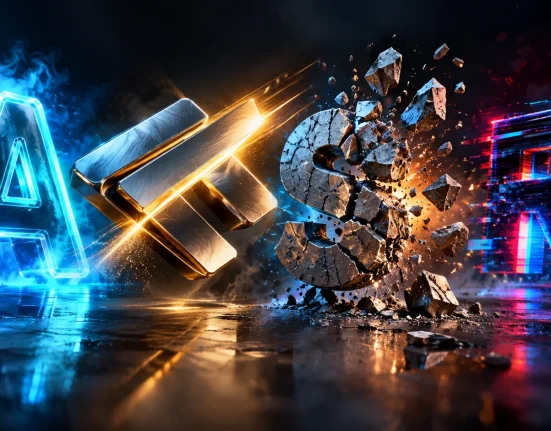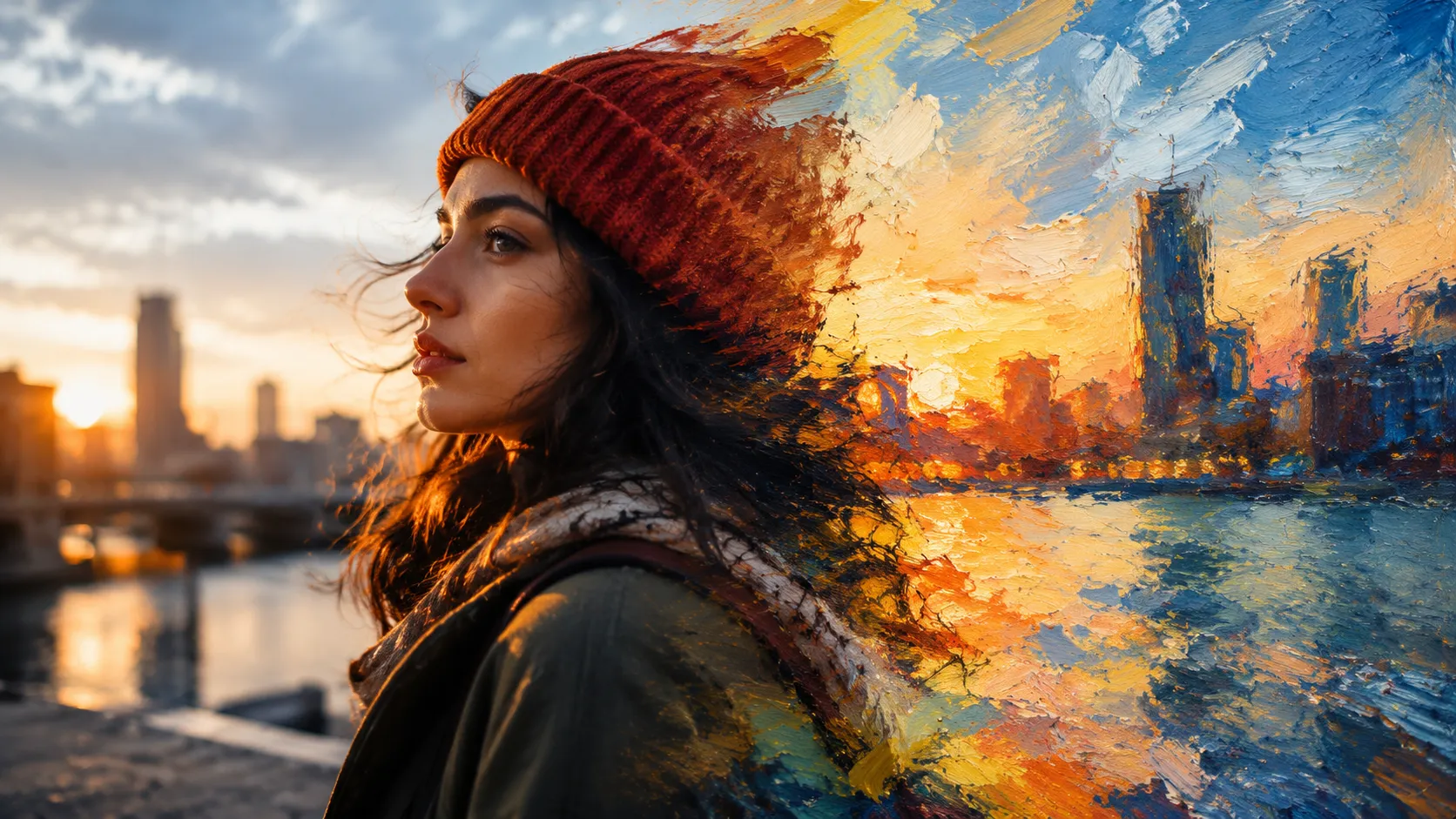
When the Image Looks Too Real… 🎨
Are you familiar with the creative possibilities of the MAD PAINTER Plugin by aescripts? Have you ever had a video where everything seems right in terms of lighting, color, and filming, but you still feel like something important is missing? Sometimes the problem isn’t the image quality; the problem is that the result looks too real and digital and doesn’t convey that artistic feeling.
For projects like music videos, teasers, title sequences, or even social media content, what often makes an image stand out is its style. A painted, brush-stroked look can give ordinary footage a new personality and create a completely different feeling.
But creating this effect manually usually isn’t simple. Adjusting multiple layers and different effects takes a lot of time and doesn’t always lead to a natural and consistent result, especially when you want every frame to have the feeling of a living painting.

What Is Painterly Animation and What Is It Used For? 🖌️
Painterly Animation is a style in which video is reconstructed using thousands of brush strokes instead of displaying its real texture. The difference from a simple filter is that the brushes change along with the movement of the subject, making the image feel more alive.
This style has many applications in different projects:
- Music videos to create an artistic and unique atmosphere
- Film and documentary title sequences with an oil-painting feel
- Creative advertisements that want to move away from an ordinary look
- Motion graphics and concept art for creating stylized scenes
The main advantage of this technique is that it gives the video a completely new visual identity without changing its content. This preserves the actor’s movement while adding the feel of handmade artwork.
How Can You Create This Effect Without a Plugin? 🎬
If you use only After Effects’ built-in tools, you can still get close to a painted look. However, you usually can’t achieve this with a single effect; you need to combine several techniques so the image gradually takes on the feel of an oil painting or brush-painted artwork.
Tools That Are Commonly Used
- Brush & Paint for painting and adding manual strokes to frames
- Posterize and Median for reducing details and making the image smoother
- Find Edges for extracting the lines and edges of the subject
- Roughen Edges and Turbulent Displace for breaking up edges and creating an organic look
- Adjustment Layer and combining Blend Modes for creating more texture, color, and depth
Limitations of This Method
The main challenge is that these tools don’t actually paint; they only change the image’s appearance. To make the strokes look natural, you usually need to create several layers, masks, and adjustments, and constantly balance the effects.
On the other hand, any change in the video, such as camera movement or subject movement, may require you to adjust part of the settings again. That’s why this method can be useful for testing and short projects, but in professional projects it can quickly turn into a time-consuming Workflow full of small adjustments.
Introducing MAD PAINTER: When Video Turns Into a Painting ✨
MAD PAINTER is a professional plugin for Adobe After Effects that reconstructs footage using thousands of animated Brush Strokes. Unlike ordinary filters that only change the color or texture of an image, this plugin processes the appearance of each frame as if it had been painted with a brush on a canvas, while the subject’s movement, lighting, and main details of the video are still preserved.
What makes MAD PAINTER interesting isn’t just turning video into a painting; it’s the fact that it puts almost all the characteristics of the brush and painting style under your control. From a soft, impressionistic look to a rough, expressive style, you can change everything with a few adjustments.
Set the Brush Size Exactly the Way You Want 🖌️
MAD PAINTER’s first key feature is full control over Brush Size. Brush size directly affects the character of the image, letting the same footage feel completely different.
- Small Brushes for preserving facial details, eyes, and clothing texture
- Medium Brushes for creating a classic oil-painting look
- Large Brushes for creating artistic, abstract, and expressive images
For example, if you’re working on a portrait, small brushes keep the face more natural; but for a landscape or music video, large brushes communicate the feeling of a hand-painted image much more strongly.
Design the Painting Style From Scratch 🎨
MAD PAINTER doesn’t just change brush size; it also lets you control the behavior of the strokes themselves. This means you can build the painting look exactly according to your project.
Settings such as brush density, stroke thickness, color coverage intensity, and how the Brushes spread across the image allow you to create several completely different styles from the same footage. The result can look like a soft painting with gentle strokes or an energetic artwork with large brushes and a rough texture.
Every Frame Is Actually Reconstructed With Brushes 🖼️
This is where the biggest difference between MAD PAINTER and ordinary effects shows. This plugin doesn’t simply place a Texture over the image; instead, it draws Brush Strokes across all the frames so the video movement remains natural.
That’s why when the subject moves or the camera pans, the painting changes along with the image and creates the feeling of a living artwork; not a static filter stuck onto the video.
Fast Processing With GPU Acceleration ⚡
MAD PAINTER is designed to be GPU-accelerated and performs much of its processing on the graphics card. The result is smoother Preview and faster performance when changing settings, especially if you’re working with 4K footage or heavy motion graphics projects.
This means you don’t have to wait long for a temporary render after every small change, and you can quickly switch between styles.
Easily Combines With After Effects Compositions 🎞️
MAD PAINTER’s output fits completely into the After Effects Workflow, and you can combine it with the other tools in your project. Using it on an Adjustment Layer, combining it with masks, Blend Modes, Color Correction, and other effects means you aren’t limited to one fixed look and can create your own custom style.
This feature is especially useful for teasers and professional projects because you don’t need to switch between different software.
What Projects Does It Work Best For? 🌟
MAD PAINTER can be useful in almost any project that needs an artistic visual identity, but you’ll see the most impact in these cases:
- Artistic music videos with an oil-painting or impressionistic look
- Advertising teasers that want to stand out from ordinary videos
- Film title sequences and Intros with a handmade and artistic atmosphere
- Concept art and motion graphics for creating stylized scenes
- Social media content that needs a different and eye-catching look
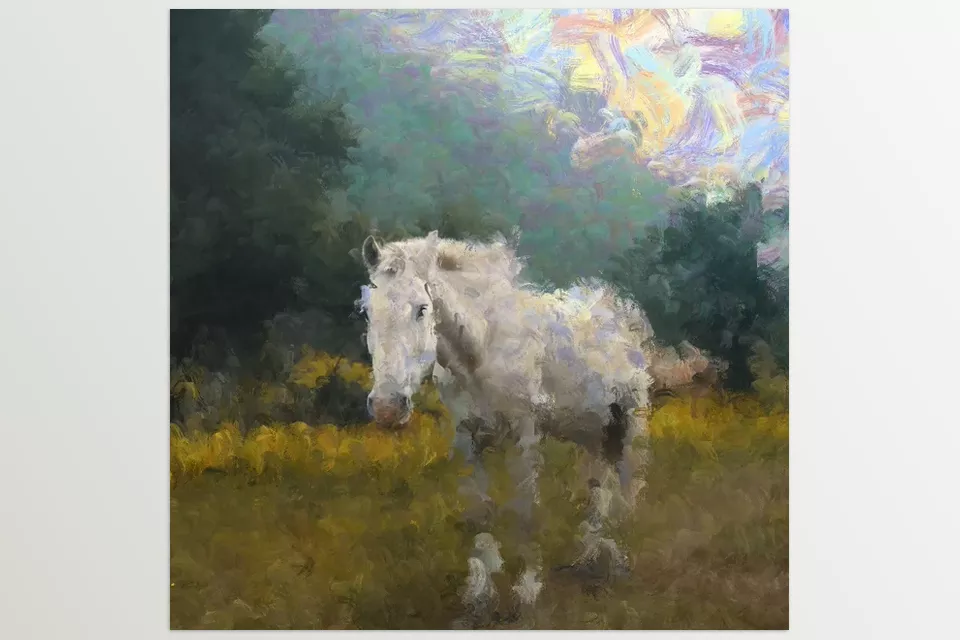
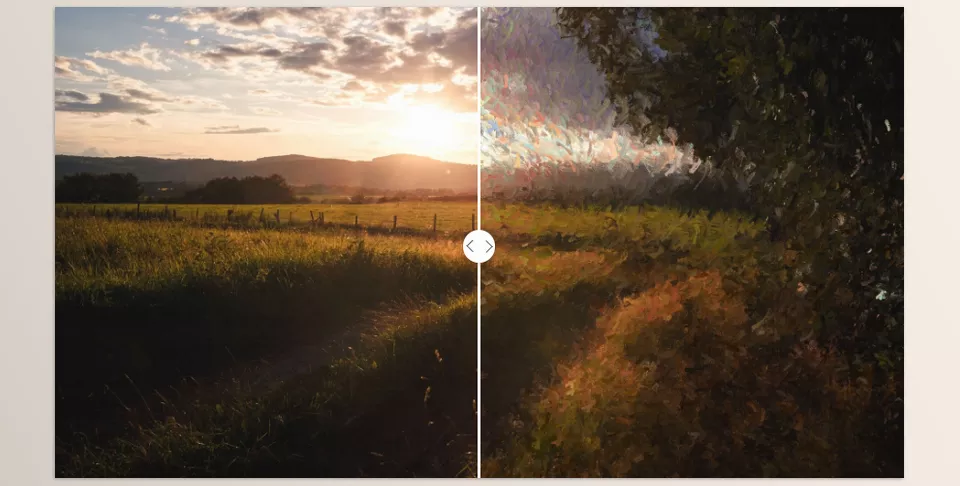
Imagine you have a simple video of a street, a musical performance, or even an ordinary portrait; by changing the brush size and Brush style, you can turn that same footage into something that looks as if it were painted frame by frame on a canvas, without losing the subject’s natural movement.
A Few Tips for a More Natural Result 💡
To make the final MAD PAINTER result look more than a ready-made filter and truly convey the feeling of an animated painting, keep a few simple points in mind when adjusting the Brushes. These small details can have a big impact on the final look.
- Start with Medium Brushes. Start with a balanced size, then make the brushes smaller or larger depending on the footage. Starting with a very large Brush may remove too much detail from the image.
- Preserve Important Details. If you’re working on a portrait or close-up shot, use smaller Brushes for areas such as the eyes, face, and clothing details so the image doesn’t become too spread out or blurry.
- Match the Brush Size to the Type of Image. For landscapes and wide shots, larger brushes can create a stronger painting feel, while smaller Brushes give you more control over detailed subjects.
- Match the Style to the Project’s Atmosphere. A calm music video may look better with soft, subtle strokes, while a conceptual or energetic project can use larger Brushes and a rougher look.
- Control Brush Density. If the Brushes are too dense, the image may become crowded and heavy. Lower density lets the original color and form of the footage remain visible.
- Try It on an Adjustment Layer. By placing the effect on an Adjustment Layer, you can test different settings without directly changing the footage and control the effect intensity more easily when needed.
- Compare Several Different Styles. Don’t settle for the first setting that looks good. Changing the Brush size, density, and style can completely change the final appearance, so compare several different versions with each other.
In the end, the highest brush amount or the strongest style isn’t always going to produce the best result. Usually, balancing the footage’s main details with the painting texture makes the result look more natural and professional.
An Artistic Look Without Hours of Adjustments 🎯
When you want to turn an ordinary video into an animated painting, simply changing the color or adding a Texture isn’t enough. What makes the result appealing is the actual presence of Brush Strokes and their coordination with the image and movement of the video; something that can take a lot of time to create manually and require a great deal of trial and error.
This is where MAD PAINTER can simplify the workflow. Instead of stacking several effects and techniques, you can control brush size and style and quickly test different looks on your footage. GPU acceleration also helps you review these changes more smoothly and reach the desired result faster.
If you want to give your footage a painted look without editing every frame by hand, MAD PAINTER makes the process much easier. It can work well for music videos, teasers, title sequences, and motion graphics where you want something more stylized than regular footage.
Curious about what After Effects plugins actually do beyond adding flashy effects? Our easy-to-follow After Effects Tools guide explores the most common tool types and helps you discover how they can save time and improve your creative process.