

When Recreating a Professional Style Becomes a Repetitive Task 🎬
Are you familiar with how the InstantRecipe Plugin by aescripts works? Have you ever spent a lot of time on an After Effects project trying to achieve a specific look? Combining several effects, carefully adjusting the movements, and going through trial and error until you finally create exactly the result you had in mind?
But things get difficult when, some time later, you need that same style again in a new project. You have to go through the same process, make the same adjustments, and spend a lot of time on something you’ve already done.
That’s why having an easy way to save and reuse these styles is incredibly helpful for designers. It helps them avoid starting from scratch every time they want to create a design, so they can use the elements they have already created and focus on their creative ideas instead.

Saving a Complete Look, Not Just a Simple Effect 🎨
In After Effects, what makes a layer unique and professional usually isn’t just a single simple effect. Behind a simple piece of text, there may be many different settings, such as multiple effects, animations, masks, and small adjustments that all work together to create the final look.
This is where saving a complete look becomes important. Instead of saving only the settings of a single effect, you can save everything that made a layer look appealing in one place and reuse it later.
For example, a motion designer can create a style for a piece of text that includes a smooth entrance animation, lighting and glow effects, color changes, animated masks, 3D settings, and motion expressions, and later apply that same look to a new piece of text or another layer. This feature is especially useful for creating promos, social media content, logo animations, and advertising projects, because a visual style often needs to be used repeatedly across different parts of a project.
Traditional Ways to Save and Reuse Styles
Before dedicated tools for this purpose existed, most motion designers handled this using After Effects’ built-in features. For simple tasks, these methods can still work well and are often enough to get the job done.
Some common methods included:
- Using After Effects presets: You can save the settings of several effects or part of an animation and later apply those same settings to other layers. This method is especially useful for simple, repeatable effects.
- Creating ready-made compositions: Many motion designers keep a collection of ready-made compositions containing their frequently used styles and animations so they can quickly use them whenever needed.
- Keeping previous projects: Sometimes the best approach is simply to archive previous projects and refer back to an older project file whenever you need something similar.
What’s the Problem With These Methods?
The problem becomes noticeable when you’re dealing with a complex layer. For example, a text layer that contains multiple effects, masks, keyframes, expressions, and lots of small adjustments. In these situations, transferring everything accurately isn’t always easy, and you may have to recreate part of the work manually. Sometimes, even finding the original project file or readjusting details you no longer remember can take a lot of time. In other words, instead of moving your new project forward faster, you end up rebuilding something you’ve already created before.
InstantRecipe: Saving an Entire Layer’s Look in a Single File 📦
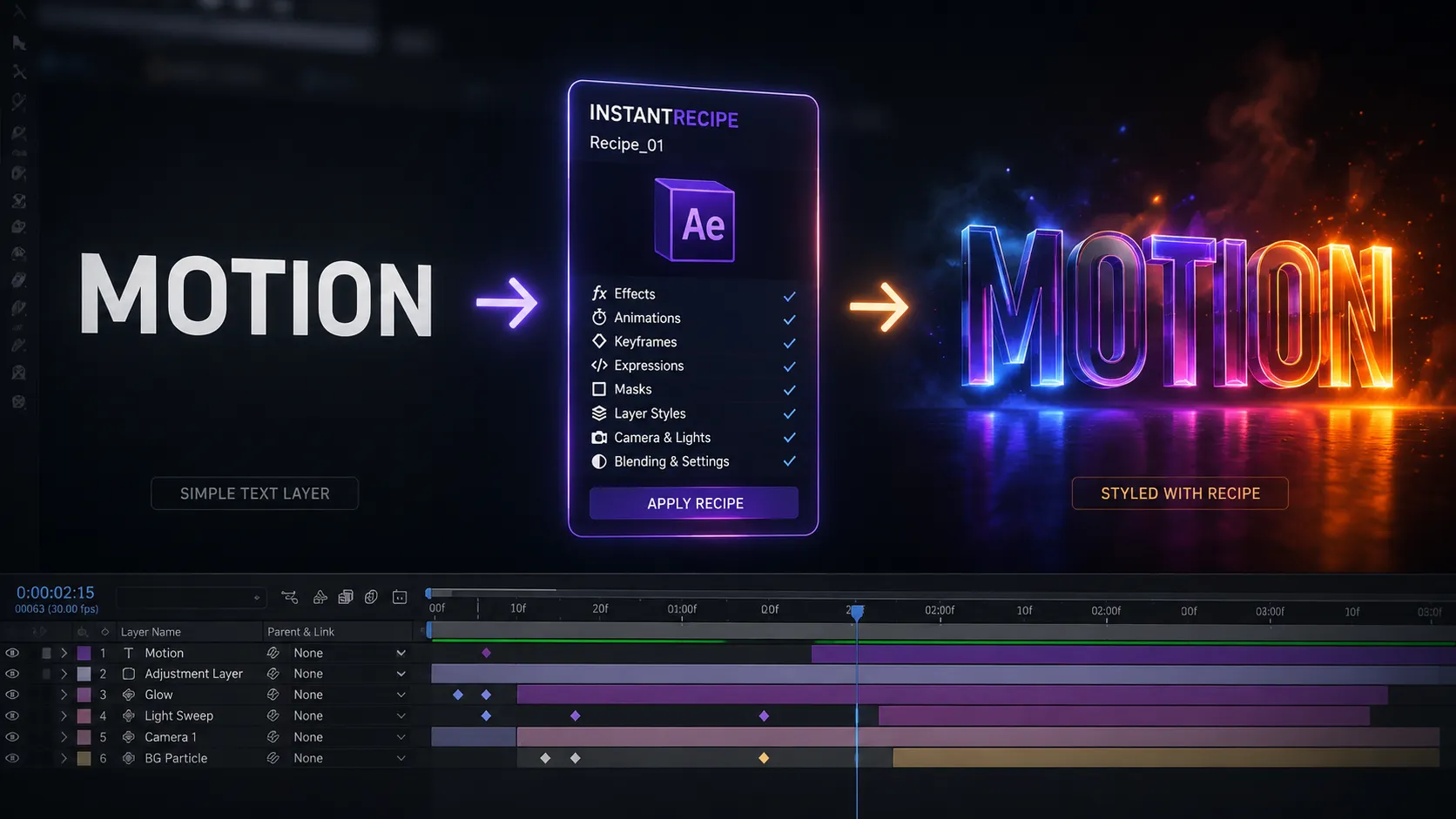
InstantRecipe is a panel for After Effects that makes saving and reusing styles easier. This tool doesn’t just save a single effect or a few limited settings; instead, it tries to save everything that gives a layer its unique appearance as a Recipe.
That means if you’ve applied multiple effects, animations, masks, and different settings to a text, shape, or image layer, you can save the entire structure at once and later use it on a new layer in any other project.
🎯 Save Every Detail of a Layer, From Effects to Animation
One of the most important features of InstantRecipe is that it can save different parts of a layer together. Unlike conventional methods that usually preserve only some of the settings, this tool tries to transfer all the important details of a layer.
The elements it can save include:
- Effects: All effects used on the layer along with their settings
- Keyframes: The timing of movements along with precise animation settings
- Expressions: Motion code used for more advanced control of the layer
- Masks: Mask shapes and their related settings
- Text settings: Properties such as font, size, letter spacing, and text animations
- Layer Styles: Visual layer settings such as different styles
- Layer blending modes and display settings: To preserve the final appearance in the new project
- Camera and light settings: In 3D projects, information related to cameras or lights
As a result, a simple layer becomes a complete package containing its own appearance and behavior—something you can reuse whenever you need it.
⚡ Build a Personal Library of Styles
One of the most appealing uses of InstantRecipe is that you can create a professional archive from your previous work.
For example, you might design an attractive typography style for an advertising project that includes text movement, lighting, color changes, and various effects. Instead of keeping it only inside that project, you can save it as a Recipe.
Later, for a new project, you only need to apply that same Recipe to a new piece of text, and you can quickly achieve the same original look.
For people who frequently work on promos, social media content, logo animations, or advertising projects, this feature means spending less time on repetitive tasks.
📱 Smart Adaptation to Different Project Sizes
One of the common challenges in motion graphics is that a design often needs to be exported in several different sizes. For example, an advertising video may need to be prepared both for YouTube and as a vertical version for mobile.
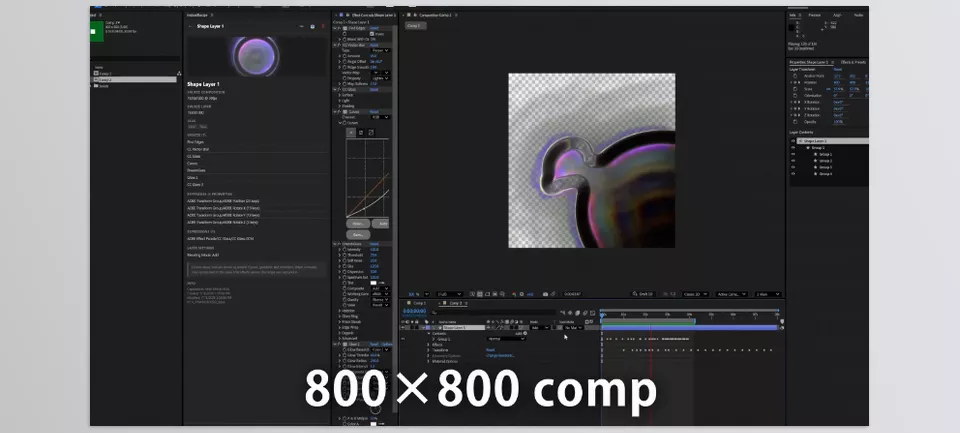
When transferring a style, InstantRecipe can adapt itself to the new composition size. This means that if you’ve created a design for a horizontal project, when you use it in a vertical or square project, the positioning and sizing can adapt better to the new space.
This feature is especially useful for content creators and those who regularly export content for different platforms.
🔄 Three Different Ways to Transfer Settings
InstantRecipe isn’t just a simple button for copying settings; it gives users more control over how those settings are transferred.
When applying a Recipe, you can choose what happens:
- Complete Replacement (Flat): Replaces the layer’s current appearance with the new Recipe.
- Add: Adds the new settings to the current layer while keeping the existing ones.
- Merge and Update (Merge): Updates similar sections and gives you more control over the final result.
You can also specify which parts should be transferred—for example, only the effects, only the animations, or only the appearance settings. This means you don’t always have to transfer an entire style.
📂 Simple Storage and Easy Sharing
InstantRecipe Recipes are saved as simple files, and you don’t need a cloud system or a separate user account to use them.
This means you can share the styles you’ve created between projects, different systems, or even team members.
Of course, if third-party plugins have been used in a Recipe, those plugins must also be installed on the destination system for the result to display correctly.
👀 Easily Manage Recipes Inside After Effects
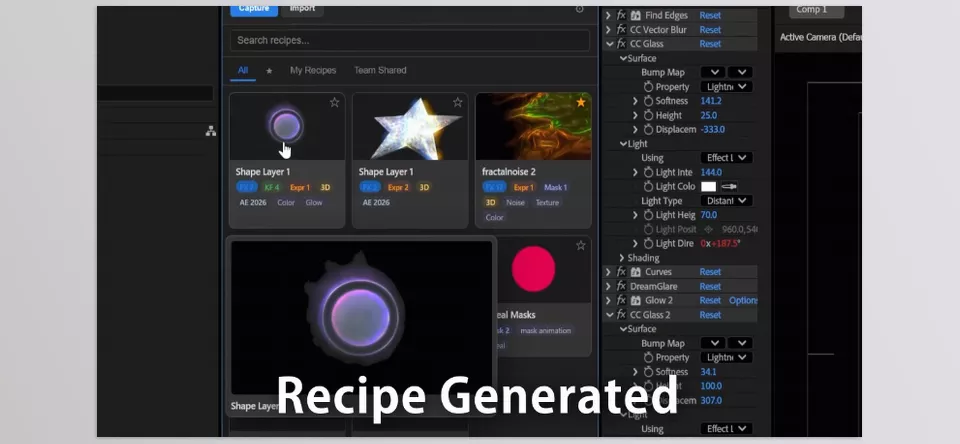
To make finding saved styles easier, InstantRecipe provides users with a dedicated panel.
You can search through Recipes, mark favorites, and use animated previews to see what each style looks like before applying it.
This feature helps you find what you need faster when you’ve saved a large number of styles.
Overall, InstantRecipe works as more than just a tool for saving simple settings. This panel helps turn the things you’ve created through time and experience into a ready-to-use, reusable collection. For motion designers who frequently work with recurring styles, this approach can make the workflow faster and more organized.
A Few Tips for Using This Tool More Professionally ✨
Once you start using InstantRecipe, you’ll quickly see how having a few ready-made Recipes can significantly speed up your work. You just need to work a little more systematically so these styles can turn into a useful archive that you can always rely on.
- 📁 Build an Organized Archive: Don’t just save your Recipes and leave them there. It’s better to categorize them—for example, text styles, lighting effects, logos, transitions, and similar items. That way, when you have a large number of them, you won’t have to spend a lot of time searching for a specific style.
- 🎨 Clean Up the Layer Before Saving: Before creating a Recipe, take a look at the layer and remove anything unnecessary. Since every effect or setting on the layer is saved with it, unnecessary elements may later cause clutter or unexpected results.
- ⚙️ Use It for Repetitive Projects: The biggest advantage of this tool becomes clear when you regularly work on similar projects. For example, you may have several types of text animations, logo styles, or specific effects that you use repeatedly. In these situations, instead of recreating them, you can bring back the same result with just a few clicks.
- 🔌 Keep Track of the Plugins You’ve Used: If you’ve used third-party plugins inside a Recipe, the same plugins must also be installed on the destination system. Otherwise, some of the settings may not work, or the result may not look exactly like the original version.
Ultimately, the value of this tool isn’t just about saving a few settings. What matters is gradually building your own collection of styles and experiences that you can quickly reuse whenever you need them.
When You Can Reuse Your Ideas Faster 🎯
In motion design, one of the hardest parts often isn’t just creating an idea; it’s reproducing that same professional result in future projects. When you’ve spent a lot of time on a text style, a specific effect, or a combination of many different settings, it makes sense to want quick access to it later instead of starting from scratch every time.
InstantRecipe helps turn the things you’ve created through experience and creativity into a ready-to-use archive. This way, the styles, effects, and settings you’ve previously created are always available, and you can quickly use them in new projects—especially when you’re working on several similar projects, and speed is important to you.
If you regularly work on promos, text animations, logo design, or ongoing content creation, having a tool like this can make your workflow much easier. You’ll spend less time on repetitive tasks and have more time to focus on new ideas and the creative side of the project, ultimately helping you work faster and more professionally.
Looking to expand your After Effects knowledge? Check out our complete After Effects Tools guide to learn how plugins, scripts, presets, templates, and other creative tools differ, and discover when to use each one.



