


🌀 When Repetition Creates Creativity
Have you seen the xCloner plugin in action? Sometimes in design and animation, we start with just a simple idea — like a circle, a piece of text, or a small icon. Yet these simple elements can become the foundation for creating complex and eye-catching scenes. All it takes is repeating that element a few times, transforming the spacing or rotation, or placing them on a directed path; boom! A static image becomes a lively, energetic, and fluid piece. That’s why “repetition” isn’t merely replication — but a means of establishing pattern, cohesion, and aesthetic continuity within every scene.
But when the number of repetitions grows, things aren’t so simple anymore. Imagine wanting to spread hundreds of copies of a shape or layer across a scene, keeping them natural, organized, and rhythmic at the same time. This is where cloning comes in — an intelligent method for automatically multiplying elements without spending too much time and effort arranging them manually. Cloning helps your creativity break free from the limitations of the tools, allowing you to explore new patterns and visual effects with repetition.

🔹 What is Cloning?
In the world of motion graphics, cloning means creating multiple automated copies of a layer or object, with full control over their position, rotation, spacing, and even randomness.
Simply put, imagine you want to create 100 stars in the sky. Instead of pressing Ctrl+D 100 times, you can use a cloning system to let the software automatically generate and distribute the copies.
In real projects, cloning allows designers to introduce rhythm, repetition, and harmony into a scene. From spreading light particles and abstract effects to creating geometric patterns, visual motifs, or even text effects.
🧩 Traditional Methods in After Effects
Even in After Effects, some form of cloning is possible, but not always in the way we want. When the number of elements is small, it’s manageable. However, as the scene becomes more complex and you want hundreds or thousands of copies of a layer, traditional methods show their limitations.
Common approaches include:
- Manual Copying (Duplicate): Simple but time-consuming. Works fine for a few copies, but distributing hundreds of elements along a path or array quickly becomes impractical and error-prone. Even a small change in the original element requires manual updates to all copies.
- Expressions: With some scripting, you can control the position of each copy or attributes like spacing, rotation, or order. Suitable for advanced users, but maintaining and editing expressions can be difficult and often slows down rendering.
- Repeater in Shape Layers: Excellent for vector shapes, allowing linear, radial, or grid patterns. The limitation is that it only works with shape layers, not footage, images, or precomps.
Result:
If you want to create a complex design with hundreds of moving elements, After Effects’ built-in tools quickly hit their limits, making your work slow and frustrating. This is when professional cloning tools step in, solving these challenges with speed, precision, and flexibility.
⚡ Introducing xCloner – The Power of Multiplication for Creativity
The xCloner plugin is designed specifically to solve complex cloning challenges. This plugin lets you convert any After Effects layer into thousands of smart, controllable copies without performance drops or timeline clutter. With xCloner, you no longer need to worry about slow projects or manually managing hundreds of layers — everything is dynamic, adjustable, and gives you greater creative freedom in design and animation.
🎬 Five Cloning Modes
xCloner plugin offers five main modes, each perfect for a specific type of project and providing capabilities beyond After Effects’ standard tools:
- Linear Mode:
Regular repetition in a straight line, ideal for text animations, simple motion effects, or minimalistic designs. You can control spacing and rotation for a rhythmic, visually appealing layout. - Radial Mode:
Distribute elements in a circular or radial pattern, perfect for geometric designs, rotating effects, or dynamic graphic effects. Ideal for creating circular or spinning patterns, like particle explosions. - Grid Mode:
Create 2D and 3D arrays for visual patterns or structured graphics. Arrange elements in tables or 3D cubes with precise control over spacing and alignment. - Path Mode (New):
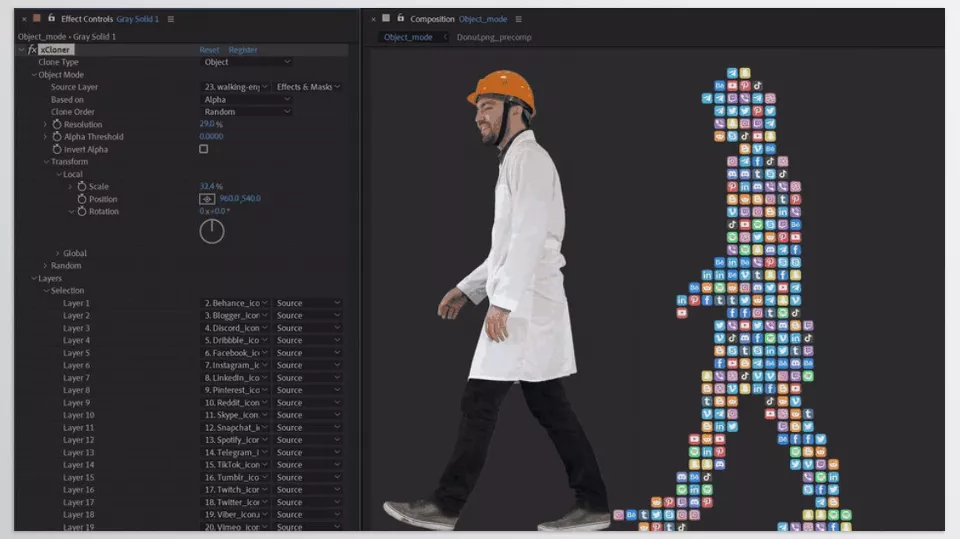
Clone along a path or mask. Elements can follow a curve precisely — such as a logo or particles moving along a line or text animating on a path. Elements can follow the path orientation and repeat with custom spacing and rotation. - Object Mode (New):
Clone using another layer’s alpha or luma channel. For example, use a black-and-white image as a “map” to distribute elements only in specific areas. Perfect for complex and precise effects, like scattering particles over a specific shape.
With xCloner plugin, there’s no limit on the number or arrangement of elements. Whether you want a few simple copies or hundreds of particles/logos along complex paths and patterns, everything is fast and fully controllable. This tool not only speeds up your workflow but also allows your creativity to flourish without technical constraints.
🧠 Professional Tips & Tricks
For optimal use of xCloner plugin, here are a few simple yet highly effective tips:
- Use Transform Randomization: Make element distribution look more natural and less mechanical. Apply random values for position, rotation, scale, and even opacity so each clone behaves slightly differently.
- Enable Loop Path: If your path is closed (e.g., a circle or complex curve), enable this option to repeat clones continuously along the path. Ideal for spinning or circular effects.
- Follow Path Rotation: Make clones follow the direction of the path. Useful for particle trains, logos moving along paths, or text animating on curves, giving a more dynamic and natural look.
- Use Separate Precomps: Place clones in a separate precomp to combine them with other effects, control color and timing, and prevent timeline clutter.
- Combine Modes: Mix cloning modes, like Path Mode + Object Mode, to create complex, creative effects that would otherwise be impossible or time-consuming.
Following these simple tips not only enhances project quality but also makes your workflow faster and more enjoyable.
🚀 Why xCloner is Worth Trying
xCloner plugin’s popularity isn’t just about its features; it’s about speed and simplicity. Imagine distributing hundreds of layers in a scene — traditional methods and scripts could take 15–20 seconds or more. With xCloner, the same process takes less than 0.2 seconds, without cluttering the timeline or slowing down rendering. You can focus on creativity and design instead of manual layer management.
The interface is simple, clean, and logical. All tools are accessible and easy to understand, eliminating the need for complex expressions. For anyone frustrated with After Effects’ default limitations, xCloner plugin is a game-changer, making cloning fast, enjoyable, and inspiring. It saves time while expanding creative possibilities for bold, visually striking ideas.
🧭 Conclusion – When Tools Become Partners in Creativity
The xCloner plugin shows that sometimes you don’t need the most complicated and time-consuming approaches to creation. Sometimes you just need to make clever duplicates of a simple asset and spatialize them throughout a scene in a visually pleasing and dynamic manner. This plugin allows animators and motion designers to execute repetitive ideas beautifully and controllably, without timeline confusion or performance drops. With xCloner, you can focus on creativity and build scenes that are both visually stunning and professional.
If you’ve ever thought: I wish I could duplicate this element faster and have more control over its placement and movement…
It’s probably time to try the xCloner plugin — a tool that saves your time and energy, while giving shape and rhythm to your creativity, transforming ordinary scenes into dynamic, professional visual effects. 🌟
Learn everything about After Effects and the tools that power it in our comprehensive article, After Effects Tools.



