

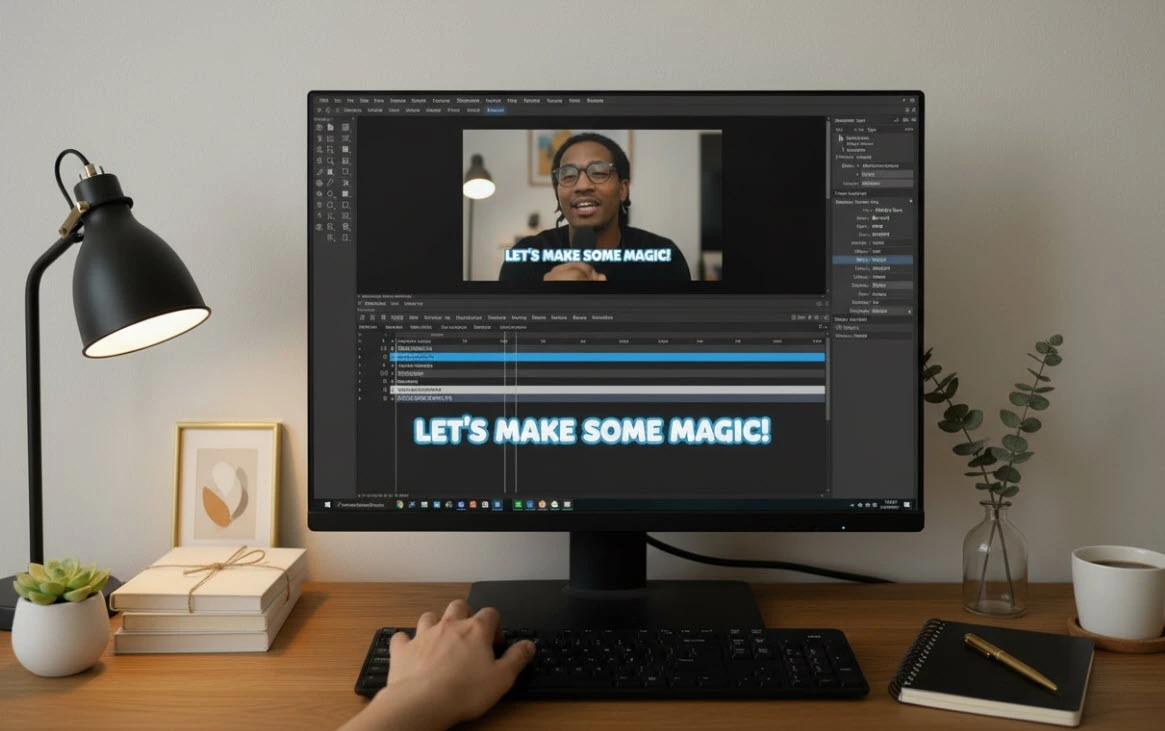
🎬 When Creating Subtitles Becomes a Story Itself
Have you ever checked out what the Captioneer Plugin can do? If you’ve ever tried to create subtitles for your videos, you know how time-consuming and exhausting it can be — especially when you want the text to be accurate, synced perfectly with the audio, and still look visually appealing! 🤯
A few minutes of video can take hours just to type and adjust subtitle timing. And if you want animated subtitles, you’ll have to dive into the complex world of After Effects, dealing with pre-made templates and endless settings.
Now imagine if there were a way to do all that automatically — accurate text, synced to voice, stylish animated captions — all with just a few clicks. That’s where tools like Captioneer come in, turning a tedious process into a fast and enjoyable experience.

🧱 The Old Way: Manual, Frame-by-Frame Subtitling
Before tools like Captioneer came along, making subtitles wasn’t easy. Premiere Pro had an Auto Captions feature, but the captions looked plain and boring — just text on screen. No animation, no style, and if you wanted something polished, you had to manually tweak the timing, fonts, and colors for hours.
Another option was to move your video into After Effects and use MOGRT templates or animate captions manually. But that was a whole other world — complex setups, hours of work, and plenty of room for sync errors.
The result? Without a professional tool, you either ended up with plain Premiere captions or had to go through a complicated After Effects workflow. In both cases, you lost time, and the result might still not look as impressive as you hoped 😩.
⚡ Now It’s Captioneer’s Time to Shine!
Here’s where the real magic begins ✨
Captioneer Plugin was built exactly for the point where most of us struggle: when you need to work fast, accurately, and professionally.
This plugin for Premiere Pro transforms the subtitle creation process — from repetitive and time-consuming — into a matter of seconds.
In short, Captioneer Plugin does what Premiere alone can’t: it combines the power of Auto Captions with animated styles and a clean, fast interface. You just import your video, transcribe the audio, pick a preset — and the rest happens automatically.
🎯 Key Features
🎙️ Automatic Captions
Just select your video and click Auto Captions. Captioneer Plugin analyzes the audio, generates the text, and adds it directly to the timeline — no external files, no switching apps.
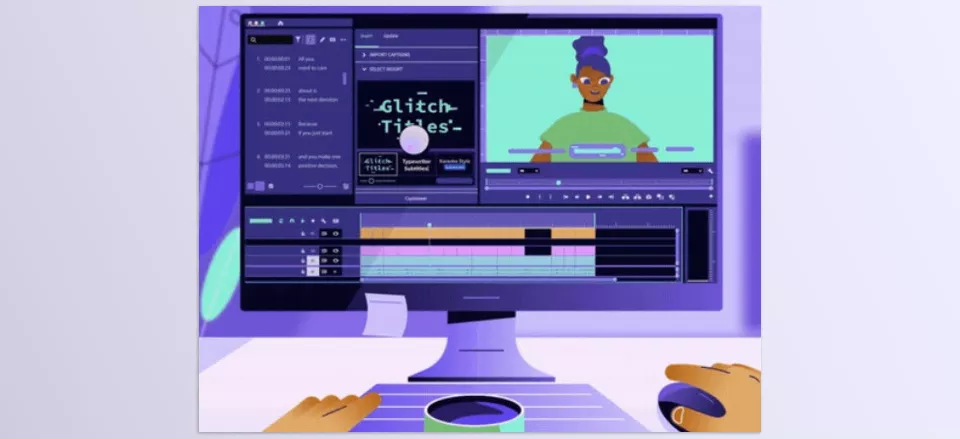
🎨 Ready-Made Animated Presets
Includes 15+ pre-built animated subtitle styles, ranging from clean minimal designs to bold, energetic ones perfect for ads or YouTube videos.
🧩 MOGRT Support
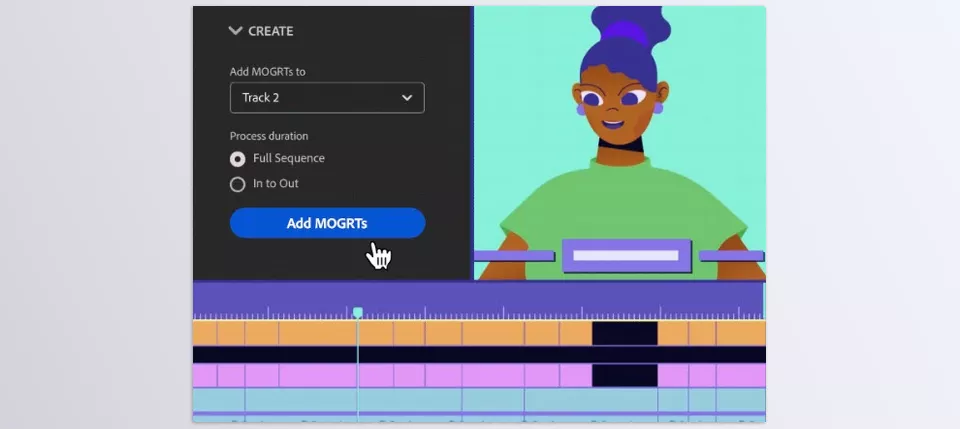
Want to add your personal touch? Captioneer Plugin lets you import your own MOGRT templates or use ones from marketplaces like Motion Array or Envato.
⚡ Incredible Speed
Instead of spending hours typing and syncing, you’ll get results in seconds. Subtitles automatically align with your audio and appear right in the timeline.
💻 Easy Editing Inside Text Panel
Everything stays inside Premiere. Edit any sentence, change styles, or apply new animations — no need to leave your workspace.
With Captioneer Plugin, your focus stays on your content. It handles all the tedious parts — typing, syncing, and styling — so you can produce faster, more professional, and more engaging videos. ✨
🧠 Pro Tips for Getting the Most Out of Captioneer
Creating animated subtitles with Captioneer is quick and simple by default, but a few small tricks can make your results look even more polished. These are the same little habits professional editors always follow 👇
🎧 1. Clean Your Audio Before Generating Captions
Before running Auto Captions, edit your audio — remove background noise, normalize volume, and make sure the voice is clear and consistent. The cleaner the sound, the more accurate the transcription, and the less manual editing you’ll need.
🎨 2. Match Colors and Fonts to Your Brand or Video Style
Subtitles are part of your video’s visual identity. If your font color, background, or motion style doesn’t match the project’s tone, it can distract viewers. Use brand colors and readable fonts that match your video’s vibe.
🧩 3. Use MOGRTs for Extra Personalization
If you already have your favorite motion templates, the Captioneer Plugin lets you import them. This gives your captions a signature look and makes your videos stand out — especially for brands and social media creators.
⏱️ 4. Always Preview Your Timing
After adding captions, always play through the full video to check sync accuracy. Even a half-second delay can feel off to the viewer. Captioneer Plugin makes this easy, but a final preview is always a pro move.
💡 5. Add Subtle Effects (Optional but Powerful)
Want to add an extra professional touch? Try small effects like soft drop shadows or gentle fade-ins/outs for smoother transitions. These subtle details make your subtitles feel more natural and cinematic.
By following these few simple tips, your videos won’t just be faster to finish — they’ll look like fully polished, professional productions 🎬💫
💬 Final Thoughts: A Small Tool, a Big Difference
Sometimes a small tool can change the way you work entirely — and Captioneer is one of those tools.
It’s a lightweight, simple plugin for Premiere Pro that massively boosts speed, quality, and creativity. You no longer have to spend hours typing or jumping between Premiere and After Effects. Now, with just a few clicks, your videos come alive with animated, professional subtitles ⚡🎬
Subtitles that once took a whole day now take minutes — accurate, synced, and beautiful. More importantly, Captioneer Plugin gives you creative freedom: start with its presets, or design your own using MOGRTs to match your unique style.
Whether you’re a content creator, video educator, filmmaker, or just editing personal videos, the Captioneer Plugin can easily become part of your daily workflow. It’s not just a tool — it’s a smart shortcut to creating professional videos faster.
So if you’ve ever struggled with subtitles, it’s time to give Captioneer a try. I can’t promise it’ll change your life 😉 — but after your first project, you’ll never want to go back to the old way. 🎨✨
If you want to fully understand After Effects and learn how its companion tools can optimize your workflow, be sure to check out our ultimate guide to After Effects tools.



