


When Shapes Get Messy…
Are you up to date with the Cleanup Master Plugin? Have you ever gotten stuck in the middle of an After Effects project because the layers and shapes got so messy that you didn’t know where to start? Sometimes a simple logo or character can be full of tiny points, shape groups, and masks, making your timeline feel like a complex puzzle. Even when you just want to make a small change to a shape or animation, finding the right layer or point can feel like searching for a needle in a haystack!
And worst of all, when you start editing, a simple change can break the animation path or force you to reorganize everything from scratch. Hours pass, and in the end, all you’re left with is fatigue and confusion, without having truly created anything.
The reality is that most designers and animators have experienced this: a project full of great ideas, but the timeline and layers are so cluttered that focusing on creativity becomes nearly impossible. This is when everyone longs for a quick and smart solution to manage and clean up layers, without feeling like their time is being wasted.

More Work, More Hassle
Without a professional tool, managing complex shape groups usually requires doing everything manually:
- Opening each shape group in a separate layer: To edit a specific shape group, you have to find and open the corresponding layer. A complex character or logo might have dozens of layers.
- Editing points manually: Every point or path in a Shape Layer must be selected and adjusted using the Pen or Selection tools. Making a small change requires finding the correct path and managing keyframes.
- Creating Nulls for control: To manage movement or parent groups, you create a Null Object and parent the shape group to it. But scattered and numerous Nulls make the timeline even more cluttered.
- Precomposing paths and masks: To better manage and apply effects, groups or paths must be precomposed, which adds complexity and limitations.
But the reality is that with this method, you always feel stuck:
- Slow and time-consuming: Every small change requires multiple clicks and switching between layers.
- Prone to errors: High chances of breaking animations or keyframes.
- Cluttered and confusing timeline: With many Nulls and layers, finding what you need becomes difficult.
- Distraction from creativity: Instead of focusing on design and animation, most of your time is spent organizing and managing layers.
In short, the usual After Effects workflow works, but for complex projects, it’s truly exhausting and frustrating.
Smart Cleanup in One Click with Cleanup Master Plugin
Cleanup Master Plugin solves all timeline and Shape Layer headaches at once, and its capabilities can be divided into several main categories:
1. Layer Organization and Timeline Management
- Everything is consolidated into a single layer, even complex projects like multi-part characters or logos.
- No need to search through dozens of layers or navigate a messy timeline.
2. Point Editing and Smart Nulls
- Select, isolate, and edit any point or shape group without cluttering the timeline.
- Create Nulls and parent groups to them for easier movement and animation control.
3. Layer Order and Mask Management
- Change the order of groups and masks with a single click, without precomposing or separating layers.
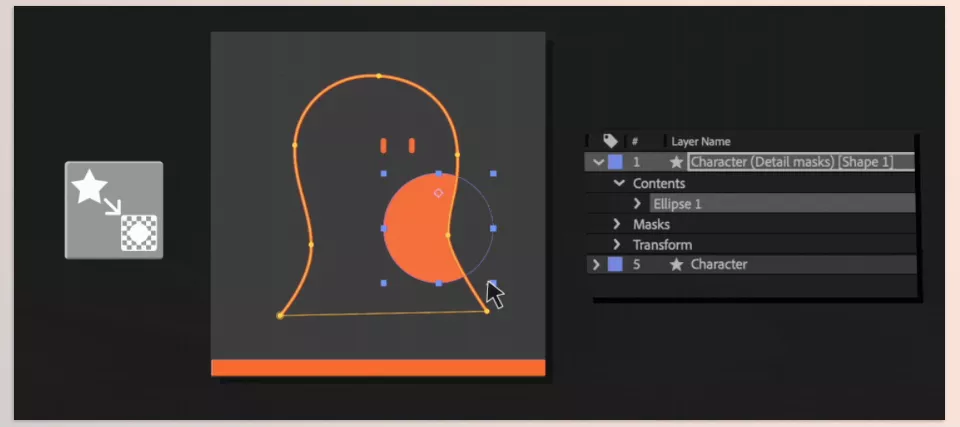
- Manage linked masks that always stay synchronized with the main paths.
4. Point and Path Cleanup
- Remove extra points without losing animation.
- Collapse and align points for a clean and organized timeline.
- Create keyframes only for selected paths without affecting the entire layer.
5. Advanced Tools for Control and Effects
- Reset transforms for groups to restore them to their original state.
- Remove expressions from selections without affecting the whole layer.
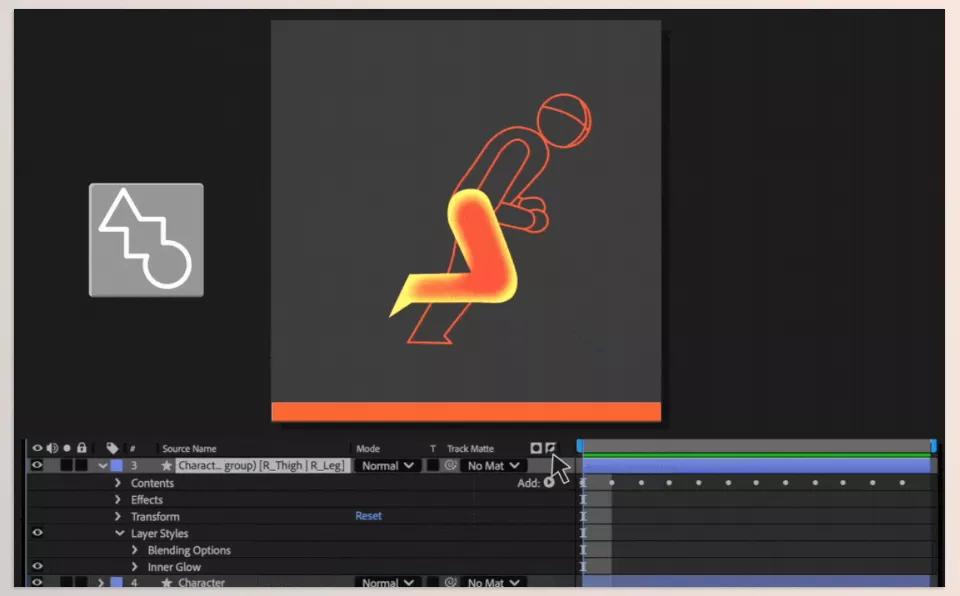
- Shade Groups for grouping and managing color/effects without creating a new layer, like precomposing, but lighter and more controllable.
Concrete Example:
You can manage a complex logo or multi-part character on a single layer, keep the timeline clean and manageable, apply changes easily, and never feel confused or exhausted. This means your focus is on creativity and real animation, not layer cleanup and management.
Pro Tips for Creative Flow
When a project gets complex, having the tool isn’t enough—you need to know how to use it efficiently:
- Point-Based Editing: Select points and paths directly from the comp view without opening and closing layers, enabling fast and precise changes.
- Create Selective Nulls: Instead of using one general Null, create specific Nulls that affect only the part you want. Gain complete control over movements and animations.
- Maintain Linked Masks: When changing paths or shapes, masks stay synchronized automatically. No need to readjust them.
- Smart Extra Point Removal: Delete unnecessary points without breaking animations, keeping the timeline organized.
- Collapse and Align Points: Bring extra or messy points closer together or align them for clean, readable paths.
- Quick Copy & Paste States: Easily transfer the state of a Shape Layer or group to another layer or project without starting over.
- Create Keyframes Only for Selected Parts: Animate only the parts you need without affecting everything.
- Reset Group Transforms: Restore any shape group to its original state without moving other elements.
- Shade Groups for Color and Effect Management: Organize groups and manage effects without precomposing or adding extra layers.
By applying these tips, even messy and complex projects become easily manageable, letting you focus entirely on creativity and animation rather than managing cluttered layers and paths.
It’s Creative Time, Not Cleanup Time
With a professional shape cleanup tool like Cleanup Master Plugin, you no longer need to spend hours searching for layers, organizing points, or adjusting Nulls and masks. Everything becomes orderly and controllable, allowing you to focus on what truly matters: real creativity and animation.
Complex projects that once felt uncontrollable are now easy and fast to manage. Changes are applied quickly, keyframes stay in place, and there’s no feeling of confusion or overwhelm.
Even a short experience with the Cleanup Master Plugin is enough to notice the difference: a clean timeline, organized paths, and controllable groups mean your time truly goes into design and animation, not endless layer management. In short, with the Cleanup Master Plugin, you can create more while getting less stuck in a cluttered timeline!
Whether you’re a beginner or an experienced designer, our comprehensive After Effects tools article will help you understand and use plugins, scripts, and add-ons that transform ordinary projects into extraordinary ones.



