

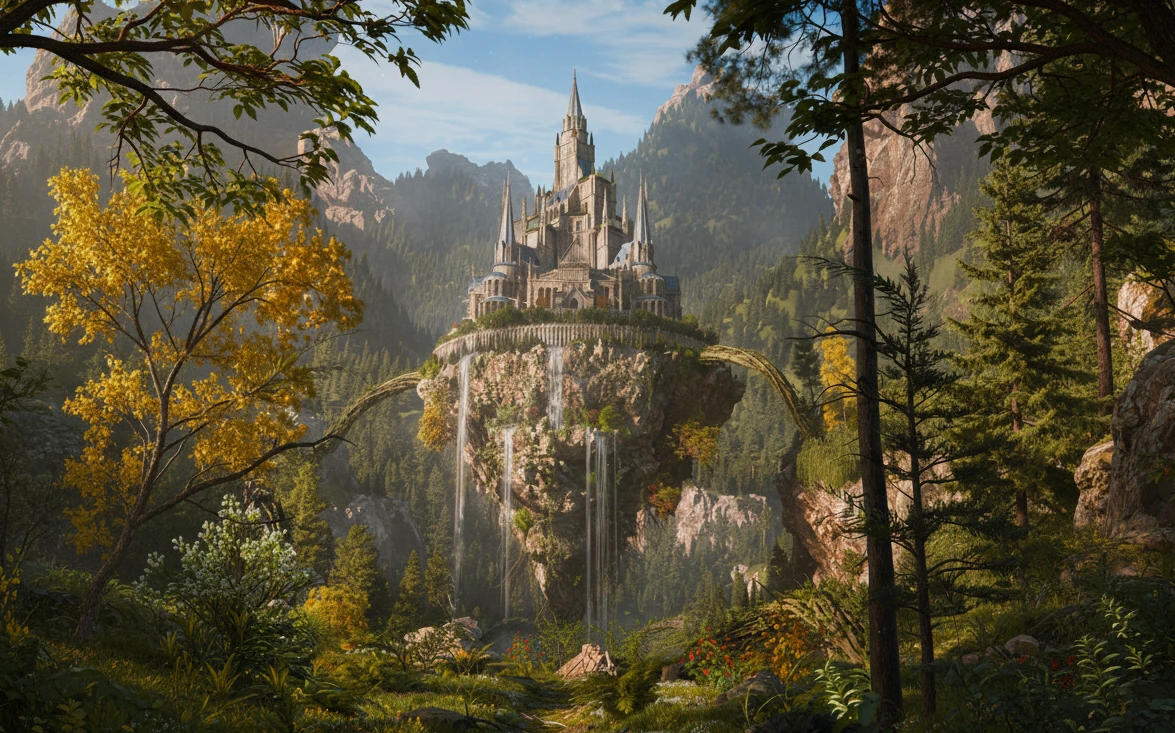
🌿 When Creating Nature Gets Tough…
Are you experienced with the Arborea? If you’ve ever tried to create a realistic natural environment in Blender, you’ve probably realized it’s not as easy as it seems. From scattering trees to making bushes look natural and choosing the right model for each plant, everything suddenly turns into a huge, complex project. And the further you go, the more crowded and heavy your scene becomes.
Then you reach the finer details, like adding snow, vines, or even a few dry leaves on the ground. All of this forces you to spend even more time tweaking small and large settings. Sometimes, you struggle with nodes and parameters so much that it feels like you’re spending more time on adjustments than actual design. In the end, you’re just hoping your RAM holds up, and Blender doesn’t crash.
At this moment, you can’t help but think: where is the better option? Where something facilitates your speed, lightweight, and natural creation of spaces? Because we all wonder where that lost solution is that turns blood, sweat and tears into enjoyment.

🔧 Working Without Professional Tools…
Blender has basic tools for environment creation and can handle a lot, but once you dive into real detail, the challenges become obvious. Designing a realistic forest or natural scene, managing thousands of trees and bushes, scattering plants naturally, aligning them with terrain and elevation, and adding details like snow or vines—all of this with Blender’s default tools is time-consuming and full of trial and error.
✔️ Tree and Plant Creation
You can make trees and plants using Geometry Nodes, Curves, and shaders, but it takes a lot of time. Usually, you need to build many nodes for each model to achieve a natural look. Even small changes can break the entire node structure, forcing you to adjust everything again.
✔️ Plant Scattering
Blender has a Scatter tool, but it’s very basic. It lacks precise control over slope, elevation, distance between instances, and proximity. If you want manual control, you have to move each plant individually or build complex node setups, which slows down your scene management.
✔️ Snow, Vines, Dry Leaves, and Small Details
It’s possible, but requires many nodes, manual masks, trial and error, and repeated adjustments. Until you become an expert, the results often look unnatural or repetitive.
Blender can do everything, but not quickly, easily, or always efficiently. That’s why anyone aiming to create realistic natural environments seeks a professional tool that shortens, speeds up, and simplifies the complex process
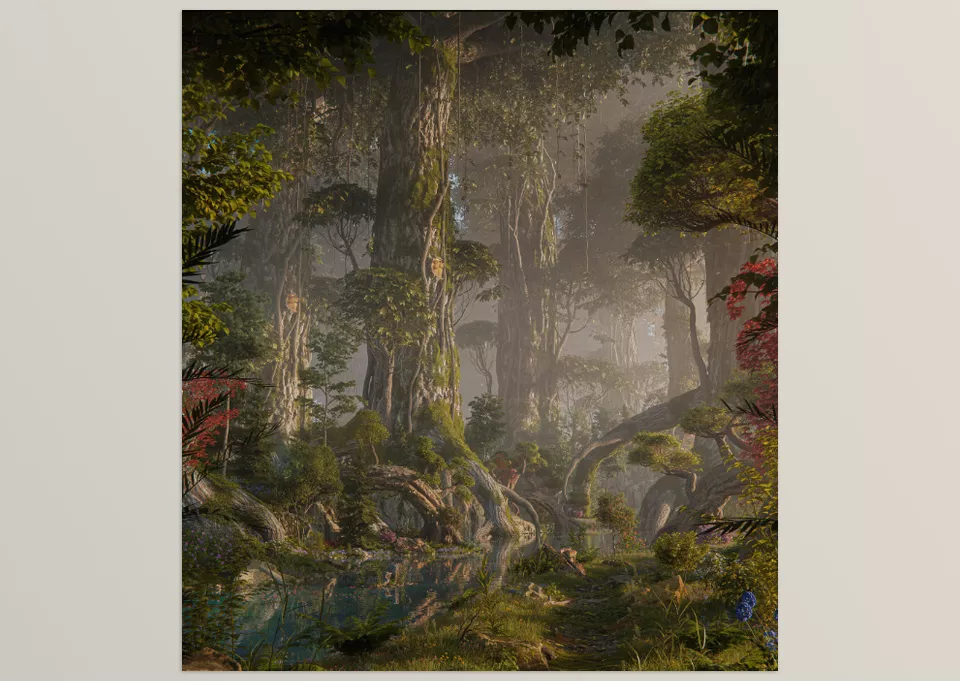
🌲 What is Arborea? An Energetic Assistant for Nature Creation!
Arborea is a two-part product: a professional Blender add-on and a vast nature asset library. It gives you freedom in design while providing pre-made, optimized resources.
With Arborea, you don’t need to create every tree, bush, or flower from scratch. You get access to over 600 ready-to-use, optimized nature assets: trees, bushes, flowers, rocks, ground cover, and fantasy models. Everything is render-ready, optimized, and instantly usable.
But Arborea isn’t just about assets. It offers a complete professional system for scattering, controlling details, and proceduralizing environments. You can fully control your scene—from plant distribution to seasonal changes and adding natural effects like snow or vines.
⭐ Key Features of Arborea
- High-Quality Ready Assets
- Over 600 nature models, from realistic to fantasy
- Trees, bushes, flowers, rocks, grass, ground cover
- High-quality, optimized, render-ready
- High detail even for close-up scenes
- Professional Scatter System
- Automatic and intelligent distribution on various surfaces
- Slope & elevation control
- Proximity and distance management
- Pattern distribution for natural scattering
- Multi-Emitter: scatter on multiple surfaces simultaneously
- One-click scattering directly from the asset browser
- Group & Sync for system management
- Masking to work on parts of the scene without slowing the viewport
- Camera Culling: hide instances outside the camera view
- Manual Scattering
- Add/Remove brushes for precise placement
- Move, Comb, Tilt, and Scale for individual control
- Separate scaling for each asset type
- Combine with automatic scatter for artistic detail
- Procedural Tools
- Giant Vine Generator: create large natural vines in seconds
- Ivy Generator: grow vines on surfaces with full density and distribution control
- Snow Generator: natural snow coverage with simple controls
- Draw Vines: draw vines freely with shape and direction control
- Season & Material Control
- Quick switch between Summer, Autumn, Winter
- Slider for plant color variations
- One-click moss application on trunks
- Change models without re-importing
- Supplementary Tools & Workflow-Friendly Features
- Pie Menu & Hotkeys for fast access
- Direct Arborea updates inside Blender
- One-click wind animation for trees and plants
- Easy management of large projects and system synchronization
With Arborea, you no longer need to spend hours on every environmental detail. You get ready assets, scatter and procedural tools, seasonal control, and natural effects—making environments faster, more natural, and visually appealing without overcomplicating your workflow.
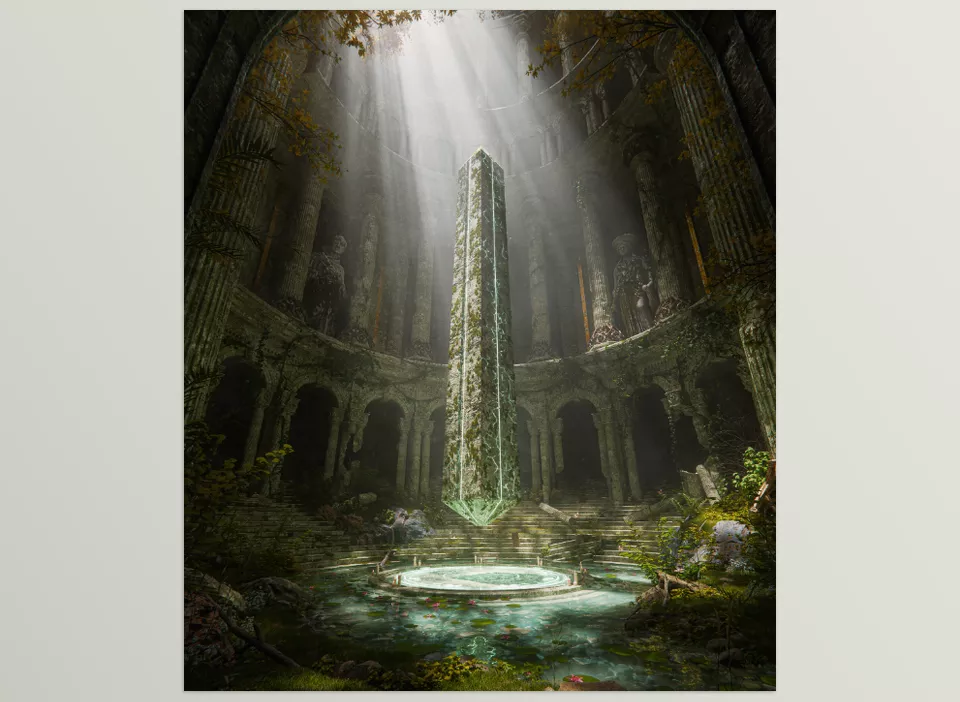
🧠 Pro Tips for Using Arborea Efficiently
When creating natural scenes with Arborea, professional tips can save time and make your workflow smoother. Following these guidelines ensures your environment looks natural while keeping project management simple, especially for heavy or complex scenes.
- Keep Heavy Scenes Lightweight
Activate Camera Culling for projects with thousands of plants and trees. This hides instances outside the camera view and keeps your viewport responsive. - Combine Automatic and Manual Scattering for Details
Use automatic scatter for the scene base, then add artistic details with Manual Scattering. This ensures natural distribution while maintaining control over fine details. - Adjust Season and Colors Last
Change seasons (Summer, Autumn, Winter) or plant variations at the end. This avoids disrupting distribution or composition. - Guide Viewer Attention with Procedural Tools
Use Vine Generator and Draw Vines to direct attention to key scene areas. The placement of vines naturally leads the viewer’s eye. - Manage Large Surfaces with Multi-Emitter
Scatter across multiple surfaces simultaneously for easier and more organized large scene management. - Additional Tips for Professional Results
- Review your viewport before final render to remove unnecessary instances
- Use Pie Menu & Hotkeys for faster workflow
- Randomize scale and rotation to avoid artificial repetition
Following these simple tips makes Arborea more enjoyable and ensures projects progress faster and more professionally. By combining automatic and manual tools, seasonal changes, and precise detail control, you can create scenes that look both natural and fully manageable.
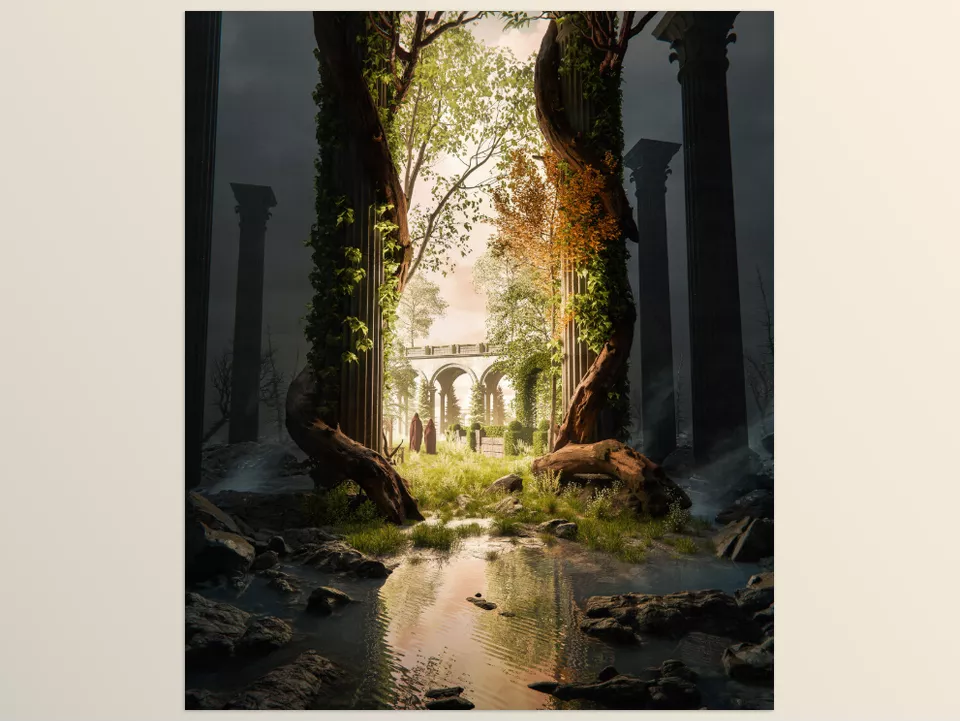
Why Arborea Can Change the Game
Blender environment creation has never been faster, easier, and more fun! Never waste time working through complicated nodes to make your materials and spending excess hours texturing, modeling, and positioning every tree and shrub ever again. Thanks to pro scatter tools, a provided asset library, and various procedural features, your workload has never been cleaner, more efficient, and organic.
With Arborea, not only is your speed increased, but you also gain more time for your artistic vision. Focus on composition, guiding the viewer, and creative details without being bogged down by repetitive tasks.
If creating natural environments is a major part of your work—whether for animation, games, or fantasy renders—Arborea is like having a professional assistant by your side. All the tools you need are in one place, tasks move faster, and you feel supported by a real-time helper that can truly change the game.
Whether you’re a beginner or looking to refine your Blender skills, our Blender Tools guide walks you through every tool with step-by-step instructions and practical examples that help you gain true mastery.



