

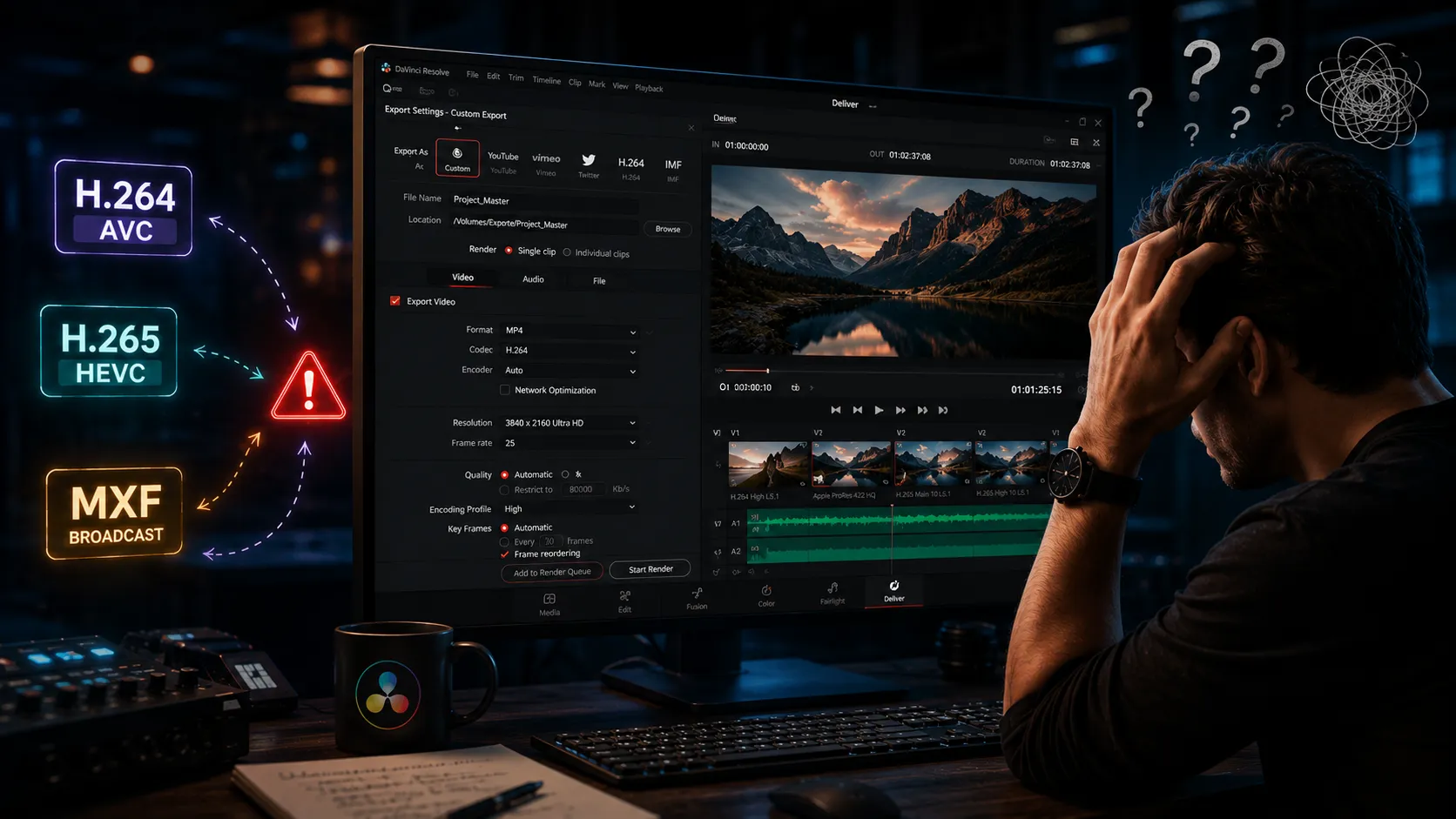
✨ When the Project Is Ready, but the Export Is Still a Headache…
Do you have experience with the Codec Plugin for DaVinci Resolve Studio by MainConcept? Have you ever finished a project in DaVinci Resolve—everything perfectly in place, colors balanced, timing accurate, editing clean—and then, right at the moment you think the job is done, you enter a stage that can be even more complicated than the edit itself: exporting.
This is where you suddenly face a whole new world: different formats, various codecs, bitrate settings, color profiles, and countless options, each capable of changing the final result. What looks simple on the surface is actually backed by a set of technical standards that need to be followed precisely.
Each destination for a DaVinci Resolve project has specific requirements that must be met upon exporting the project. These requirements may pertain to the file format, codecs, resolution, frame rates, or other settings for the project to be accepted by the intended destination. Because of this, editors may either spend hours ensuring that all requirements are met or cut corners and sacrifice some of the project’s quality during the export process to meet project deadlines.

🎯 What Do Codecs and Professional Delivery Actually Mean?
To fully understand what this tool does, we first need to understand a fundamental concept: the codec.
Codecs are essentially a technical “language” that both compress and decode video during playback, ensuring that image quality is preserved as much as possible while keeping the file usable.
For example, when you see names like H.264 🎬 or H.265 ⚡, you’re actually looking at these compression systems. These technologies are what allow a massive video file that might originally be hundreds of gigabytes in size to become a lightweight, upload-ready file for YouTube, Instagram, or any other platform—without completely destroying its quality.
🧠 A Codec Isn’t Just About Reducing File Size!
This is where a common misconception appears 👇
Many people think a codec simply means “making the file smaller,” but it’s much more important than that.
Every codec determines:
- How image quality is preserved 🎨
- How colors are stored
- How frames are compressed
- And even though different devices read the file
In other words, a codec doesn’t just reduce file size—it defines the behavior of the entire video.
🎬 When You Move Into Professional Work…
This is where things become serious.
In professional environments (film production, television, studios), choosing an output format is no longer a simple decision.
The export must precisely match industry standards, such as:
📡 Broadcast Standards (Television)
- MXF format
- Specialized codecs such as AVC-Intra or MPEG-2
- Specific and constant bitrates
- Accurate metadata (file information)
🎥 Cinema Camera Formats
- Sony XAVC
- Panasonic AVC-ULTRA
- Formats designed for RAW or professional recording workflows
🌐 Online Streaming Platforms
- MP4 with H.264 or H.265
- File size and bitrate limitations
- Streaming compatibility
⚠️ Why Does This Matter?
Because at this level of production, simply having “good quality” is no longer enough ❌
The video must precisely comply with the technical standards accepted by the target system ✔️. In other words, the system that will ultimately play the file—whether it’s a television network, an online platform, or a professional archive—carefully checks that everything meets its requirements.
If even one of these settings is incorrect, the consequences can be serious. The file may fail to play, be rejected by a broadcast network for not meeting technical specifications, or become technically non-compliant and unusable without you even realizing it.
⚙️ When You Use DaVinci Alone…
Even without plugins, DaVinci Resolve Studio provides powerful export tools. However, once you move into professional projects, you are essentially responsible for managing everything manually.
That means choosing the correct codec, configuring the output format, and matching the file to the required delivery standard—all of which become part of your workflow.
🧩 Traditional Methods / Manual Exporting
In a standard workflow, users must enter the Deliver page and configure settings step by step:
- Manually selecting a codec (such as H.264 or ProRes) 🎬
- Configuring bitrate, resolution, and frame rate individually
- Creating or adjusting specialized formats such as MXF for broadcast delivery
- Entering or configuring technical metadata manually
- Building separate presets for every platform (YouTube, television, archive, etc.)
In reality, every export becomes its own “mini-project” that requires decisions from start to finish.
⚠️ Challenges of This Approach
The problem is that this process rarely feels simple or fast in practice.
A single incorrect setting can affect the entire output—from playback incompatibility and quality loss to outright rejection during delivery. On top of that, when multiple exports are needed for different platforms, the process becomes repetitive, time-consuming, and highly error-prone, requiring significant attention and increasing the likelihood of mistakes.
🚀 What Does This Plugin Actually Change?
This is where Codec Plugin for DaVinci Resolve Studio comes in.
It effectively transforms exporting from a complex, manual process into a fast, accurate, and production-ready workflow. Codec Plugin adds a professional layer on top of DaVinci’s rendering system, giving you direct access to industry and broadcast standards without requiring you to manually manage every technical detail.
🔧 Key Features and Capabilities
Codec Plugin is not simply an “additional codec.”
It’s actually a complete collection of professional tools and presets designed for high-end delivery workflows:
- HEVC / H.265 export at extremely high quality levels, even up to 12K 🎬
- A collection of ready-to-use broadcast and cinematic presets for fast, standards-compliant exports
- Support for professional camera formats such as Sony XAVC, Panasonic AVC-ULTRA, and MXF workflows 🎥
- Output compliant with television standards such as AS-11 UK DPP 📡
- Optimized GPU rendering using NVIDIA RTX graphics cards for higher performance ⚡
- Ready-made profiles for common online delivery formats such as MP4 H.264 / H.265 (8-bit and 10-bit)
- Export workflows for physical and archival media such as Blu-ray and DVD
In short, everything that previously required manual configuration is now available through standardized, ready-to-use presets.
🎬 A Real-World Example
Imagine you’re working on a documentary or short film that needs to be delivered to a television network or professional distribution platform.
Without the Codec Plugin, you would have to delve into complex settings, configure every parameter to meet the required standard, and verify that nothing is incorrect.
With the Codec Plugin for DaVinci Resolve Studio, however, all you need to do is select the appropriate preset—such as a broadcast output or a Sony-specific format—and the final file is generated according to the exact required specification, without forcing you to deal with complicated technical details.
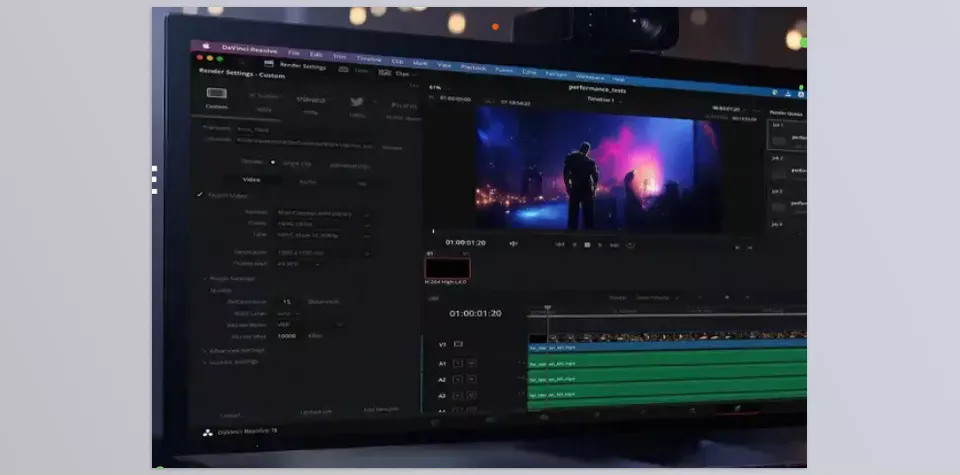
🧠 A Few Professional Tips for Getting Better Results
Before we dive into the tips, keep one important thing in mind: these settings may look simple, but in professional projects, they can make the difference between an average output and a delivery-ready, industry-standard result.
📡 Choosing the Right Option for Broadcast (MXF / AS-11)
If your final deliverable is intended for television or official broadcast networks, make sure to use MXF or AS-11 presets. These formats were specifically designed to meet strict broadcast standards and help ensure that your files are accepted without issues.
💾 Using HEVC 10-bit Smartly for Archiving
For large-scale or archival projects, HEVC 10-bit is an excellent choice because it preserves image quality while significantly reducing file size, without sacrificing important visual details.
⚡ Enabling GPU Encoding with an RTX Graphics Card
If your system is equipped with an RTX GPU, be sure to use GPU encoding. It can dramatically improve rendering speed and significantly reduce the time required to export your projects.
🧪 Running a Test Render Before the Final Export
Before exporting the entire project, render a short test segment of a few seconds. This helps verify that the selected codec and preset are correct and prevents potential export errors or file rejections later in the workflow.
Ultimately, these simple practices can prevent many time-consuming issues and help ensure that your final output is exactly what you need for a professional delivery.
🎯 When Exporting Becomes Part of Being Professional
The Codec Plugin for DaVinci Resolve Studio offers editors a different way to think about exporting DaVinci Resolve projects. Like editing projects, exported projects must be just as precise, standardized, and free from the potential for errors as the editing process that created them.
For professionals working on high-end projects, the savings in time and effort are immense. Editors will no longer have to worry about their projects’ export settings, as they will have confidence that the file will be created to the standard required.
Ultimately, Codec Plugin offers more than speed—it provides confidence. Confidence that the file you export is exactly what the destination system expects and can accept without complications. In professional workflows, that level of reliability is a major advantage.
Whether you’re a beginner or an experienced DaVinci Resolve editor, learning how to use the right tools can significantly improve your workflow and save you valuable time. That’s why we suggest reading our complete guide to the most useful DaVinci Resolve tools.