

🎙️ When Creating a Voiceover Takes Longer Than the Editing Itself!
Are you experienced in using the VoiceLab Plugin by aescripts? Have you ever wanted to create a simple voiceover for your video, only to realize that you spent more time switching between your editing software and AI websites than actually editing? 😅 You write the script, wait for the voice to be generated, download the audio file, and only then can you return to your project.
Now imagine your client asks you to change just one sentence—or even a single word! You have to go through the entire process again: generate the voice, download the file, import it, and replace the previous version. Each round may only take a few minutes, but when this happens several times during a project, it quickly becomes frustrating and time-consuming. 🤦♂️
Today, creating AI-generated voiceovers is no longer difficult. What really matters is how quickly and smoothly you can get the job done. When everything happens directly inside your timeline without leaving your project, your focus stays on what actually matters—creating a professional video. 🚀

🔊 What Exactly Is AI Voice Generation?
You’ve probably heard the term Text-to-Speech (TTS) before, but the idea is much simpler than it sounds. You simply write the text you want, and AI converts it into an audio file using a voice that sounds like a real narrator. Compared to a few years ago, these voices have become much more natural and, in many projects, they can easily replace a temporary—or even final—voiceover. 🎙️
Of course, AI voices will never replace the importance and use of human voice-over actors for certain projects. A human voice will always be the best choice for commercials or other voice-over projects that require human emotion. However, projects such as educational videos, YouTube videos, product videos, motion graphics, draft voiceovers, and dubbing can be completed with AI voiceovers, saving hours of work. 🚀
Another major advantage of these tools is their speed. Imagine you’re publishing the same video in multiple languages, or your script hasn’t been finalized yet and may change several times. Instead of waiting for another recording session every time, you simply edit the text, and a few seconds later, the new version is ready. That’s why Text-to-Speech tools have become one of the most practical solutions for content creators, video editors, and motion designers. 🌍
🛠 Can You Create Voiceovers Without VoiceLab?
Fortunately, VoiceLab isn’t the only way to create voiceovers. Depending on your project, budget, and expected quality, any of the following methods can be a good choice. Each one simply comes with its own advantages and limitations.
🎤 Common Methods for Creating Voiceovers
The most common and professional approach is to record a real voice—either with a professional voice actor or your own. If the recording quality is good, this method delivers the most natural results and remains the best option for projects where tone, emotion, and professional delivery are essential. However, coordinating with a narrator, re-recording, and editing audio files can be time-consuming, especially when the script changes frequently.
Another popular option is using AI services such as ElevenLabs, Google AI Studio, Microsoft TTS, or PlayHT. These services generate voiceovers simply by entering text, and the quality is often excellent. However, the typical workflow usually looks like this:
- Write the script
- Generate the voiceover
- Download the audio file
- Import the file into Premiere Pro or After Effects
- Place the audio on the timeline
- Repeat the entire process whenever the script changes
On the other hand, Premiere Pro itself provides tools such as Essential Sound, Audio Track Mixer, and Adobe Enhance Speech. These tools are excellent for cleaning audio, improving narration quality, reducing noise, and mixing sound. However, they cannot generate voiceovers directly from text—they only work with existing audio files.
⏳ The Real Challenge Isn’t Generating the Voice!
The truth is that generating AI voiceovers is no longer difficult, and many tools already offer this capability. What frustrates most editors is managing the repetitive workflow—constantly switching between the browser, different websites, and editing software, downloading files, importing them, and repeating the entire process after every small change. When working on a large project or dealing with multiple client revisions, these seemingly simple back-and-forth steps can consume a surprising amount of time and distract you from the actual editing process.
🚀 What Is VoiceLab and What Does It Do?
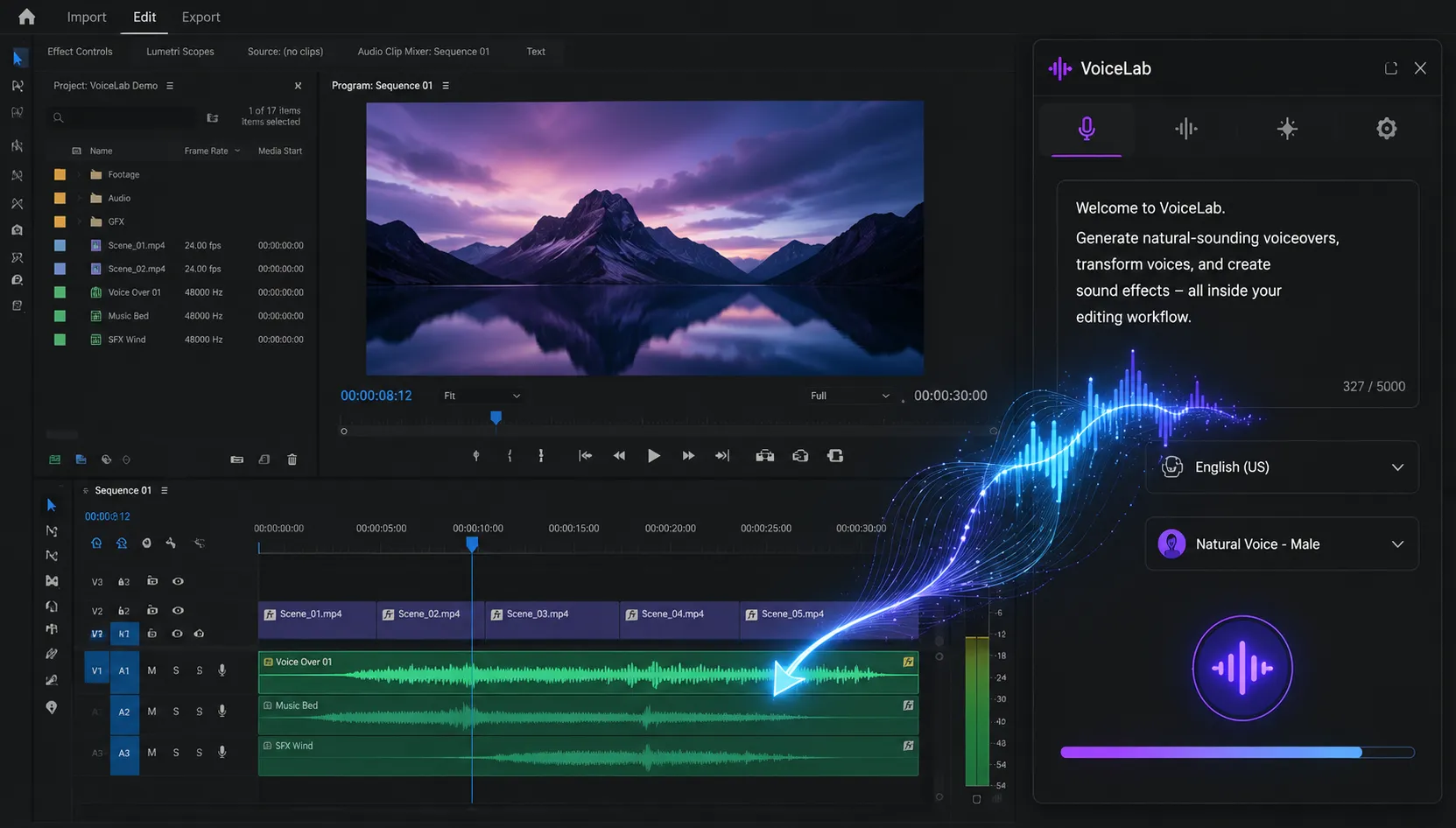
So far, we’ve seen that generating AI voiceovers isn’t difficult, but managing files and moving between different tools can significantly slow down your workflow. VoiceLab was built specifically to solve this problem. It is an AI-powered panel for Premiere Pro and After Effects that lets you generate voiceovers, change the voices in existing audio files, and create sound effects without ever leaving your editing software. Instead of constantly switching between your browser and your editor, everything happens directly inside your project.
One interesting thing about VoiceLab is that it doesn’t focus on a single feature. Instead, it brings multiple audio-related tools together in a single panel, making the entire process of creating and managing audio much faster and simpler. Let’s take a look at its main features.
✍️ Generate Voiceovers from Text (Text-to-Speech)
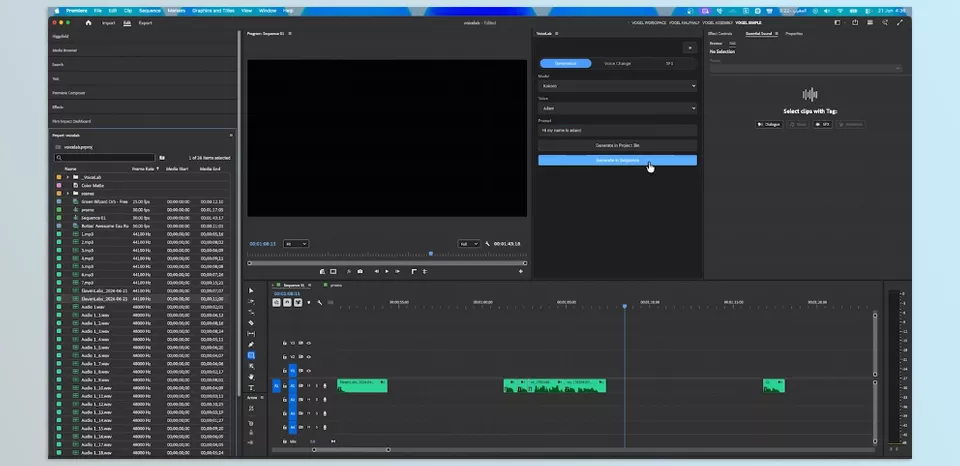
The main feature of VoiceLab is the ability to create voiceovers from text using AI-generated text-to-speech software. All a user needs to do is type the text they would like spoken in their project. Once they have finished, they can select the language and voice for the text-to-speech software, then click play to hear the generated voiceover in their project.
This feature is especially useful for projects where the script isn’t finalized or changes frequently. For example, if you’re editing an educational video and want to test several narration versions, you simply edit the text, and the updated version is generated immediately. Or if you publish multiple YouTube videos every week, you can quickly create draft—or even final—voiceovers without recording your own voice.
🔄 Change Existing Voices (Voice Change)
VoiceLab also allows creators to change the voices within their existing audio files. All a user needs to do is select the audio file within their project and select the new voice that they would like to use for that audio file. The software will generate a new audio file using the selected voice and replace it in the original audio clip.
Imagine you’ve initially recorded the video using your own voice, but later decide to replace it with a female voice, a male voice, or another narrator. Or perhaps your client isn’t satisfied with the current voice and wants a different tone or speaker. In these situations, there’s no need to record everything again or rebuild your project. VoiceLab simply replaces the existing audio while keeping your project layout intact.
🔊 Generate Sound Effects from Text (AI SFX Generation)
Another exciting VoiceLab feature is AI-powered sound effect generation. Instead of spending hours browsing SFX libraries, you simply describe the sound effect you need using a few words.
For example, you can enter prompts such as:
- Rain
- Explosion
- Fire
- Crowd
- Wind
- Footsteps
- Door Closing
- Sci-Fi Laser
The plugin generates the sound effect and inserts it directly into your project. This feature can save a significant amount of time when creating trailers, motion graphics, short-form videos, games, or project prototypes.
💻 Fully Offline with the Kokoro Engine
One feature that sets VoiceLab apart from many similar services is its support for the Kokoro engine. This engine runs entirely on your local computer, meaning it doesn’t require an internet connection or an online account to generate voiceovers.
The advantages of using Kokoro include:
- No internet connection required for voice generation
- Better privacy since your text and files never leave your computer
- No additional costs, subscriptions, or monthly credits
- Ideal for confidential projects or companies that cannot upload data to online services
If your primary needs involve drafts, project previews, or everyday content creation, Kokoro alone may be all you need.
☁️ Direct Integration with ElevenLabs
In addition to its offline engine, VoiceLab also supports ElevenLabs. If you have an ElevenLabs API Key, you can access its advanced voices directly in the panel without visiting the website or manually downloading files.
In general, Kokoro is an excellent choice for previews, draft versions, confidential projects, and everyday use because it’s free and works offline. However, if you’re producing a commercial project and need the highest possible voice quality or a wider selection of voices, the ElevenLabs engine may be the better choice.
🌎 Generate Voiceovers in Multiple Languages
If you create content for international audiences, VoiceLab can generate the same script in multiple languages. The plugin supports languages including American English, British English, Spanish, French, Italian, Hindi, Japanese, Mandarin Chinese, and Brazilian Portuguese.
For example, imagine you’ve created a product presentation video and plan to publish not only a Persian version, but also English and Spanish versions. Instead of creating separate projects or hiring multiple voice actors, you can generate and manage all narration versions directly within the same project.
🎬 Everything Happens Without Leaving the Timeline
This may be VoiceLab’s biggest advantage. Most AI tools only generate audio, but VoiceLab keeps the entire workflow inside Premiere Pro or After Effects. You write the text, generate the voice or sound effect, and the result appears directly on your timeline or inside the Project Panel.
That means you no longer need to switch between your browser, your Downloads folder, and your editing software—or repeatedly import and replace new files. Especially in projects where clients frequently request revisions, this integrated workflow can save considerable time and help you stay focused on editing.
🎥 What Types of Projects Is VoiceLab Best Suited For?
Almost any project that requires narration or sound effects can benefit from VoiceLab, but its value becomes especially clear in the following scenarios:
- 🎬 YouTube Videos: Quickly generate narration for educational, technology, news, or documentary videos.
- 📚 Online Courses: Produce draft or even final voiceovers without constantly recording audio.
- 📱 Instagram Ads and Social Media Content: Create voiceovers and sound effects quickly for fast content publishing.
- 🎨 Motion Graphics: Add narration and sound effects while building animations without leaving your project.
- 📝 Draft Versions Before Recording the Main Voice Actor: Test timing, pacing, and synchronization before recording the final narration.
- 🌍 Multilingual Versions: Generate English, Spanish, or other language versions to publish the same video in different markets.
These use cases make VoiceLab more than just a voice-generation tool—it becomes part of an editor’s or motion designer’s workflow, helping to significantly reduce production time.
💡 Tips for Getting Better Results with VoiceLab
Using AI tools for voice generation has become incredibly simple, but a few small tips can make a big difference in the quality of your final output. By following a few simple practices, you’ll get more natural-sounding voices while also working faster with VoiceLab. 🚀
- 🎧 Use Kokoro for Testing and Draft Versions
If you’re still in the testing phase, creating drafts, or syncing narration with visuals, the Kokoro engine is a great choice. Since it works offline and at no cost, it’s fast and convenient for checking your project’s pacing and timing. - ✨ Use ElevenLabs for Final Deliverables
When your project is ready to be delivered to a client or when voice quality is more important, using ElevenLabs can produce more natural and professional results. This is especially true for primary narrations that aren’t intended to be just draft versions. - 📝 Keep Your Script Short and Natural
The quality of a voiceover doesn’t depend solely on the voice generation engine—the script itself is equally important. Shorter sentences, well-placed pauses, and a conversational writing style make the final result sound much more natural and less robotic. - 🎚️ Don’t Forget to Mix Your Audio After Generation
Even the best AI-generated voiceover benefits from final audio adjustments. With tools such as Essential Sound in Premiere Pro, you can better balance volume, improve clarity, and blend the narration with your project’s music and sound effects. - 🎬 Create a Draft Before Recording or Generating the Final Version
If your project’s script hasn’t been finalized yet, it’s a good idea to create a draft voiceover first. This allows you to review the narration’s pacing and synchronization with the visuals before spending time on the final version. - 🔒 Use Offline Mode for Sensitive Projects
If you’re working on a confidential project or your scripts and files must never leave your computer, the local Kokoro engine is the safer option, as all voice processing happens directly on your machine. - 🌎 Manage Multilingual Versions Within the Same Project
If you’re planning to publish a video in multiple languages, it’s better to manage all narration versions within the same project. This makes it much easier to keep the narration synchronized with the visuals while reducing the time needed to produce different language versions.
Ultimately, you’ll achieve the best results by treating VoiceLab as more than just a button for generating voices. Instead, use it as part of your editing workflow to speed up production, test ideas more efficiently, and manage project revisions more easily. 🎬
🎯 When Voiceovers Become Part of the Editing Workflow
In the end, what makes VoiceLab truly appealing isn’t simply its ability to generate AI voices—there are already many tools that can do that. What makes this plugin different is that it brings voice generation, voice transformation, and AI sound effect creation directly into the same environment where you’re already editing your project. That means you no longer have to leave your project every time you make a small change or constantly switch between multiple websites and applications. 🎬
If you regularly work on YouTube videos, online courses, motion graphics, or projects that require frequent revisions, the speed that VoiceLab adds to your workflow becomes obvious very quickly. Being able to generate a voiceover, change the voice of an existing clip, or create a sound effect for a quick idea in just a few seconds gives you more time to focus on the creative side of your project instead of repetitive tasks. 🚀
Ultimately, VoiceLab isn’t just a voice generation tool—it’s a faster way to manage the audio side of your projects. If you’ve ever found yourself repeatedly switching between AI websites and your editing software just to change a single sentence or test a new idea, this plugin can eliminate much of that hassle from your workflow. For editors and motion designers who value speed, flexibility, and greater control over their projects, VoiceLab can become one of the most useful tools in their daily workflow. ✨
Are you trying to learn more about the tools available in After Effects? Our After Effects Tools guide explains the different types and categories of tools, from plugins and effects to templates and creative resources, so you can better understand what each one is used for.



