

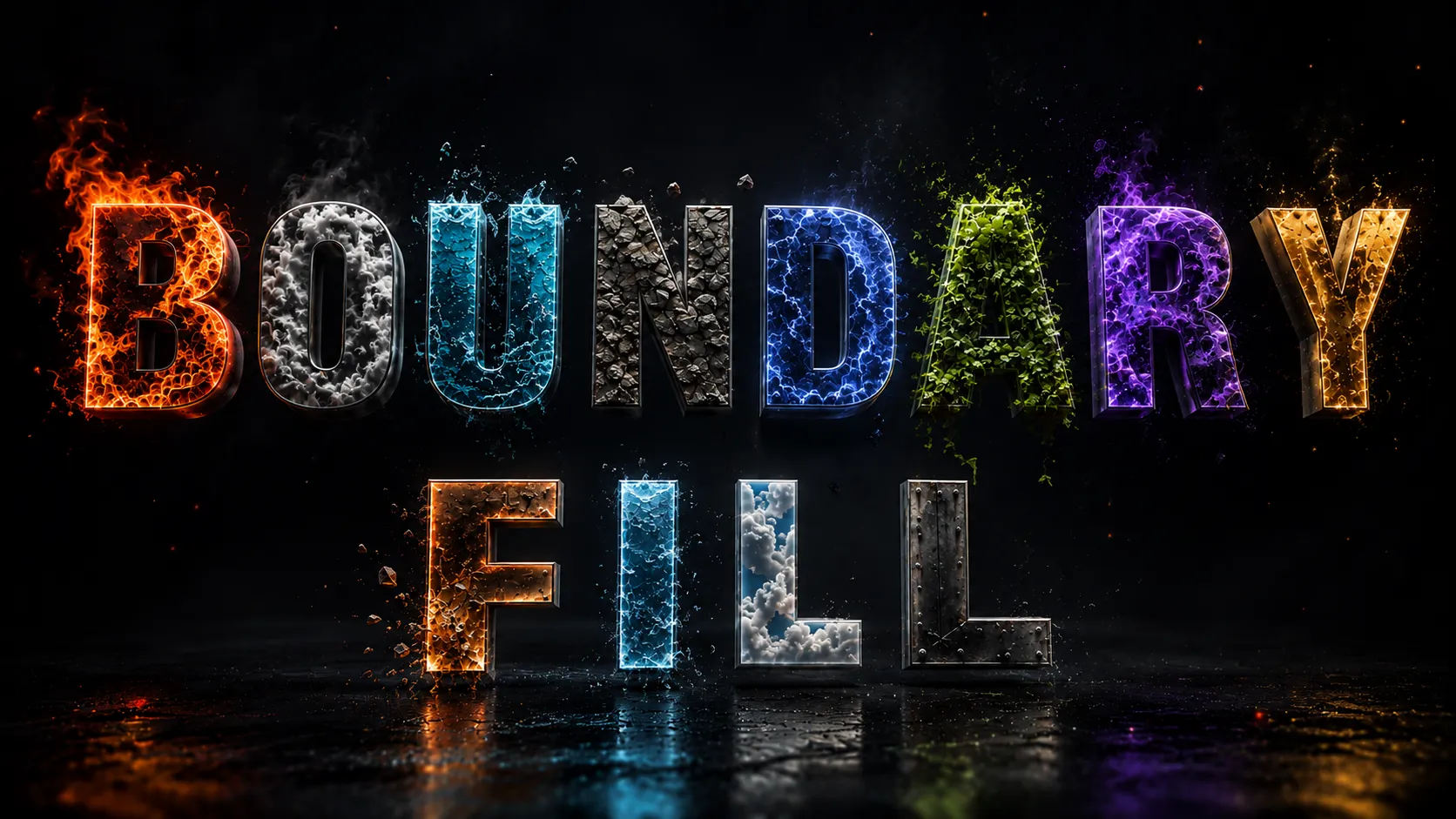
Creating Unique Typography in After Effects🎬
Are you familiar with the workflow of the Boundary Fill Plugin by aescripts? Have you ever wanted to create stunning text for a teaser, logo animation, or advertisement, only to realize that bringing your vision to life is far more challenging than expected? Especially when you want each letter to have its own unique animation—for example, having every character enter the scene individually, display a video or animated texture inside it, and move in perfect synchronization.
At first, it sounds straightforward to create unique typography. However, as you begin to build such a project, the complexity of the task becomes more apparent. You must separate the text into individual letters and create masks for each letter to animate each one independently. This takes a significant amount of time to program each of these letters to perform in time with one another.
The main challenge is that, in motion graphics projects, these seemingly small details can consume hours of your time. Instead of focusing on ideas and creativity, you may end up spending most of your effort on repetitive technical tasks—especially when the text is intended to be a prominent visual element in the project.

When Every Letter Has Its Own Personality ✨
In motion graphics, text is more than just words placed on a screen. Quite often, the letters themselves become an essential visual element and need to behave like individual objects—they move, transform, and even develop their own distinct appearance.
Imagine a word appearing on screen, with each letter containing an animated video, a metallic texture, smoke, fire, or another unique visual. Now suppose you want every character to enter the scene separately, rotate, or scale independently. The content inside each letter also needs to move along with that specific character so the final animation looks natural and professional.
This is where attaching textures directly to the letters becomes important. Instead of placing a single image or texture over the entire text, each character can behave independently while carrying its own animated content. This technique is especially useful for creating professional logo animations, promotional videos, cinematic typography, textured text effects, and creative social media animations.
Common Methods for Creating This Effect in After Effects 🛠️
After Effects includes powerful tools for working with text and creating a wide variety of animations. By combining several built-in features, it’s possible to achieve effects like these. Typically, text animators, masks, track mattes, and parenting are used to place textures or images inside letters and keep them synchronized with the text animation.
Creating this type of effect usually involves the following steps:
- Separating the letters or different sections of the text so each part can be controlled independently.
- Creating masks for every character so the image or video is displayed only within that specific letter.
- Placing textures or image layers inside the text using techniques such as track mattes.
- Animating each letter individually so the final motion behaves exactly as intended.
For simple projects, these methods work perfectly well and offer a high level of control over the final result. However, as the number of letters, animation details, and visual complexity increases, managing the project becomes considerably more difficult.
The Challenges of Manual Workflows in Complex Projects ⏳
The real challenge begins when projects become larger. Imagine working with a long sentence where every letter needs its own animation while simultaneously displaying an animated texture inside each character. In this situation, the number of layers, masks, and settings grows rapidly, and even a small change to the text, font, or animation may require reworking a significant portion of the project. These repetitive tasks often shift your focus away from creativity and design toward managing technical details.
Boundary Fill 3: More Control Over Letter Textures 🎯
Boundary Fill 3 is a professional After Effects tool designed to make working with textured typography and complex text animations much easier. The plugin allows you to bind images, videos, or virtually any texture directly to the structure of your text, so when the letters move, transform, or animate individually, the content inside them follows those movements accordingly.
Simply put, this tool lets you treat text as more than a single unified word. You can control the boundaries of each individual character, allowing every part of the text to behave independently. This becomes especially valuable when you want animated videos, custom textures, or visual effects inside the letters while animating each character separately.
For instance, if you have a logo that contains fire or smoke footage, and each character needs to appear individually with their own animations, the footage within the text must move with that character. Boundary Fill 3 is designed to make this process easier for you.
🎨 Smart Texture Mapping for Individual Letters
One of the most important features of this After Effects plugin is the ability to place an image, video, or any texture within the boundaries of each individual letter of your text. Each character of your text can be treated as if it is its own independent element.
You can achieve this by using a metallic texture for your text or placing a video of the sky within your text. Furthermore, you can even add a noise texture that will animate within your text elements.
This feature is especially useful when your text is meant to be an element of your composition rather than a text element that displays text to the audience.
✨ Better Synchronization with Text Animations
One of Boundary Fill 3’s strengths is its improved integration with After Effects’ text animation system. Normally, once you place a texture inside text, synchronizing it with individual character animations can become challenging—especially when using per-character position, rotation, or scale animations.
This tool helps the texture behave more consistently alongside text animations. As letters appear individually, move, or transform, the content inside them remains synchronized with those changes as closely as possible.
This capability is particularly valuable for professional typography, logo animations, and projects where text plays a central visual role.
⚙️ More Precise Control Over Letter Boundaries
The latest version of Boundary Fill 3 introduces additional controls for managing character boundaries. This provides greater flexibility when working on more complex typography projects by offering finer control over how different regions are identified and combined.
Features such as saving text states, adjusting boundary spacing, organizing region positions, and improving movement and rotation controls help produce cleaner final results. These settings are especially useful when working with unique fonts, tightly spaced text, or projects containing a large number of characters.
💾 Text Save System: Improved Text Detection
One of the key additions in version 3 is the Text Save system. This feature allows the plugin to store the original state of the text so character boundaries can be identified more accurately and textures can remain properly synchronized.
Since After Effects does not directly expose complete information about every character’s movement and transformation to third-party tools, Boundary Fill uses this approach to maintain better control over the text structure.
Keep in mind that if you later change the font, size, or appearance of the text, you should save the text state again to ensure accurate results.
🖱️ Interactive Controls for Easier Adjustments
In version 3, interactive controls have been added alongside the standard settings, making it much easier to work with different regions. Instead of navigating through complex settings for every small adjustment, you can more easily manage the position, rotation, and scale of individual sections.
This is especially helpful in projects that require frequent revisions, as it accelerates experimentation and makes it easier to achieve the desired result.
🎞️ Texture Management and Animation Timing
Boundary Fill 3 is not limited to placing a simple texture inside text. It also provides greater control over how textures are displayed and synchronized over time. This allows you to determine how textures are combined and how their movement aligns with the rhythm of your animation.
This feature is particularly useful for text animations that include embedded videos, animated effects, or multiple layered textures.
🌐 3D Workflow Support
For projects that use After Effects’ 3D environment, Boundary Fill 3 also includes dedicated 3D controls. Using a control layer such as a Null Object, you can more easily manage texture positioning and movement while maintaining better synchronization between the text, the texture, and the 3D scene.
This feature can be especially valuable for logo animations and typography projects that utilize 3D cameras.
What Types of Projects Is It Best Suited For? 🎬
Boundary Fill 3 is primarily designed for projects where text is more than simple typography and needs a distinctive appearance and behavior. From professional logo animations and promotional videos to title sequences, music videos, and creative typography projects, this tool can be used across a wide range of productions.
Ultimately, the greatest value of this plugin lies in simplifying effects that would otherwise require extensive manual work, allowing you to spend more time focusing on ideas and creative design.
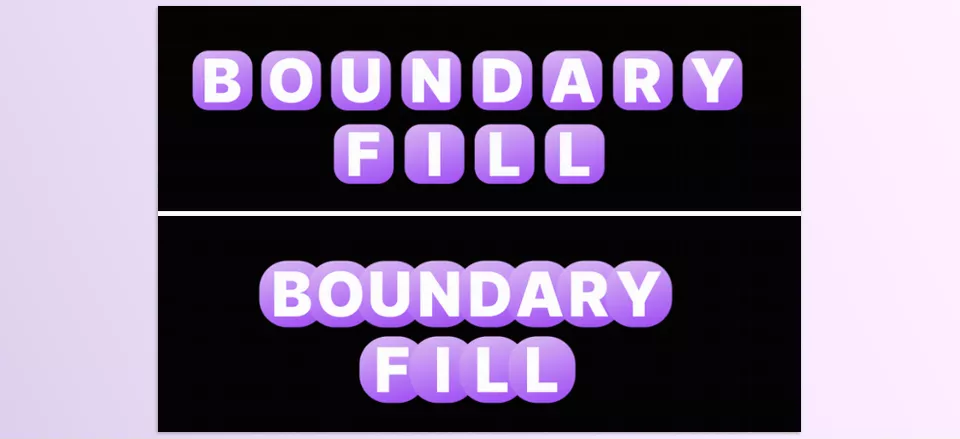
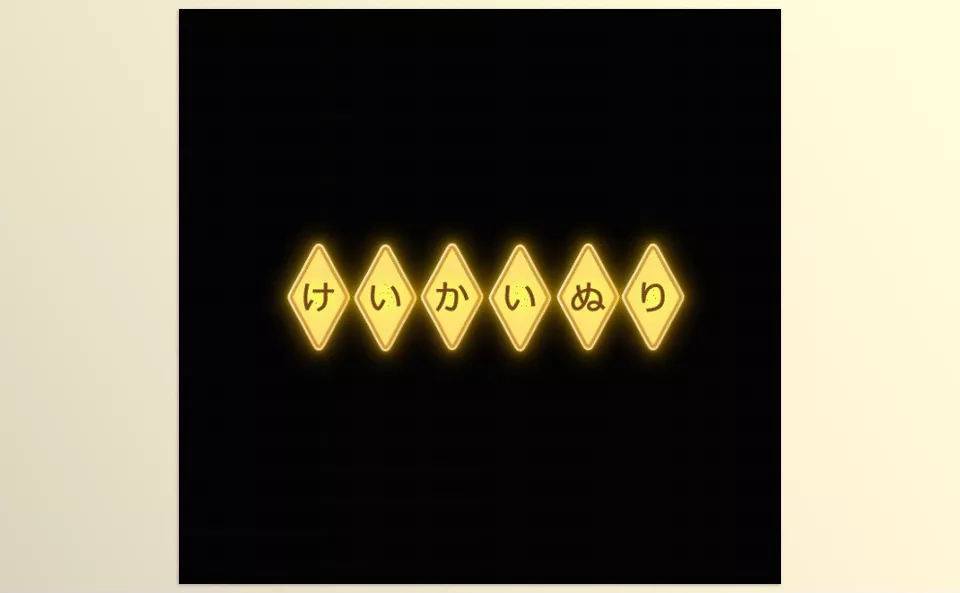
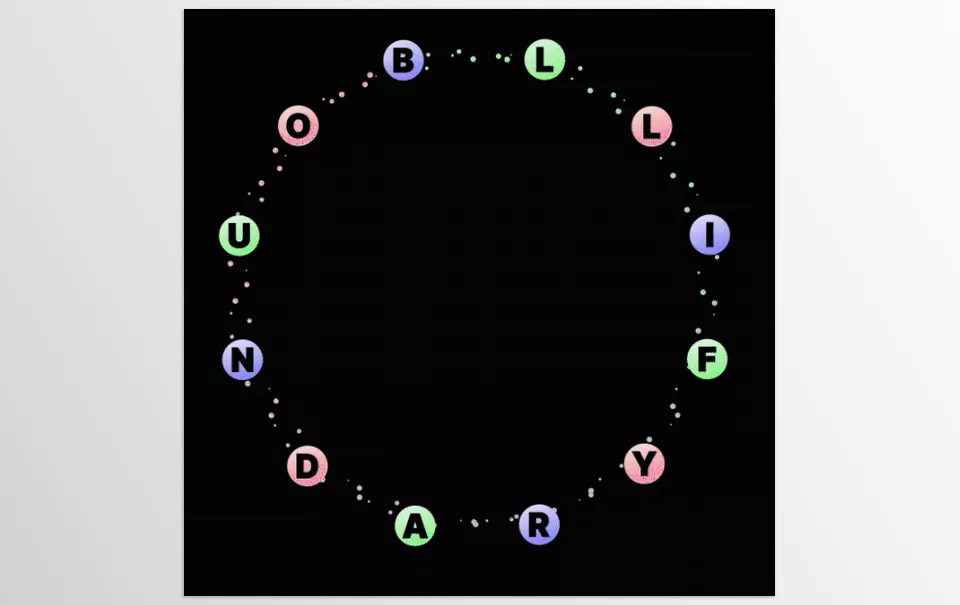
Tips for Getting Better Results with Boundary Fill💡
To get the best results from Boundary Fill 3, simply knowing the available tools isn’t enough. The way you use textures, prepare your text, and synchronize animations all significantly impact the final output. Following a few simple guidelines can help your work look cleaner, more natural, and more professional.
- Finalize your text before you begin.
Changing the font, size, or overall structure of your text after setting up Boundary Fill may require you to readjust your settings. It’s best to finalize your text and its overall appearance as much as possible before starting. - Use appropriate textures.
Not every image or video works well inside text. In most cases, textures with controlled detail, smooth motion, or balanced contrast produce more attractive and natural-looking results. - Don’t overcomplicate the design.
Sometimes, a simple texture combined with well-executed animation can have a much stronger impact than layering multiple effects together. Try to keep the primary focus on text readability and the overall harmony of the visual composition. - Match letter animation with texture movement.
If the animation of the letters and the movement within the texture are synchronized, the final result will appear much more natural. For example, a slow-moving texture paired with very fast letter animation may feel inconsistent, whereas matching their motion can make the final output look significantly more polished and professional.
Ultimately, Boundary Fill 3 is more than just a tool for adding textures. It provides a better way to control the finer details of typography. With careful texture selection and thoughtful animation timing, you can use these capabilities to create typography that is more creative, visually engaging, and impactful.
When Text Becomes a Living Element 🎯
In many motion graphics projects, what separates ordinary text from professional typography isn’t just the font or the color. It’s the subtle details—how the letters move, how the textures stay synchronized with the animation, and the sense of life the text conveys—that make the final result far more compelling.
For those who work with text animations, logo animations, and the like, you are likely well aware of the amount of time that it can take to separate each of the text characters, create the masks for those characters, and create textures that are synchronized with each of those text characters’ movements.
The Boundary Fill 3 plugin for After Effects will give you the control necessary to create complex typography with each of the characters of the text moving in unique ways. If you are interested in creating unique typography projects, textured text projects, or any type of animation that features a professional appearance, the Boundary Fill 3 plugin will significantly reduce the amount of time it takes for you to create these projects and give you the freedom to follow your creative ideas.
Before you download any new After Effects assets, ensure that you are familiar with what each of these tools does. In our After Effects Tools guide, we cover a wide variety of the available After Effects plugins, scripts, presets, templates, and much more.



