

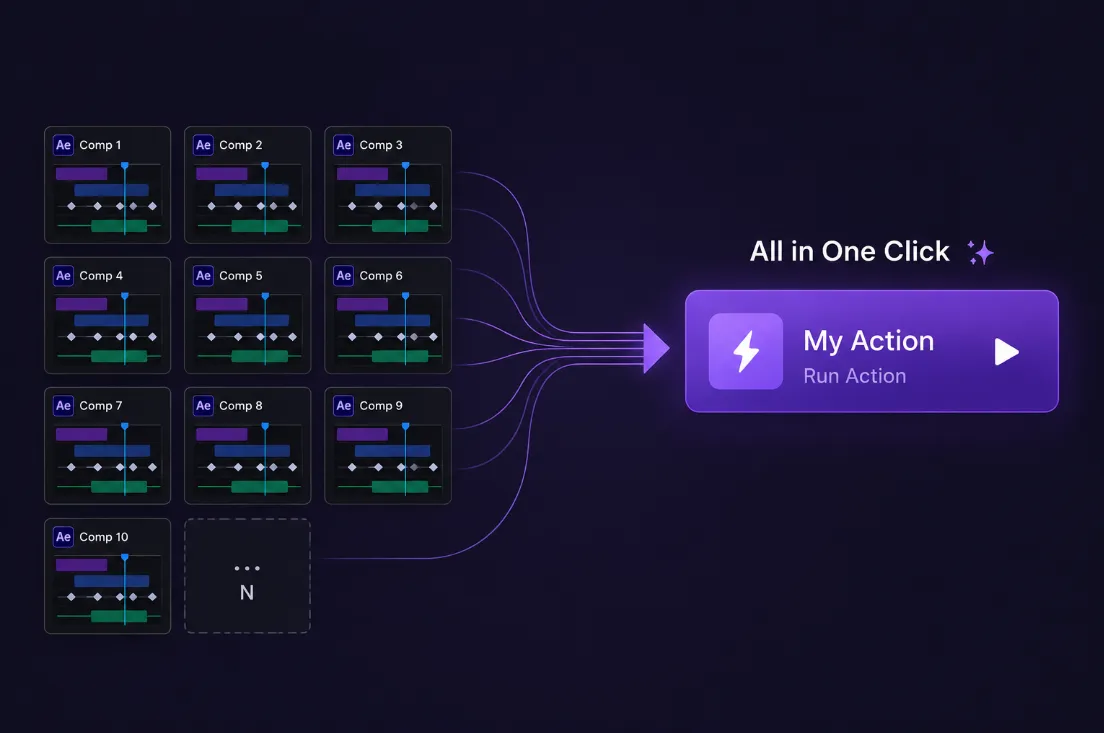
When Repetitive Tasks Eat Up Project Time 🎬
Are you experienced in using the AE Actions Plugin by aescripts? Have you ever found yourself doing exactly the same set of tasks multiple times in an After Effects project? For example, applying certain effects to layers, changing their settings, creating a few keyframes, and then repeating the same steps for several other compositions? Each time might only take a few minutes, but when you repeat the process dozens of times, it can become seriously time-consuming and exhausting.
The problem isn’t just the time; when you perform a workflow manually over and over again, there’s also a greater chance that you’ll miss a step or enter a value incorrectly. Especially in complex projects with lots of layers and compositions, these seemingly simple tasks can take up a significant portion of your project time.
This is where being able to record a workflow and run that same process again with just a few clicks can be genuinely useful. Instead of going through every step from scratch each time, you build the workflow once and keep it for future use.

What Exactly Does Workflow Recording Mean? 🔄
When we talk about a workflow in After Effects, we don’t just mean a single effect or a specific setting. A lot of the time, getting the result you want requires performing several tasks in sequence; for example, duplicating a layer, changing several properties, adding an effect, adjusting its settings, creating keyframes, and finally changing the timing or layer order.
Now imagine having to perform those same steps on several other layers or compositions. This is where Workflow Recording comes in handy. Instead of manually doing all of these tasks from scratch every time, you can save this collection of changes as an executable workflow and later run the same process on another layer or composition.
This approach is especially useful for tasks like creating repetitive animations, preparing layers, adding multiple effects in sequence, adjusting keyframes, changing timing, and creating similar structures across multiple compositions. As a project gets larger and the number of layers and comps increases, simply being able to perform certain tasks once and reuse them can take a huge amount of repetitive manual work off your shoulders.
How Can You Do These Things Without Additional Tools? 🛠️
After Effects itself provides various tools for handling many repetitive tasks. If your goal is simply to reuse an animation, effect, or set of settings, you have several different options. Depending on the type of work you’re doing, you can use these methods:
- Animation Preset: For saving and reusing animation settings, effects, and various properties.
- Copy / Paste: For transferring keyframes, properties, or certain settings from one layer to another.
- Expressions: For creating procedural animations and controlling motion without having to manually create every keyframe.
- Parenting and Null Object: For controlling multiple layers with a shared structure and creating relationships between layers.
- Pre-compose: For turning multiple layers into an independent structure that you can more easily manage and use across different parts of a project.
- Essential Graphics: For creating reusable controls and preparing certain elements for use across different projects.
For more complex workflows, if you’re familiar with scripting, you can also automate some repetitive tasks using After Effects scripts. So in terms of built-in capabilities, After Effects doesn’t leave you empty-handed, and many needs can be handled using these tools alone.
What’s the Problem With the Usual Methods? 🤔
The issue starts when your workflow involves more than just a simple animation or effect. For example, imagine that preparing a layer requires several consecutive steps: duplicating the layer, changing several properties, adding and adjusting multiple effects, creating keyframes, changing the timing, and finally repeating the same process for several other compositions. At that point, a simple Animation Preset can’t necessarily cover the entire process, and Copy/Paste still leaves you doing a large portion of the work manually. Expressions are also better suited to animation logic and behavior and aren’t designed to record every different operation you perform as part of a workflow. On the other hand, writing a custom script for every small task requires time and technical knowledge of its own. As a result, the more complex and repetitive a workflow becomes, the more useful it can be to have a method that records the workflow once and then runs it again.
AE Actions: When You Can Save and Replay After Effects Workflows 🎬
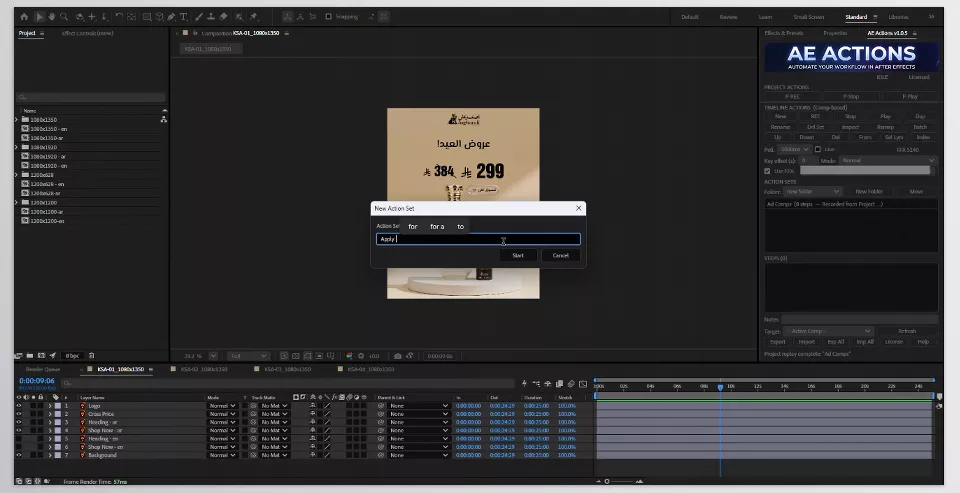
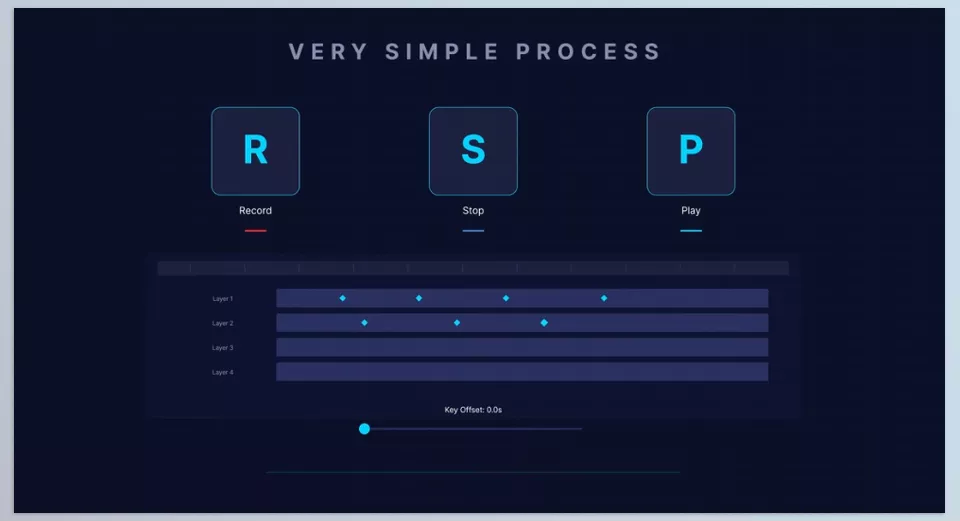
This is where AE Actions comes in. This tool is a ScriptUI Panel for After Effects that can record various changes and operations you perform while working on a project and save them as an Action Set. In practice, you can think of it as a Macro Recorder specifically for After Effects: you perform a workflow once, its steps are recorded, and then you can run the same process again on your project.
Of course, recording doesn’t mean capturing every single click and mouse movement. AE Actions focuses on actual project changes; in other words, the things you actually do to layers, properties, effects, the timeline, or compositions that can be replayed.
What Exactly Can It Record? 🎯
The range of changes AE Actions can record is relatively broad and isn’t limited to the settings of a single layer. The main things that can be included in an Action Set are:
- Layers: Creation, deletion, duplication, Visibility, Solo, Lock, Shy, Label, and changing layer order
- Transform and Properties: Position, Scale, Rotation, Opacity, and supported properties
- Animation: Creating and modifying keyframes
- Effects: Adding effects, changing parameters, removing effects, and working with .ffx files
- Timeline: Changing In/Out Point, Start Time, Stretch, and Layer Index
- Composition: Changing Duration and Frame Rate
- Project: Certain project-level operations
For example, you can start Recording, duplicate a layer, change its Scale, add and adjust an Effect, change the Opacity, and create several keyframes. These changes are saved as Steps within an Action, and later you can run that same set of operations again.
After Recording, You Can Edit the Workflow 🔧
One of the advantages of AE Actions is that a recorded Action isn’t completely fixed. After Recording, you can open the Step Inspector & Editor, view the steps, change their order, or remove Steps you don’t need. You can also add Notes and Annotations to each Action so you can easily remember later what the Workflow was created for.
If you have two different Workflows that you usually use one after another, you can combine them using the Merge Action Sets feature and create a new Action without changing the original versions.
Where Can You Run an Action? ⚡
The Action you create isn’t limited to the original Composition. You can run it on the active Composition, selected Layers, or another specific Composition. For larger projects, there’s also a Batch Processing feature that lets you run an Action across multiple Compositions.
For example, if you have 20 Compositions and need to run a specific Workflow in all of them, you don’t have to open every single Comp and repeat the steps manually. You create the Action once and then run it as a Batch on the Comps you want.
To control how values are applied, AE Actions also provides Absolute, Relative, and Proportional modes. With Keyframe Offset, you can shift the timing of an Action’s Keyframes when replaying it, and with Selected Layers Mode, you can specify that the Workflow should only be applied to selected Layers.
Smart Recording: Capturing Changes More Precisely 🧠
The Smart Recording system helps identify changes made to the project more precisely. AE Actions can take a Snapshot of the Composition state and compare the changes before and after the Workflow to determine exactly which Properties, Effects, Timings, or Layer settings have changed.
Alongside this system, there’s also a Live Polling Mode for Recording, allowing changes to be tracked and recorded while you work. So what gets saved isn’t simply a snapshot of the project’s final state; the goal is to capture the changes you made to reach that result.
What If an Action Depends on an Effect File? 🔗
If an Action depends on an .ffx file, the path to that file might not be found later on another system or in another project. For these situations, AE Actions includes FFX Auto-Index and Remapper, which can find and Index Effect files and, when necessary, let you manually specify the file path.
This feature is especially useful for Workflows that are moved between different projects or systems.
Keep Your Workflows Forever 📚
As the number of Actions grows, you can organize them inside the Action Library and add descriptions or Notes to each Set. Individual Actions can be exported in the .aeact format, while complete Libraries can be exported in the .aeactlib format; so you can keep the Workflows you’ve created for future projects or share them with team members.
To prevent a large number of Actions from slowing down the panel, AE Actions uses Catalog-First Loading and Per-Set Lazy Loading. This means all the details of every Action don’t need to be loaded from the beginning, and each Set’s information is loaded when you need it.
Faster Control With Keyboard and Right-Click ⌨️
For faster Action management, Keyboard Shortcuts are also available. The main shortcuts for starting Recording, stopping Recording, running an Action, and moving Steps are available. Alongside them, a Right-Click Menu is available for Action Sets and Steps, allowing you to run many commonly used commands directly from the right-click menu.
AE Actions also supports Track Matte Replay, so Workflows in which Track Matte is part of the structure can be used in the recording and replay process.
Now AI Is Part of the Picture Too 🤖
In the new version, AI Beta is one of the most interesting parts of AE Actions. This feature allows you to describe what you want to create or animate in natural language instead of always having to manually record the Workflow.
Using Codex or Claude Code CLI, which run locally on your system, the system can create an Action Plan. You can use it to help create a new Scene, animate existing Layers, or create reusable Layer Presets.
Before creating the final Action, there’s also a Prompt Enhance option to make your description more precise, and then you can use Play AI Action Before Saving to run and review the generated Action. If the result is suitable, you save it, and it becomes part of your Library. This feature works on Mac and Windows, and according to the developer, AE Actions itself doesn’t store the API Key associated with Codex or Claude Code.
50 Expression Recipes for Procedural Motion ✨
The AI section also has access to Expressions, with 50 pre-validated Expression Recipes included in the tool. AI can use these Recipes for certain Procedural Animations and turn to Keyframes when a movement genuinely requires direct Keyframing.
This can be especially useful for movements where you want specific and repeatable behavior.
AI Actions Are Checked Before Execution 🛡️
To make sure a generated Action isn’t simply a raw instruction, AE Actions checks various parts of it before Playback. These checks include Operations, Effects, Expressions, Parameters, Layer References, Dimensions, and Dependencies.
If part of an Action isn’t supported or a required Dependency is missing, the Plan can be rejected before execution. This system is presented as Validated AI Action Plans, and its purpose is to check the generated Action before it is applied to the project.
One Panel for the Entire Workflow 🎛️
Overall, AE Actions isn’t just a tool for saving the settings of a single Layer. It can record a multi-step Workflow based on actual changes inside After Effects and then let you edit, organize, merge, save, and run that Workflow on other Layers or Compositions.
From Recording and Playback to Batch Processing, Library, FFX Remapping, Keyframe Offset, Track Matte Replay, Shortcuts, and AI capabilities, all of these features are brought together in a single panel to make it easier to turn repetitive After Effects Workflows into reusable Actions.
How Can You Build Better Actions? 🎯
To make sure the Actions you create are actually useful later, simply recording a Workflow isn’t enough. If you build your Actions a little more systematically from the beginning and organize them after recording, they’ll be easier to reuse and cause fewer problems across different projects.
- Define the Workflow before recording. Before you start recording, go through the process once so you know exactly which steps need to be recorded in the Action.
- Don’t make Actions excessively large. Instead of putting every step of an entire project into one massive Action, it’s better to create smaller, combinable Workflows that can also be useful across different projects.
- Review the Steps after recording. After Recording, look through the Steps and remove anything extra or unnecessary. If needed, you can also change the order of the Steps.
- Use Batch for repetitive tasks. If an Action needs to run across a large number of Compositions, use Batch Processing so you don’t have to run the same Workflow separately for every Comp.
- Archive useful Actions. Keep the Actions you use most often in specific Folders and add Notes to them so you can gradually build an organized Library of ready-to-use Workflows for future projects.
Ultimately, the more clearly structured your Actions are, the easier they’ll be to find and reuse. The goal is that, over time, the repetitive and time-consuming tasks in your projects turn into a collection of ready-made Workflows that you can quickly reach for whenever you need them.
When Doing It Once Is Enough 🎯
If a large part of your daily work in After Effects involves repeating the same series of steps, what AE Actions offers can be genuinely useful. Instead of having only a Preset containing the final settings, you can save a collection of operations and changes from a Workflow and run them again later.
From changing Transform properties and creating Keyframes to adding Effects, changing Timing, managing Layers, and even running an Action across multiple Compositions, all of these features make repetitive Workflows easier to reuse.
Ultimately, the most appealing part is that, over time, you can build a library of your own working methods; meaning that anything you do repeatedly doesn’t have to be recreated from scratch every time. Build the Workflow once, save it, and the next time you need it, quickly return to it.
Are you looking for a better way to explore After Effects tools without getting overwhelmed? Our After Effects tools guide covers the different types and categories of tools, helping you understand how plugins, scripts, presets, and templates can improve your editing process.



