

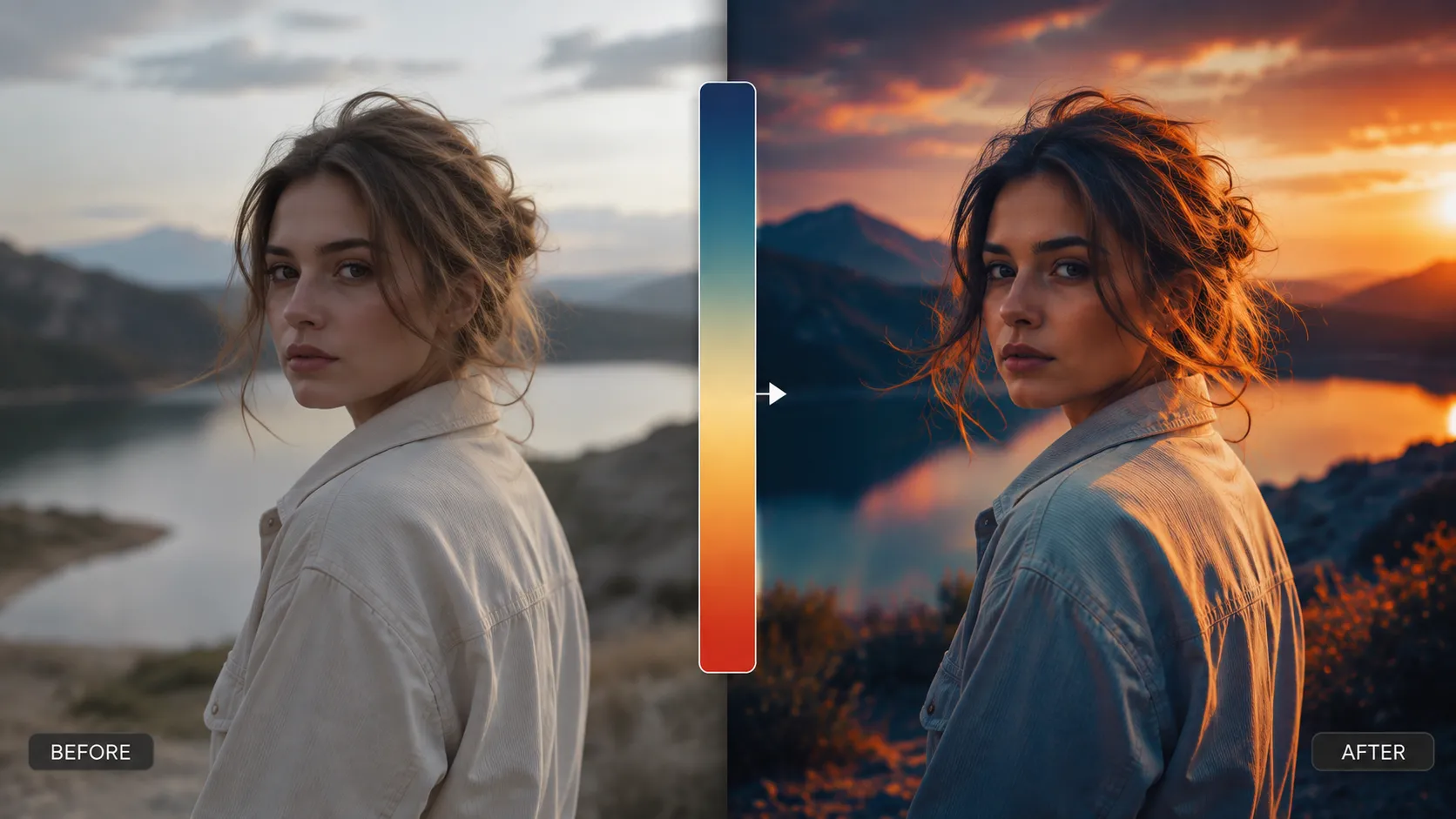
Creating a Professional Color Scheme Takes More Time Than You Think 🎨
Are you familiar with the Fastgrad Plugin by Supply Family? If you’ve ever worked with Gradient Map in Photoshop, you probably know that creating an attractive color combination isn’t as simple as choosing a few colors. Finding colors that look good together, placing each color in the right position on the gradient, and achieving the desired mood usually involves a lot of trial and error.
The problem starts when you have to go through the same process from scratch for every project. One time you’re looking for a cinematic style, the next project calls for vintage colors, and the one after that needs a modern, high-contrast result. Each time, you have to spend a considerable amount of time creating or readjusting the gradients.
In situations like this, having an archive of ready-made, professional Gradient Maps is less about adding a new capability and more about having a shortcut to reach your desired result faster. Instead of creating everything from scratch, you can start with a ready-made color combination and simply adjust it according to your own preferences and the needs of your project.

What Is a Gradient Map and What Is It Used For? 🌈
A gradient map is one of Photoshop’s useful tools for changing the color mood of an image. This tool assigns new colors to different parts of a photo based on their brightness levels. In other words, you can determine what color the shadows should be, how the midtones should look, and what colors should appear in the brighter areas of the image.
Simply put, instead of changing every color in the image one by one, you select a gradient and Photoshop applies it to the entire image. Of course, it’s different from regular presets. Presets usually change several settings at once, such as lighting, contrast, color, and effects, while Gradient Map focuses only on the image’s color scheme and is used to create a specific color style.
With Gradient Map, you can do various things, such as:
- Creating cinematic and attractive color schemes
- Creating a vintage and retro look and feel
- Designing distinctive posters and covers
- Creating eye-catching advertising visuals
- Preparing unique posts for social media
- Using it in photo manipulation and digital design
- Creating a specific color style for a brand or project
That’s why many designers and editors use Gradient Map; with a simple change in colors, it can completely transform the mood and appearance of an image.
Creating Gradients Manually in Photoshop: Common Methods 🖌️
Before using ready-made collections, most designers relied on Photoshop’s own tools to create color styles. Using the Gradient Map tool, you can create your desired color combination from scratch and change an image’s appearance by adjusting different colors.
Alongside Gradient Map, other tools are also used to achieve better results, such as:
- Curves: For precise control over the image’s brightness, contrast, and color tones
- Selective Color: For changing the colors of specific parts of the image
- Color Balance: For adjusting color balance and creating a warm or cool feel
- Color Lookup: For applying ready-made and cinematic color styles
- Gradient Fill: For creating color layers and blending them with the image
By combining these tools, you can create almost any type of distinctive color scheme and build a completely personalized style for a project.
The Challenge of Creating Professional Color Schemes Manually ⏳
The main problem is that achieving an attractive color combination isn’t always that simple. Finding colors that look natural and professional together, adjusting the correct position of each color on the gradient, and matching the result to each image usually requires a lot of trial and error. Especially when you have several different projects and need to create a color style from scratch for each one, this process can take up a lot of your time.
FastGrade 3: When Creating Professional Color Schemes Takes Just a Few Clicks 🚀
FastGrade 3 is not a separate plugin for Photoshop, nor does it add any new functionality to the software. Instead, it’s a complete collection of more than 130 professional Gradient Maps that have already been designed so you can create attractive color schemes for your projects more quickly.
Normally, creating a specific color style in Photoshop requires a lot of time and trial and error. You have to choose the colors, adjust their positions on the gradient, and change the result several times until you achieve the mood you’re looking for. But with FastGrade 3, you can choose from ready-made combinations, apply them to your image, and make changes as needed.
More Than 130 Ready-Made Color Combinations for Every Style 🎨
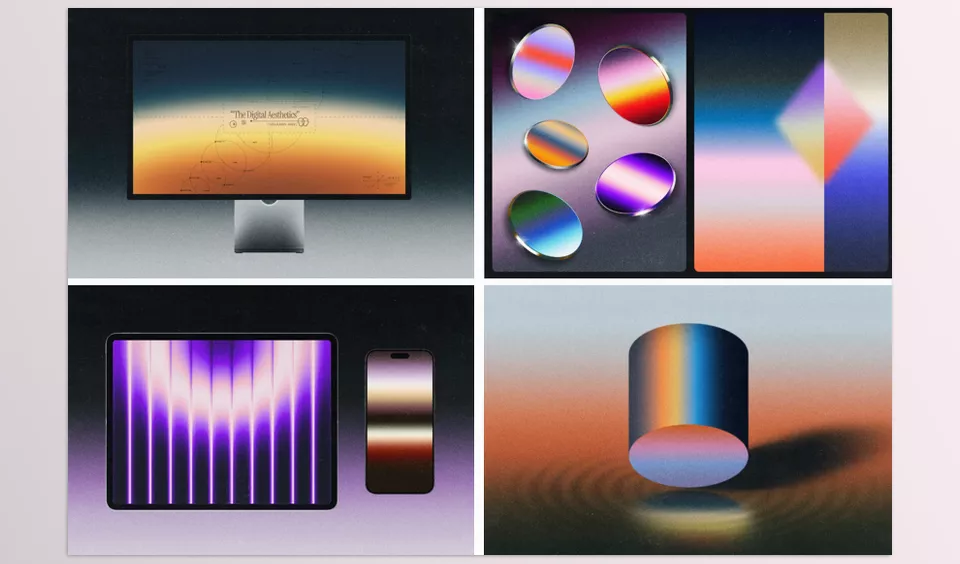
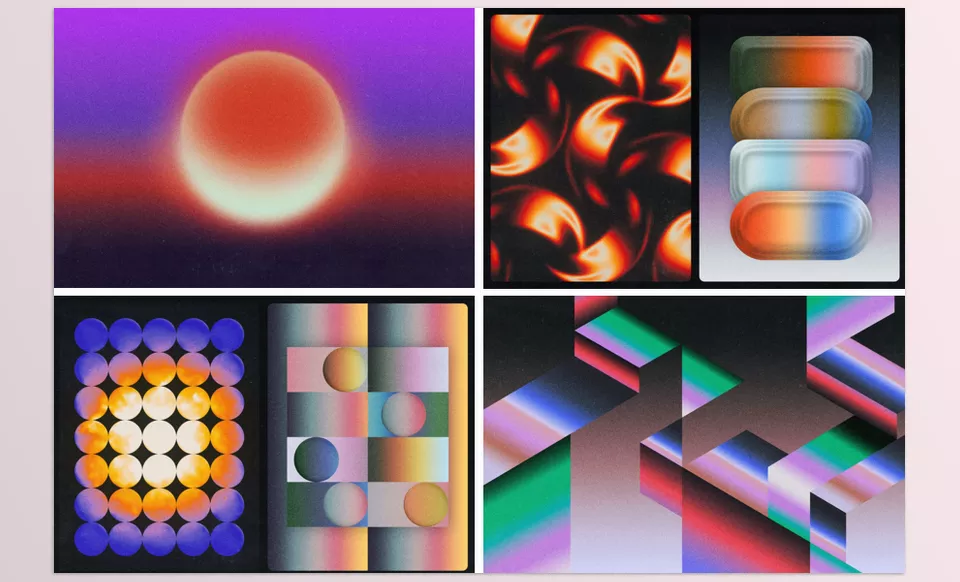
One of the most important features of FastGrade 3 is the wide variety of its gradients. This collection doesn’t just provide a few simple color combinations; it covers a range of different styles, from warm and vintage colors to cinematic, soft, modern, and high-contrast combinations.
This variety gives you a suitable starting point for different projects. For example, you can use softer color schemes for a portrait, choose more dramatic styles for a poster or album cover, and use bolder combinations for advertising designs.
Full Customization to Achieve Your Desired Result ✨
One important thing about FastGrade 3’s Gradient Maps is that they aren’t simply ready-made, unchangeable effects. After applying any gradient, you can change the colors, move their positions, increase or decrease the intensity of the effect, and create different results by adjusting the layer’s blending mode.
In fact, this collection isn’t meant to simply give you a ready-made final result; it can serve as a quick starting point for creating your own custom color schemes. This means you can take a ready-made style, adapt it to your project’s needs, and achieve a completely personalized result.
Applications in Different Design and Editing Projects 🖼️
At first glance, you might think Gradient Map is only used to change the colors of photos, but its applications are much broader. FastGrade 3 can be used for photo editing, poster design, album cover creation, social media content design, advertising banners, photo manipulation, and even creating a specific color style for graphic design projects.
Anywhere color plays an important role in conveying a particular mood, having a collection of ready-made gradients can help you achieve the desired look faster and spend less time finding the right color combination.
Additional Textures for Creating More Attractive Results 🖌️
Alongside more than 130 Gradient Maps, this collection also includes 8 high-quality textures with a resolution of 6000 × 4000 pixels. These textures can be used to add detail, create a more natural feel, and build combined effects in your designs.
A guide file (PDF) is also included in the package to make it easier to get started with the collection and help you quickly become familiar with how to use the files.
Overall, FastGrade 3 is more than just a collection of ready-made colors; it’s a practical archive for speeding up the color grading process—one that helps you spend less time creating color combinations from scratch and more time on creativity and bringing your ideas to life.
A Few Tips for Getting Better Results With FastGrade 3 💡
Using ready-made Gradient Maps makes the process much faster, but a few simple adjustments can make the final result look more natural and professional. By following a few tips, you can get better results from this collection and match the color schemes more precisely to your own project.
- Adjust the image lighting before applying the gradient.
Gradient Map works based on the brightness of the image, so if the initial lighting and contrast are properly adjusted, the colors will sit more naturally on the image, and the final result will look better. - Control the intensity of the effect with Opacity.
You don’t always need to use a gradient at 100% intensity. In many cases, reducing the Opacity makes the color scheme look more natural and prevents the image from being altered too much. - Experiment with layer blending modes.
Changing the Blend Mode to options such as Soft Light, Color, or Overlay can create a completely different look and help the gradient blend better with the image. - Combine multiple gradients.
Don’t limit yourself to a single preset. By using multiple Gradient Map layers, you can create new color combinations and achieve more distinctive styles. - Use the textures included with the collection.
Combining gradients with paper or grain textures can give the image a more natural, warmer, and even more cinematic feel, making the final result look more professional.
Ultimately, the best results come when you don’t limit yourself to simply using ready-made presets. A little adjustment and customization can make each gradient perfectly match the atmosphere of your project and your own working style.
When Professional Color Grading Is Just a Few Clicks Away 🎯
Creating these same effects using Photoshop’s own tools is also possible, but FastGrade 3 is practical because of its speed and ease of use. Instead of spending a lot of time finding the right color combination and starting from scratch every time, you can quickly try a ready-made style, apply it to your image, and then adjust it exactly to your preferences with a few simple changes.
With more than 130 professional Gradient Maps, you’ll always have plenty of different options for different projects—from cinematic and dramatic color schemes to warm, vintage, modern, and minimalist looks. This means you’ll spend less time experimenting with colors and more time focusing on creative ideas and improving the final result.
If you work with design, photo editing, or any form of visual content creation software like Adobe Photoshop, then FastGrade 3 might just be the tool that makes your workflow faster. While it is definitely possible to achieve the same results without FastGrade 3, it will shorten the path to your professional gradient and help you achieve your desired color scheme.
Looking to improve your Photoshop workflow? Check out our complete guide to the most useful Photoshop tools to help you find the perfect tools for your projects and use them more effectively.



