

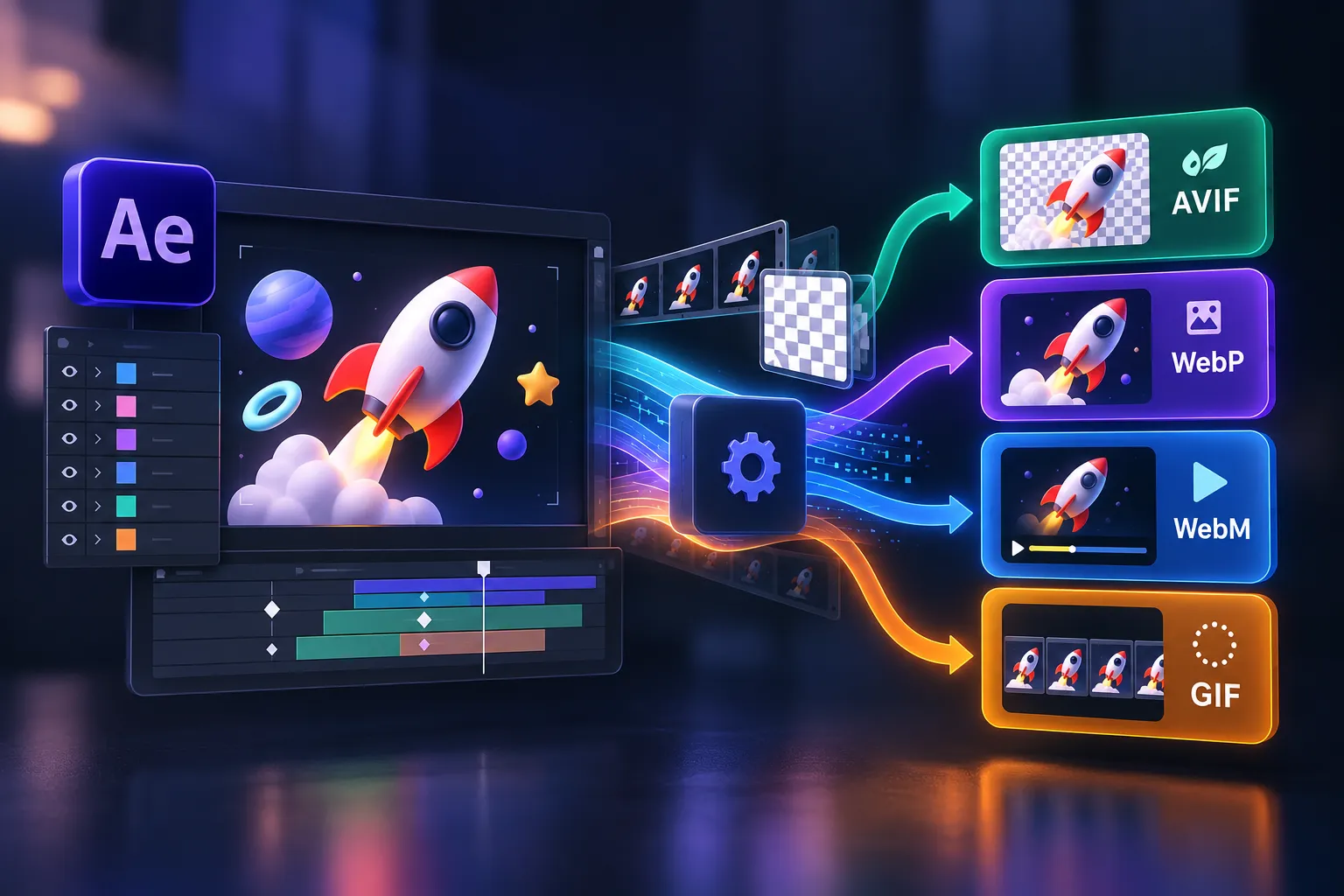
Web Export: The Final Step You Shouldn’t Underestimate 🎬🌐
Are you familiar with the AVIF Pro Web Plugin by aescripts? Have you ever spent a ton of time carefully creating an animation in After Effects, had everything go perfectly, only to run into export problems when preparing the file for a website? The file size is too large, you don’t have a suitable web format, image transparency gets lost, or you have to redo the settings from scratch every time you need several different outputs.
Things get even more difficult when you need to prepare multiple animations or Image Sequences at the same time. This is where exporting is no longer simply the final click of a project; it becomes part of the production process, and if it isn’t managed properly, it can take a lot of time and energy.

What Does a Web-Ready Export Mean, and Why Does It Matter? 🌐
When we talk about web animation, image quality isn’t the only factor. The final file needs to maintain acceptable quality while keeping a reasonable file size, preserve transparency when needed, and match the format required by the project. That’s why formats such as AVIF, WebP, WebM, and GIF have become widely used in web projects.
For example, imagine you’ve designed a short motion graphic for a website’s homepage. You don’t want the user to wait for a multi-megabyte animation to load. On the other hand, if the animation has a transparent background, you can’t simply choose any standard video format.
In situations like these, choosing the right format and compression settings can directly affect the user experience. AVIF and WebP for lighter files, WebM for video and animation, and GIF for simpler uses can each have their own place.
At the same time, Alpha Channel support is also very important for motion graphics that are used without a background. For example, consider an animated logo or a user interface element that needs to be placed over a website background; in this case, preserving transparency in the output can be absolutely essential.
How Can We Do This Without a Dedicated Tool? 🛠️
You can prepare web-ready outputs without a dedicated tool, but you usually need to complete several steps using different tools. First, you can render the composition through the Render Queue in After Effects and specify settings such as dimensions and frame rate. Then, you can use conversion tools to convert the rendered file into your desired format.
There are several options for doing this:
- After Effects: For the initial rendering of compositions and exporting video or Image Sequences.
- FFmpeg: For converting videos to formats such as WebM and controlling settings related to Codec, Bitrate, quality, and dimensions.
- Gifsicle: For creating or optimizing GIF files and reducing their file size.
- WebP and AVIF conversion tools: For converting image files or Sequences into more modern web formats.
With this method, each tool handles one part of the process, and if you need different outputs, you have to move between these stages.
The Main Hassle: Multiple Tools and Multiple Steps for a Single Output
This method becomes much more noticeable when the number of files increases. For a simple composition, exporting and converting the file may not take much time, but with multiple compositions, formats, and settings, you need to manage each stage separately. At the same time, tools like FFmpeg offer a huge number of features, but working with the Command Line isn’t easy for everyone, and manually configuring parameters can also increase the chance of errors.
With Batch Processing, you also need to manage the files, apply the appropriate settings to each output, and then review the results separately. As a result, what should be the final stage of the project gradually becomes a time-consuming process.
One Compact Exporter for All Web Formats 🎯
This is where AVIF Pro Web comes in. This tool is a complete solution for preparing web outputs, available as both a panel inside After Effects and an independent Standalone Desktop App for Windows and macOS. So whether you want to export directly from your compositions or convert existing files, videos, or Image Sequences, you can manage everything from a single environment.
The tool mainly focuses on four formats: AVIF, GIF, WebM, and WebP, and provides settings tailored to the specific use of each one. From quality and compression controls to dimensions, frame rate, transparency, color space, Codec, and even animation-specific settings, you’re not dealing with just a simple conversion; you can configure the output according to the actual needs of your project.
One Composition, One Quick Export
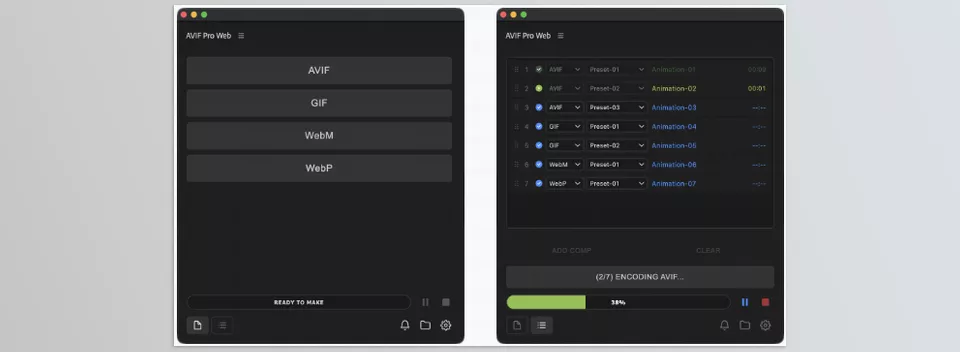
When you simply want to quickly export the active After Effects composition, Single Mode is designed for the job. Select your desired format, specify the output settings, and create the file directly from the panel without moving the composition to another application.
This mode is very useful for quick exports; for example, a short animation for the web, an animated user interface element, or a lightweight version of the final motion graphic that simply needs to be delivered in a specific format.
Multiple Compositions, Multiple Formats, One Export Queue
If the project is larger, Queue Mode comes into play. In this mode, you can add multiple compositions to the queue and assign a specific format and Preset to each item.
For example, imagine you have a project where you need to export several different compositions; one needs to be WebM, another WebP, and another GIF. You don’t need to manage each one separately; you place them all in a single Render Queue and specify the settings for each output individually.
This Queue isn’t limited to identical formats and can manage a combination of AVIF, GIF, WebM, and WebP. So if you need several types of web output for a single project, you’ll have a more organized Workflow.
Complete Settings for AVIF
For AVIF output, the AVIF Pro Web gives you various controls to balance quality and file size. Quality and Compression settings let you control the level of compression and, when needed, change the output’s technical specifications as well.
In terms of color depth, you can choose between 8-bit and 10-bit, while SDR and HDR options are available for Color Space. Alpha Channel support also lets you create outputs for projects that require a transparent background.
As a result, AVIF isn’t simply available as a “small file size” format; you can configure the output specifications according to the type of content you have.
Palette and Dithering Control for GIF
GIF is still useful for certain short animations and simple web content, but it has limitations, and incorrect settings can affect either file size or output quality.
AVIF Pro Web provides controls such as Palette, Dithering, and Loop for this format. Palette manages the output colors, while Dithering helps the image maintain a more natural appearance when the number of colors is reduced.
For looping animations, you can also control the Loop behavior and, if necessary, use Gifsicle to further optimize the file and reduce its size.
Choosing Codec and Bitrate in WebM
For WebM output, you have more options for controlling Encoding. You can choose between VP9 and AV1 Codecs and adjust the output bitrate to match your project’s needs.
If the file requires audio, you can also use Opus or Vorbis. In addition, VP9 Alpha lets you create outputs with transparency, which is important for animations and videos that need to be placed on web pages without a background.
This lets you use different settings for a lightweight animation compared with a higher-quality video, without being forced to export every project using the same fixed settings.
Lossy or Lossless Output for WebP
In the WebP section, you can also choose between Lossy and Lossless depending on the needs of the project. Lossy mode is suitable when file size matters most, while Lossless is useful when you want to preserve image information as much as possible without quality loss.
For animated WebP outputs, Preset and Loop settings are also available. This means you don’t have to think of WebP only as a format for static images and can also use its animation capabilities in your web Workflow.
Controlling Dimensions, Aspect Ratio, and Frame Rate
Output settings aren’t limited to format and quality. You can also control Dimensions and FPS so the file is created with exactly the dimensions and frame rate required by the project.
The AVIF Pro Web also considers encoder dimension limitations and lets you use sizes compatible with the Codec. This is especially important for video outputs because some Codecs can produce Render errors when invalid dimensions are used.
Managing Files and Converting Outside After Effects
One of AVIF Pro Web’s strengths is that its use isn’t limited to After Effects. The standalone desktop version on Windows and macOS can directly receive and convert existing files.
You can import videos, folders, or Image Sequences into the application. If you have multiple numbered images, the program can recognize and group them as a Sequence, so you don’t have to import the images one by one.
This means that if you’ve already rendered the project and are only at the format conversion stage, you don’t need to open After Effects again.
Batch Processing for Large Numbers of Files
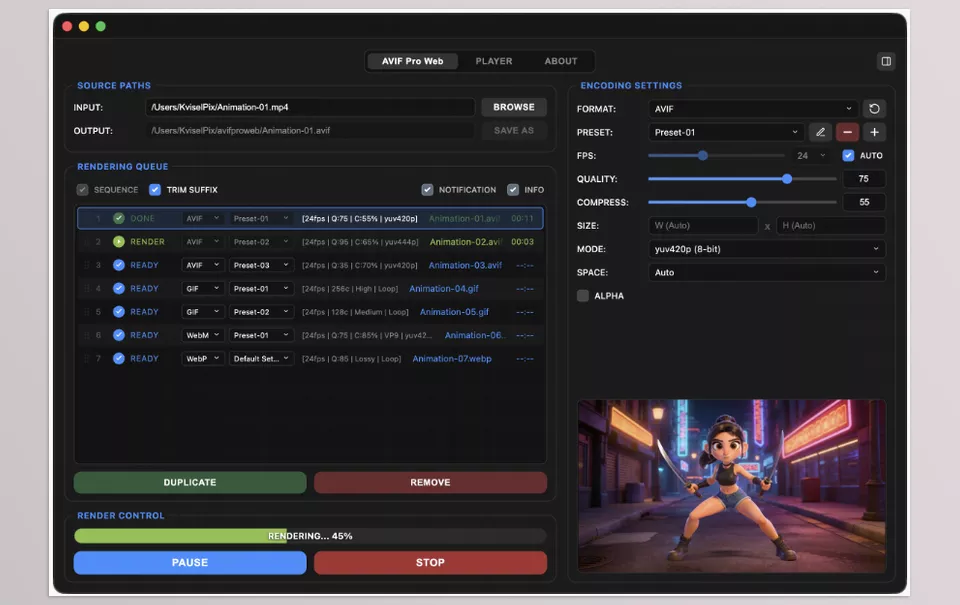
In the desktop version, you can also import multiple files or folders into a Render Queue and perform the conversion process in batches.
For example, if a folder contains several Image Sequences, you can add all of them to the queue, apply the required settings, and let the files be processed in order.
For heavier projects, you can also Pause, Resume, and Stop operations, and track the processing progress from within the application.
Managing Output Paths and File Names
To prevent a large number of outputs from creating file clutter, the tool also provides options for managing storage locations. You can use the default AVIF Pro Web path or specify a custom location for the outputs.
For Image Sequences, you can also remove or shorten the Suffix related to frame numbers so the final file name is cleaner and more organized.
This feature of AVIF Pro Web may not seem particularly significant, but when you’re dealing with a large number of outputs, keeping file names and paths organized can be an important part of project management.
Previewing the File Before Delivery
The Built-in Player is another useful part of the AVIF Pro Web. With it, you can view videos, web outputs, and Image Sequences directly inside the application, so you don’t have to switch between multiple programs to review the result.
You can also view the output on a Transparency Grid to check files with an Alpha Channel against a transparent background. You can also check the animation’s Loop behavior, switch the file display between Fit and Fill modes, and move between different outputs available in the Playlist.
This Preview is especially useful before project delivery because it lets you confirm the file has the expected motion, dimensions, transparency, and Loop behavior.
Custom Presets for a Faster Workflow
If you usually create similar outputs for similar projects, Custom Presets mean you don’t have to configure all the settings from scratch every time.
You can save suitable settings for a specific output type as a Preset and reuse them in future projects. Combined with Queue Mode, this feature can especially speed up the Workflow for projects with a large number of outputs.
Color, Audio, and Detailed Encoding Settings
AVIF Pro Web brings various Encoding settings together in a centralized environment, from Quality and Compression to FPS, Dimensions, Aspect Ratio, Alpha, Pixel Format, and Color Space.
Depending on the format, more specialized settings such as Codec, Bitrate, Audio, Loop, Palette, and Dithering are also available. This means you don’t have to manage every format with one general set of settings; each format has controls tailored to its own characteristics.
Using FFmpeg and Gifsicle Behind the Scenes
In the Encoding section, the AVIF Pro Web uses FFmpeg as the main Backend for processing video formats and Gifsicle for GIF optimization. The advantage is that you get the power of these tools without having to deal with the Command Line and complicated commands for everyday tasks.
As a result, if you’ve worked with FFmpeg before, there are familiar capabilities behind this Workflow, and if you aren’t comfortable with the Command Line, the tool’s graphical interface removes much of that complexity from your workflow.
Overall, AVIF Pro Web is more than a simple format converter. From format selection and Encoding settings to Batch Processing, Sequence management, Alpha control, Preset creation, Preview, and output management, it brings the different stages of preparing files for the web into a single Workflow, whether you’re working from inside After Effects or want to convert existing files using the desktop version.
A Few Tips for Cleaner, Hassle-Free Exports 🎯
To make sure the final result isn’t only correct in terms of format but also suitable for the project in terms of quality and file size, there are a few things you should keep in mind:
- Choose the format based on its intended use. Before exporting, decide where the file will be used. A short user interface animation doesn’t necessarily need the same format as a website’s main video.
- Don’t simply push quality to the maximum. Higher quality doesn’t always mean a better output. If a slight reduction in quality can significantly reduce the file size, that is usually more valuable for web content.
- Enable Alpha only when you actually need it. If the animation doesn’t need to be transparent, there’s no reason to unnecessarily bring Transparency settings into the process.
- Create Presets for repetitive projects. If you regularly export similar files for the same type of project, saving suitable settings means you won’t have to start from scratch every time.
- Review the final file before delivery. Especially for looping animations and outputs with transparency, a quick Preview can prevent many last-minute mistakes.
In the end, it’s always better to review an output on your own system rather than relying only on the Quality or Compression numbers. Settings that look good on paper also need to provide acceptable quality in the actual output.
Web Export Is Part of the Project Itself 🌐
For a motion designer, creating an animation doesn’t end the moment the composition is rendered. Sometimes the important part is delivering that same animation to its destination with the right file size, format, transparency, and controllable settings.
AVIF Pro Web focuses on this stage and combines an After Effects panel with a standalone desktop application to make converting and preparing web outputs more integrated. Support for AVIF, WebP, WebM, and GIF, along with Batch Export, control over encoding settings, and a built-in Preview, also make it a more practical option for projects where web output is an important part of the Workflow.
If you regularly work with motion graphics, short animations, or Image Sequences that ultimately need to be prepared for the web, the main value of a tool like this shows itself more than anything in reducing the back-and-forth between multiple tools and simplifying the export process.
Not sure what the difference is between After Effects plugins, scripts, extensions, and other tools? Our After Effects tools guide breaks down the different types of After Effects tools, explains what each one does, and helps you choose the options that make your workflow easier and more efficient.



