

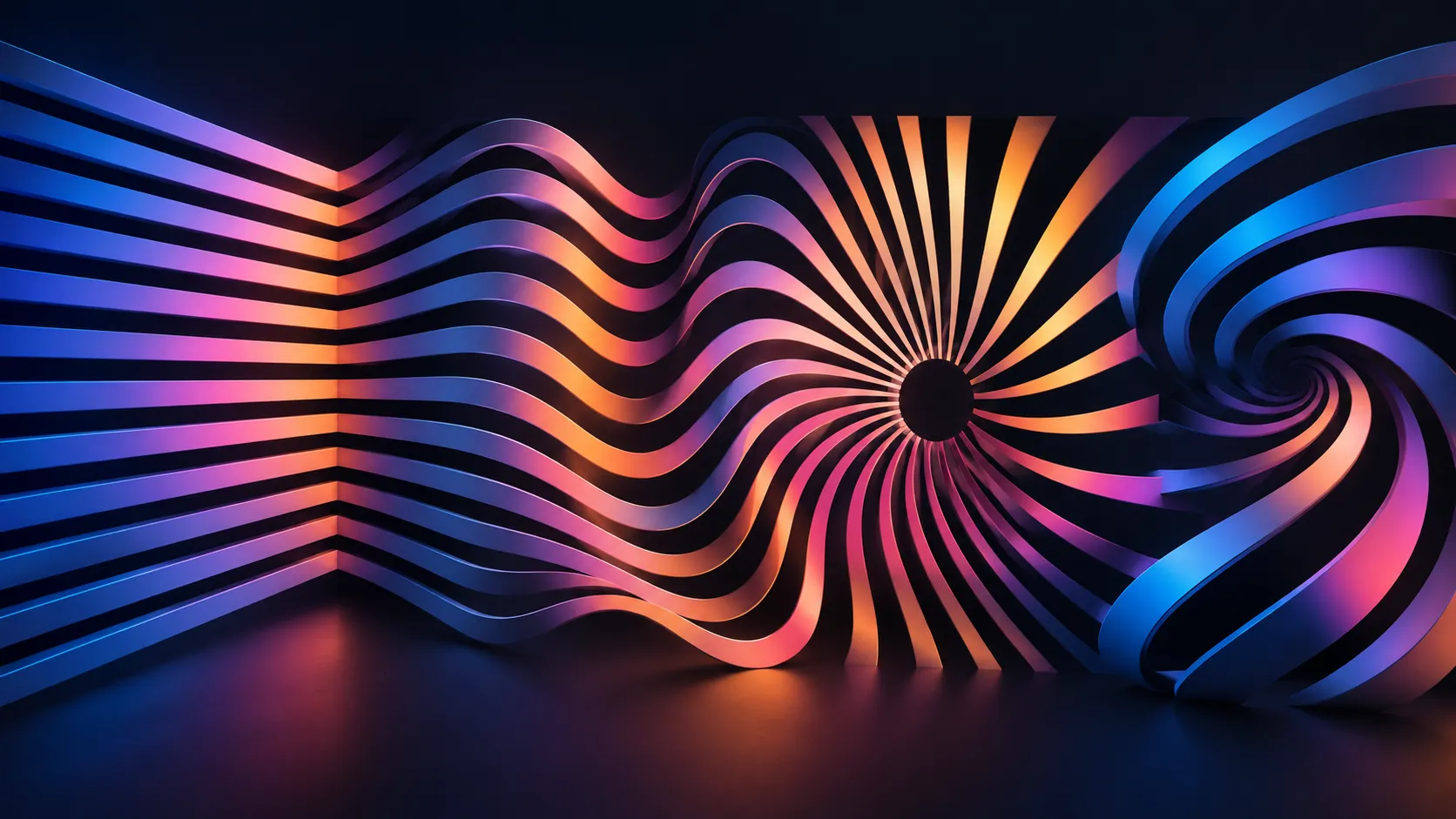
Geometric Patterns: Simple but Time-Consuming 🎨
Are you aware of what the KO BandFill Plugin by aescripts does? Have you ever wanted to animate several bands in sync with a beat, create a geometric transition, or have a regular background of evenly spaced lines in a motion project? At first, it all seems pretty simple, but once you start adding more lines or want all the lines to have the same shape, spacing, and animation, it can start to become slow. ⏱️
The challenge isn’t just creating the pattern; you also need to track the number of elements, the spacing between the bands, thickness, angle, position, and each one’s animation. And if you want the pattern to change throughout the animation, managing all these details can make the workflow quite cluttered.
On the other hand, ideas don’t always stay the same from the beginning to the end of a project! 💡 You might create a linear pattern and then, halfway through the work, decide to transform the same design into a wavy, radial, or even spiral form. This is where modifying manually built structures can get tricky and eat up project time with repetitive adjustments.

Where Exactly Are Band Patterns Useful? 🎨
A band pattern, in its simplest form, is a collection of repeating lines or bands that can be arranged in different ways within an image. These bands can be completely straight or transformed into waves, circles, spirals, and radial patterns.
Their applications go far beyond simple backgrounds. For example, you can use animated lines to create a transition, use radial bands to build a technological background, combine several different patterns to create an abstract texture, or even use the same structure to design a simple graphic element.
The advantage of this type of design in motion graphics is that almost everything can be parametric and animatable. Instead of having a static image, you can change the number of bands, the spacing between them, thickness, angle, display range, and even the softness of the edges over time.
After Effects’ Built-In Tools Come to Your Aid 🎨
For creating band and geometric patterns, After Effects itself provides various tools, and for simple projects, you don’t even need any additional tools. You can create a Shape Layer, build basic bands and shapes, and use built-in features to repeat and animate them. Depending on the type of pattern you want, the following tools are the most useful:
- Shape Layer and Repeater: For creating and evenly repeating lines, bands, and geometric shapes.
- Mask and Bezier Path: For creating different paths and forms and precisely controlling the shape of the pattern.
- Trim Paths: For creating movement along paths and gradually revealing lines and bands.
- Expressions: For automating certain changes and creating relationships between different parameters.
- Gradient Ramp and 4-Color Gradient: For creating gradients and colorful backgrounds.
But the More Complex the Pattern Gets, the More Troublesome It Becomes 😵💫
The default methods work perfectly well for creating a simple pattern, but when the number of bands increases, or you want to create wavy, radial, and spiral patterns, controlling all the details becomes more difficult. You usually have to manage multiple layers, paths, and settings, and to change the pattern’s appearance, you also have to go through several parts of the project. On top of that, if you later decide to change the structure of a pattern, you can’t always achieve the new result simply by changing a single parameter, and you may have to readjust part of the structure or even redesign it from scratch.
One Unified System for Creating Animated Patterns: KO BandFill ⚡
This is where KO BandFill enters the workflow, turning much of the geometric pattern creation process from multiple manual steps into a single effect. This native plugin is designed for After Effects and lets you create band patterns, lines, gradients, and other shapes parametrically. Instead of combining multiple layers and tools for each design, you get the main controls in a single unified set. The result is fully animatable, so you can make changes directly within the same effect.
20 Different Geometries, One Shared Logic 🎯
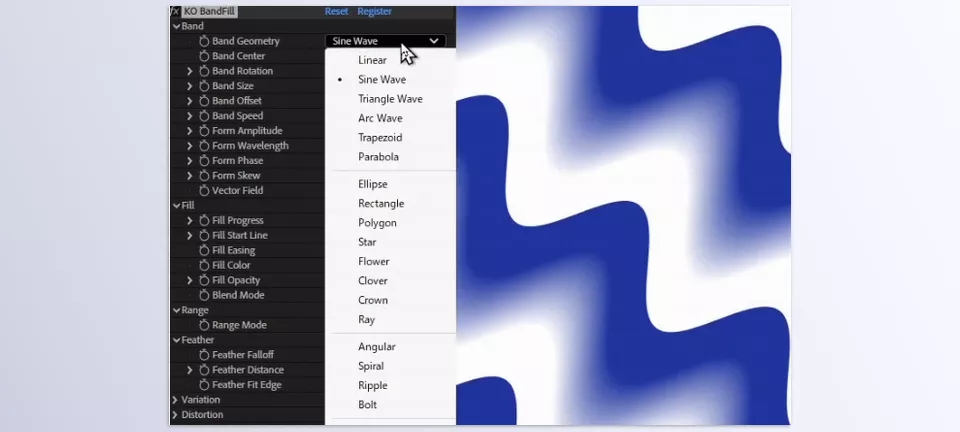
One of KO BandFill’s most important features is its support for 20 different geometries. This collection isn’t limited to simple lines; it includes forms such as linear, wavy, radial, angular, spiral, and more. More importantly, all of these geometries work based on a shared set of parameters; therefore, when you change the geometry type, you don’t need to rebuild your animation or settings from scratch.
This feature is especially useful for motion graphics. For example, you can design an animation for the bands and then, by changing the geometry, apply the same movement to a radial or wavy structure. This way, one initial design can become several completely different looks without filling the project workflow with extra layers.
One Effect, Far More Uses Than Just a Pattern 🎨
The name and appearance of KO BandFill might initially make you think only of geometric patterns, but its applications are much broader than that. You can use this tool to create various graphic elements and abstract animations, from a simple background to a fully animated transition.
- Geometric Backgrounds: Create organized lines and bands for motion backgrounds.
- Repeating Patterns: Create various geometric patterns without manually building every individual element.
- Transitions and Wipes: Use animated bands and geometries for bringing elements in and out.
- Gradients: Create color transitions and gradient forms alongside geometric patterns.
- Abstract Textures: Combine geometry, variations, and distortion to create animated textures.
- Simple Shapes: You can even use it to create an independent form or graphic element.
- Motion Graphics Elements: Create animated elements you can later use in different designs.
In fact, you don’t always have to use this tool to create a complex pattern; sometimes a simple shape, a gradient, or a few animated bands are all you need to complete a scene.
Full Control Over Bands and Fills 🎛️
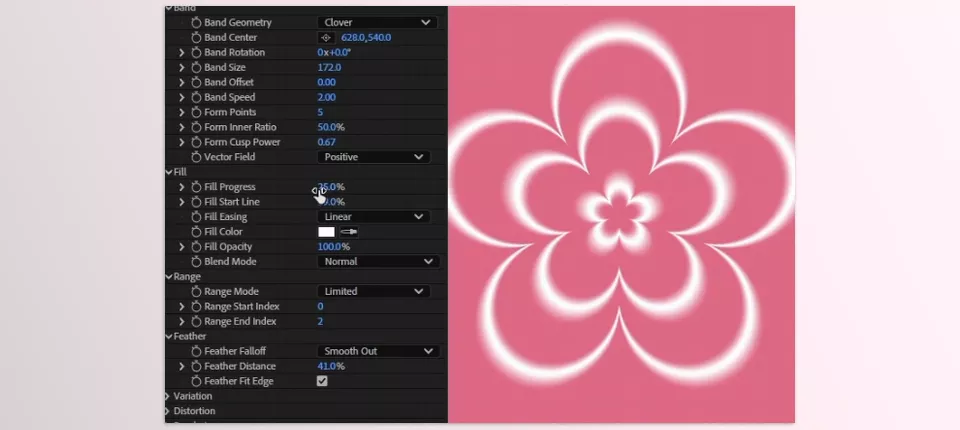
KO BandFill’s structure isn’t limited to selecting a geometry type. Its controls are organized into groups so you can manage different aspects of the pattern’s appearance and behavior separately. In the Band section, you can control the structure of the bands themselves; in the Fill section, you can adjust the fill appearance; and with Range, you can determine which part of the geometry is visible in the image.
The Feather section is also useful for softening edges, so not every output needs completely sharp, rigid edges. Together, these controls allow you to get completely different results from a single base geometry and change the final appearance without creating multiple layers.
Variation: A Little Irregularity for More Interesting Results ✨
If all the bands have exactly the same shape and color and move with identical timing, the result may look too mechanical and predictable. This is where Variation comes in, allowing you to introduce changes in areas such as Timing, Color, and Opacity.
With this feature, you can make sure that the elements of the pattern don’t behave exactly the same way at exactly the same time. For example, slight variations in the timing or opacity of the bands can make a simple pattern feel much more dynamic. These changes are handled through the tool’s own controls, so you don’t need to create a separate layer for every band.
Distortion: Going Beyond Rigid Geometries 🌀
If you don’t want the output to look completely regular and geometric, Distortion lets you alter the pattern’s structure. With this section, you can affect the form and edges of the bands and give the pattern more movement and variation.
Combining Variation and Distortion is one of the tool’s more creative aspects because a specific geometric structure can take on completely different appearances by changing these two sections. As a result, the tool isn’t limited to precise, minimalist designs and can also produce freer, more organic, and more abstract outputs.
Precise Edges, Even in Complex Modes 🔍
One key technical feature of KO BandFill is how it calculates geometric edges. The edges of the bands are calculated analytically and directly from geometry, rather than created through heavy pixel sampling. This method keeps the pattern boundaries clean and precise.
This precision isn’t limited to simple edges; even when you use Feather or Distortion, the geometric calculations are still preserved. As a result, the output stays clean at different sizes, whether at Full Resolution or Half Resolution, and the edges are less likely to lose quality.
Fast and Reliable Rendering for Motion Projects ⚙️
Unlike some heavy tools, KO BandFill doesn’t rely on the GPU for processing and works on a CPU-based system. However, the developer says that each pixel is calculated directly and doesn’t require heavy sampling; as a result, despite being CPU-based, the tool delivers fast performance.
It also supports Multi-Frame Rendering, a feature that is especially important in animation projects and when rendering multiple frames. It also supports 32-bit Float color precision, giving you fewer limitations in projects that require higher precision in color processing.
Compatible with Windows and Mac 🍎
KO BandFill is available for Windows and macOS and runs natively on Apple Silicon systems. The product’s compatibility specifications also list After Effects versions 2022 through 2026 as supported.
A Few Tips for Better Results 🎯
To get cleaner, more professional results from KO BandFill, work through the settings step by step. First, define the pattern’s main form and movement, then add detail with Variation, Distortion, and animation.
- Start with simple geometry: Try Linear or Radial first, then move on to more complex structures.
- Use Variation in a controlled way: Too much variation can destroy the pattern’s main order.
- Think of Distortion as a finishing touch: A small amount of Distortion can make the pattern more interesting without completely losing its original form.
- Animate the parameters: Instead of manually moving the layer, changing the pattern’s number, spacing, range, or shape can create a more interesting result.
- Don’t underestimate simplicity: Even a simple linear pattern with the right animation can be completely sufficient for a transition or motion background.
Ultimately, the appeal of KO BandFill depends less on making the pattern complicated and more on how you use these controls. With a few simple adjustments and a little animation, you can turn an ordinary pattern into a practical animated element for your project.
One Tool for Many Different Patterns 🎬
You can create patterns and geometric shapes in After Effects without a plugin, but when you create and animate multiple styles, you can quickly end up with too many layers and settings. KO BandFill simplifies this process and gives you control over pattern creation within a single effect.
With support for 20 geometries, along with Variation and Distortion, you can create everything from a simple pattern to transitions, backgrounds, and animated textures. The result is that instead of building every pattern from scratch, you have a ready-made and controllable system for different ideas.
If you frequently work with lines, bands, and geometric forms in your projects, KO BandFill can eliminate a large portion of repetitive work and help you move from idea to result faster.
Want to learn more about the different types of After Effects tools? Our After Effects tools guide covers everything from plugins and scripts to extensions, presets, and other workflow-enhancing tools, helping you understand what they do and when you might want to use them.



