

When Creating Multiple Versions of a Project Takes More Time Than the Design 🎬
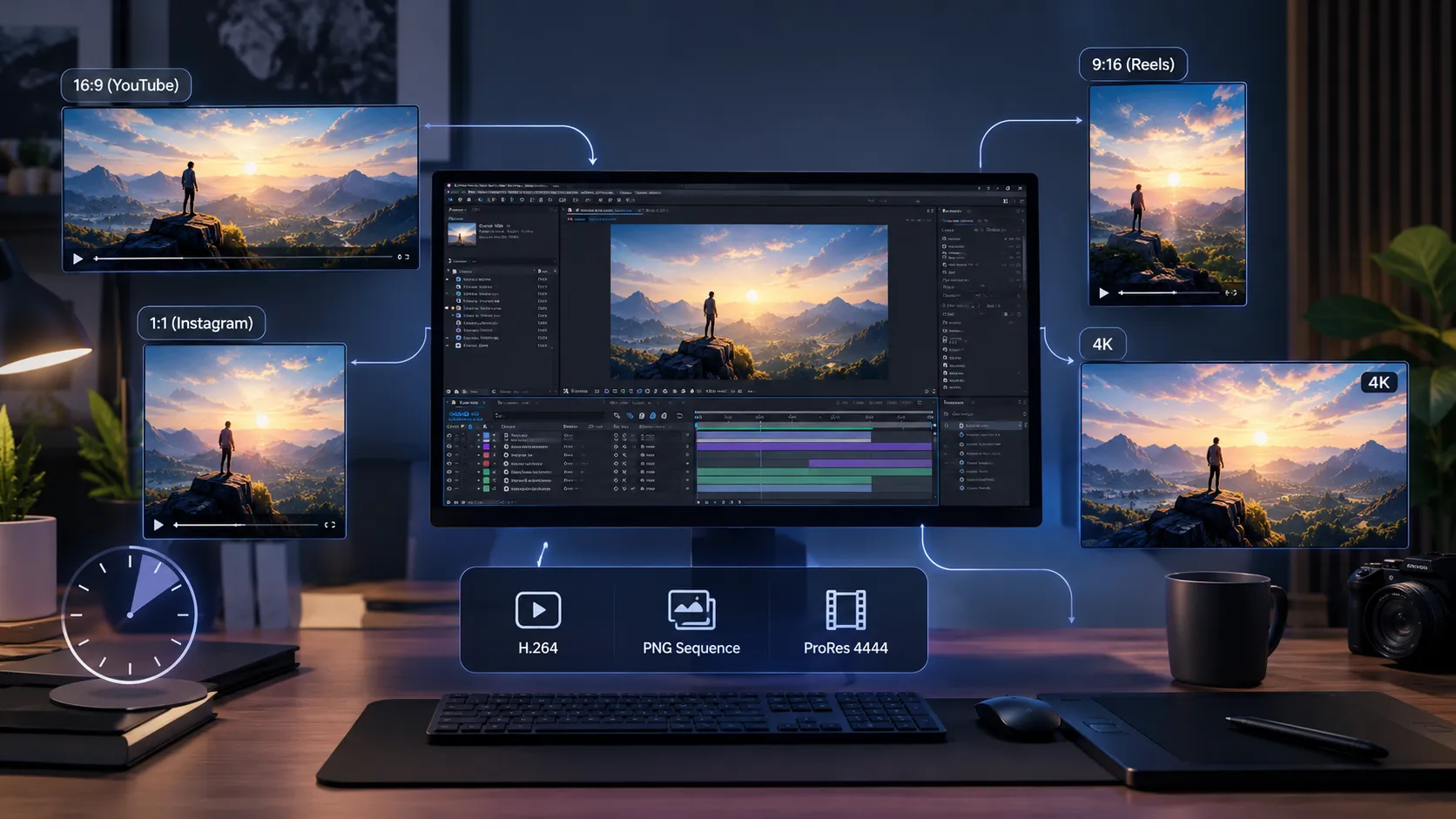
Are you familiar with the tools inside the COMP-O-RAMA Plugin by aescripts? Have you ever finished the creative part of a project, only to enter a stage where you have to prepare multiple versions of the same work? A horizontal version for YouTube, a square one for Instagram, a vertical one for Reels, and maybe a 4K export too; each with its own size, frame rate, and settings.
The problem is that these tasks aren’t difficult; they’re just overly repetitive. You constantly have to create new compositions, enter the settings again, change file names, and make sure no version has been created incorrectly. When the number of outputs increases, these small, few-minute tasks turn into a significant amount of time.
That’s why many motion designers are looking for a way to automate these initial steps. Any tool that can make creating and managing multiple compositions faster means more time for design, animation, and ideation—not repetitive clicks.

What Does Creating Multiple Compositions Mean and What Is It Used For? 💡
In After Effects, a composition is the main space where you create the animation; it’s where the image size, frame rate, duration, and all the project’s layers live. Each output usually needs its own composition.
For example, imagine you’ve designed a 15-second advertisement. Now you need to deliver the same project for horizontal YouTube, square Instagram, and vertical Reels. The content may be similar, but each version has different dimensions and settings.
That’s why managing multiple compositions is an everyday task for motion designers. The faster you can create and manage these versions, the more time you have for design, animation adjustments, and project delivery.
How Can You Do This Without a Plugin? 🛠️
The good news is that After Effects provides the tools you need to create multiple compositions, so you technically don’t need a plugin. You can create a new composition, duplicate previous versions, change their settings, and finally add them all to the Render Queue. 🎬
This method has been the standard workflow for many motion designers for years and works perfectly well for projects that only have two or three outputs. But as the number of versions increases, those same simple steps gradually become repetitive and tiring.
After Effects’ Built-in Tools
- New Composition for creating a new composition
- Composition Settings for adjusting size, frame rate, and duration
- Duplicate for duplicating compositions
- Rename for changing the name of each version
- Render Queue for exporting different versions
Limitations of This Method 😅
The real hassle starts when a client wants multiple different outputs. Imagine you have to create 15 versions of a project; every time, you have to check the image size, duration, frame rate, and composition name to make sure nothing goes wrong. If you also decide halfway through the process that, for example, all versions should be 30 frames, you have to edit them one by one again.
For advertising projects, social media, or multilingual versions, these constant back-and-forth steps between creating, duplicating, changing settings, and naming take up a lot of time at the beginning of a project. This is exactly the repetitive part professional tools try to simplify and automate. ⚡
Meet COMP-O-RAMA: Manage Compositions with a Few Clicks 🚀
COMP-O-RAMA is an After Effects tool that makes creating and managing a large number of compositions faster. The main idea is simple: instead of creating, configuring, naming, and preparing each composition for export separately, you can manage all these tasks in one queue and create them all at once.
This means that if you need multiple sizes, versions, or different outputs for a project, you don’t have to constantly switch between different After Effects windows. You add the compositions to the queue, specify their settings, and then create them all with one click. 🎬
Creating Multiple Compositions Simultaneously
One of COMP-O-RAMA’s main uses is creating multiple compositions in a single step. You can add several different presets to the queue and have different sizes, frame rates, and durations for each one.
For example, a queue can include a 1920×1080 horizontal version, a 1080×1080 square version, a 1080×1920 vertical version, an HD version, and a 4K version. Then you can create all these compositions with one click.
More Than 30 Ready-Made Presets and Custom Presets
So you don’t have to enter common settings from scratch every time, the COMP-O-RAMA tool includes more than 30 ready-made presets covering different social media formats, HD, 4K, cinema, Broadcast, high frame rates, and animation.
You also aren’t limited to the ready-made presets. You can save your own required settings as presets and use them again later. You can also organize presets into folders, move them, and sort them, so as the number grows, finding them stays easy.
Smart Naming for Compositions 🏷️
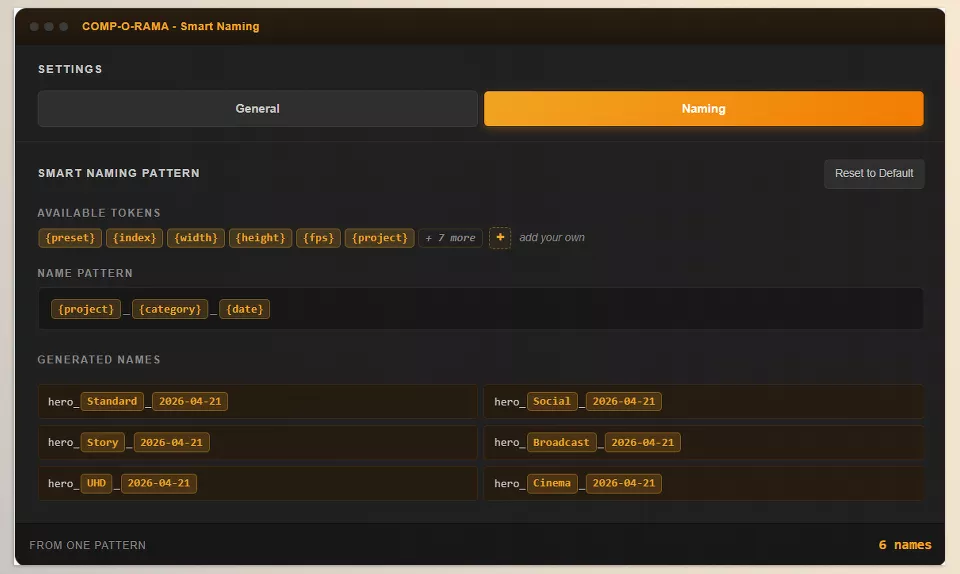
One useful part of the tool is Smart Naming. Instead of manually entering the name of each composition, you create a naming pattern, and the tool generates the names itself.
You can use information such as the preset name, number, width, height, frame rate, and project name in these patterns, and you can even define your own custom tokens. For example, a shared pattern can ensure all compositions in a project use the same naming structure.
This system isn’t only for composition names; you can also use the same logic to name duplicated versions and output files. There are even options for changing letter case and automatic numbering; for example, you can name outputs HERO_v001, PROMO_v002, and BTS_v003.
Editing Multiple Compositions Simultaneously ⚡
Imagine you’ve created several compositions and then realize their durations need to change. Normally, you would have to open each composition individually and change its settings.
In COMP-O-RAMA, you can select multiple compositions and change properties such as width, height, frame rate, duration, and background color in bulk. In other words, you make one change, and that same change is applied to all selected compositions. 🎯
Creating Different Versions of a Composition
If you have a Master Composition and want to create several different versions from it, the tool also gives you the option to duplicate them in bulk.
You can import a list of required items through CSV, directly paste a list, or specify a numerical range. The tool then creates a new version of the main composition for each item and automatically generates the appropriate name.
This process is undoable, meaning that if the result isn’t what you wanted, you can return to the previous state.
Creating Multilingual and Customized Versions with CSV 📄
One of the important features of the new version is Fill from CSV. This feature isn’t limited to creating new versions; it can place the information from each CSV row directly into its corresponding version.
For example, imagine you have an advertisement that needs to be released in several countries. In the CSV file, you can have the country, language, price, or any other information. Each row becomes a separate composition, and the information in that row goes into its corresponding version.
You can even specify which CSV column corresponds to which text layer or footage layer. As a result, the text in one layer can change for each version, or the source of an image layer can be replaced with the file for that row.
The important point is that the main composition remains untouched, and the new versions are created from it. Also, after setting up the Mapping once, you can save those settings so that the next time you don’t have to connect the columns and layers again from scratch.
Checking for Errors Before Creation and Rendering 🔍
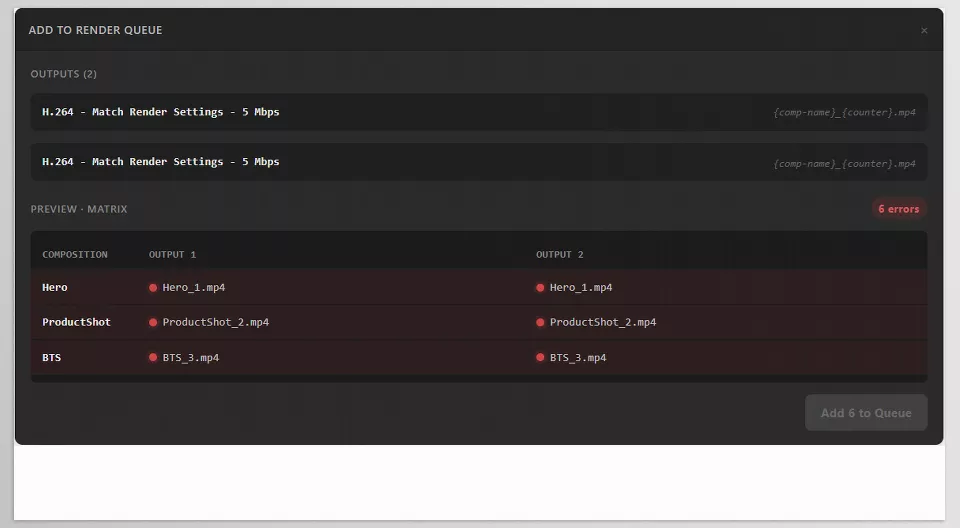
Before sending the queue to After Effects, COMP-O-RAMA checks for issues that could cause problems. For example, if two outputs have the same name, a file already exists, the output folder isn’t writable, or a required file can’t be found, the tool can identify these issues before the process starts.
It even checks for errors related to certain Sequence settings. This means that before sending a large queue into the rendering stage, you can see potential problems and, in some cases, fix them with one click.
Multiple Outputs for Each Composition 🎞️
If you need multiple formats from each composition, you can place several outputs in a single queue. For example, one composition can be prepared simultaneously for H.264, PNG Sequence, and ProRes 4444.
You can also save this output combination as a Bundle. For example, you can create a Bundle for social media outputs and then activate the same set again with one click in your next project.
You can even save these Bundles as general presets for different projects or specifically for one project. So if you always use a specific combination of outputs, you don’t have to set everything up from scratch every time.
Smart Naming for Output Files
The naming system continues in the output section as well. You can define a pattern so file names are created based on the composition name, number, custom text, and even simple text operations.
For example, a pattern can convert the composition name to uppercase and display the version number using three digits. As a result, output names are created in an organized and predictable way.
Another interesting feature is Matrix Preview. Before adding the outputs to the queue, you can see exactly what name each composition will have with each output format; something like a table that displays all the composition and output combinations in one place.
Saving Queues as Templates 🔄
If you usually create specific sets of compositions in your projects, you can save the entire queue as a Template.
For example, you can create one template for brand projects, one for YouTube videos, and one for social media. Next time, instead of adding all the compositions again, open the Template you want and the entire set is available.
These Templates can include multiple compositions with different settings and can even be reused for specific projects or made available generally.
A Few Tips to Speed Up Your Workflow ⚡
Before you dive into the settings, a few simple tips can help you use COMP-O-RAMA faster and in a more organized way. Especially when the number of project versions increases, these small details can make a big difference. ⚡
- Create frequently used Templates. If you usually create YouTube, Reels, Stories, or 4K versions for your projects, save them as a Template once so that next time you have all the compositions with one click.
- Use a consistent naming pattern. Use the Smart Naming feature to organize composition and output names by project, version type, date, or number. This is especially helpful when rendering and finding files. 🏷️
- Change shared settings in bulk. If you have several compositions that need the same duration or frame rate, select them all and apply the change at once; there’s no need to edit each one separately.
- Use CSV for multi-version projects. When you need to prepare a project for multiple countries, languages, prices, or clients, put the information into a CSV so that the versions are created automatically, and the information for each version is placed into its corresponding composition. 📄
- Check outputs before rendering. If you have multiple compositions and multiple output formats, review the file name preview and output combinations to find errors such as duplicate names or existing output files before rendering starts. 🔍
In the end, it’s better to think of COMP-O-RAMA more as a composition management system than simply a tool for creating new comps. When you organize templates, naming, and outputs from the start, the rest of the workflow becomes much smoother. 🎬
Less Time on Settings, More Time for Design 🎯
When a project doesn’t have just one output, creating and managing different compositions can take up a significant amount of your time, especially when you need to prepare dozens of versions with different sizes and settings. This is where reducing these repetitive tasks can make a big difference in the project workflow.
COMP-O-RAMA helps you manage composition creation, naming, bulk setting changes, version duplication, and output preparation all in one place. Even for multilingual projects or projects with many similar versions, you can use CSV to automate many of these steps.
If most of your projects require multiple aspect ratios, output formats, or versions, COMP-O-RAMA can make the repetitive parts of your After Effects workflow much more streamlined. The result is that instead of spending your time creating and organizing different versions, you have more opportunity to focus on the design and animation itself. 🚀
After Effects has an incredible ecosystem of tools that can dramatically improve the way you work—but knowing which ones you actually need isn’t always obvious. Our in-depth After Effects Tools guide breaks down the main categories, explains their real-world purposes, and helps you choose the right tools with confidence.



