

When You Only Need One Part of a Previous Project 🎯
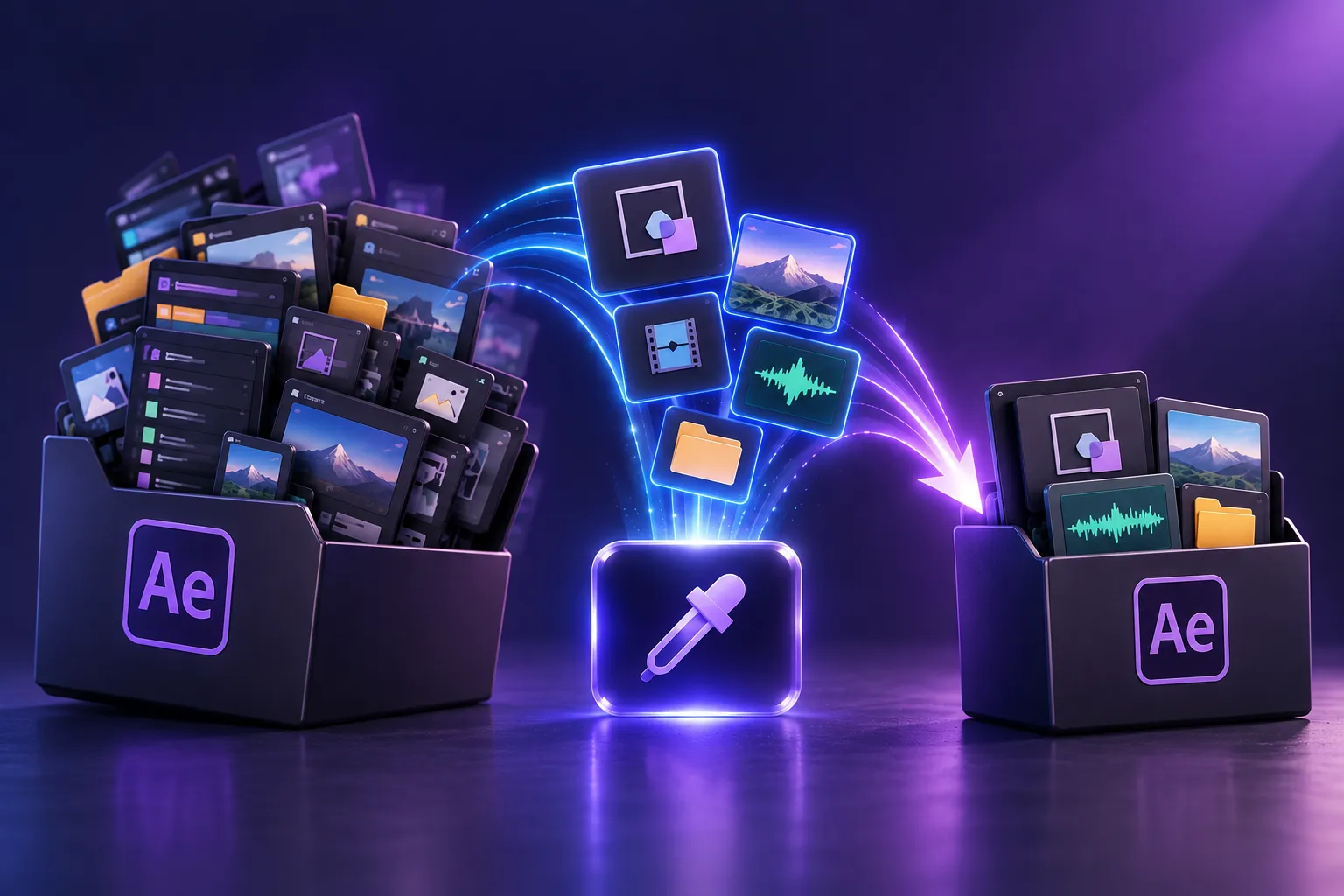
Do you know what you can achieve with the Pluck Plugin by aescripts? Has it ever happened that, in the middle of creating a new project, you remember that you made a really good composition a few months ago and now you need it again? For example, a logo animation, a Character Rig, or even a complete Scene that was saved in one of your old After Effects projects. All you want is that specific part, not hundreds of extra layers and files that come along when you import the entire project.
Normally, finding and transferring one part of an old project isn’t as simple as it seems. You might have to open the old file, find the Composition you need, reduce the project, save it with a new name, and then import that file again. If you only need a few Layers from a Composition, the story gets even more complicated.
When this happens repeatedly, you spend a lot of project time moving and organizing files, even though you only need one specific part of a previous project. This is where having a fast way to precisely transfer the Comps, Layers, and Assets you need can make your Workflow much more organized.

What Does Transferring the Parts You Need From a Project Mean? 📦
In After Effects projects, a Composition usually isn’t just the Composition itself. It may contain several Pre-comps, image or video files, Expressions, Parents, Track Mattes, and various Assets. So when you want to use part of an old project, you also need to transfer that part’s dependencies.
For example, imagine you created an animated Intro in an old project that uses several Pre-comps and a few graphic files. To reuse that Intro in a new project, simply copying the Composition isn’t enough; you also need to transfer the things this Composition depends on correctly.
The same applies to Layers. You may only want three Layers from a Composition, but one might have a Parent, another might use a Track Matte, and another might connect to a Controller through an Expression. Manually transferring a structure like this can quickly become time-consuming.
Traditional Methods for Transferring Content in After Effects 🛠️
To transfer parts of an old project into a new project, After Effects itself gives you several different options. Depending on whether you want to transfer a complete Composition, several Layers, or all the dependencies of a section, you can use different methods:
- Importing the project: You can import the old project file and add the Composition you want to the current project.
- Reduce Project: With this option, you can limit the project to the required sections and Assets, then import the smaller version of the project into the new project.
- Copy and Paste: To transfer Layers, you can copy the desired Compositions or Layers from the old project and paste them into the new project.
- Manually managing dependencies: After transferring, check the Pre-comps, Footage, Parents, Track Mattes, and other related items to make sure everything transferred correctly.
When Manual Transfer Becomes a Hassle 😵💫
These methods become more problematic when the project is large or has a complex structure. Importing an entire project just to use one Composition can bring a large number of extra files and folders into the Project Panel, and then you have to spend time finding and organizing the unnecessary items. On the other hand, copying and Pasting Layers does not always mean their entire structure is transferred, and you may need to separately check dependencies such as Pre-comps, Parents, Track Mattes, or Expressions. When you repeat this across multiple projects, a simple Reuse can quickly turn into several manual, time-consuming steps.
Pluck: Only What You Need 🎯
Pluck is designed for situations where you want to reuse part of an old After Effects project, but don’t want to import the entire project into the new file. This tool lets you extract the Compositions you need from any project, take only specific Layers, or even transfer a Composition along with all the necessary dependencies into the current project.
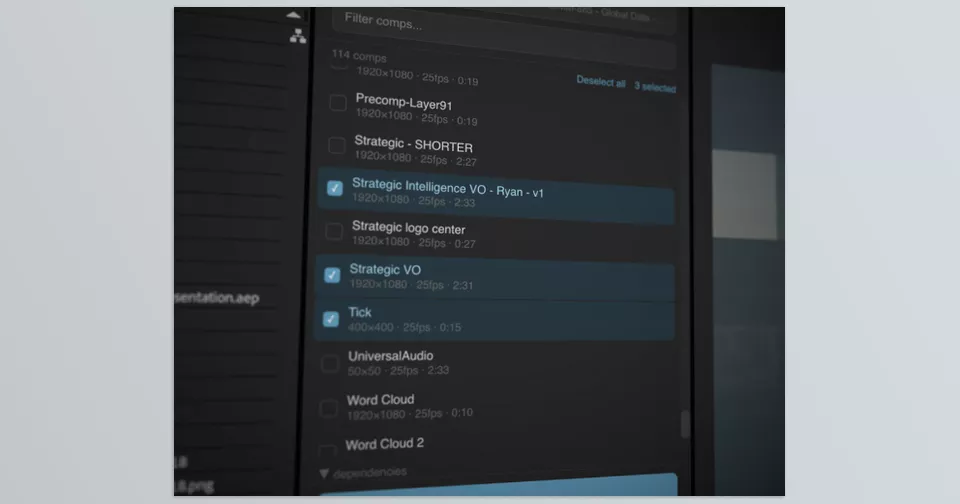
To get started, simply drag & drop the .aep file onto the Pluck panel. Pluck reads the file without opening the project in After Effects and gives you a list of the Compositions inside it. For each Composition, you can also see its Dimensions, Frame Rate, and Duration, and quickly find the option you want using Search and Filter. Then select one or more Compositions and click Import, without importing the entire old project into the new file. This capability also works for projects saved in much older versions of After Effects.
Not Just Compositions; Take Specific Layers Too 🎯
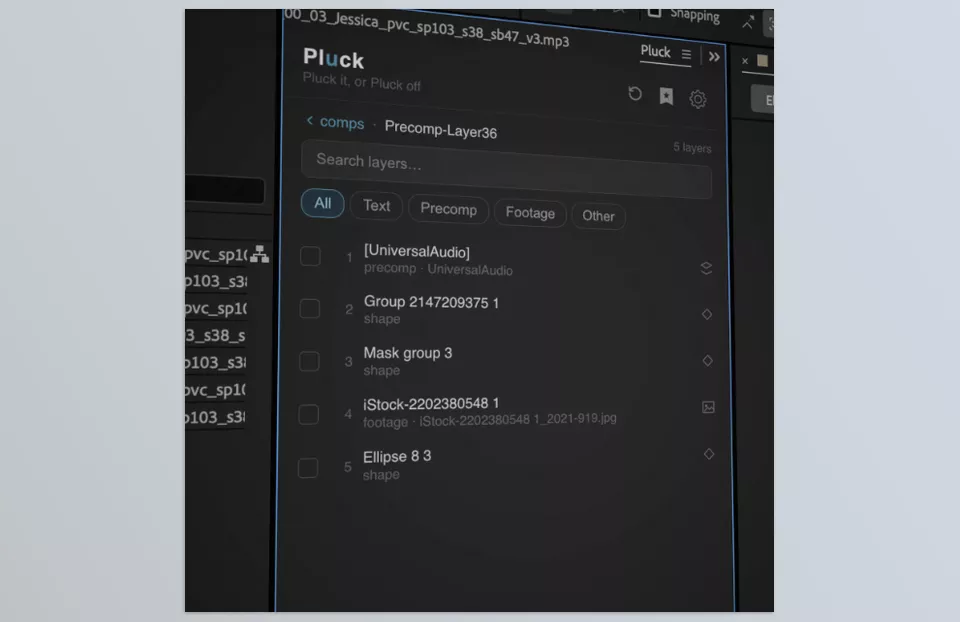
Sometimes you don’t even need an entire Composition, and only a few Layers inside it are useful to you. Pluck lets you open any Composition, see the Layers inside it, and specify exactly which ones to transfer. You can select one or multiple Layers, and you don’t have to bring the entire Composition structure with you.
The key point is that Pluck doesn’t just separate the selected Layer and leave it at that. It also checks required dependencies, from Parents and Track Mattes to Effect Layer Targets and Layers connected to your selection through Expressions. Therefore, the structure required for the Layers to work correctly is transferred along with them.
If you want to know exactly what will be transferred before Import, the Ask First option in Settings can show you a list of dependencies and explain why each item is included with your selection. If you prefer to transfer only the items you selected, Selected Only mode is available.
You don’t even need to place the selected Layers into a temporary Composition first. With the Into option, you can place them directly inside an existing Composition in the current project. Pluck rebuilds the Layer order, Parenting, and Track Mattes during the transfer, so you don’t have to create an intermediate Composition and clean it up manually afterward.
Duplicate Management; You Decide 🔄
A common problem when transferring content is that some Compositions or Footage from the old project may already exist in the destination project. Pluck gives you three specific choices for this situation.
- Replace: Replaces the existing version with the imported version. Items that were previously using the current version are connected to the imported version, and the new Item is placed in the same Folder.
- Use Current: Keeps the current project version and sets aside the imported version. Even Pre-comps and footage inside the Import are connected to existing items in the current project whenever possible, so no extra Assets are created.
- Keep Both: Keeps both versions and places the imported content alongside the current version.
You can make these choices for each Item separately, or set a default mode in Settings so Pluck uses the same setting for future Imports without asking additional questions.
Target Picker: Precise Destination Selection 🎯
If you don’t want to make decisions based only on file names, Target Picker gives you more control. With this option, you can specify exactly which existing Item a Composition or Footage should replace, even if their names don’t match.
Target Picker can also be used to select the destination Folder; meaning you can specify exactly which Folder the Imported Composition or Asset should be placed into, instead of having Pluck use its default structure.
Dependencies Are Managed Automatically 📂
When you import a Composition, the Composition itself is probably not enough. Pluck automatically finds the required dependencies and also imports the related Precomps and footage along with it.
Even Controller Compositions that are connected to the selected section through Expressions can be automatically identified and transferred. This is especially important for Rigs and projects that have separate Controllers, because an incomplete transfer can cause Expressions to break.
Pluck can also rebuild the original project’s folder structure in the destination project, so Imported Assets aren’t left in one place without organization.
On the other hand, if Footage that the Composition needs already exists in the destination project, Pluck can reuse and relink that existing Footage instead of creating a Duplicate version.
Find Broken References Before They Cause Problems ⚠️
Expressions can be one of the most sensitive parts of transferring between projects. If an Expression depends on something that cannot be found during the transfer, you might not notice the problem until the project is running.
That’s why Pluck has Expression Warning, which flags References that may break after the transfer so you can review them before they surprise you later in the project.
Copy and Relink Your Assets 📁
If you want the original project’s assets and the new project’s assets to be completely independent, Pluck also offers a Copy & Relink option. With this feature, you can copy the required Assets into a Folder in the new project and change the links in the destination project to point to the new versions.
This option is useful when you want to modify transferred Artwork in the new project without affecting the original project file. Pluck also has Smart Folder Matching and Collision Handling for this process, and provides a Post-import Summary at the end so you can more easily review the transfer status.
Swap Source: A New Artwork for the Entire Project 🔄
One of the new features in version 1.6 is Swap Source, which is especially useful for projects that use Layered PSD or AI files.
Imagine you created a Character or Artwork using a Layered file and now you have a new version of that file. Instead of changing the Source of each Layer one by one across different Compositions, you give the new file to Pluck and specify which previous Layered file it should replace.
Pluck Matches the Layers of the new file with the Layers of the previous file and changes their Sources throughout the project. During this process, the size and position of the Layers are also preserved when you import the new file using the same Mode as before, whether the previous file was imported as Full Document or using Retain Layer Sizes.
New Items also inherit the Folder and Label of the previous Items. If Pluck finds a new layer with no corresponding counterpart in the previous file, It places it in a No Match folder so nothing is silently lost. It also preserves old layers that have no equivalent in the new file.
You can even choose to copy the new file into the project folder first, and, most importantly, you can undo the entire swap with a single Undo.
Frequently Used Compositions Are Always Ready ⭐
If you regularly use certain Scenes, Animations, or Compositions across different projects, Pluck doesn’t just simplify one-time transfers; it also supports continuous use.
You can add your favorite Compositions to Favorites and, to keep your Workflow more organized, place your Favorites into different Libraries. You can create as many Libraries as you need and switch between a specific Library or all saved items.
Recent projects are also saved in the Recent Projects section, and Pluck keeps the last 10 projects for quick access. You can rename and reorder Favorites, and if you move the project file, you can relink all related Favorites at once.
If a Source project on a Shared Drive has changed, Pluck shows a blue dot indicating the file has been updated since you last used it. You can then click Reload to load the new version of the project again without losing your previous selection.
Organize the Project Panel the Way You Want 🗂️
Pluck doesn’t just transfer content; it also gives you control over how those items are placed in the destination project. You can choose from several different methods for organizing Imported Items:
- Mirror Source Folder Structure: Preserves the Folder structure of the original project.
- Auto-sort by Type: Organizes assets by type.
- Flat Import: Places all items inside a single Folder.
- Custom Sub-folder: Creates a Sub-folder with a custom name for the Import.
- Label Color: Lets you assign a Label Color to Imported Items.
- Open in Timeline: Opens the desired Composition directly in the Timeline after Import.
- Solids Tidy-up: Organizes and consolidates imported solids and Nulls into the project’s main Solids Folder.
Pluck also supports Unicode names; therefore, Composition, Folder, and Footage names are not limited to simple English characters.
Pluck Off: Exporting an Independent Section 📤
Pluck isn’t built only for importing content; it can also work in the opposite direction. To separate one or more Compositions from the current project and deliver them as an independent project, drag the desired Compositions onto the Pluck panel.
The tool can create a Standalone .aep and also collect the required Footage along with it. If you prefer to have everything in a single file, there is also an option to export a completely Self-contained ZIP; an option suitable for sharing the project or archiving an independent section.
Even if a Composition depends on Controllers through Expressions, Pluck collects those Controllers during Export as well, so the output project can carry as much of the structure required for proper operation as possible.
For file naming, you can also use Custom Filename Tokens such as the Composition name, project name, and date. Batch Export also allows you to define a separate naming pattern for the output files.
More Control Over the Entire Process ⚙️
Overall, Pluck controls almost every part of transferring and separating project content from one place: from finding Compositions without opening the original file to selecting specific Layers, managing Dependencies, preventing Footage Duplicates, Relinking Assets, controlling Duplicates, organizing Folders, and even Exporting independent projects.
This tool runs on Mac and Windows and supports After Effects projects from older versions; it’s useful for managing project content in personal projects, old archives, and team Workflows that regularly move between different files.
A Few Tips for a More Organized Workflow 💡
Pluck is most useful when you adjust its features to match the type of project and your workflow. A few simple tips can help make transferring and reusing Compositions and Assets faster and more organized:
- Create Libraries for frequently used projects. Categorize the Compositions you use regularly so you don’t have to search for the old project file from scratch every time.
- Check dependencies before importing. If you’ve selected only a few Layers, the dependency display option helps you understand what will be imported along with your selection.
- Use selective Import for heavy projects. Instead of bringing in the entire project, transfer only the Compositions or Layers you need to keep the Project Panel cleaner.
- Use ZIP for project delivery. If you’re sending a Scene to a colleague or archiving it, a Self-contained export ensures the required Assets are collected with the project.
- Use Replace and Use Current carefully. When the destination project already has a similar Asset, choosing the right option can prevent duplicate files or incorrect References.
Ultimately, using these features based on the project’s needs eliminates much of the cleanup after transferring. This way, you can get to the Composition itself and what you want to do with it faster, without getting caught up in manually managing extra files.
When Reusing Projects Becomes Easier 🎬
One of Pluck’s key benefits is that it makes reusing previous work faster and more controlled. Instead of opening an old project every time and searching for the Composition or Layer you need, you can go straight to that section and import only what you need into the new project.
Features such as selecting specific Layers, automatically managing dependencies, preventing Footage Duplicates, Swap Source, and exporting as an independent project also make reusing previous Assets much less troublesome.
If a significant part of your work in After Effects involves Reusing Scenes, Characters, Animations, or Assets from previous projects, Pluck can be one of those tools where, after a while, you realize just how much it has reduced the repetitive back-and-forth between projects.
From plugins that add new effects and features to scripts that automate repetitive tasks, After Effects offers a wide range of tools to improve your workflow. Our After Effects Tools guide explores the different types of After Effects tools and explains how each category can help you work more efficiently and creatively.



