

When the Image Behind Glass Becomes More Appealing Than the Image Itself 🪟
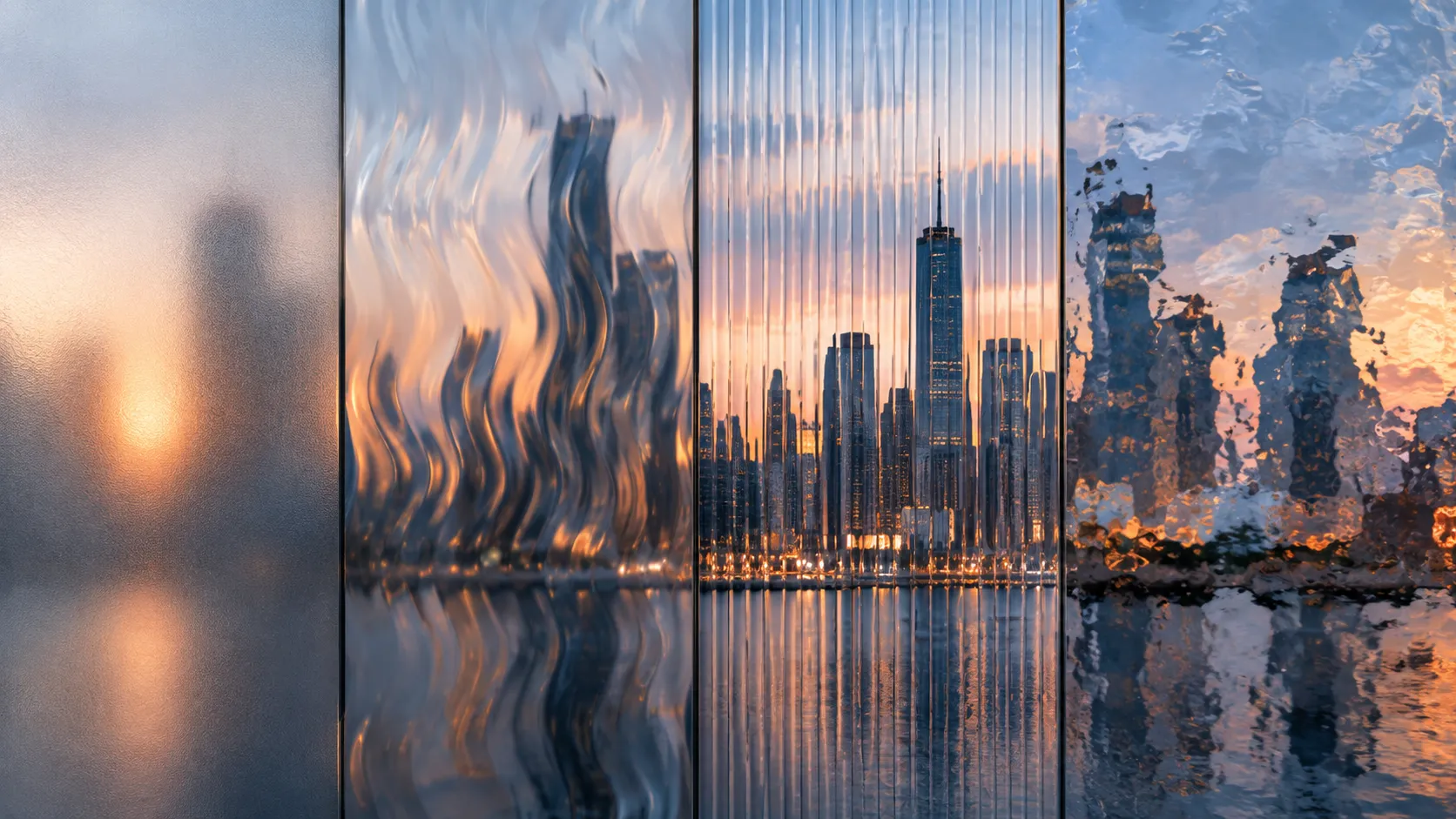
Have you experimented with different effects in the Glasswork Plugin by aescripts? Sometimes, making a shot more engaging takes more than just a few movements or transitions. A frosted glass layer, lines that break up the image, or a wave that makes the subject appear as if it’s being viewed through glass can give a video a completely different mood. These types of effects can add more depth to the image, especially when combined with light, camera movement, or animation.
Creating this kind of look may seem simple at first, but when you want precise control over the amount of blur, distortion, and glass pattern, things can get a little more complicated. You usually have to combine several effects and constantly adjust the settings until the image reaches a result that looks natural and clean.
On the other hand, if you want the same effect for several different shots, the amount of repetitive work increases as well. This is where having a fast and controllable way to create glass effects can make the Workflow much easier.

What Exactly Is a Glass Effect and Where Is It Used? 🎬
A glass effect means changing an image so that it looks as if a transparent, frosted, or patterned surface is placed between the camera and the subject. Depending on the type of glass, the image can become slightly blurred, lights can become diffused, or the form of the image behind the glass can even become broken and distorted.
For example, imagine you have an urban video and want to create the feeling of looking through a rainy window or frosted glass. Or, in a Motion Graphics project, you want to place a glass panel over some text so that the content behind it appears slightly distorted and broken. You can even use the same idea to create abstract backgrounds and creative transitions.
These effects aren’t just decorative. When used correctly, they can add depth, texture, and a sense of space to an image, making a simple layer or ordinary footage look more distinctive.
Traditional Methods for Creating Glass Effects 🛠️
Before using dedicated tools, creating a glass effect in After Effects was usually done by combining several different effects and layers. Depending on whether you wanted frosted, wavy, or distorted glass, you could use the program’s built-in tools and create each part of the glass appearance separately.
- Blur: Used to create a frosted look and soften the details of the image.
- Displacement Map: Used to distort the image and simulate light refraction through glass.
- Turbulent Displace: Can create irregular, wavy distortions.
- Shape Layer and Repeater: Used to create repeating patterns such as lines and geometric shapes.
- Fractal Noise: Can create random and irregular textures for building a glass-like surface.
- Mask: Used to limit the effect to a specific area of the image.
By combining these tools, you can achieve different looks; for example, you can create a Pattern of lines, use it as a Displacement map, and then add Blur and other adjustments to give the image the feeling of a glass surface.
Problems and Limitations of This Method ⏳
The problem is that reaching each new look requires you to adjust several steps separately. Changing the Pattern, amount of distortion, or frosted appearance of the glass may require modifying multiple layers and effects, and finding the right combination usually involves trial and error. When you want the same effect for several different shots, these repetitive steps increase, and keeping all the settings controlled and consistent can also become time-consuming.
Glasswork: Creating Glass Effects with More Control ✨
Glasswork is a professional plugin for creating glass effects on video that helps you create and adjust the appearance of glass directly on your footage without combining multiple different tools. The main idea behind the tool is simple: changing the image so that it looks as if it’s being viewed through a glass surface; a surface that can be frosted, icy, wavy, patterned, or distorted.
The important thing is that Glasswork isn’t just a ready-made effect with a fixed appearance. Its interface gives you a set of settings that let you adjust the result to match the shot and the style of the project. This means you can keep the glass very subtle for a minimalist video or create a completely Distorted surface for an abstract Motion Graphics project, giving you more freedom in the design.
Creating Glass Effects with GPU Rendering ⚡
One of Glasswork’s important features is its use of GPU Rendering. The effect is processed with the help of the graphics card so that preview and calculations can be smoother while working with the effect, making it easier to try different settings.
This becomes especially important when you want to apply glass with a specific Pattern and heavy distortion to footage. Instead of letting every small setting change make the Workflow slow and frustrating, you can see the result faster and find the look you want more easily.
Several Ready-Made Patterns for Different Looks 🎨
Glasswork provides several ready-made patterns that you can use to create different glass structures. These Patterns don’t just create different appearances; depending on your selection, the way the image breaks and changes can also feel different.
The main patterns include:
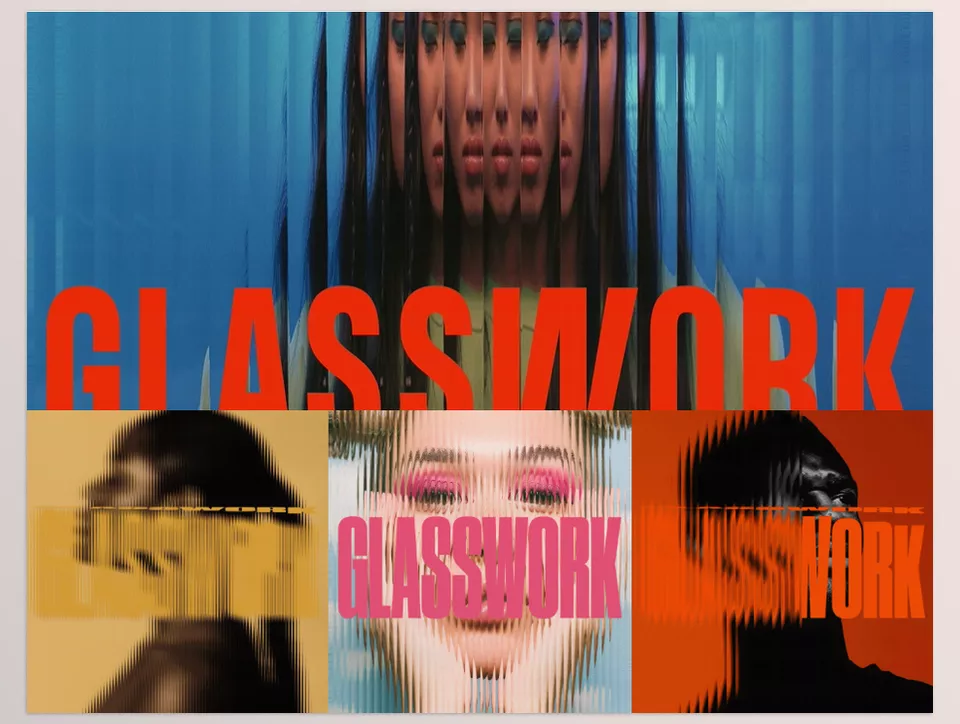
- Stripes: Creates a linear structure for glass with a striped appearance.
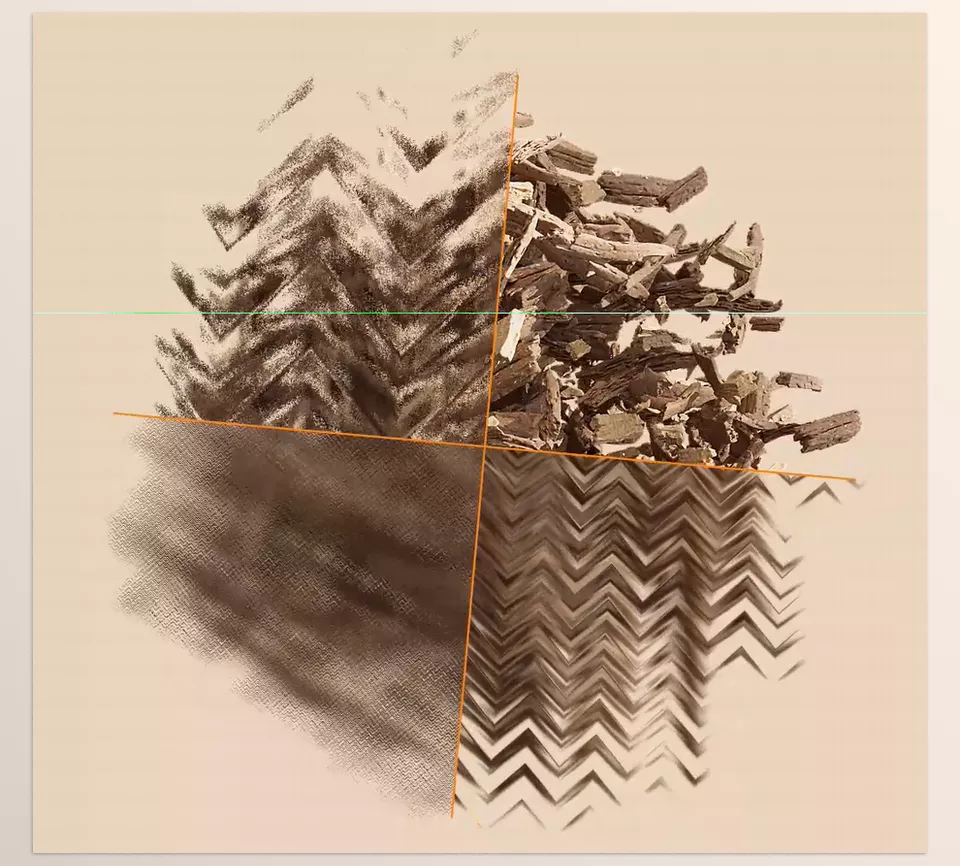
- ZigZag: Creates a zigzag pattern for angular breaks and a more distinctive look.
- Rhombuses: Creates a rhombus pattern for geometric and graphic surfaces.
- Waves: Creates wavy structures that can produce the feeling of wavy glass or softer distortion.
- Custom Patterns: Allows you to use custom Patterns to create looks beyond the ready-made patterns.
Having several different Patterns means you don’t have to repeat the same structure for every project. You can choose the appropriate pattern based on the project’s visual style and then adjust its settings.
Creating Custom Patterns for Specific Designs 🧩
If the ready-made Patterns aren’t exactly what you’re looking for, Custom Patterns give you more room for personalization. This feature is especially useful for projects where the appearance of the glass needs to be part of the visual language of the design itself rather than simply a ready-made effect placed over the image.
For example, in a modern Motion Graphics project, you can use a custom structure to make the glass different from ordinary Patterns. This feature means the range of Glasswork’s use isn’t limited to just a few specific Presets.
From Frosted Glass to Heavy Distortion 🪟
Glasswork can create different types of glass appearances, from a Frosted and blurred surface that softens and diffuses the details behind it to glass that noticeably distorts the image.
For a minimalist shot, you can keep the glass appearance subtle so that it only slightly reduces image clarity and creates the feeling of a transparent or frosted surface. On the other hand, for more abstract designs, you can use distortion and Pattern to make the image behind the glass appear more broken and reshaped.
This flexibility means you can use one tool for several completely different styles, from subtle glass looks in interface design and advertising to more pronounced visual effects in Motion Graphics.
Simple Interface and Controllable Settings 🎛️
Glasswork comes with an interface designed to give you control over the effect within a dedicated environment. Instead of switching between multiple Layers and Effects to create a similar result, you can manage the settings related to the glass appearance directly inside the tool.
This is especially useful for Workflows that require a lot of changes. For example, you can change the Pattern, adjust the intensity of the glass appearance, and check the result on the footage until you reach the right combination, without creating a multilayer structure of different effects.
Suitable for Creating Backgrounds and Transitions 🎬
Glasswork’s use isn’t limited to placing a glass layer over footage. Different Patterns and Distortions can also be used to design abstract Backgrounds.
On the other hand, you can use glass-like changes to create Transitions. For example, a wavy or zigzag Pattern can change over time while simultaneously distorting the image, creating a different visual transition between two shots.
This feature creates many possibilities for advertising projects, music videos, Motion Graphics, and other projects that need Texture and visual movement.
Compatibility with Different Software 💻
Glasswork isn’t limited to a single software and is compatible with After Effects, Premiere Pro, and DaVinci Resolve. So, depending on where the main stage of your work takes place, you can use this effect within your own Workflow.
In terms of operating systems, it can also be used on Windows and Mac, including Intel and Apple Silicon systems. However, it requires OpenGL 3.3 or higher support to run and does not work on Headless systems, meaning machines without a display.
As a result, Glasswork brings a specific set of capabilities together in one tool: GPU Rendering, several ready-made Patterns, Custom Patterns, Frosted and Distorted looks, a controllable interface, and compatibility with several important video software applications. This combination can make creating and modifying glass effects for different types of projects faster and more organized.
A Few Tips for a More Professional Result 💡
To make the glass effect look more natural and clean, it’s better to always adjust the intensity of the effect based on the content of the shot. Glass doesn’t need to heavily distort the image in every project; sometimes, a subtle change creates a more appealing result.
- Start with low intensity. Begin with a subtle effect and then gradually increase the amount of Distortion and texture.
- Match the Pattern to the shot. Lines, waves, or rhombuses can create different feelings depending on the subject and composition of the image.
- Don’t use the same settings for every shot. If you have several shots, adjust the intensity and appearance of the glass based on each image so the result doesn’t look uniform and artificial.
- Consider movement. When the footage or camera is moving, glass distortion can become more noticeable, so check the settings across several different frames.
- Take GPU Rendering seriously. When working with heavy effects, a smoother preview can make the process of adjusting the effect and reaching the final result easier.
With a few quick tests using different Patterns and settings, you’ll quickly understand which combination works better with the visual style of your project.
A Faster Way to Add a Glass Feel to Your Image 🎯
Sometimes a simple glass effect is exactly the detail that can make an ordinary shot look different; but when you have to adjust several layers, Patterns, and effects separately to create it, a lot of time is spent on something that was supposed to be only a small part of the project. Especially when you want to try several types of glass or different looks, the trial-and-error process can quickly become tiring.
Glasswork shortens this process and gives you the tools needed to create glass looks in one focused environment. From ready-made Patterns such as Stripes, ZigZag, Rhombuses, and Waves to Custom Patterns and GPU-based processing, everything is there to help you reach the look you want faster and adjust it more easily to each shot.
If Frosted Glass, Distortion, or patterned glass effects are part of your working style, having this kind of control can make a significant difference in project execution speed. Instead of starting the effect-building process from several different tools every time, you can test your idea faster, change its appearance, and create exactly what fits the visual style of your project.
New to After Effects and not sure which plugins, scripts, or extensions you need? Our beginner-friendly After Effects Tools guide explains what each type of tool does, when to use it, and how it can help you work faster and make editing easier.



