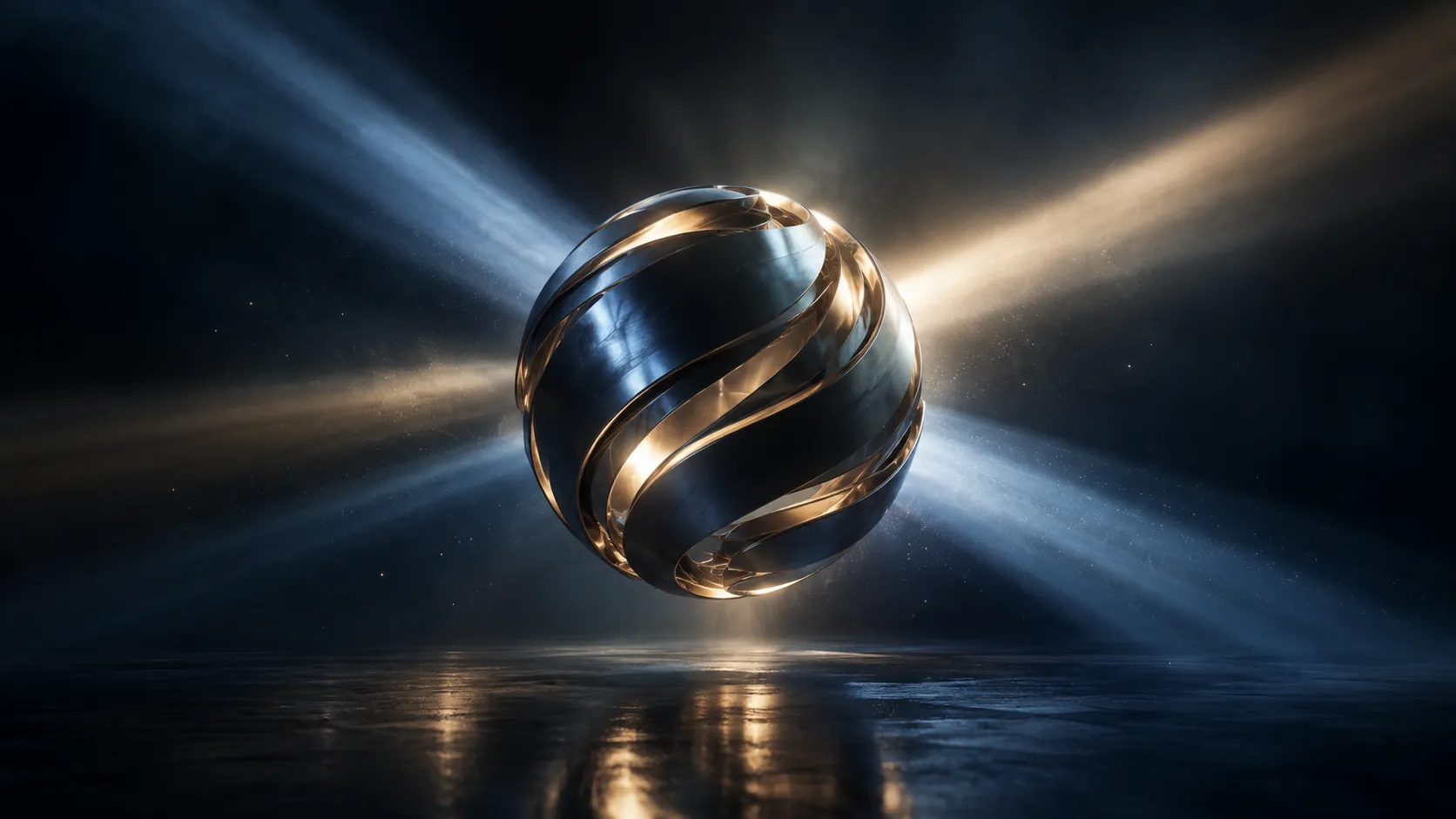
Creating Cinematic Volumetric Lighting in After Effects with More Control ✨
Have you ever experimented with the Light Volume Plugin by aescripts? When you’re creating a commercial or a logo animation, you might want spotlights whose beams are visible in a dark space, light emerging from behind a logo, or sunlight streaming through a window and illuminating dust particles in a room. These effects can make your project much more visually appealing because light no longer just illuminates an object’s surface; it becomes part of the scene itself.
However, creating this kind of lighting isn’t always as simple as adding a Glow effect! For example, if you want light beams to pass behind a product and gradually fade into the space around it, you need to control their shape, softness, and intensity. If you also want to use multiple light sources or add floating particles to the beams, you may need to combine several layers and effects to get the result you want.
A special tool for creating light effects can make your work easier. You can change the shape and direction of light beams in 3D space and control how they spread. You can also add dust and distortion to make the light look more natural. If you work on motion graphics, ads, or movie effects, this tool can help you create better results with less work.

What Is Volumetric Lighting, and How Does It Affect Motion Graphics? 🎬
Volumetric lighting is an effect where light beams are visible in the space between a light source and its surroundings. In the real world, tiny dust particles, fog, or smoke make light paths visible. For example, when sunlight enters a dimly lit room through a window, the beams take on a distinct shape in the air.
In motion graphics and visual effects, this technique is used to create depth, emphasize subjects, and shape the visual atmosphere. Volumetric lighting can make a simple scene visually richer without adding many elements to the image.
Let’s look at a few examples of how this technique is used:
- Commercials: Imagine a product placed against a dark background, with light beams passing behind it. These lights separate the product from its surroundings and draw the viewer’s attention to it.
- Logo and Typography Motion Graphics: When a 3D logo or graphic title is accompanied by light beams, the scene gains a greater sense of depth and a more dramatic appearance.
- Cinematic Atmosphere: In scenes such as dark rooms, industrial corridors, or science-fiction environments, light beams can create a mysterious, dramatic, or futuristic atmosphere.
- Creating Foggy, Atmospheric Environments: Combining volumetric lighting with floating particles, especially in brighter areas, makes the environment look more natural and believable.
Remember, volumetric lighting isn’t just a decorative effect. The direction, intensity, softness, and amount of light scattering can all affect how the subject appears and how the scene feels overall.
Common Methods for Creating Volumetric Lighting in After Effects 💡
Even without a plugin, you can create volumetric lighting in After Effects in several ways. By combining effects, graphic layers, and the program’s lighting tools, you can create attractive light beams, such as light emerging from behind a logo or spotlight beams appearing in a dark space. Depending on your project’s style, you can use these methods:
- Combining Glow and Gradients: Create bright layers and apply the Glow effect to make light halos. This method works well for glowing logos, text, and graphic elements, but it isn’t enough on its own to simulate the actual volume of light.
- Creating Beams with Shape Layers and Masks: Create elongated shapes, use masks to shape them, and soften the edges with effects like Fast Box Blur. Animating Position, Rotation, and Opacity also allows you to move the beams.
- Using 3D Lights: Enable 3D layers and add Point and Spot lights to control the scene’s lighting. This method is useful for illuminating 3D layers, but making the beams themselves visible in the surrounding space may require additional techniques.
- Combining Multiple Layers and Effects: Sometimes, you can achieve a more attractive result by layering several beams, adjusting their opacity, and blending their colors. This method offers good flexibility for creating graphic lighting and stylized effects.
What Are the Limitations of Creating Volumetric Lighting Manually? 🤔
The challenge begins when you want the lights to look more natural and give you greater control over the details. For example, with several beams in different directions and intensities, you need to adjust each layer separately and keep their colors, softness, and fading consistent. On the other hand, 2D layers may look artificial when the camera moves or the scene’s angle changes. Adding details such as light distortion, dust particles, and depth-based control over the lighting area can also complicate the process. As a result, although After Effects’ built-in tools can handle many lighting effects, achieving controllable, natural-looking volumetric lighting can be time-consuming and may require combining several techniques.
Light Volume: Shaping Light in 3D Space 💡
Light Volume is a specialized plugin for Adobe After Effects that allows you to render the composition’s lights as visible volumes of light in 3D space. In other words, instead of simply illuminating an object’s surface or creating artificial beams with several 2D layers, you can make the light path itself visible in the scene and adjust its appearance in greater detail.
This plugin supports Point Lights and Spotlights and lets you adjust light softness, source size, falloff, and distortion. You can also display dust particles in the illuminated areas of the light volume, use a Depth Map input to limit the rendering area, and manage multiple light sources with GPU processing. Let’s take a look at how each of these features can help you in real-world projects.
Controlling the Shape and Volume of Light in 3D Space
One of Light Volume’s main features is shaping light as a visible volume within the composition. This is useful when you want spotlight beams, lights behind a subject, or directional lights to show in a dark scene without simulating everything with separate graphic layers.
To do this, the plugin supports two types of lights, each with its own purpose:
- Point Light: This type of light radiates from a specific position in space and is suitable for creating light that spreads out from a point. For example, you can use it to create a glowing effect around a graphic element or add volumetric illumination around a light source.
- Spotlight: This light is more directional and is useful for creating beams aimed at a specific area. For example, in a commercial, you can direct a light beam toward the product to draw more of the viewer’s attention to it.
After selecting a light source, you can adjust its appearance to match your project’s style using various parameters:
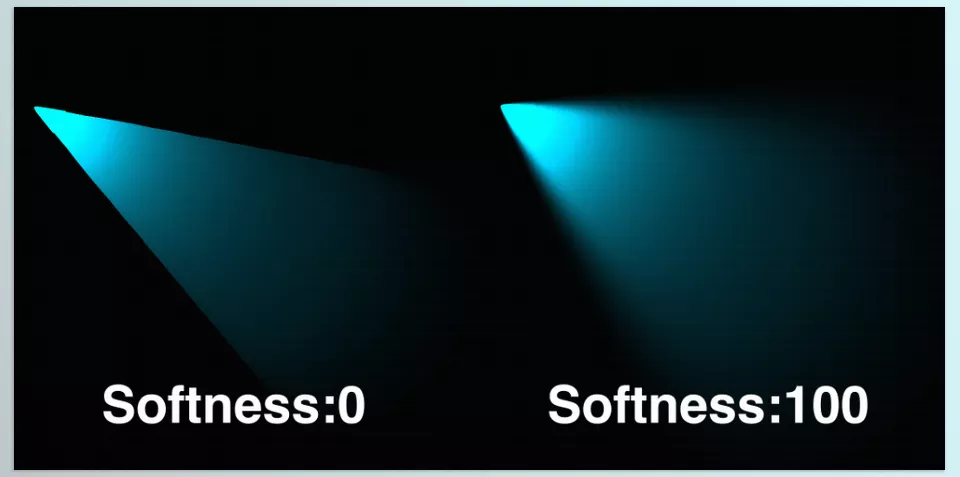
- Softness: This option controls how soft the light is. Softer light suits a gentle, atmospheric environment, while more defined edges can give the scene a more dramatic feel.
- Radius: This parameter controls the light’s radius or spread, helping you adjust the beams to match the scene’s scale.
- Falloff: Adjust light falloff to control how the light’s intensity decreases as it moves away from the source. This feature helps the beams look more natural in space, rather than maintaining the same brightness along their entire length.
Imagine you’re creating a logo animation with a dark background. Place a Spotlight behind the logo, adjust the light’s softness, and use Falloff to make the beams fade gradually into the environment. This way, the lighting isn’t limited to a bright halo around the logo; it can play a more effective role in the scene’s overall space.
Creating Beam Distortion with Light Distortion
Sometimes, light beams look too straight and uniform, which can make them feel out of place in a project’s visual style. This is especially true when you’re creating a fantasy environment, a science-fiction scene, or a foggy cinematic atmosphere. You might want the light to change shape slightly so it looks less perfectly regular and artificial.
The Distortion feature in Light Volume is designed to introduce distortion into the light. Use it to change the beams’ appearance and better suit the scene’s atmosphere. For example, in a dark environment with colored lights, distortion can give the lights a different, more atmospheric appearance. In abstract motion graphics, it can also help the beams move away from perfectly geometric shapes.
Remember that distortion doesn’t always make light look more natural; the result depends on the project’s style. If your goal is to create a realistic scene, it’s best to preserve a recognizable direction and shape for the light. However, for dramatic and fantasy effects, you can change the beams’ appearance more freely.
Adding Dust Particles to Lights with the Dust Feature
One detail that makes volumetric lighting more believable is the visibility of tiny particles floating in the air. You’ve probably seen this effect in scenes where sunlight enters a dark room through a window and dust particles sparkle along the light beams. This small detail can add depth and realism to an image.
Light Volume includes a Dust feature that renders dust particles in the brighter areas of the light volume. As a result, you can add these details to the lighting effect to give the beams a more tangible presence in the environment, without creating a collection of separate particle layers to achieve the same effect.
This feature is useful for various types of projects:
- Sunlight Entering Through a Window: For creating interior spaces with soft lighting and floating particles in the air.
- Spotlights in Dark Environments: For making light paths more visible in commercials and dramatic scenes.
- Industrial and Science-Fiction Environments: For creating an atmospheric setting with directional, colored lights.
- Cinematic Motion Graphics: For adding visual detail to scenes that require striking lighting.
However, adjust the Dust effect to match the image’s composition. If the particles attract too much attention, they may distract the viewer from the main subject. The goal is for the dust to make the lighting look more natural, not to make the particles the main visual element.
Limiting the Light Rendering Area with a Depth Map
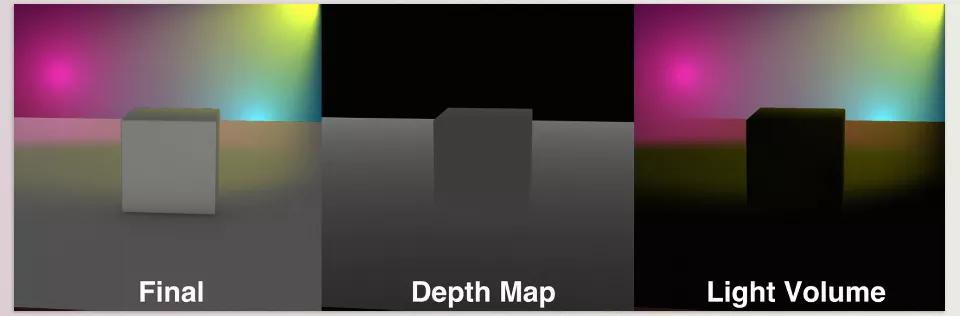
A Depth Map is an image that represents information about the depth of different parts of a scene. It’s usually displayed as a grayscale image, where different gray values represent different distances from the camera, depending on how the map is generated and interpreted.
Light Volume supports a Depth Map input so you can limit the area in which the light is rendered. This feature comes in handy when you don’t want the lighting effect to appear uniformly across the image and want its influence to match the scene’s depth information more closely.
For example, imagine a composition with a foreground, a main subject, and a background. With a suitable depth map, you can control where the light appears more precisely so the result matches the image’s spatial structure. This is especially useful in scenes with multiple layers at different distances.
Keep in mind that the results depend on how accurate your Depth Map is. If it doesn’t show the edges of objects correctly, the light might appear in the wrong places. It’s a good idea to check the result and make sure the lighting looks right before finishing your project.
GPU Processing and Support for Multiple Light Sources
Another important feature of Light Volume is its use of GPU processing to render lights. This means the plugin uses your graphics card’s processing power to calculate volumetric lighting effects. This approach can process effects more efficiently, though final speed also depends on your hardware, composition resolution, and scene complexity.
Light Volume also supports multiple light sources simultaneously. This feature is especially important for projects that require layered lighting because you can use several beams with different directions and characteristics in a single composition, making the overall environment more varied.
For example, in a product commercial, you can use one light to highlight the product, another to add colored beams from the side, and a third to light up the background. For a sci-fi scene, you can place several Spotlights in different directions to make the scene feel deeper and more interesting.
However, GPU acceleration doesn’t mean every project will render without any pauses. The number of lights, selected settings, and graphics card performance still affect the overall performance. Nevertheless, GPU support and the ability to use multiple light sources make Light Volume a noteworthy option for creating more varied and complex lighting effects.
A Simple User Interface for Controlling Lighting Settings
Alongside its main features, Light Volume also includes a user interface that makes its settings easy to access. This becomes important when you want to adjust several lighting properties in succession and evaluate the result of each change.
Instead of working with lots of separate layers and effects, you can control everything from the plugin’s settings. You can easily change things like Softness, Radius, Falloff, and Distortion to get the lighting look you want. This makes it easier to adjust the effect and match it to the style of your project.
Light Volume gives you several useful tools for creating realistic lighting effects in After Effects. It works with Point Lights and Spotlights and lets you adjust light softness, falloff, beam size, and distortion. You can also add dust particles, use Depth Maps, and work with multiple light sources. With GPU processing, you can create anything from simple light beams to more detailed, atmospheric scenes without having to build everything from scratch.
Professional Volumetric Lighting in After Effects with Light Volume 🎯
To achieve a professional result, adjust volumetric lighting to match the scene’s purpose. A few practical tips can help make the beams feel like part of the image’s design rather than an effect simply placed on top of it.
- Start with One Main Light Source: First, create a Point Light or Spotlight and adjust its shape and intensity. Once you’re happy with the result, add other light sources so the composition stays easy to control.
- Adjust Softness and Falloff Together: Beam softness and falloff affect the final look differently. Evaluate these two properties together so the light doesn’t become excessively blurred or look like an artificial column.
- Match the Light Color to the Scene’s Palette: White light works well for natural environments, while colored lights suit fantasy or science-fiction settings. Using several complementary colors can also help visually separate the subject.
- Use Dust Particles with Restraint: For a calm, natural atmosphere, subtle dust particles usually work better than highly concentrated ones. You can make the effect more prominent in more dramatic scenes.
- Use a Depth Map When Necessary: For more precise control over where the light appears, prepare a suitable depth map and review the output. An unsuitable map can cause light to appear in areas where you don’t expect it.
- Balance Volumetric Lighting with Other Effects: Combine volumetric lighting with Glow, color correction, and a little contrast for an attractive result. However, if you apply every effect at high intensity, you may lose image detail.
Finally, review the result both during motion and in still frames. Lighting that looks attractive in a single frame may appear too intense or unstable when the camera moves or the subject changes position.
Why Is Light Volume Useful for Lighting Your Projects? 🚀
When you want a commercial, logo animation, or cinematic title to look more striking, volumetric lighting can completely transform a scene’s atmosphere. Light Volume lets you shape light beams, adjust their softness and falloff, and add distortion and dust for more attractive results.
One of this plugin’s key advantages is that it combines several useful features in a single tool. Instead of combining different techniques for each effect, you can manage multiple light sources and gain greater control over your lights’ appearance with Depth Map, Dust, and Distortion.
If volumetric lighting is a regular part of your projects, Light Volume can speed up your workflow and make it more flexible. It’s especially worth trying for creating cinematic effects and professional motion graphics. Try the free trial to see how well it fits your project needs.
New to After Effects and wondering what plugins, scripts, extensions, and presets actually do? You’re not alone. Our complete After Effects Tools beginner’s guide explains each type of tool in clear, practical language, helping you understand when to use them and how they can make your workflow faster, smarter, and more creative.