


🎬 When Creativity Gets Stuck Behind the Scenes…
Are you experienced with the BRAW Studio Plugin? You’ve probably experienced this: a perfect shooting day, great lighting, the right mood, amazing acting, and a RAW output that excites you. On your camera monitor, everything looks exactly as you imagined. But once you start editing and import the file into Adobe, the image feels like it came from another world! Colors are muted, lighting feels colder, and something seems to be missing from the scene’s vibe.
From this point on, the game changes. Instead of being creative and playing with the image, you get stuck converting formats, exporting, testing, and trying again. Time passes, memory fills up, quality keeps getting tweaked, and strangely, the more you touch it, the further you feel from what you actually captured.
For many, this is when the crucial question arises: “Is there really no way to use Blackmagic RAW files directly in Premiere or After Effects without hassle?” Because if there were, a lot of headaches would disappear, and creativity could start right at the editing desk, not after ten conversions and trial-and-error sessions. 🎯✨

🔍 How Does a RAW File Actually Help Us?
When you shoot with Blackmagic cameras, the .BRAW output is essentially the untouched, raw version of your footage. In other words, you’re not just recording a video—you’re saving the actual light and color information. This means that after shooting, you still have plenty of room to shape the image exactly how you want without compromising quality.
With a RAW file, you can easily adjust white balance and fully control whether the image feels yellow, blue, warm, or cool—without strange halos or color degradation. You can correct ISO, and instead of noise scattering like snow on the image, the raw data helps you maintain control. Shadows and highlights can be recovered too; details you thought were lost or blown out are often salvageable.
In simple terms:
RAW is like having a second chance to decide what the scene’s lighting really was, what the true colors were, and what mood the final image should convey. It gives editors and directors the freedom to make visual decisions at the editing desk, not just on set. Most importantly, everything stays professional, controllable, and aligned with the project’s final vision—especially when you need to unify multiple color styles, locations, or shooting days. 🎯✨
🛠 How to Work with .BRAW Without Extra Tools
Without additional tools, the usual workflow is to first open .BRAW files in DaVinci Resolve. You perform color and exposure adjustments there, then export the footage—usually in large formats like ProRes or DNxHD. Finally, you import the exported file into Premiere or After Effects to start editing.
On paper, this seems logical—but in practice, it comes with several issues:
| Problem | Impact |
|---|---|
| Multiple time-consuming steps | Creativity waits behind the render queue |
| High storage requirements | Your hard drive fills up fast |
| Some RAW data is lost | Less control over Color Grading |
| Syncing Resolve and Adobe | Every minor change means rework and risk of mistakes |
This workflow is exactly like having to re-cook everything from scratch for every small adjustment!
Warm up a frame? Export again. Correct ISO? Export again. Add a new clip? You know the rest…
Because of this, many editors and filmmakers have always looked for an easier way—a method to open and edit BRAW files directly in Adobe without conversion and without losing any information. When everything is done in one place, speed, control, and quality rise simultaneously—exactly what professional editing requires. 🎯✨
🚀 BRAW Studio Plugin — This Is Where It Gets Exciting
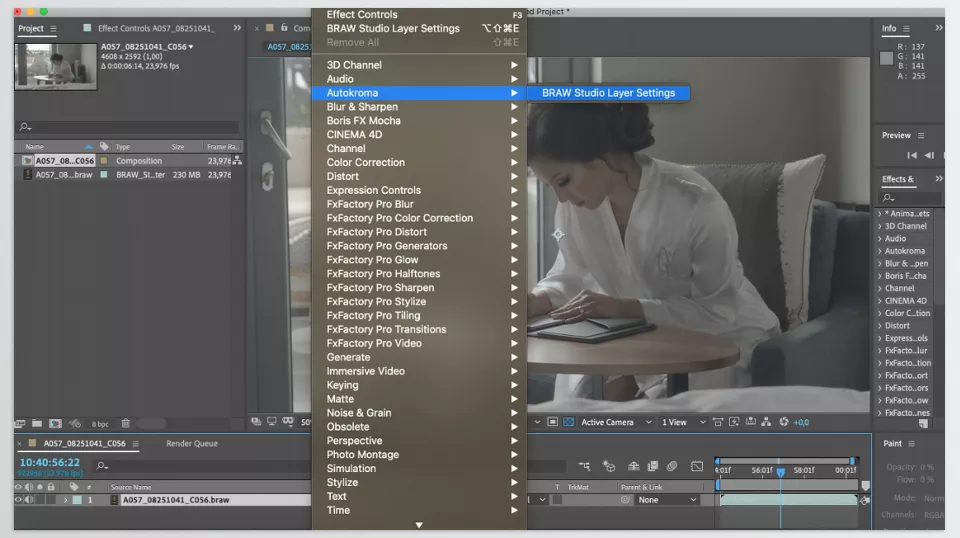
All the headaches we mentioned—conversion, repeated exports, color and adjustment limitations—are exactly what BRAW Studio Plugin was designed to solve. This tool is the missing piece that connects an editor’s creativity directly to the Blackmagic camera. Instead of juggling multiple software programs, everything happens directly and fully integrated in the environment you’re already comfortable with: Adobe.
🎯 What Exactly Does the BRAW Studio Plugin Do?
In simple terms, this plugin teaches Premiere Pro, After Effects, and Media Encoder to open .BRAW files are like normal files, but with full RAW capabilities. That means you can:
- Play back footage
- Edit
- Adjust ISO and colors
- Even read Metadata
—all within Adobe itself, without taking any detours.
✨ Key Features That Make Your Life Easier:
| Feature | Description |
|---|---|
| Direct BRAW import | No conversion, no extra exports |
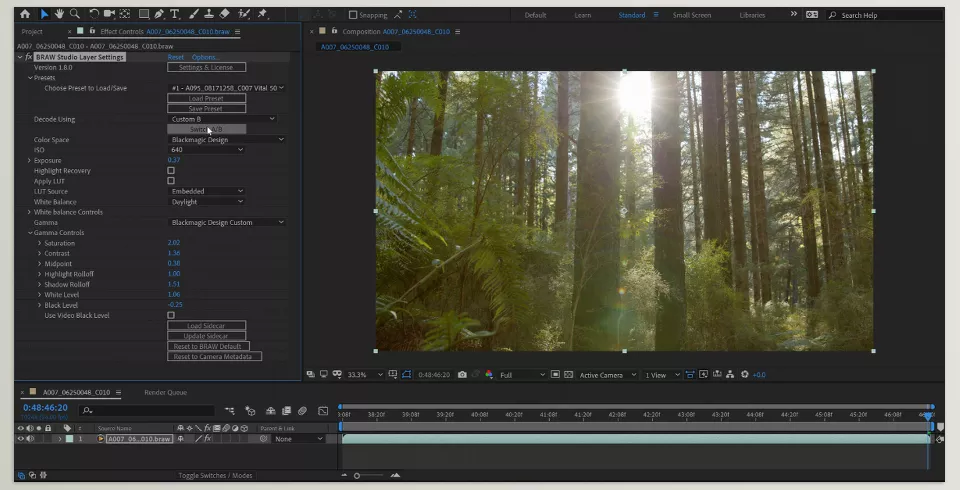
| RAW adjustments inside Adobe | Control ISO, WB, Tint, etc. |
| White Balance Picker | Pick a white point with a single click |
| Metadata Organizer | View and use all camera info |
| Trim without changing codec | Cut files without quality loss or re-rendering |
| Independent Desktop App | Playback, grade, and save settings without opening Adobe |
🎥 A Real-Life Example to Feel the Difference
Imagine a multi-day documentary project with hundreds of clips from various locations, different lighting setups, and dozens of takes. There’s always one day when ISO settings are wrong, or lighting changes, and problems start.
But with the BRAW Studio Plugin:
- You correct all clips at once
- Apply color and light changes in a batch
- Use Metadata for organization and decision-making
- No need to export massive ProRes files
Result:
Faster workflow + full control + zero quality compromise
And this means creativity starts where it should: at the editing desk, not behind a conversion queue. 🎯✨
🧪 Pro Tips for Better Results
Now that you have BRAW Studio Plugin, a few professional tips will help you work more efficiently and get cleaner, more polished output:
- Don’t click anywhere with the WB Picker!
Many pick the first thing that looks white, but if it’s a blown-out highlight, the result will be disastrous. Look for real white: a matte wall, bright clothing, or light reflecting off a natural surface. - Global Presets are your friend for long projects
For multi-day shoots or multiple locations, creating a preset for each ensures ISO, WB, and Tint stay consistent. This is especially noticeable in documentary editing. - Don’t underestimate the Metadata Organizer
When editing and looking for “that shot from day two behind the building,” having organized metadata is a lifesaver: lens, timestamp, ISO—all at your fingertips. - Trim like a diet for your project
Don’t cut everything immediately! Wait until final selects are chosen, then trim to keep the project light and your archive organized.
Overall, if you’re new to RAW, don’t be intimidated! Play with Contrast, Tint, and Highlight Recovery. This is exactly where you feel true control over your image—every slider adjustment changes the image’s mood. 🎨✨
🎯 Why It’s Worth Using
BRAW Studio Plugin is not just a simple plugin; it’s a bridge between Blackmagic RAW files and the familiar Adobe environment. If you’ve ever wanted to work directly with RAW without detouring through DaVinci and time-consuming conversions, this tool is designed for you.
Result: A faster, cleaner, more integrated workflow without losing quality. In the Adobe environment, you know—Premiere or After Effects—you have control over light, color, ISO, and all RAW data without sacrificing any image information to conversions.
So if you edit in Adobe and your files are BRAW Studio Plugin, this plugin not only makes your workflow more professional and precise, but it also makes the entire production process more enjoyable. Less time wasted, faster color decisions, and complete control over editing—the way it should always be. 🚀✨
From beginner-friendly add-ons to advanced professional tools, our comprehensive After Effects Tools article provides step-by-step guidance on every plugin and script that can elevate your projects to a whole new level.



