


When Zooming Becomes a Hassle
Do you know much about the Drag Zoom Pro Plugin? You’ve probably experienced this: in the middle of a video or motion graphics project, you want to zoom in on a specific section to see more details. At first, it seems simple, but once you start, you realize there’s a lot you need to adjust.
You have to change the layer’s position, adjust its scale, and coordinate rotation. Then come the keyframes, which you need to create one by one, and don’t forget to apply Motion Blur to make the movement look natural.
The usual result? Exhausting and time-consuming! Sometimes, the zoom feels so artificial that it seems like the image is playing tricks on you. Now, if you have several sensitive scenes or highlights from a stream, be prepared to spend hours and get frustrated.

Traditional Methods and Challenges
If you want to zoom without any special tools, you usually have to go through several tedious steps. At first, you think it’s just about changing the layer’s Scale and Position, but when you have multiple scenes or complex motion, it quickly becomes overwhelming. You need to move each part precisely to make the zoom feel natural and avoid looking fake.
Then comes the keyframe stage. Every time you make a change, you have to create a keyframe and place it correctly. Even one mistake can ruin the whole movement, forcing you to adjust everything again. And this is just for a simple scene—imagine trying to zoom in on multiple sensitive moments or stream highlights; it takes several times more effort and energy!
Finally, to make the movement really natural, you need to add Motion Blur and easing. Without them, the zoom feels stiff and artificial, making viewers feel like the image is “playing” with them.
The main challenges? All these steps are:
- Time-consuming and exhausting
- Prone to errors
- Requiring a lot of patience and precision
In short, traditional zooming feels more like a grueling exercise than a creative, fun task—especially when you have fast projects or stream highlights.
Drag Zoom Pro Plugin: Zoom with a Simple Drag
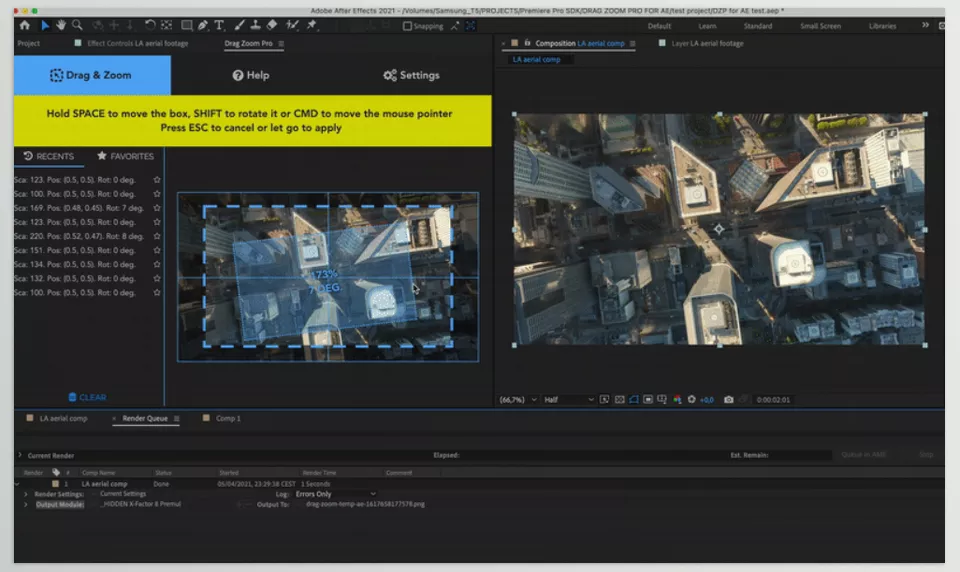
This is where the Drag Zoom Pro Plugin comes in, removing all the hassle of zooming in on videos. With this plugin, you no longer need to spend hours fiddling with Scale, Position, and Rotation, or creating keyframes one by one. Simply draw a rectangle over the part of the frame you want to zoom into, and the rest happens automatically:
- Keyframes are generated automatically—no need to create or move them manually.
- Layer scale, position, and rotation are automatically adjusted for smooth, natural motion.
- Realistic Motion Blur is applied, making the zoom look like professional camera movement.
But that’s just the beginning! Drag Zoom Pro Plugin is packed with other professional, practical features:
Key Features and Capabilities
- Simple and Fast: Just drag and release—no complicated or confusing settings needed.
- Customizable: Control zoom speed, movement style, smoothness, and easing to match the exact feel you want.
- Multi-Layer Support: Zoom multiple layers or elements simultaneously, with all keyframes and settings applied automatically.
- Consistent Look Across Projects: Maintain a consistent zoom style for all your projects without adjusting everything each time.
- Supports Motion Graphics and Stream Videos: Perfect for zooming in on game highlights, motion graphics, characters, or product features.
- Compatibility with After Effects Versions: Works smoothly from 2020 to 2025.
- Integrates with Effects: Combine with other After Effects tools and effects for more complex, engaging movements.
A Practical Example
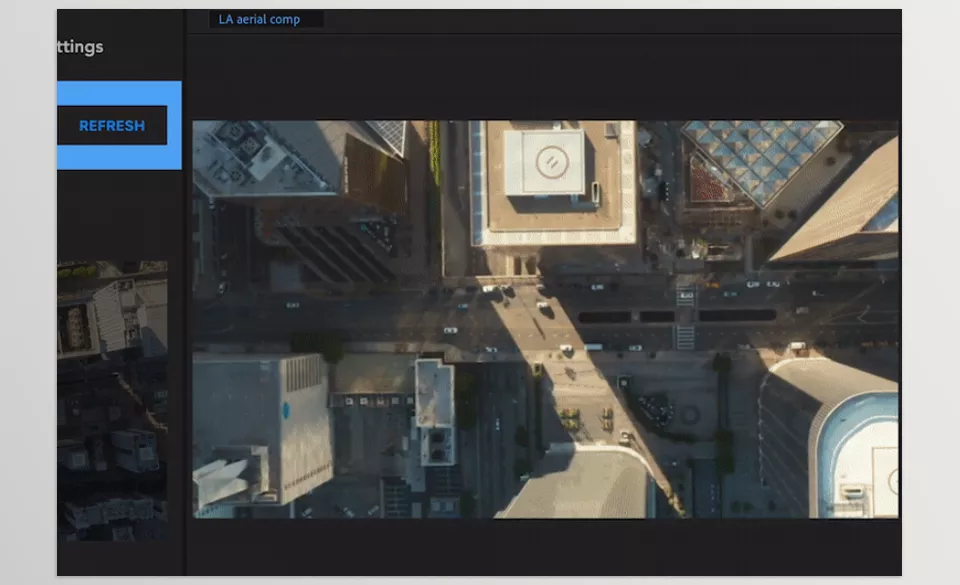
Imagine you’re zooming in on a character in an animation to better convey emotions, or highlighting a specific movement in a stream video. Previously, this required several minutes of manual work, creating keyframes, and precise adjustments. With the Drag Zoom Pro Plugin, all of this is done in seconds, delivering smooth, natural, and professional results. You can even maintain a consistent Zoom style, so all your projects feel uniform and cohesive.
Pro Tips for the Best Results
To make your Zooms look truly natural and appealing, keep these simple but practical tips in mind:
- Use Motion Blur and Easing
These add a real, natural feel to zoom movements. Without Motion Blur, zoom feels stiff and artificial; without easing, the start and end of the movement appear abrupt and unprofessional. Luckily, the Drag Zoom Pro Plugin applies these settings effortlessly. - Control the Speed and Rectangle Drag
For fast, dynamic zooms, draw short, quick rectangles to convey rapid movement. For emotional moments or important details, drag slowly for a smooth, pleasing zoom. This technique greatly impacts the viewer’s experience. - Experiment with Practice Projects to Find Your Style
The best way to master the tool is by creating a few short practice projects. Play with zoom speed, Motion Blur intensity, and rectangle positioning to find your personal style and professional feel. Once mastered, your zooms will look natural without overthinking. - Adapt to Different Project Types
Depending on the project—stream highlights, motion graphics, or product promos—you can apply different settings to ensure zooms match the rhythm of the content. This keeps all your projects consistent and professional.
Summary: Professional Projects in Seconds
With the Drag Zoom Pro Plugin, you no longer need to spend hours manually adjusting Scale, Position, and Rotation. Everything is automated, and keyframes are generated accurately and professionally, eliminating stress and errors.
Zooms appear smoother and more natural, working perfectly even for fast projects or stream highlights. No more worrying about stiff or artificial movement—the tool handles it all effortlessly.
Just draw a rectangle over your target area and release. Everything is ready to use, making your projects faster, more professional, and more engaging. You can focus on creativity and big ideas instead of tedious, time-consuming details.
Don’t settle for just using After Effects — learn how to harness the power of its plugins, presets, and scripts with our complete guide about AE Tools, which includes tips, examples, and insights from industry professionals.



