

How to Create Realistic Cracks on Blender Models?
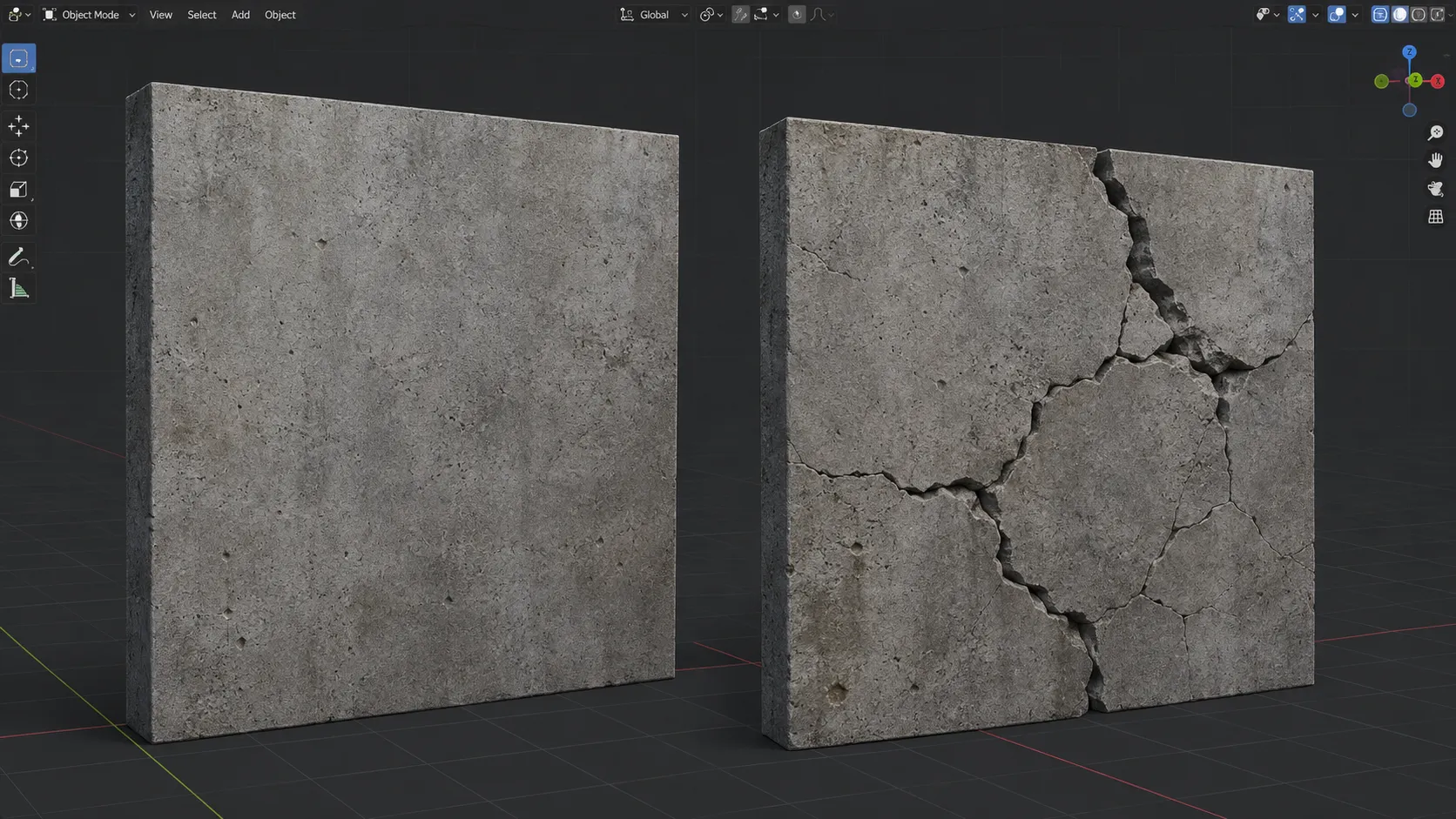
Are you familiar with the features of the Cracker Add-on by Superhivemarket? Imagine you have a 3D model of a concrete floor, an old wall, or a stone surface, and you want to create realistic cracks directly on the model. A simple line on the surface is not enough; the crack needs to become part of the model’s geometry and be placed exactly where it fits the shape of the object.
This is where the process can become time-consuming. To create several cracks, you have to keep working on the geometry, adjusting the position of the cracks, and changing their shape and size. If you want to do the same thing on several different parts of a model, the number of these adjustments can quickly increase.
Now, if you could select an object, create the crack directly on its geometry, and change the position and appearance of the crack with controls such as moving, rotating, and adjusting its size, creating these details would become much more straightforward. Cracker is designed for exactly this type of workflow in Blender; creating cracks on a 3D model and controlling them without having to build everything manually from scratch.

Cracks and Breaks: Details That Bring Models to Life 🧱
Cracks can turn a completely clean and uniform surface into something that looks worn, old, or damaged. For example, on the concrete floor of a street, old walls, stone, or building surfaces, cracks can add a sense of use and wear to the model and make the 3D environment look more natural.
These details are not only useful for creating an old appearance. When cracks are created directly on the model’s geometry, they can give the surface more depth and detail and remain visible even in close-up shots. That is why, in environment modeling, creating worn-out scenes, or designing objects that are supposed to look damaged, creating cracks on the geometry can be an important part of the model’s details.
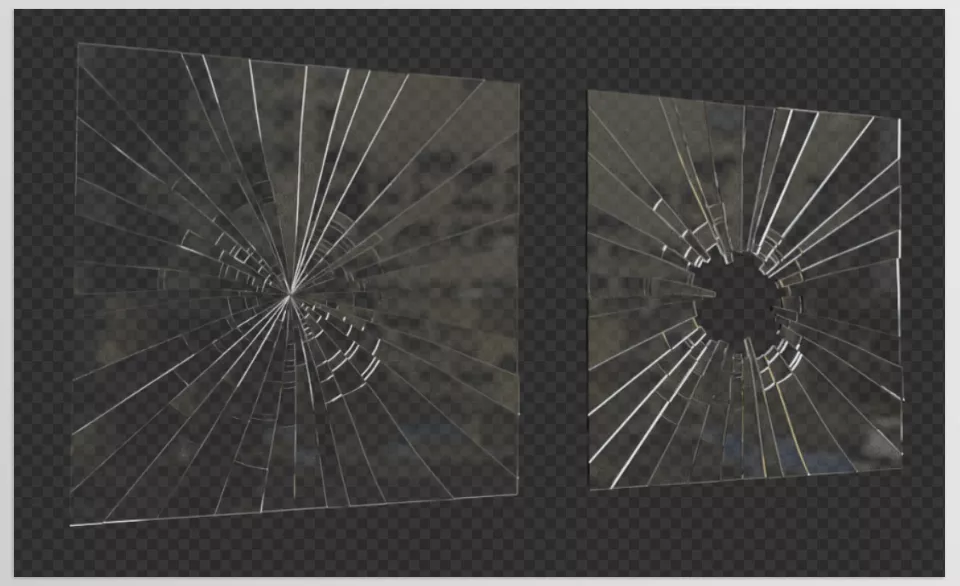
Glass breakage is another application of this technique. A healthy, completely smooth piece of glass has a different appearance from cracked or broken glass, and adding a breakage pattern can be useful for creating damaged scenes or realistic environments.
Manual Methods for Creating Cracks and Breakage in Blender 🛠️
Before using dedicated tools, creating cracks and breakage in Blender is usually done through a combination of manual modeling and direct geometry editing. Depending on the type of surface and the result you want, you can create the crack paths yourself on the model and then modify the geometry based on them. For some projects, you can also use Blender’s own tools and techniques for dividing, cutting, and editing meshes.
For example, during the manual modeling process, you can use methods such as these:
- Direct Mesh Editing: Selecting and moving Vertices, Edges, and Faces to shape the crack path.
- Knife Tool: Creating manual cuts on the model’s surface and defining the breakage path.
- Loop Cut: Adding new Edges to increase control over the geometry and prepare the surface for further changes.
- Extrude and Bevel: Changing the shape of different parts of the model to create depth and visible edges in broken areas.
- Separating Parts of the Model: In some scenarios, you can separate broken sections from each other to have more control over them.
For glass, you also need to use modeling and geometry-editing methods suitable for a surface with thickness and create the breakage pattern yourself on the model.
Why Does Manually Creating Cracks in Blender Take Time? ⏳
The main problem with these methods is that as the number of cracks and breakages increases, controlling and creating them manually also takes more time. On the other hand, cracks need to be placed on the surface in a way that does not make them look overly organized or repetitive; therefore, simply creating a few cuts is usually not enough, and you also need to adjust the shape, path, and depth of different parts. If you want to prepare several different models with different crack patterns, this process can become very repetitive and take a lot of time during the modeling workflow. Glass breakage also has more limitations, and you cannot apply one single method to every type of object; for example, Glass Breaker is designed for a flat surface with thickness and cannot be used on rounded models such as a vase or cup.
Cracker: Creating Cracks, Breakage, and Damage on 3D Models ⚡
Cracker is an Add-on for Blender that makes creating cracks and breakage on 3D objects much faster. Instead of manually building the geometry path for each crack and changing the model step by step, you can select an object, activate Cracker on it, and adjust the position and size of the crack using different controls.
This tool is not limited to creating a simple crack; it also provides features for placing multiple cracks, making more precise adjustments, creating damaged states, and breaking glass. Let’s look at each section separately.
Quick Mode: Creating Cracks Quickly with a Shortcut ⚡
The fastest way to use Cracker is Quick Mode. In this mode, you only need to select an object and press Ctrl + W. Cracker becomes active and an HUD appears on the screen, giving you access to controls for the crack-related parameters.
You can also use keyboard shortcuts directly to move and change the direction of Cracker:
- G for Move
- R for Rotate
- Enter to confirm the changes
- Esc to cancel the operation
If the Ctrl + W combination conflicts with Blender’s existing shortcuts or your own workflow, there is no need to worry; the Cracker Hotkey can be changed from the Preferences section, and you can choose a more suitable combination for activating the tool.
The important point is that Quick Mode works on a selected object; therefore, you need to select your desired object before starting.
Circle UI: More Visual Control for Complex Models 🎯
If you do not have a simple model and are working with an uneven or complex object, Circle UI Mode gives you more visual control. This mode is useful when you want to position Cracker more precisely in the right place on the model.
There are two ways to activate Circle UI:
- Select Add Cracker from the Cracker Panel.
- First enter Quick Mode with Ctrl + W, then press Shift + Enter.
This mode allows you to determine the position of Cracker on the model with more control instead of relying only on quick settings, especially when the object’s surface has a complex shape.
Creating Multiple Cracks on One Object Without Separating the Model 🧱
Sometimes you do not want to have just one crack on the model. For example, you may want a wall, floor, or piece of stone to have several different cracks.
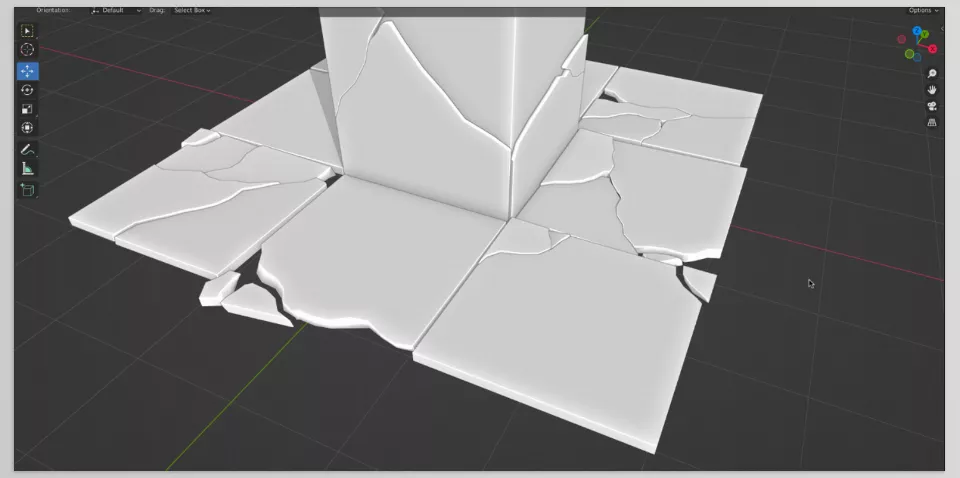
Cracker allows you to place multiple Cracks on one object without needing to separate it. To add more cracks, you can hold Shift + LMB while working and specify additional points for the cracks.
Also, if you want the crack to be placed exactly at the 3D Cursor location, you can use Shift + C. This feature is useful when you have already specified the desired location with the 3D Cursor and want to create the crack exactly there.
Adjusting the Size and Shape of Cracks with More Precise Control 🔧
Cracker does not only control the position of the crack; it also provides shortcuts for adjusting the crack itself.
You can use Ctrl + Mouse Wheel to adjust the crack size, and if you need finer changes, holding Shift allows you to make more precise adjustments.
To change the crack’s Taper, you can also use the Q key. These controls help you adjust the shape of the crack to match the model without having to go through a long manual editing process for every small change.
Stomper: Creating a Damaged State on the Model 👊
Alongside its main crack tool, Cracker also includes the Stomper feature. This tool is used to create a damaged and impacted state on the model and can be suitable for scenes where an object should appear to have been affected by an impact or pressure.
For Stomper to work correctly, any object you want to affect must be a real 3D model; in other words, it should not be a completely flat Plane without volume. Also, the object’s Origin should be approximately at its center.
This is important because if the object’s structure or the position of its Origin is not suitable, you may not get the result you expect from Stomper.
Physically Based Grounding; More Natural Placement with the Ground Surface
One of the features added in newer versions of Cracker is Physically Based Grounding, which is available with Ctrl + Shift + LMB.
This feature is useful when you want Cracker’s interaction with the ground surface or its placement to be more natural and want to position the tool with greater consideration of the surface underneath it.
Glass Breaker: Creating Breakage Patterns on Glass 🪟
One of Cracker’s important features is Glass Breaker, which is designed to create breakage on glass.
To activate it, you can use the Alt + Y shortcut in Object Mode and select the Breaker tool. You can then adjust the appearance of the breakage.
In newer versions, new glass-breaking patterns have been added, and it is also possible to use the 3D Cursor to determine the position of the breakage pattern. This means you can specify the starting point or center of the breakage pattern with more control.
Another useful feature of Glass Breaker is Select & Apply Functionality. This feature allows you to skip the process of selecting a Face before activating Glass Breaker and directly run the glass-breaking tool.
For the inside sections of the cracks, Material Assignment is also available. This means you can assign a specific material to the inside of the breakage so that the appearance of the broken sections can be controlled more precisely.
The size of glass cracks can also be adjusted, and you can change it with Ctrl + Mouse Wheel.
However, Glass Breaker has specific limitations. The object you want to break with this tool must be a flat surface with thickness, such as window glass. Also, the front Face must be a single Polygon, and you need to Apply the object’s Scale before using it.
As a result, this tool is not designed for rounded objects such as a Vase or Cup and cannot break such models in the same way.
Placing Multiple Cracks with More Control 🎯
Previous versions of Cracker also added features for making it easier to control crack positions. With Shift + LMB, you can place multiple cracks on one object without having to separate the object for each crack.
Also, Shift + C allows you to move the crack to the 3D Cursor position; this can speed up the workflow when you have already specified the exact location of the damage.
An Important Note Before Using It ⚠️
Cracker works with the actual geometry of the model; this means that the changes it creates are not merely a visual effect and can actually modify the object’s geometry. Because of this, after applying Cracker, your original model may change or its structure may no longer be suitable for continuing certain parts of your workflow.
So, if you are working on a serious project, it is better to create a backup of the object or the entire scene before running Cracker. This is especially important in Production environments.
Overall, Cracker provides a set of tools that cover different parts of creating cracks, breakage, and geometric damage in Blender; from quickly creating a crack and precisely controlling its position to creating multiple cracks, creating an impacted state with Stomper, and breaking glass surfaces with Glass Breaker.
How to Create More Natural and Realistic Cracks with Cracker? ✨
When you do not want cracks to look artificial and random, simply creating them is not enough; their position, size, and how they are placed on the model also matter. With a few simple tips, you can have more control over the final result:
- Place cracks according to the model’s shape: Choose the path and position of the cracks based on the structure and shape of the object so that the breakages look like a natural part of the model rather than a few random lines on the surface.
- Do not create all cracks identically: If you have multiple cracks on a model, it is better if their size and shape are not exactly the same. By adjusting the crack size, you can create more variation across the surface.
- Use Circle UI for complex models: When the model’s surface is uneven or complex, Circle UI Mode provides more visual control for selecting the position of Cracker and helps you place the crack in a more suitable location.
- Use Shift for fine adjustments: By holding Shift, you can make changes more precisely; this is useful when the crack is already approximately in the right position but needs a slight adjustment.
- Use the 3D Cursor to determine the exact location: If you want the crack to be created at a specific point, you can use Shift + C to move Cracker to the 3D Cursor position.
- Adjust the crack size according to the model’s scale: Use Ctrl + Mouse Wheel to change the crack size so that the proportion of the crack to the object’s dimensions looks more natural.
- Do not work on the original model without a backup: Cracker works with real geometry, and its changes are not just a visual effect. Before running the tool, create a copy of the object or scene so that you have the original version available if needed.
By following these tips, you can have more control over the appearance of the cracks and adjust the damage details according to each model without making the result look overly artificial or repetitive.
When a Simple Crack Can Change the Entire Scene 🎯
Cracks and breakage may seem like small details at first glance, but these details can completely change the appearance of a 3D model. A clean and new surface can become an old and worn surface with a few cracks, and healthy glass can create a different story in a scene with a suitable breakage pattern.
Cracker makes this process faster and more controllable in Blender; from creating cracks on a model and placing multiple breakages to using tools such as Stomper and Glass Breaker. As a result, when you need cracked, broken, or damaged models in a project, you do not have to build all these details manually from scratch.
If you frequently work with worn-out environments, damaged models, or broken surfaces in your projects, Cracker can be one of those tools that brings the creation of these details into your Blender workflow much faster.
To gain confidence with Blender and understand every tool it offers, check out our Blender Tools article, which explains each feature clearly and shows how to use it in real projects.



