

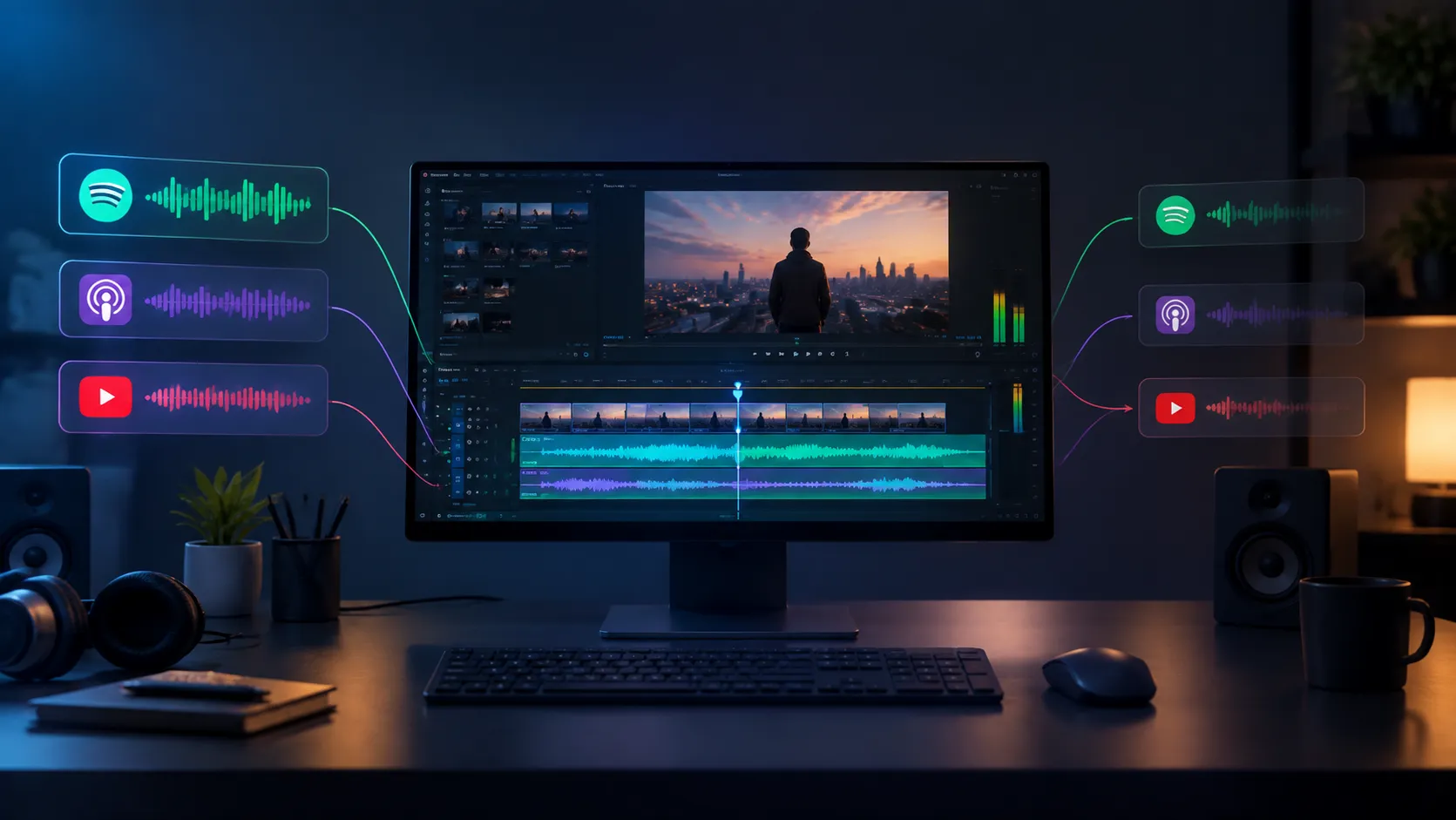
When Music Gets in the Way of Timeline Audio 🎧
Have you ever used the DuckFlow Plugin by aescripts? If you usually play music, a podcast, or even a YouTube video while working with After Effects or Premiere Pro, you’ve probably experienced this situation: you’re working on your project with full focus while music is playing in the background, but as soon as you play the timeline, both sounds start playing over each other.
At this point, you usually have to stop working, go to your music player, lower or mute the volume, and then return to your project. When you preview something several times in a row, this small task can really break up your Workflow. Especially when you’re working on an audio section and need to carefully listen to the timeline audio every time.
Now imagine not having to switch between apps at all. As soon as the timeline starts playing, the volume of your music and background sounds automatically goes down, and when the Preview ends, everything returns to its previous level. This is exactly the kind of experience that can make working with audio much smoother.

What Exactly Is Audio Ducking and What Is It Used For? 🔊
Audio Ducking means that when a more important sound is playing, the background audio is temporarily reduced. You’ve probably seen this technique many times in videos; for example, when a speaker starts talking, the music underneath their voice gets quieter, and when they finish speaking, the music goes back up.
This same idea can also be useful in an editor’s or motion designer’s Workflow. For example, imagine Spotify is playing in the background and you want to check the audio of a clip inside Premiere Pro. When Playback starts, the Spotify volume goes down so the project audio can be heard more clearly, and after stopping, the music returns to its previous level.
This isn’t only about music. YouTube audio, VLC, Windows Media Player, and even some system sounds and Notifications can also make it harder to hear the timeline while working on a project. Automatically managing these sounds helps you stay more focused on your project and means you don’t have to adjust your system’s audio settings for every Preview.
When You Have to Do Everything Manually 🖱️
Without a dedicated tool, the simplest way is to manually lower or mute the volume of the program playing in the background. For example, before a Preview in After Effects, you can Pause Spotify and then Play it again after you finish checking the project. If you do this only a few times, it might not seem like a big deal, but in a long Workflow, these back-and-forth actions keep happening again and again.
Another option is to use Windows Volume Mixer to control the volume of different applications. This gives you more control, but you still have to change the volume yourself each time and then return it to its previous level. For someone who constantly switches between timeline Playback and stopping, this process can become tiring very quickly.
On the other hand, you can simply stop your music or podcast completely and only play it again during breaks or when you don’t need to hear the project audio. The problem is that this makes music and background audio less integrated into your normal Workflow, and you have to choose between “focusing with music” and “checking the project” every time.
DuckFlow: Automatic Background Audio Management 🎯
DuckFlow is an After Effects and Premiere Pro extension for Windows that manages the volume of background applications while the timeline plays. When you play the timeline, the extension detects the start of Playback and reduces the volume of external audio sources such as music, podcasts, videos, or Notifications to the level you specify. When Playback stops, the sounds return to their previous volume.
This means you don’t have to stop working and switch to Spotify or another player every time you want to watch a short Preview. DuckFlow handles this volume change in the background, so you can stay focused on the timeline. As a result, you can play music and check your project at the same time, without manually muting and unmuting every time.
Separate Timeline and Background Volume Controls
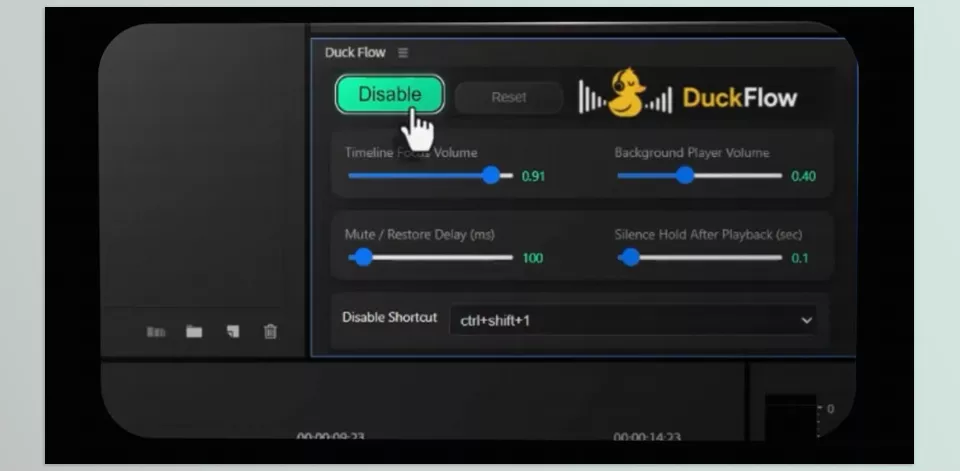
DuckFlow lets you set how loud the project audio and background audio should be while the timeline plays. You have two main settings: Timeline Focus Volume and Background Player Volume.
With Timeline Focus Volume, you can set the timeline volume level during Playback. Background Player Volume determines how much the volume of external applications is reduced while the timeline is playing. This means you can choose whether the music should only go down slightly or be reduced significantly so the project audio is completely clear.
This control is especially useful when the type of project you’re working on changes. For a simple visual Preview, a small reduction in Spotify’s volume might be enough, but when you’re checking dialogue, sound effects, or audio details, you can lower the background volume further.
Automatic Volume Reduction and Restoration
The core of DuckFlow is this automatic behavior. When timeline Playback starts, external audio is automatically lowered, and when the timeline stops, it returns to its previous level.
The important thing is that this process isn’t limited to playing the timeline once. Every time you Play or Stop the timeline, DuckFlow repeats the same behavior. So even if you Preview something dozens of times during a project, you don’t have to adjust the player volume yourself every time.
Control Reaction Timing with Mute/Restore Delay
To make volume reduction and restoration happen exactly according to your Workflow, DuckFlow also provides the Mute/Restore Delay option. With this setting, you can specify the delay before reacting to the start or stop of Playback in milliseconds.
This option is useful when you don’t want the background volume to immediately rise and fall with every quick change in the timeline state. By setting an appropriate Delay, you can match DuckFlow’s behavior to the way you take Previews and make volume changes more controlled.
Keeping the Volume Low with Silence Hold
The Silence Hold option controls what happens after the timeline stops. With this option, you can specify how many seconds the background volume should stay low after Playback stops.
Imagine you’re only previewing a few seconds of the timeline and then press Stop again. If the volume immediately returns to its previous level and then drops again a few moments later, this constant change can be annoying. Silence Hold helps keep the background volume low for a set amount of time between short Previews.
Support for Different Audio Sources 🎧
DuckFlow isn’t limited to a specific player. This extension can manage the volume of different external audio sources while the timeline is playing, including:
- Spotify
- YouTube in a browser or application
- VLC Media Player
- Windows Media Player
- System Notifications
- Other audio sources that play through the system
So if you listen to Spotify while working, have a YouTube video open in your browser, or even have Windows Notifications playing, DuckFlow can reduce their volume during timeline Playback.
Quickly Turn It On and Off with Toggle
If you don’t want DuckFlow active all the time, you can use the Enable/Disable Toggle. With one click, you can enable or disable the extension’s functionality.
When DuckFlow is enabled, it reduces external audio according to your settings when Playback starts. When you disable it, the audio behavior returns to normal, and DuckFlow no longer affects background audio playback.
This is especially useful when some projects need automatic audio management, and others don’t; in this case, you don’t have to change settings from scratch.
Keyboard Shortcut for Quick Access ⌨️
You don’t always have to open the extension panel to turn DuckFlow on and off. You can set a custom Keyboard Shortcut for the Toggle and use that shortcut to change DuckFlow’s status.
This feature is useful in Workflows where you frequently work with Preview and Full Screen. You can enable or disable DuckFlow without leaving your workspace or opening the panel, then quickly return to your main task.
One Extension for After Effects and Premiere Pro
DuckFlow works with both After Effects and Premiere Pro, so you don’t need two separate tools to use its main features. If you do part of your work in Premiere and move to After Effects for motion or animation, the same audio management system can stay with you in both environments.
Support for both applications lets you have the same audio Workflow. Whether you’re editing or working on a Composition in After Effects, playing the timeline manages the background audio according to your DuckFlow settings.
Customizable Settings in One Panel
Overall, DuckFlow’s settings aren’t limited to simply turning the extension on and off. You can control its behavior from several different sections:
- Timeline Focus Volume: Sets the timeline audio level
- Background Player Volume: Sets the volume level of external sources during Playback
- Mute/Restore Delay: Sets the reaction delay when lowering or restoring the volume
- Silence Hold: Specifies how long the background audio remains at a low level after stopping
- Enable/Disable: Enables or disables the automatic functionality
- Keyboard Shortcut: Quickly controls the extension’s status with a custom shortcut
As a result, instead of having one fixed mode for every project, you can adjust DuckFlow’s behavior to your working habits and the types of Previews you perform.
Compatibility with Different Versions
From a software compatibility perspective, DuckFlow works with different versions of After Effects and Premiere Pro, covering versions from CC 2018 to 2026. So its support isn’t limited to newer versions.
However, there is one important limitation: DuckFlow is currently only available for Windows and does not work on macOS. This limitation relates to how operating systems manage audio, so Mac users need different solutions.
Overall, DuckFlow brings together a set of simple but useful settings to remove one completely repetitive task from your Workflow: every time the timeline Plays, the background audio goes down, and after it stops, the volume returns. This simple behavior, when repeated many times throughout a project, can make working with After Effects and Premiere Pro much smoother.
A Few Tips for a Smoother Workflow 💡
To make sure DuckFlow actually helps your everyday Workflow, customize its settings based on the type of work you do. You don’t always need to completely mute the background audio; sometimes a gentle volume reduction is enough to hear the timeline.
- Choose a reasonable Background volume. If you only want to hear the project audio more clearly, you don’t need to completely Mute the music.
- Adjust the Delay to match your Workflow. If you often have short Playbacks, an unsuitable delay can make volume changes feel a little annoying.
- Try Silence Hold for back-to-back Previews. This option helps prevent the audio from constantly changing between short stops and Playbacks.
- Create an easy Shortcut for Toggle. If you sometimes prefer DuckFlow to be inactive, a keyboard shortcut gives you much faster access to this control.
- Lower the Background volume when working with audio. When checking dialogue, sound effects, or audio Sync, reducing the background volume further can make it easier to hear the details.
After using it a few times, you can adjust these settings exactly according to your working habits so volume changes feel natural and hassle-free.
More Focus on Your Project Without Stopping the Background Audio 🎬
When you listen to music or a podcast while working, the timeline shouldn’t force you to stop what you’re doing and switch to the player every time you play. But if you Preview often, manually turning the volume up and down can quickly become repetitive and annoying.
DuckFlow automates this part of your workflow: when Playback starts, the volume of Spotify, YouTube, VLC, or Notifications goes down and then returns after it stops. You can even adjust the volume reduction amount, Delay, and silence hold duration yourself.
If you spend many hours working in After Effects or Premiere Pro while listening to music or other audio content, this simple feature can eliminate many manual volume adjustments. As a result, you can hear your project audio clearly and stay focused on your work without stopping your music playback.
After Effects can feel confusing at first, especially when you start hearing about plugins, scripts, and other tools. Our After Effects Tools guide explains them in a simple way, so you can quickly understand what they do and when you might need them.





