

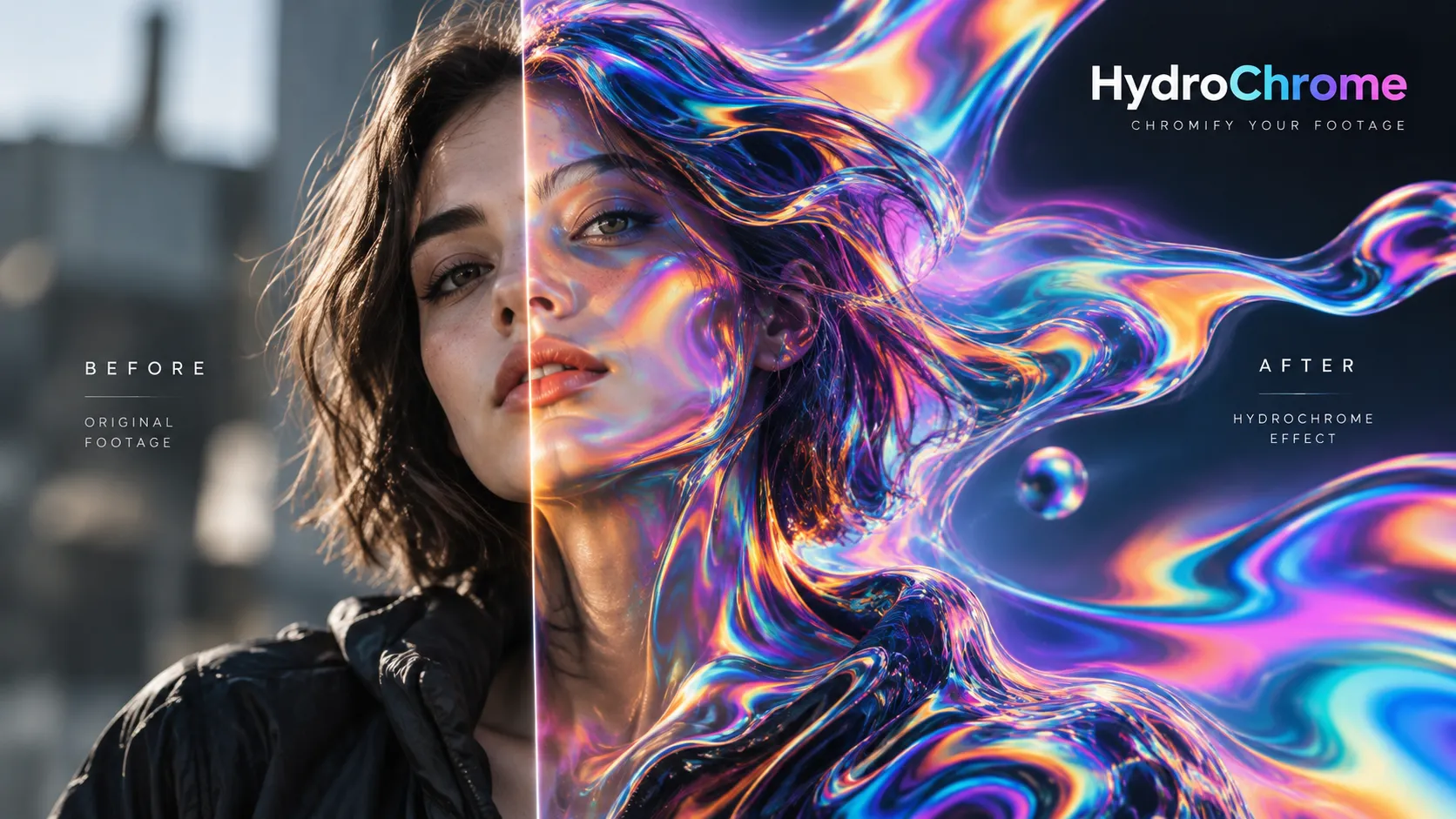
When Your Visual Looks Too Ordinary 🎨
Have you ever tried the HydroChrome Plugin by Pixel Sorter Studio? Sometimes a simple video or an empty Background only needs a little movement and color to feel completely different. Smooth waves, color transitions, and shapes that seem to move like liquid inside the image can quickly turn a simple Visual into something more engaging.
The problem is that creating this kind of look isn’t always as simple as it looks on screen. Usually, you need to combine several effects, create Textures, add Distortion, adjust colors, and then animate all these changes properly.
If you want to apply the same look to real Footage, the process can become even more complicated. Especially when you want smooth movement, attractive color changes, and a Loop animation that repeats without visible jumps.

What Are Color Flows and Abstract Visuals? 🌊
One of the most attractive Visual styles in motion graphics is creating movements that look like liquid flows or colorful waves. In this style, shapes usually aren’t static and constantly change form; colors blend into each other, and the image feels lively and fluid.
You can use these types of effects to create animated Backgrounds, Intro and Outro scenes, Music Visuals, Motion Backgrounds, advertisements, Title Sequences, and even parts of promotional videos. For example, a colorful, fluid Background can sit behind a logo or text and make the image more appealing without distracting the audience too much.
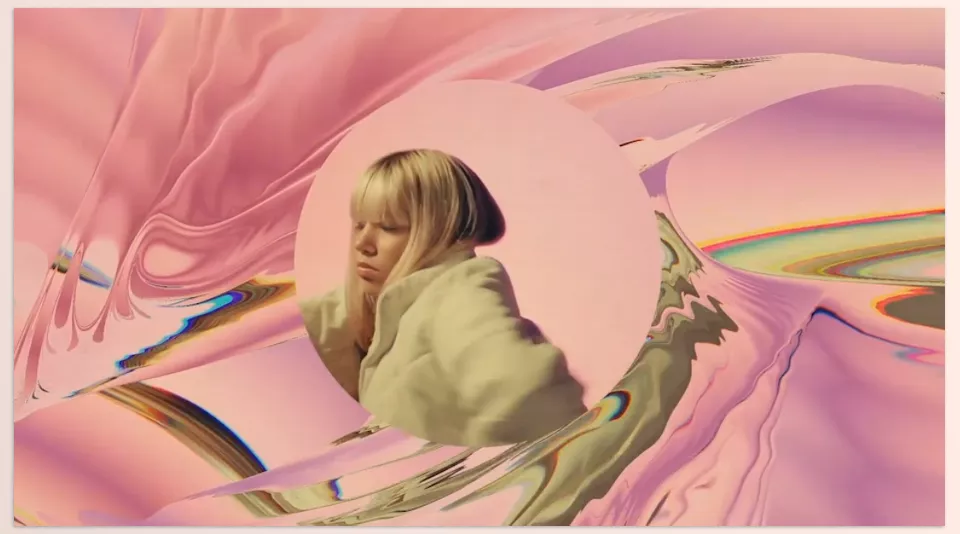
You can also use this technique on footage. You can distort a regular video, change its colors, and give it a more abstract appearance; something that can be useful for music videos, Experimental Visuals, or projects that require an unrealistic look.
Traditional Methods for Creating These Effects 🛠️
Before dedicated tools, creating smooth, colorful visuals meant combining several effects. In After Effects, you could start by creating an initial Texture, then distort it, and finally use color and lighting tools to achieve the desired look. For example, you can use these tools:
- Fractal Noise: To create animated Textures and patterns that provide a strong foundation for abstract flows.
- Turbulent Displace: To deform the Texture and create wavy, fluid movement.
- Colorama and Tritone: To change colors and create different color combinations in the image.
- Blur and Glow: To smooth shapes and add a glowing feel to the Visual.
- Keyframes and Expressions: To control texture movement and create animated or looping animations.
By combining these tools, you can achieve different results and even fully customize the effect to fit your project.
What Are the Problems With This Method? 🤔
The main problem with this method is the number of steps you need to go through to achieve a specific result. Each part of the final look usually requires a separate effect or adjustment, and you need to control multiple parameters to change the shape, color, movement, and lighting. As the project becomes more complex, managing this combination gets harder, and finding a good result can require a lot of trial and error.
Creating a clean Loop can also require precise Keyframe or Expression adjustments; therefore, if you regularly need these types of Visuals, this Workflow can become time-consuming.
HydroChrome: Creating Color Flows with Simple Controls ✨
This is where HydroChrome comes in. HydroChrome is a GPU Effect for After Effects and Premiere Pro designed to create smooth, abstract flows or transform the appearance of Footage with colorful, chromatic effects. Instead of combining several effects separately to achieve these visuals, you can create and adjust this look directly in the software.
Creating Smooth and Abstract Flows 🌊
One of the main uses of HydroChrome is creating Abstract Flows, meaning Visuals where shapes and colors have a smooth and animated appearance. You can use this capability to create animated Backgrounds, Music Visuals, Intro and Outro scenes, or parts of a project that require an abstract atmosphere.
The advantage of this method is that you don’t need to create a separate Texture and then apply multiple stages of Distortion and color correction. HydroChrome is designed specifically for this type of visual flow and can be the main tool for building Visuals.
Chromifying Footage 🎨
HydroChrome is designed not only to create backgrounds from scratch, but also to work on Footage. In this case, the original image can be transformed into a colorful, abstract Visual, changing the video’s usual appearance.
This capability suits projects where you want to move natural Footage away from its original look and give it a more graphical appearance. For example, you can use this type of processing for parts of music videos, Experimental Visuals, or shots that need to look different from the rest of the video. The creator also introduces this use case with the phrase Chromify your footage.
Live Rendering with GPU ⚡
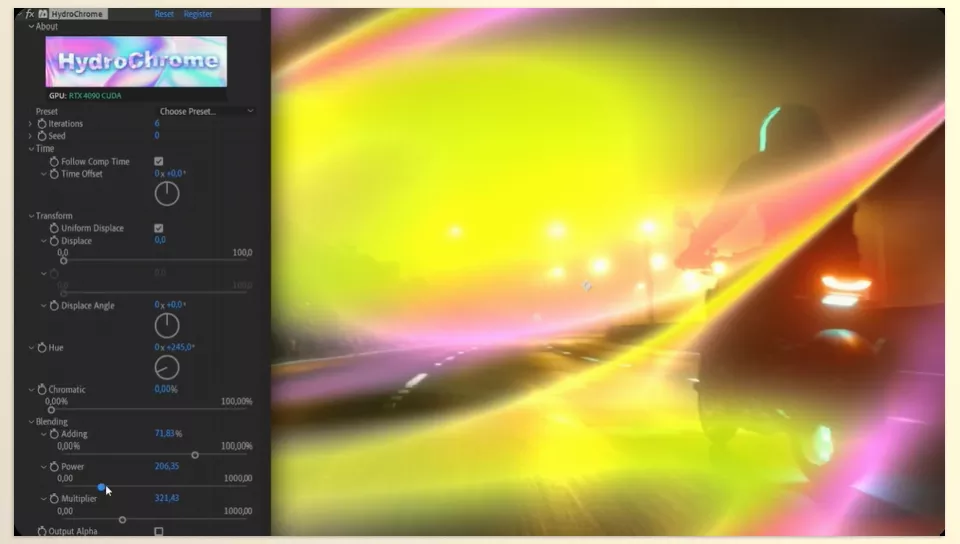
HydroChrome is a GPU Effect, and it processes live inside After Effects and Premiere Pro. This means that while you change the settings, you can see the result directly in the software without making your Workflow dependent on a separate process to generate the final result.
This feature is especially useful when you are exploring the look of a Visual and constantly adjusting parameters. You can review changes directly in the Timeline and Composition and reach your desired result faster.
Creating Repeating Loops 🔄
If you want a color flow to play continuously without a clear beginning or end, HydroChrome also lets you create Loops.
The creator suggests a simple method: disable Follow Comp Time first, then animate Time Offset. With this approach, the Animation repeats in every Cycle, letting you create looping backgrounds.
This feature is useful for projects such as Motion Backgrounds, exhibition Visuals, display content, or videos where an Animation needs to run continuously, because you don’t need to create a long, unique animation for the entire playback duration.
Ready-Made Presets for Faster Starts 🎛️
HydroChrome comes with a collection of ready-made Presets. These Presets are a great starting point for creating Visuals, especially when you are not sure which color combination or flow suits your project.
After selecting a Preset, you can adjust the settings to match your project’s style. So Presets aren’t only useful for quickly achieving a ready-made look; they can also serve as a starting point for experimenting with different styles.
Suitable for After Effects and Premiere Pro 🎬
One practical aspect of HydroChrome is that it isn’t limited to a single software. This Effect is available for After Effects and Premiere Pro and works as a GPU and Live Effect in both environments.
This means you’re not limited to motion graphics. If you mainly work in After Effects, you can use it to create visuals and Backgrounds; if your main Workflow is in Premiere Pro, you can apply the same colorful, abstract ideas directly to footage in your editing project.
A Few Tips for More Professional Results 💡
To make sure the Visuals you create do not become too busy or artificial, a few simple tips can be very helpful:
- Do not make the movement too fast. Slow flows are usually more attractive for Backgrounds and compete less with the main content.
- Use Presets as a starting point. You don’t always need to build everything from scratch; choose a preset close to your desired result, then customize it.
- Match the colors with the project’s style. If the visual will be placed behind text or a Logo, it is better for its color combination to match the main elements of the image.
- Pay attention to the beginning and end of the Loop. If the movement changes suddenly at the connection point between both sides, even a beautiful Background can look unnatural when repeated.
- Use it on Footage with the right intensity. When the goal is to preserve some image information, strong Distortion and color changes can affect the main details of the Footage too much.
With a little control over the effect’s speed, colors, and intensity, you can create an eye-catching result that doesn’t interfere with your project’s main content.
A Faster Way to Create Smooth Visuals 🎯
Creating abstract, colorful Backgrounds with After Effects’ built-in tools is completely possible, but when you use this style regularly, combining multiple effects and manually adjusting parameters can make the Workflow longer. HydroChrome brings this process together in a dedicated Effect, making these visuals faster and more direct to create.
From creating smooth Backgrounds to Chromifying Footage and generating repeating Loops, you can do several different things in one tool. Ready-made presets also mean you don’t have to start every project by building settings from scratch.
If you frequently work with Motion Backgrounds, Abstract Visuals, color flows, or experimental footage, HydroChrome can be a practical tool for adding this look to your Workflow.
If you’ve just started learning After Effects, you’ve probably come across dozens of different tools without knowing the difference. Our After Effects Tools guide gives you a clear overview of plugins, scripts, and extensions, and explains how each one fits into your workflow.



