


When a Simple Effect Isn’t Enough 🎬
Have you ever explored creating effects with the Fractal Noise Browser Plugin by aescripts? If you’ve ever worked with After Effects, you’ve probably reached that point where simple effects just don’t cut it anymore. At some stage, you feel like your work needs more depth, motion, and a more natural feel—something beyond just a color or a basic preset effect.
For example, you might want to create effects like smoke, waves, glitch, or even an appealing distortion on an image or video—things that take your work out of the ordinary and give it a more professional vibe.
But the problem is that achieving these kinds of effects isn’t always easy, especially when a lot of complex settings are involved 🤯

Fractal Noise: The Foundation of Many Professional Effects 🌫️
One of the most important tools in After Effects for creating natural and dynamic effects is Fractal Noise. Simply put, this effect generates a random pattern—but the key point is that this randomness is fully controllable. That means you can precisely adjust its shape, detail, contrast, and even the way it moves.
In fact, Fractal Noise acts like a “raw material”; something that might look like simple black-and-white noise at first glance, but with a few small tweaks can turn into very complex and professional effects. For example, by adjusting Scale and Contrast, you can go from a soft texture to a rough one, or by animating Evolution, you can create natural motion like smoke or waves.
With this simple tool, you can create various effects such as:
- Smoke and fog with smooth, natural motion 🌫️
- Fire or energy effects that convey intensity and movement 🔥
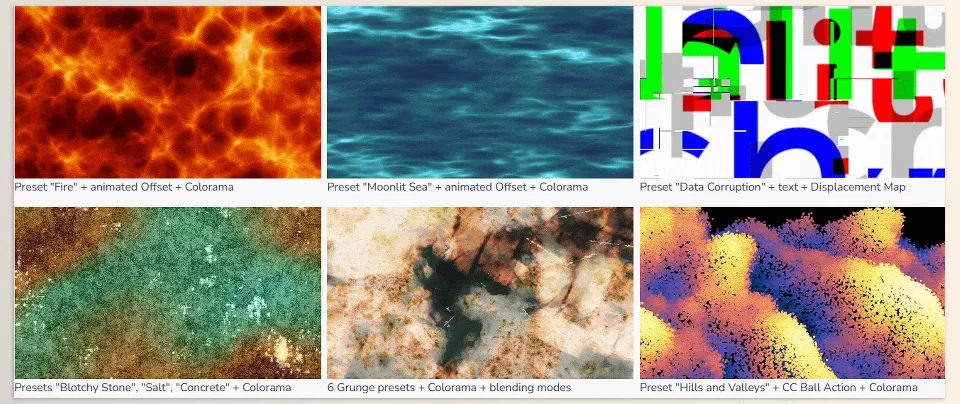
- Water waves or fluid motion that feel very organic 🌊
- Grunge, noisy textures, or even animated backgrounds 🎨
The important point is that Fractal Noise is usually not used alone, but combined with other effects. For example, with Colorama for coloring, or with Displacement Map to create distortion on an image. These combinations are what turn a simple noise into a fully professional effect.
For this reason, Fractal Noise can be considered one of the most fundamental tools in motion graphics and even VFX. If you learn how to use it, you essentially gain a multi-purpose tool that can help you in all kinds of projects—from backgrounds to video effects 🎯
When Everything Becomes Manual and Time-Consuming ⏳
Now the problem starts when you try to create all of this without any helpful tools. After Effects itself has Fractal Noise and Turbulent Noise, but working with them isn’t always easy.
Usually, you have to deal with challenges like:
- A large number of parameters and settings ⚙️
- The need for a lot of trial and error 🔁
- Difficulty predicting the final result 🤔
- Time-consuming process to reach a good output ⌛
For example, for a simple effect like fire, you need to adjust multiple parameters just to get a somewhat acceptable result. And often, the outcome doesn’t match what you had in mind.
A Tool to Speed Up This Process ⚡
This is where tools like Fractal Noise Browser come in: a panel inside After Effects designed to turn working with Fractal Noise and Turbulent Noise from a complex, time-consuming process into a fast and controllable experience.
Instead of starting from scratch and dealing with tons of parameters, this tool provides a large collection of ready-made presets that you can quickly browse, preview, and instantly apply to your layer 👀
In fact, more than being a “new effect,” it’s a professional system for managing and browsing noise.
Large Preset Library 🎛️
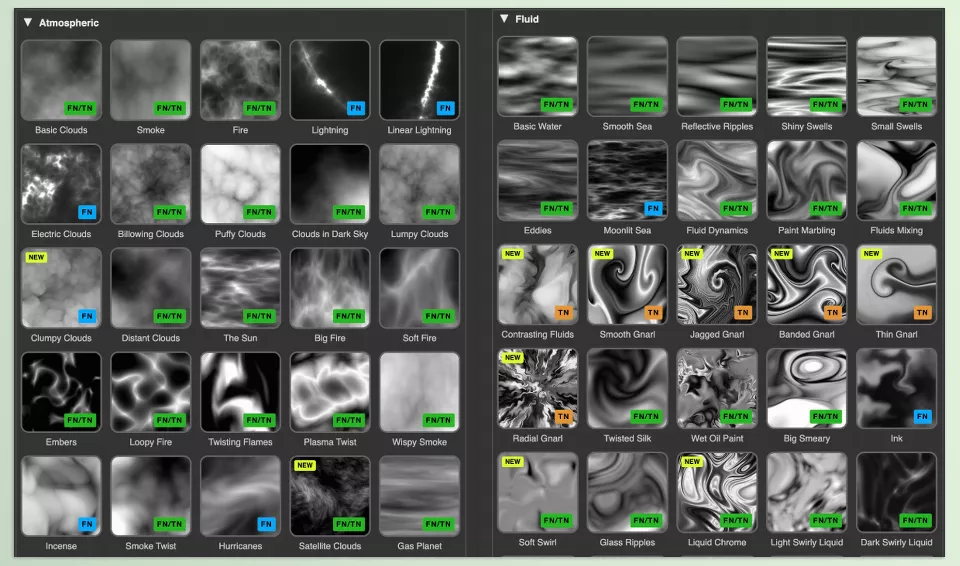
One of the biggest strengths of Fractal Noise Browser is having over 250 ready-made presets across different categories. These presets are purposefully designed and include various styles such as:
- Organic effects (smoke, liquid, clouds)
- Glitch and digital styles
- Grunge and noisy textures
- Linear patterns, terrain, and abstract forms
This means instead of trial and error, you can jump straight into a specific style and start from there.
Real Preview Before Selection 🎥
Unlike the usual After Effects workflow, where you need to apply an effect to see the result, here each preset has:
- A visual thumbnail
- And even a motion preview (Hover Preview)
This feature lets you know exactly what the output will look like before choosing it—something extremely valuable for fast workflows or tight deadlines.
Fast and Effortless Application 🖱️
Using presets is very simple:
- Double-click a preset to apply it directly to the layer
- Or select it and hit the Apply button
You can also decide whether:
- The previous effect should be replaced
- Or a new effect should be added to the layer
This simple control allows you to quickly test different options without cluttering your project.
Unlimited Variations with Randomize 🎲
One of the useful features of this tool is the Randomize Seed option.
By enabling it, every time you apply a preset, a new and different version of that pattern is generated.
This means:
- You can get multiple different outputs from a single preset
- Without diving into complex settings
For times when you’re looking for variety or new ideas, this feature is very helpful.
Built-in Animation and Looping 🔁
Creating motion with Fractal Noise usually requires animating the Evolution parameter, but Fractal Noise Browser simplifies the process.
It offers several options:
- Automatically adding an Expression for continuous motion
- Setting animation speed
- Creating seamless loops for repeating backgrounds
This means you can effortlessly create a professional animated background that loops infinitely.
Support for Two Noise Types (Fractal & Turbulent) ⚙️
Fractal Noise Browser isn’t limited to Fractal Noise—it also supports Turbulent Noise.
You can choose which effect is applied by default and even see which preset is more compatible with which type (via FN and TN labels).
This flexibility allows you to choose between quality, speed, and motion type depending on your needs.
Smart Effect Management on Layers 🧩
A common problem is that applying effects multiple times can clutter your layer. Fractal Noise Browser offers solutions for that as well:
- Replace the previous effect
- Update only when selected
- Or add a new effect to the list
This simple control helps maintain a cleaner workflow.
Creating and Managing Custom Presets 💾
One of the key features of newer versions is the User Presets section.
This means you can:
- Save your own presets
- Organize them (even with folders)
- Create thumbnails and previews for them
- And browse/use them just like built-in presets
This is extremely valuable for those with a personal style or those working on repetitive projects.
A Tool for Speed, Not a Replacement for Creativity 🎯
Ultimately, Fractal Noise Browser doesn’t do anything that was previously impossible;
It simply helps you reach results much faster and more predictably.
Instead of getting stuck in complex settings, you quickly get a usable result—and then customize it if needed.
This means your focus shifts more toward design and creativity, not parameter tweaking.
A Few Tips to Make Your Work More Professional 🧠
Even if you use Fractal Noise Browser, there are some tips that can elevate your results beyond a “preset look” and make them more professional:
🎨 Don’t use presets as-is
Presets are usually just a starting point. After applying, tweak the color, contrast, or scale to make it more unique. Effects like Colorama or Gradient Map help a lot.
🎬 Always add motion
Static noise gets boring quickly. Even a simple animation on Evolution or Offset can make it feel alive and dynamic.
🔁 Use clean loops
If you’re working on backgrounds or social media, seamless loops are essential. Use the Loop feature to make your video repeat smoothly.
🧩 Combine multiple noise layers
Instead of using one layer, create multiple noise layers with different settings and blend them using blending modes. This creates more depth and realism.
⚡ Use noise as an effect, not just an image
Don’t just treat noise as a background. Use it for:
- Displacement Map
- Glitch creation
- Reveal effects
So it actively affects your video or text.
🎲 Use Randomize for inspiration
When you’re out of ideas, hit Randomize a few times. Random outputs can often spark great ideas.
🎯 Take Scale and Contrast seriously
These two parameters have the biggest impact on how noise looks. Adjusting them can transform a soft texture into a harsh one.
🪄 Combine with other effects
Fractal Noise is great on its own, but when combined with effects like:
- Blur
- Displacement
- Glow
The result becomes much more professional.
🧠 Don’t underestimate simplicity
You don’t always need complex effects. Sometimes, a simple noise with good color grading is more appealing than a busy effect.
These tips help you move from a “ready-made preset” to a truly professional and unique result 🎯
Final Thoughts 🚀
The truth is, tools like Fractal Noise Browser aren’t meant to replace skill—but they make a significant difference:
The time you used to spend on trial and error can now be spent on ideation and design.
If you’ve worked with Fractal Noise before, you know how time-consuming it can be to achieve a good result. Fractal Noise Browser shortens that path—not by removing creativity, but by eliminating repetitive and tedious work. The result? The same quality, but in much less time 🚀
On the other hand, if you’re a beginner, Fractal Noise Browser can act as a shortcut. Instead of getting lost in complex settings, you jump straight into the world of professional effects—and by seeing results, you gradually learn what creates them.
In the end, what makes your work unique is still your creativity and your choices. But when you have a tool that makes reaching those ideas faster, more predictable, and more enjoyable, you’re simply working smarter.
If you’ve been using After Effects for a while but feel like you’re not progressing, go read our After Effects Tools guide and find out what’s missing. You’ll discover tools that can push you to the next level.