

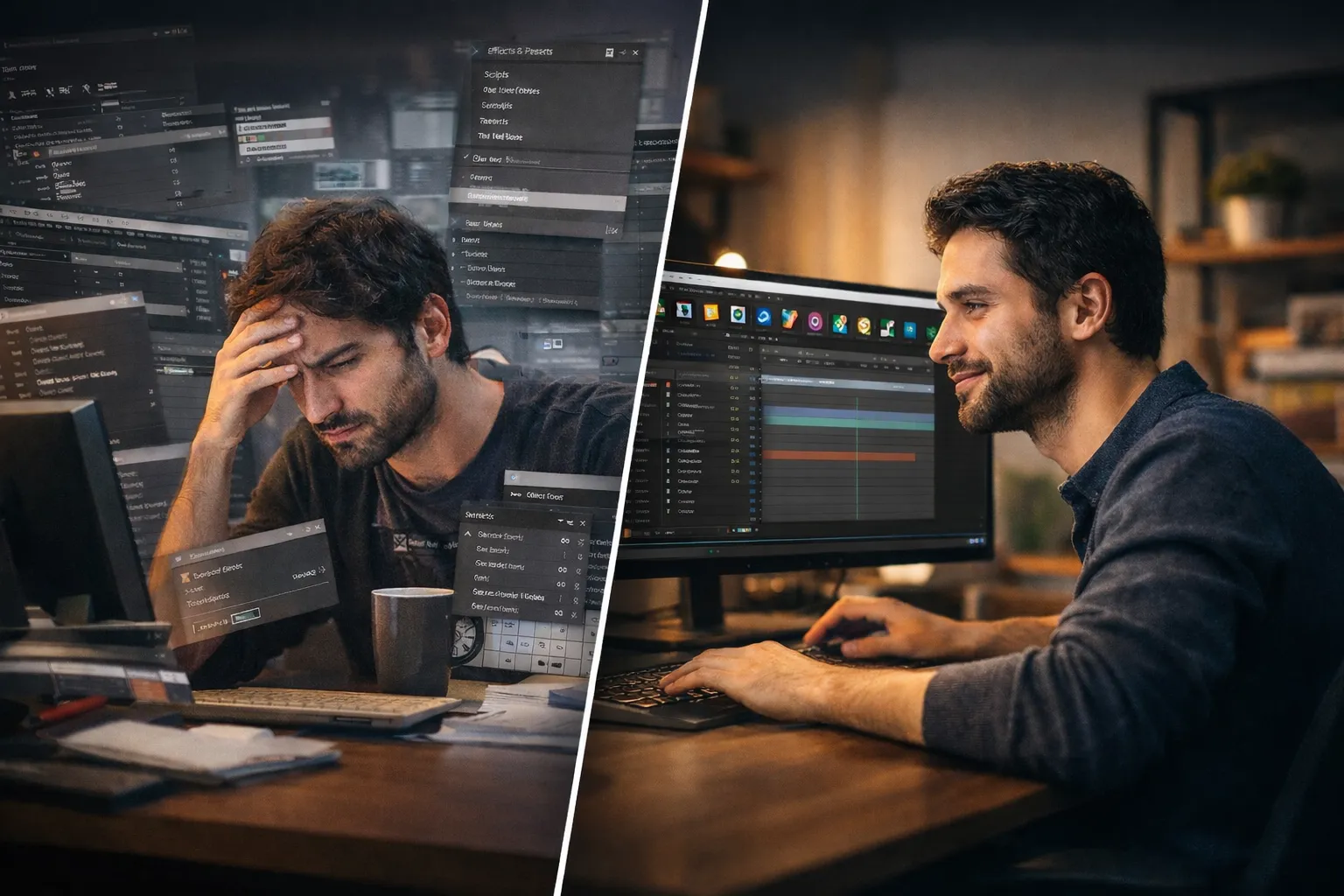
⚡ When You Have an Idea, But the Tools Get in the Way
Do you have experience with the KBar Plugin by aescripts? Have you ever been in the middle of an After Effects project, knowing exactly what you want to create, but finding yourself constantly digging through menus? Looking for an effect, a script, or even a simple command… and those seemingly insignificant few seconds completely break your focus?
These moments may be short, but when they repeat, they practically disrupt your workflow. You fall out of that flow state and focus that’s essential for design and animation, and you have to gather yourself again just to get back on track.
The reality is, in motion graphics, the problem often isn’t creativity—it’s access. When your tools aren’t right in front of you, your speed drops, and your ideas don’t take shape the way they should.

Fast Access: What Builds Your Workflow
One of the most important things that separates a professional motion designer from the rest is having a fast, personalized workflow. That means the tools you use the most are exactly where you need them.
For example, imagine being able to run your most-used effects, presets, or scripts with just one click. This means your speed increases, your focus stays intact, and you step out of your creative space less often. In the end, your output becomes cleaner and more professional.
Common Methods Inside After Effects
Without using third-party tools, everything is usually done directly within After Effects—from the Effects & Presets panel to the top menus and scripts that open in separate windows. Some people even try to speed things up by memorizing keyboard shortcuts.
But these methods come with limitations. You constantly have to switch between panels, your workspace gets cluttered, some scripts open in separate windows, and everything feels scattered. On the other hand, memorizing all shortcuts isn’t always practical. The result? More time wasted and your focus disappears faster than you expect.
🚀 Introducing KBar3; When Everything Falls Exactly Into Place
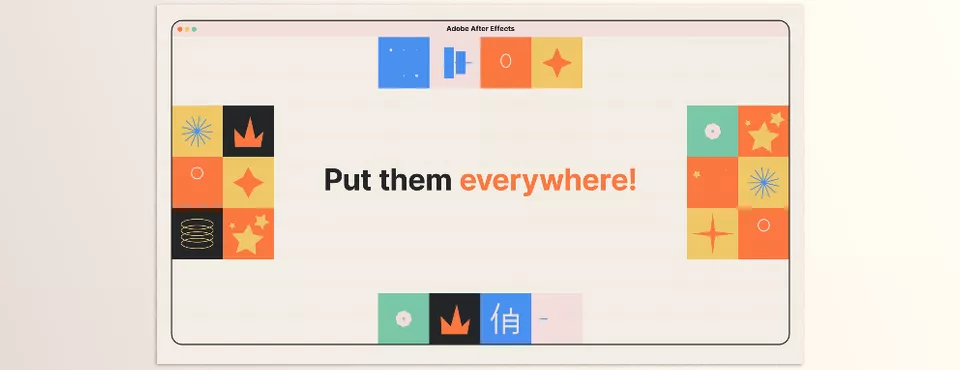
This is where KBar3 comes in and essentially takes the way you work in After Effects to the next level. This tool lets you create fully customizable toolbars, so everything you frequently use in your projects is always within reach—no more constant switching between menus and panels.
🎛️ Create Dedicated Toolbars for Every Task
One of the most important features of KBar3 is that you can create multiple toolbars based on the type of work you’re doing. Instead of a cluttered environment, you get a clean and structured setup.
For example:
- A toolbar for animation and keyframes
- A toolbar for effects and presets
- A toolbar for routine tasks like pre-compose or rename
This helps increase your speed and reduces the mental effort of searching for tools.
⚡ Run Tools Instantly with One Click
KBar3 is essentially a powerful button builder. You can assign a button to almost anything and execute it with a single click.
Some practical examples:
- Directly apply effects and presets
- Run scripts and expressions
- Quickly access After Effects menu commands
- Even execute system commands (Shell)
Tasks that used to take multiple steps are now reduced to a single action.
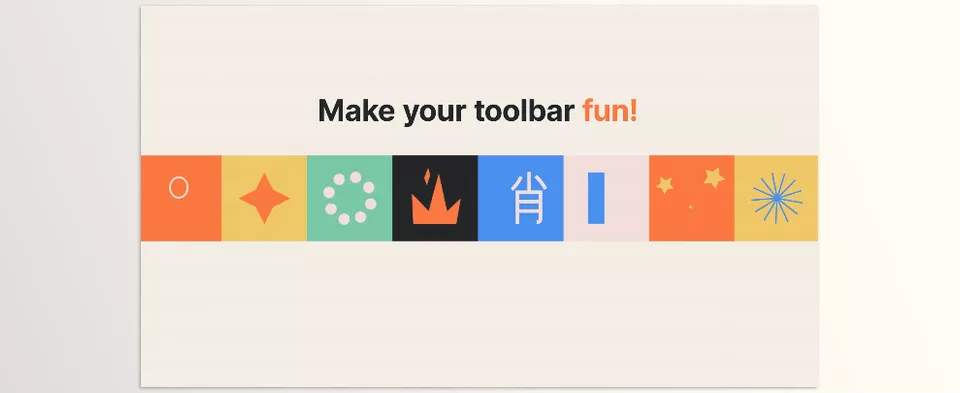
🎨 Full Customization of Appearance and User Experience
One of the most attractive aspects of KBar3 is that it’s not just functional—it’s fully customizable, allowing you to create an interface that perfectly matches your taste and workflow.
Customization features include:
- Choose from 600+ ready-made icons
- Use custom icons (PNG / SVG)
- Add labels or text (even with emojis)
- Adjust button size, spacing, and layout
These small details make a real difference in daily use.
🔄 Great for Teamwork and Sharing
KBar3 isn’t just for personal use. You can export the toolbars you create and share them with others.
This is especially useful for:
- Motion graphics teams
- Studios
- Freelancers with defined workflows
You can establish a standard structure and have everyone use it consistently.
Overall, KBar3 isn’t just a shortcut tool—it’s more like redesigning the entire After Effects environment based on your needs, so everything is exactly where it should be.
💡 Tips for More Professional Use
To get the most out of KBar3, keep these simple but important tips in mind:
- Don’t overcrowd your toolbar
Avoid cramming everything into a single bar. Create multiple toolbars for different tasks to maintain faster access and a clearer mind. - Prioritize frequently used tools
Only add what you truly use every day. Extra tools will just slow you down. - Use logical categorization
Group tools based on their function (animation, effects, utilities, etc.) to find them faster. - Use modifier keys (Shift / Ctrl)
You can assign multiple actions to a single button and make better use of toolbar space. - Pay attention to visual design
Clear icons, proper spacing, and a clean layout help your brain recognize things faster and improve your speed. - Customize your workflow
Arrange toolbars based on your personal process—not just the tool’s capabilities—to get the most benefit.
These tips may seem simple, but when applied in real projects, their impact on your speed and focus becomes obvious. In fact, KBar3 shows its true value when it’s tailored exactly to your working style.
🔥 A Tool You Won’t Be Able to Work Without
In the end, KBar3 isn’t just a convenience plugin—it’s a shift in how you work. When everything you need is right in front of you, you stop wasting time searching through menus. Instead, your focus goes entirely toward creating, making decisions, and improving your output.
The truth is, in serious projects, those few seconds wasted here and there add up to hours. KBar3 is exactly where those inefficiencies get eliminated, giving you a fast, clean, and professional workflow.
If you feel like your work is good but could be faster and smoother, this is one of those tools that quickly becomes part of your daily routine. At some point, you’ll realize it’s no longer just an option—it’s a necessity.
If you are serious about expanding your expertise in After Effects and integrating auxiliary tools effectively, our comprehensive After Effects Tools guide is an essential resource.