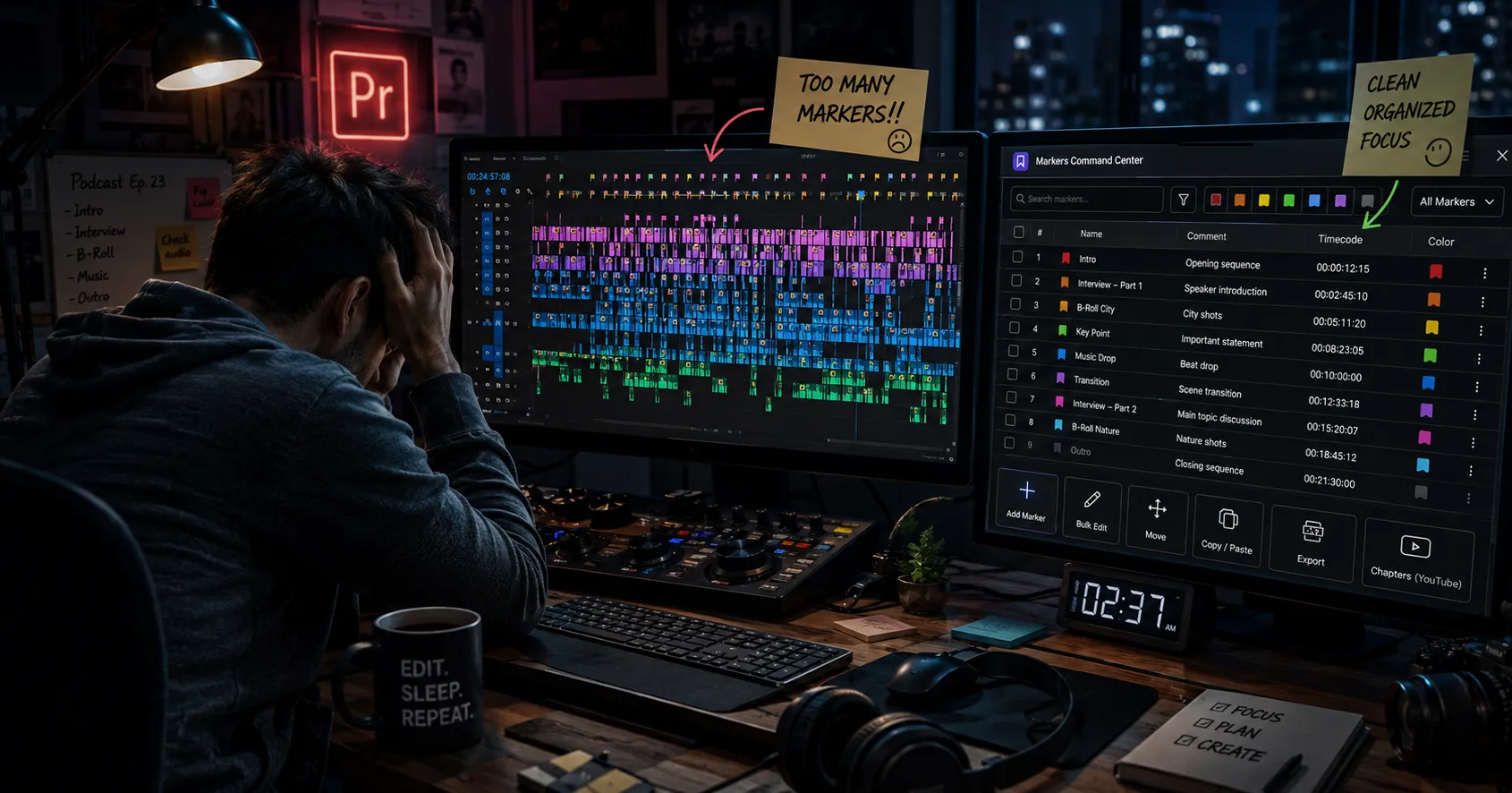
When Markers Become the Problem 😅
Are you familiar with the workflow of the Markers Command Center Plugin by aescripts? If you’ve ever edited a long project in Premiere Pro, this scene probably feels familiar: at first, everything is clean and under control, but somewhere in the middle of the project, you suddenly realize your timeline is filled with colorful markers, notes, and labels that were supposed to help you work faster. And that’s when the real trouble starts — finding a specific marker becomes difficult, moving several markers together gets frustrating, and once the timeline changes, everything falls apart.
The problem is that Premiere’s default marker tool isn’t as smooth or professional as it should be for heavy projects. Especially when the number of markers grows, and you actually want to use them for project management. That’s the point where many editors slowly feel like they’re spending more time managing the timeline than being creative and editing.

What Exactly Are Markers and Why Are They So Important? 🎬
Markers in Premiere Pro are basically indicators you place on the timeline or clips to highlight important parts of a project. Something like bookmarks, but for video. At first glance, they may seem like a simple tool, but once you get into more serious projects, you realize how much they can speed up and organize the editing workflow.
For example, imagine you’re editing a podcast and suddenly notice a section with audio noise that needs to be checked again. Instead of writing down the timecode somewhere, you can simply place a marker and add a short note. Or while editing a music video, you can place markers on the beats to make your cuts more precise. Many YouTubers use markers to create Chapters, so viewers can navigate different parts of the video more easily.
When the project is small, a limited number of markers might not cause any issues. But in long projects, those same markers become the backbone of timeline management, and if they aren’t controlled properly, they can turn into a huge mess themselves 😅
What Does Marker Management Look Like Without a Plugin? 🤔
Premiere already supports markers by default, but its management features are far more limited than what professional editors need. For example, if you want to rename a large number of markers, change their colors, or move them all at once, many tasks still need to be done manually, which gradually slows the workflow.
Some people try to solve this using CSV files or different scripts, while others handle part of the project management outside Premiere. But these methods usually shift the focus away from editing itself, wasting part of the project’s energy on repetitive management tasks.
The main problem becomes obvious when the timeline gets crowded. Finding a specific marker among dozens of colored markers, keeping everything aligned after timeline changes, or organizing notes slowly becomes something that takes more time than the actual edit.
What Exactly Does Markers Command Center Do? 🚀
Markers Command Center is designed to make marker management inside Premiere Pro faster, cleaner, and more professional. If you heavily rely on markers in your projects, the Markers Command Center plugin turns many of Premiere’s manual and time-consuming tasks into a few simple clicks.
One of the plugin’s most useful features is bulk marker editing. This means you can select multiple markers at once and apply changes to all of them simultaneously—for example, changing their colors, automatically renaming them, or editing their descriptions. This feature can significantly reduce editing time in long projects ⏳
The plugin also supports automatic marker creation. For example, you can set it to generate a marker every few seconds or automatically place markers at the beginning and end of clips. This feature is especially useful for beat editing, music editing, or sequence management 🎵
Another major feature is group marker movement. If the timeline changes in the middle of a project, you don’t have to fix each marker individually. You can move all of them together by a few frames or seconds without breaking their timing structure.
The Copy & Paste markers feature is also extremely useful for repetitive projects. You can copy the entire structure of a group of markers and paste it onto another part of the timeline while keeping the exact timing gaps between them.
Features That Are Actually Useful in Real Work ✨
One of the plugin’s most interesting features is automatic YouTube Chapter creation. If you create content for YouTube, the plugin can generate video chapters and timecodes directly from your markers 📺
It also supports CSV export, which is very useful for team projects or information archiving. You can even choose to export only specific markers.
The plugin’s search and filtering system is also very practical. You can search markers based on:
- Color
- Name
- Comment text
…and quickly jump to the exact section you need.
Another great feature is the ability to separate Frame.io markers from the project’s main markers, helping keep the timeline cleaner and more organized.
A User Interface That Speeds Up Your Workflow ⚡
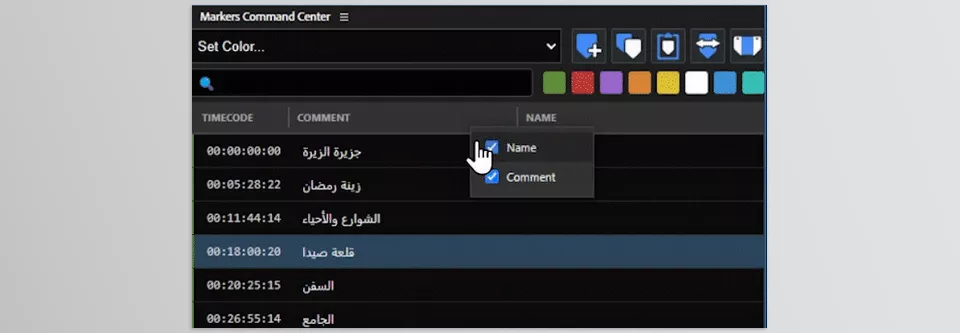
Compared to Premiere’s default panel, the plugin’s interface is much more practical. Directly inside the panel, you can edit:
- Marker names
- Comments
- Timecodes
…without opening extra windows.
The columns are also customizable, meaning you can rearrange or hide them to create a cleaner workspace.
On top of that, multi-selection using shortcuts like Ctrl+Click and Shift+Click is much faster, making it easier to manage large numbers of markers 🎯
Overall, Markers Command Center is more than just a marker management panel — it’s a tool for making the entire editing workflow faster and more organized. Many tasks that are manual and time-consuming in Premiere Pro become simpler and smarter here, from bulk marker management to searching, filtering, exporting, and precise timeline movement. For editors working on long or professional projects, the Markers Command Center plugin can both speed up the workflow and save the timeline from its usual chaos and clutter 🎬✨
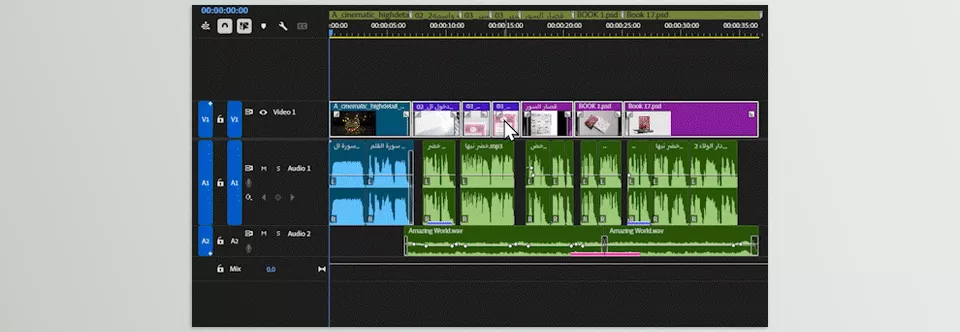
A Few Tips That Make Your Workflow More Professional 💡
If you plan to work heavily with markers, a few small habits can make your project management much cleaner and faster. Especially in long projects, these details help you stay less confused in crowded timelines and reach what you need faster.
🎨 Give Colors Clear Meanings
It’s better to define a purpose for each color from the start. For example:
- Red for important fixes
- Green for finalized sections
- Yellow for music or effects
This way, a quick glance at the timeline immediately tells you what’s going on.
🔢 Organize Marker Numbering Properly
In educational, episodic, or long projects, organized numbering helps a lot. When marker names follow a clear structure, finding different parts of the project later becomes much easier.
🔍 Use Filters and Search
As the number of markers grows, finding a specific section can become time-consuming. Using color filters or searching through marker names and comments helps you reach the desired part much faster.
✂️ Don’t Use Markers Only for Notes
Many editors use markers only for writing notes, while they can also be used for project structure management, music synchronization, or even cut planning.
⚡ Take Bulk Editing Seriously
If you have many markers, editing them one by one only wastes time. Using features like Batch Edit or Batch Rename makes project management significantly faster.
In the end, the more organized your marker workflow is, the smoother and more professional your entire editing process becomes. Especially in heavy projects, this small level of organization can make a huge difference in both speed and focus 🎬
One Simple Plugin Can Make Your Entire Editing Workflow Smoother 🎬✨
The reality is that as projects get bigger, editing itself isn’t the only challenge anymore — timeline management becomes a separate problem. Large numbers of markers, notes, constant changes, and sequence shifts slowly drain your focus and energy through repetitive tasks. And that’s exactly where Markers Command Center proves its value. The Markers Command Center plugin transforms marker management from a frustrating headache into a fast and seamless part of the editing process.
What makes Markers Command Center attractive isn’t just the number of features it offers; it’s the fact that almost everything is focused on speed and organization. From bulk editing and precise marker movement to automatic YouTube Chapter creation and smart filters, everything is designed to help you spend less time managing the timeline and more time focusing on creativity and editing. Especially if you work on long-form projects, podcasts, documentaries, music videos, or YouTube content, you’ll quickly realize how much time used to be wasted on repetitive manual work 😅
At first, this plugin might seem like another marker panel for Premiere Pro. However, after using it for a while, it will likely become one of the editing tools that editors can’t work without. By significantly reducing editing project timelines, making it easier to find marker sections, and making it less frustrating to manage projects in Premiere Pro, editors of all types will enjoy a more professional and enjoyable editing process! 🎬✨
If you use Premiere Pro and enjoyed this article, I recommend checking out our complete guide to Premiere Pro tools. It’ll help you get more familiar with the software and use it more efficiently. It might even give you a fresh perspective!