


Smooth Motion Without Hassle!
Have you checked out the PathBlurFX plugin? I’m sure you’ve had the desire to animate text, shapes, or a logo along a motion path that’s just not as smooth and exact as you’d like, making it feel detached. You’ve probably wanted to blur, smear, whatever the case may be, to represent speed, directionality, or energy, and yet using the tools at your disposal just creates constant unfortunate constraints. Complex paths are hard to follow, adjusting blur intensity or smear length is time-consuming and full of trial & error, and the result often looks artificial or stiff.
In reality, the problem is that achieving truly smooth and natural motion with traditional techniques requires countless keyframes, masks, and combined effects—and even after hours of effort, you may still not get the natural, dynamic feel you want.
This is where having a tool that follows the motion path and applies blur and smear precisely and automatically can make the difference between ordinary motion and professional, captivating animation.

Path and Blur: The Language of Motion
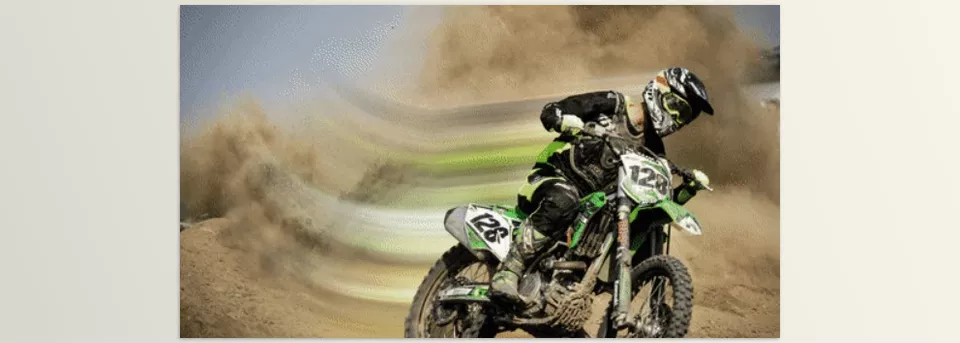
Imagine having an imaginary path on your screen, and you want an object, text, or logo to move precisely along it, conveying speed and energy. Now imagine the motion not only translating but also stretching and blurring—this is what makes movement appear alive and natural.
Practical applications of this technique:
- Motion Blur on Text and Shapes: Even fast movements appear smooth and natural, making it easier for the viewer’s eye to follow.
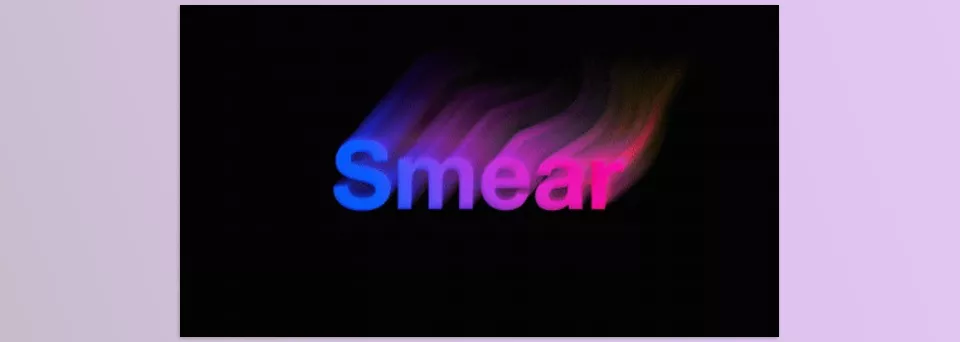
- Smear Effect: A type of stretching or melting of styles, like ink or paint dragged across paper; it makes the motion look dynamic and exciting.
- Streak: Stretches that create visually appealing effects regardless of layer transparency, especially for logos, particles, or small graphic elements.
These techniques allow you to display even complex, detailed paths naturally and attractively without relying on countless complicated keyframes. Simple motion turns into professional motion, and projects gain a sense of life and flow.
Before the Plugin: Difficult and Time-Consuming Paths
If you try to create complex motion with blur and smear without a plugin, After Effects offers tools like Directional Blur, CC Force Motion Blur, Liquify, and Displacement Map. But the problem is that everything depends on your hand and keyframes, with its own limitations:
- Complex paths are hard to follow: When moving text or shapes along spirals or non-linear paths, default tools can’t follow the path precisely, forcing you to repeatedly edit masks and paths.
- Controlling blur and smear is time-consuming: To make blur or smear look natural, you need to keyframe each effect manually and adjust changes along the path, which takes a lot of time and is prone to errors.
- Multiple effects must be combined: Often, achieving the desired result requires combining several different effects, which is complicated and may make motion look artificial or unnatural.
As a result, even after hours of work, motion may still not look smooth or natural, and projects lack a sense of life. This is where a specialized tool that automatically and precisely controls path, blur, and smear makes a huge difference.
Professional Plugin: Precise Blur Along Any Path
When you want to create complex, natural, and energetic motion, default tools are often insufficient. PathBlurFX plugin takes your mask path and generates an accurate vector field for blur and smear. This means motions follow the exact desired path, and blur or smear effects are applied with full control and without errors.
Key Features and Applications:
- Precise blur along the mask path:
Any text, shape, or logo moves exactly along the defined path, making even complex and non-linear paths display smoothly and naturally. No more endless efforts to match path and blur. - Full control over blur intensity and falloff:
You can adjust blur from the start to the end of the path, or even at intermediate points. This allows motion to gradually accelerate or decelerate naturally, syncing the final effect perfectly with the project’s rhythm. - Dynamic Sampling for consistent blur:
One common problem with path blur is varying sample density causing discontinuities. PathBlurFX plugin maintains consistent sample density with Dynamic Sampling, producing smooth blur without breaks or unnatural spots. - Smear and Streak Effects for professional looks:
Create stretching or melting effects on text and shapes, building visually attractive effects even on layers with varying transparency. Perfect for logos, icons, and motion graphic text, adding dynamic energy to your project. - Simple and minimal interface:
All features are accessible without complexity, making the tool easy to learn. Even with limited After Effects experience, you can immediately create professional, natural motion without multiple combined effects or long keyframe sequences. - Time-saving and improved project quality:
Tasks that used to take hours can be done in minutes. The result is smooth, natural, professional motion that elevates your projects effortlessly.
Overall, PathBlurFX plugin automates and precisely controls motion path, blur, and smear, enabling the creation of complex, natural, and eye-catching motion without hassle. For motion graphic designers and animators, this tool can quickly become an essential part of a professional workflow.
Professional Tips for Better Use
To get the most out of PathBlurFX plugin and make your motion appear natural and professional, here are a few simple but essential tips:
- Keep blur and smear balanced:
Excessive blur or smear can make motion look artificial. Adjust effect intensity to match speed and motion size to maintain a realistic sense of flow. - Enable Smooth for the blur path:
When the path has sharp changes, activating Smooth ensures motion is fluid and continuous, preventing sudden jumps or breaks for a more natural result. - Always keep Dynamic Sampling on:
This keeps sample density consistent along the path, preventing broken or uneven blur. Even long, complex paths will appear uniform and professional. - Combine Smear and Streak for special effects:
For striking visual effects on text, logos, or shapes, combine Smear and Streak. Smear creates soft stretching or melting, while Streak adds continuous dynamic effects. Together, they bring projects to life. - Test and preview in real time:
Before final output, review motion and blur in real time to ensure proper blur, smear, and Smooth settings. This ensures a precise, professional result and avoids unnecessary corrections.
Following these tips allows you to maximize the PathBlurFX plugin’s potential, creating even complex, detailed motion quickly and accurately. The result is a professional, natural, and visually appealing project.
Conclusion: Lively, Easy, and Professional Motion
Now that you’re familiar with the features and benefits of the PathBlurFX plugin, let’s conclude: this tool controls motion path, blur, and smear with astonishing speed and precision, without the need for hours of complex adjustments or countless keyframes.
The result? Projects that are dynamic, natural, and visually striking. Smear and Streak effects make motion come alive, and even complex paths are easily managed.
Simply put, the PathBlurFX plugin is like a professional assistant by your side, freeing your time for creativity instead of time-consuming adjustments. With just a few clicks, motion becomes smooth, natural, and professional, and your projects feel alive.
So next time you want your animation or motion graphics to truly be eye-catching and professional, you can confidently say: “My work was done fast, smooth, and with top-notch quality!”
If you’re looking to get a complete understanding of After Effects and how to make the most of its plugins, scripts, and presets, don’t miss our article about After Effects Tools.



