

When Editing Inside After Effects Starts Feeling Like a Battle 😅
Are you aware of the magic of the Railcut Plugin? If you’ve tried editing your footage inside After Effects, you know it’s not the easiest experience. After Effects is excellent at creating motion graphics and animations for your projects. However, editing struggles to provide the best experience when you try to do more of this in your project. 😄
And things get even trickier when you want to sync visuals to music or fine-tune editing rhythm. That’s when the limitations of After Effects’ timeline become much more noticeable. That’s why many motion designers constantly jump between Adobe Premiere Pro and Adobe After Effects — editing one part of the project in Premiere, then returning to After Effects for animation and visual effects.
But now that systems are more powerful and After Effects itself performs much better than before, many creators want to handle more of the project directly inside AE. And that’s exactly where tools like Railcut enter the game 👀

What Does a Track-Based Timeline Mean — and Why Is It So Important? 🎬
Most editing programs, such as Adobe Premiere Pro and DaVinci Resolve, use a track-based editing system. This allows users to place their video and audio elements on separate tracks, enabling them to be managed individually.
Inside Adobe After Effects, however, everything is primarily layer-based. This structure is fantastic for animation, but for long or complex edits, it can become genuinely frustrating.
For example, imagine this:
- You’re creating a music video 🎵
- You want your cuts to land perfectly on the beat
- Or you need to quickly rearrange multiple clips
That’s where having a professional timeline with audio waveforms, video tracks, and editing tools dramatically speeds up your workflow.
In reality, many motion designers have always wanted the feeling of Premiere directly inside After Effects.
How Did We Edit Inside After Effects Before Railcut? 🤔
Before tools like Railcut entered the scene, most users were forced to work with the default tools inside Adobe After Effects. One of the most common methods was using Split Layer — basically slicing layers into pieces and manually rearranging everything to achieve the right editing rhythm. To keep projects organized, people often relied on markers to avoid losing track of shot timing or music beats 🎬
Some users also developed different workflows. For example, they would first create a rough edit in Adobe Premiere Pro, then transfer the project to After Effects for animation and effects. Others consistently used pre-compositions to reduce timeline clutter and simplify layer management. These methods worked, but they were far from ideal 😅
The main issue was that as projects became larger, the workflow became heavier and more exhausting. Timelines quickly turned messy, audio management became harder, and even small changes could disrupt multiple layers and timing setups. On top of that, many tasks that take only seconds inside editing software would become multi-step processes inside After Effects. That’s why many motion designers preferred to do the entire editing stage in Premiere and only switch to AE for animation work.
Railcut — When After Effects Starts Feeling a Bit Like Premiere 🚀
Railcut is a plugin for Adobe After Effects that brings track-based editing directly into AE. In other words, instead of constantly switching between multiple applications, you can handle a large portion of editing, rhythm adjustments, and clip management directly inside After Effects.
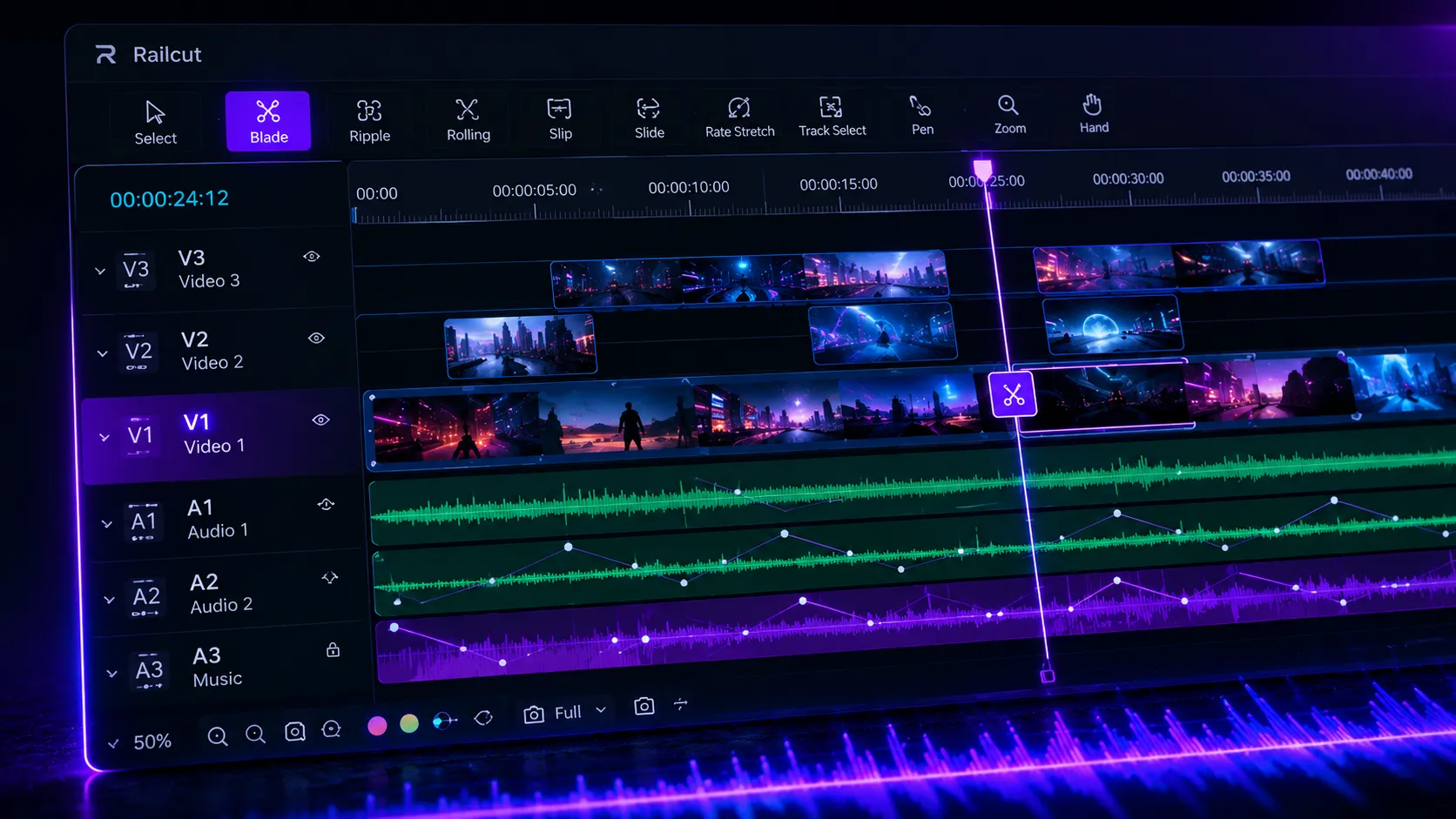
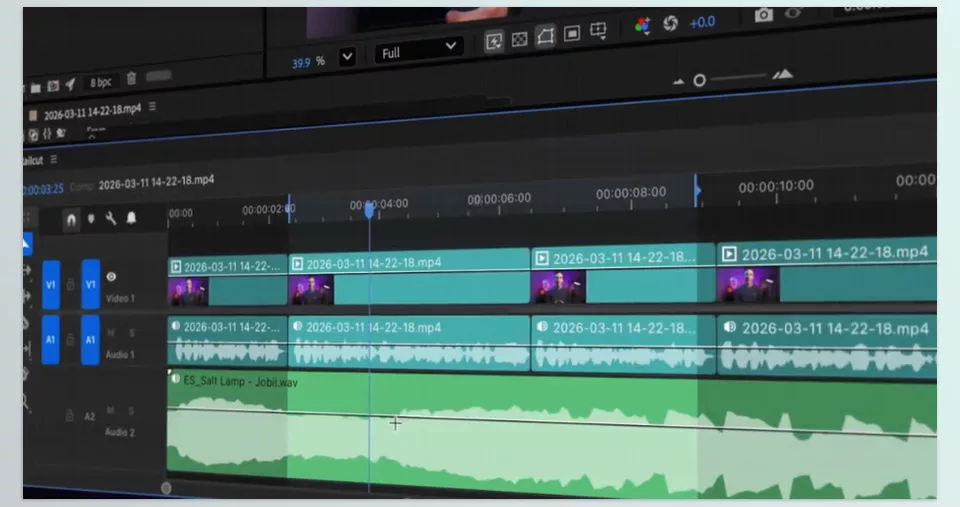
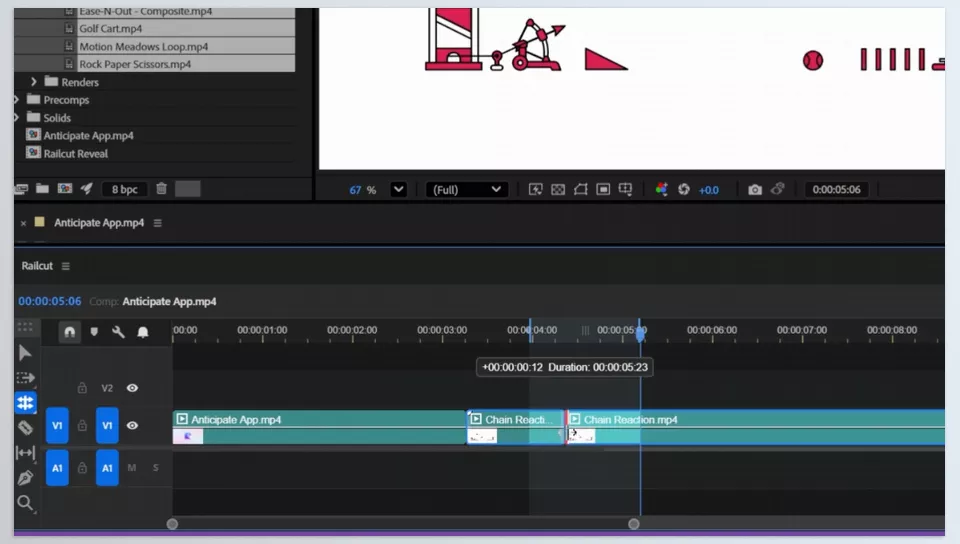
The first thing that grabs your attention after opening Railcut is its timeline design. Unlike the standard layer-focused After Effects timeline, everything here feels much closer to traditional editing software. Videos are placed inside dedicated video tracks, audio has separate audio tracks, and clip management becomes significantly cleaner and easier to control 👌
One of Railcut’s most important sections is its editing toolset. Tools such as:
- Ripple Edit → Trim or extend a clip without creating empty gaps between shots. The remaining clips automatically shift to maintain timeline continuity 🎬
- Rolling Edit → Adjust the cut point between two clips without changing the total project duration. Extremely useful for refining exact cut positions.
- Slip → Moves the content inside a clip without changing the clip’s position on the timeline. Great for finding the best frames while preserving timing.
- Slide → Moves an entire clip across the timeline while maintaining the total project duration and automatically adjusting neighboring clips.
- Blade Tool → Quickly cuts clips and layers. One of the most commonly used tools for editing ✂️
- Rate Stretch → Change clip speed directly inside the timeline without manually setting up Time Remapping.
- Track Select → Quickly select all clips on a track or multiple consecutive clips. Especially useful in large projects.
- Pen Tool for Keyframes → Create and edit keyframes directly inside the timeline, making animation and motion adjustments easier to control.
- Zoom and Pan → Quickly navigate through the timeline and zoom into different parts of the project, especially useful for long or crowded edits 👌
All of this makes the user feel like they’re working inside Premiere or DaVinci Resolve rather than a purely animation-focused environment. If you’ve previously worked with Adobe Premiere Pro or DaVinci Resolve, you’ll probably adapt to Railcut’s workflow very quickly because the logic behind the tools feels completely familiar 😄
Railcut Doesn’t Just Change the Timeline Appearance
Railcut doesn’t simply redesign the timeline — it also adds many practical features that genuinely become lifesavers in real-world projects.
🎵 More Precise Editing with Waveforms and Thumbnails
For example, audio waveform display makes it much easier to synchronize cuts with music 🎵
On the visual side, video and image thumbnails inside the timeline help you instantly recognize clips and understand exactly where they belong in the project without opening every layer individually.
⚡ Faster File Importing and Arrangement
Another great feature of Railcut is direct drag-and-drop support from the Project Panel, or even from Finder or Explorer, directly into the timeline. This means you can import footage much faster and begin editing immediately without unnecessary friction.
Railcut also includes a snapping system, allowing clips, playheads, and markers to easily snap to important points for more precise timing adjustments 👌
🎛 Fully Customizable Shortcuts
Railcut also supports preset shortcut layouts. You can configure the keyboard layout to behave like Premiere, Final Cut, DaVinci, or even default After Effects controls.
For editors who have spent years inside editing software, this makes adapting to the environment much faster and more comfortable 🙌
🔄 Live Synchronization with After Effects
Another interesting feature is Live Layer Sync. When you select a layer in After Effects, the same layer is selected in Railcut as well, keeping both environments synchronized in real time.
In reality, Railcut aims to integrate fully with AE rather than create a separate, isolated workspace.
🎬 What Kind of Projects Is It Designed For?
Even Railcut’s creator emphasizes that the plugin is not intended to replace Premiere. Railcut is primarily designed for footage editing, reels, teasers, motion stories, animatics, and motion graphics projects — exactly the type of work where motion designers want to stay inside After Effects and move faster without switching applications.
That’s why, in real-world workflows, Railcut mainly improves editing speed and allows users to move between clips and shots much more efficiently. At the same time, the timeline becomes far more organized and manageable because everything gains a clearer structure and avoids the usual After Effects clutter.
It also helps users maintain focus, since they no longer need to constantly switch between software or go through extra steps for simple tasks. Reducing software switching and simplifying the workflow makes the entire creative process feel significantly smoother.
✨ A Few Tips to Improve the Railcut Experience
Although Railcut greatly improves workflow, it’s still fully dependent on After Effects’ performance. So if your project becomes extremely heavy, Railcut will naturally feel heavier as well. To keep things running smoothly, these tips help a lot:
- 🎬 Use Proxies: Use proxies for heavy footage to improve playback and editing smoothness.
- ⚡ Lower Preview Quality: Set Preview Resolution to Half or Quarter during editing to reduce system load.
- 🧹 Keep Projects Organized: Maintain clean timelines and organized compositions to avoid confusion during complex edits.
- ⌨️ Use Familiar Shortcuts: If you previously worked in Premiere, enable similar shortcuts to adapt faster.
- 🖥️ Dock Railcut Properly: Dock Railcut beneath the main timeline so After Effects handles simultaneous usage more smoothly.
Even these small adjustments can make the entire editing experience much more fluid and manageable ✨
Can Railcut Replace Premiere? 🤨
Honestly, no — at least not yet 😄 Railcut isn’t meant to be a complete editing application like Adobe Premiere Pro. For massive projects, professional editing workflows, or advanced audio management, tools like Premiere or DaVinci Resolve are still the more logical choice.
But the important point is that Railcut isn’t trying to directly compete with those applications. It’s primarily designed for motion designers — people who spend most of their time inside Adobe After Effects and don’t want to constantly switch between software for every small adjustment. That’s why, for many short and medium-sized projects, it can noticeably save time ⏳
No More Getting Stuck Between Premiere and After Effects 😄
For years, people kept repeating the phrase: “After Effects wasn’t built for editing.” And honestly, that statement is still mostly true. After Effects was fundamentally designed for animation and motion graphics, not for fast clip management and fluid real-time editing.
But tools like Railcut are slowly blurring that boundary. They allow users to stay inside After Effects while still enjoying an experience much closer to professional editing — something that has been one of the biggest missing pieces in motion design workflows for years.
The truth is, if you spend a lot of time inside After Effects — whether for reels, promotional teasers, or music-synced projects — Railcut can very quickly become one of those tools that makes you wonder how you ever worked without it 😄 Faster workflows, better organization, and improved focus are exactly the kinds of benefits you feel in everyday projects, and that alone makes it genuinely worth trying ✨
As you know, one of the best video editing software programs is Adobe Premiere Pro. If you want to take your editing skills with this software to the next level, I highly recommend checking out our article about Premiere Pro tools.



