

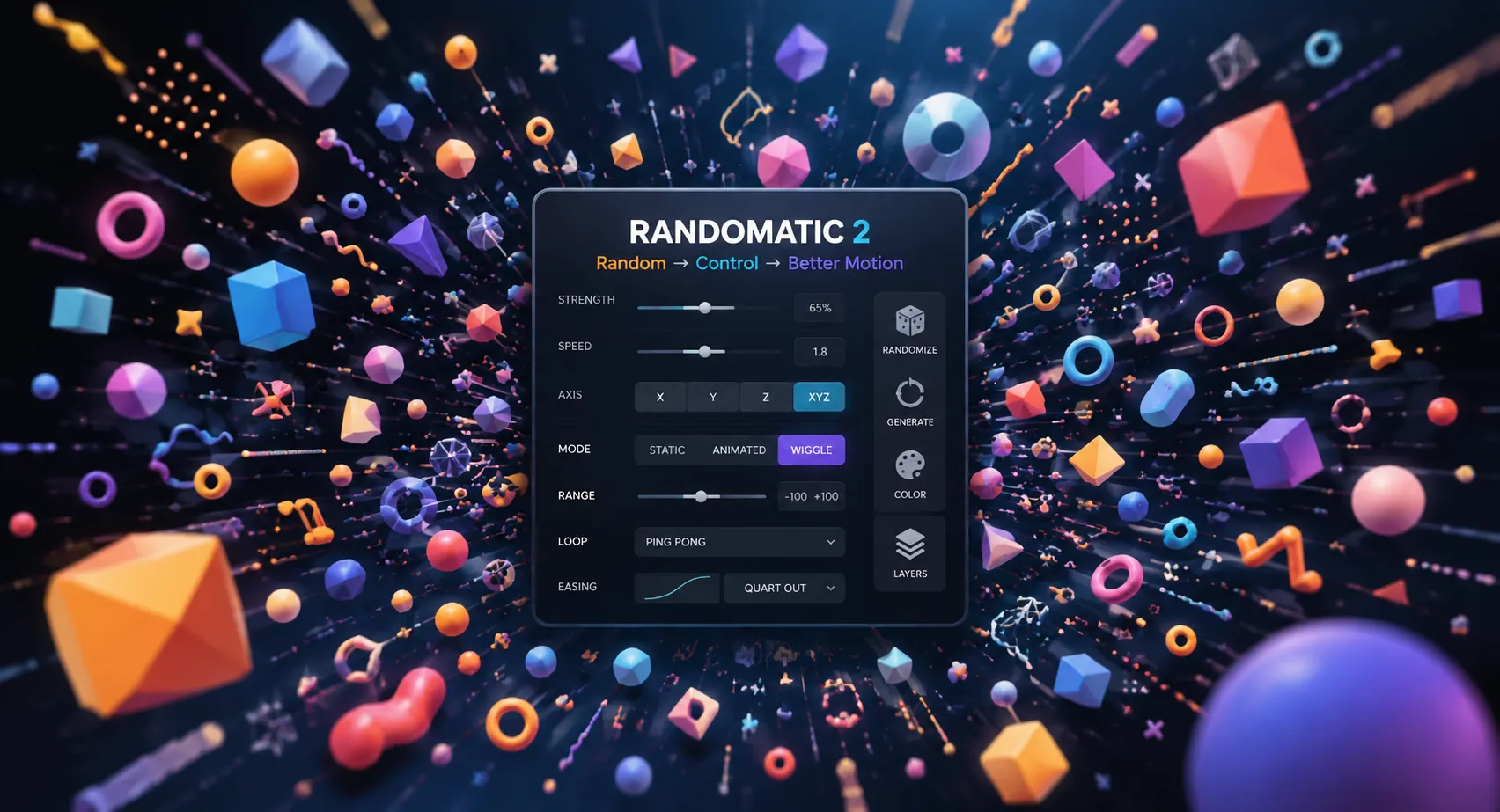
When You Want Dozens of Layers to Move Differently 🎬
Have you ever created anything using the Randomatic Plugin by aescripts? Imagine you have a motion graphic with dozens of icons, text elements, or other elements that need to enter the scene at the same time. If you create the exact same animation for all of them, you’ll quickly notice that the movements look too neat and mechanical. On the other hand, if you want to make slight changes to the Position, Rotation, Scale, or timing of each layer, you’ll have to manually adjust a ton of keyframes one by one.
This is exactly where Random and Wiggle come in handy. For example, you can make each icon move a few pixels differently, have each piece of text appear with a slightly different delay, or give the elements a very small amount of Rotation. These tiny variations make a large group of layers look less like repeated copies and give their movement a more natural feel.
But as the number of layers increases, creating and managing these variations with Keyframes and Expressions can become a separate project of its own. Especially if you later want to change the intensity of the Random or use the same settings across several other Compositions. This is where having a tool for quickly controlling and managing Random and Wiggle across a large number of Properties and Layers can really make your Workflow easier.

What Exactly Do Random and Wiggle Do? 🎲
When we talk about Random, we mean creating random variations in the value of a property. For example, you can slightly move the Position of several layers so they don’t all end up in exactly the same spot. Wiggle, on the other hand, makes a property’s value fluctuate around its original value, like a subtle, lively movement that keeps going continuously.
These techniques have many applications. For example, they can be very useful for creating subtle camera movements, controlled shaking of an element, random color variations, different movements for multiple objects, or simply adding variety to a large number of layers.
The main advantage is that you don’t have to create a completely separate animation for every layer. You can create a random system and let the small differences between elements take shape automatically.
How Can You Do It Without a Plugin? 🛠️
After Effects has several tools for creating random and oscillating movement, and for simple projects, these built-in features are often enough. Depending on how much control you want over the movement, you have several common methods:
- Expressions ✨: The simplest way to create Wiggle is to use Expressions such as
wiggle()on properties like Position, Rotation, and Opacity. - Slider Control 🎚️: Add a Slider and use it to control the intensity or amount of movement.
- Keyframes 🎬: For limited and predictable variations, you can change Property values using Keyframes and create movement between different states.
- Custom Expressions ⚙️: If you want more control, you can write more complex Expressions to define the range, speed, axis, or the way the movement is randomized yourself.
The Problem Starts When You Have Too Many Layers 😵💫
These methods work really well for a few layers, but when a project is packed with Layers and Properties, things can gradually become a hassle. You have to set up and manage Expressions across different layers, and every change may require manually modifying several parts. And if you want your Random values to stay within a specific range, remain coordinated across multiple layers, or be adjusted later, managing the whole system can become pretty time-consuming.
Randomatic: When Random Is in Your Hands 🎯
Randomatic is designed to make creating and controlling Random and Wiggle in After Effects much easier. Instead of writing a separate Expression for every Property, you can use ready-made Controllers to create random variations across a large number of Properties and Layers, and then control everything from one specific environment.
Randomizing Different Properties 🎛️
Randomatic isn’t limited to Position or Rotation and can work with 2D, 3D, and color Properties. This means you can apply random variations to a diverse set of layer properties and create Variation for each one. This is especially useful when you have a large number of elements and don’t want everything to move with exactly the same value or follow a fixed pattern.
Three Different Modes for Random and Wiggle 🎲
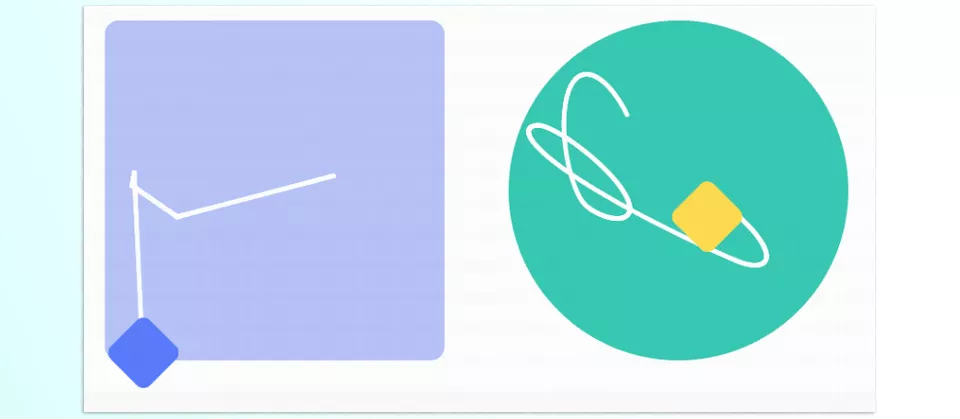
To create these variations, you have three modes available: Static Random, Animated Random, and Wiggle. Static Random creates a random value and keeps it, while Animated Random changes the random value over time. Wiggle behaves differently, moving the Property value around its original value, making it better for smoother, more organic movement. Also, Random stays within the range you define, while Wiggle may slightly go beyond the specified range.
Precise Movement Control 🎚️
Randomatic lets you do more than just create a simple random movement and allows you to precisely define how that Random should behave. Controls such as Strength, Axis, Increment, Loop, and Random Generator are designed for this purpose. You can define the intensity of the variations, choose which axis the Random should be applied to, adjust how the values change, and control the Loop behavior for animated movements. In addition, a range of Easings such as Linear, Ease, Quad, Quart, Quint, and Expo are available, allowing you to move away from completely linear changes and achieve more controlled movement.
Designed for a Large Number of Layers 🎬
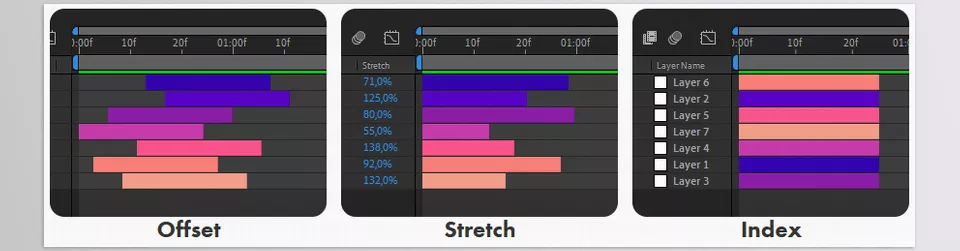
Randomatic doesn’t just Randomize Properties; it can also manage the Layers themselves. For example, you can randomly change the Offset, Stretch, and Index of layers. This capability becomes even more useful when you have a large number of layers because instead of manually moving or timing dozens of Layers one by one, you can create these Variations automatically.
Randomizing Colors 🌈
For colors, you also have three different methods: Gradient, Palette, and HSL. In Gradient mode, you can create a diverse range of random colors from two colors. Palette mode lets you specify up to 10 colors, allowing Randomatic to create Variations from them. For more precise control, HSL mode lets you adjust Hue, Saturation, and Luminosity to create color variations. This feature can be especially useful for projects that contain a large number of colorful elements.
Easier Controller Management 🔄
When you have multiple Randomatic Controllers in a project, managing Expressions can become a hassle of its own. Randomatic 2 offers three useful features for this: with Delete, you can remove Randomatic Effects and Expressions all at once; with Replace, you can replace one Randomatic Effect with another while keeping the Keyframes and settings; and with Transfer, you can transfer the Controllers from one Layer to another, even if the target Layer is in a different Composition.
Random Generator: Changing Multiple Randoms at Once 🎰
If you’ve used multiple Random Generators in a project, you don’t have to change each one’s settings separately. Randomatic allows you to randomize all Properties related to the Random Generator simultaneously. This feature is especially useful for busy projects because you can create a new Variation across a group of Randoms with a single change and reach the desired result faster.
One Tool for More Varied Motion ✨
Overall, Randomatic isn’t just a tool for creating Wiggle; it gives you a collection of controls for Randomizing Properties, Layers, and colors, allowing you to adjust this randomness to your project’s needs. From subtle movements across a few elements to randomizing a large number of Layers and Properties, its main goal is to make this process faster and more controllable than creating every variation with Keyframes and Expressions.
A Few Tips for a More Professional Result 🎯
Random and Wiggle work best when they create variation rather than drawing all the viewer’s attention to themselves. That’s why, before increasing the intensity or adding Random to different parts, it’s better to first determine exactly which part of the motion needs more variation.
- Keep the movement subtle. For most motion graphics, subtle Random or Wiggle looks much more natural. Start with a small value and only increase the intensity if the movement isn’t noticeable enough.
- Don’t Randomize Everything. If you Randomize Position, Scale, Rotation, and several other Properties at the same time, the animation may become cluttered and the project’s focal point can get lost. It’s better to apply Random only to Properties that actually need Variation.
- Choose between Random and Wiggle correctly. If you want each element to have a different and independent value, Random is a better choice. But for continuous, smooth movements that happen around the original value, Wiggle usually gives a more natural result.
- Keep the differences between Layers subtle. The differences between layers don’t need to be very large. Sometimes a few pixels of movement, a slight difference in Rotation, or a few frames of timing difference is enough to make a group of layers feel less repetitive.
- Keep colors within a defined range. When randomizing colors, it’s better to use a Gradient or Palette that matches the project’s visual identity. This way, the colors become more varied while the result still looks cohesive and professional. 🌈
Ultimately, the goal of Randomizing isn’t for the viewer to notice that the animation is “random”; in fact, the best result is achieved when they feel the changes without exactly understanding why the motion looks more natural and alive.
A Little Randomness, A Much Better Feel ✨
If you regularly work with a large number of Layers and Properties in your projects, you probably know how time-consuming it can be to create these small variations. Slightly changing the Position, Rotation, Scale, or timing for dozens of individual elements may seem simple at first, but as the number of layers increases, it can quickly become repetitive and exhausting.
This is where Randomatic 2 really shows its value. Instead of turning to Keyframes and Expressions for every Variation, you can apply Random and Wiggle to different Properties and Layers and control their intensity, axis, range, and behavior. Even for colors, you can use Palette, Gradient, or HSL and create variations with just a few settings that would take a lot of time to build manually.
Ultimately, the value of Randomatic 2 isn’t simply adding random movement to a project; it really shows when you need to create many small, controlled variations. If you work on busy motion graphics, UI Animations, multi-layered projects, or animations where every element shouldn’t behave exactly the same way, this tool can remove a significant amount of repetitive work from your Workflow and give you more time to focus on the actual design and creative ideas.
Not every After Effects resource works the same way. If you’d like to understand the differences between plugins, scripts, presets, and project templates, be sure to read our complete After Effects Tools guide before exploring more tools.



