


✏️ When Hand-Drawn Design Doesn’t Turn Into Animation…
Are you familiar with the workflow of the SenNazoli Lines to Paths Plugin by aescripts? Have you ever drawn a beautiful line illustration and then tried to use it in After Effects, only to get stuck right there? That exact moment when those lines need to become a usable path—and you suddenly realize it’s not as simple as it seemed.
From that point on, the joy of designing usually starts to fade, gradually replaced by a time-consuming and not-so-precise process. What you thought would move quickly turns into several extra steps and a lot of trial and error.
Many times, you either have to redraw the entire path manually from scratch or struggle with semi-automatic tools whose outputs are not always clean or reliable. As a result, part of the energy that should go into creativity gets wasted on repetitive and exhausting tasks.

🎯 What Role Do Paths Play in Animation?
A path is actually one of the most fundamental concepts in motion graphics. Whenever you want something to move, grow, or even align along a specific line, you are ultimately working with paths.
For example:
- Moving an object along a curved line
- Creating effects like a line being drawn
- Using a path as a mask
All of these depend on paths.
The problem is that when these paths come from hand-drawn designs, they are difficult to convert. Something that feels natural and smooth on paper or a tablet doesn’t translate easily into usable data inside the software. This often leads to ideas either not being executed at all or being implemented with lower quality.
🛠 Without Specialized Tools, What Are the Options?
Common and Classic Methods
If you want to do this without any specific plugin, there are a few standard approaches. Each of these methods can get the job done in some way, but they all come with their own style and conditions.
The most common options are:
- Pen Tool: You have to redraw the entire path manually from scratch; it gives high control but is very time-consuming for complex designs
- Auto Trace: Automatically converts the image into paths, but usually requires cleanup and correction
- Illustrator + Import: You create the path in Illustrator and then import it into After Effects; more precise, but involves multiple steps
Challenges and Limitations
The main issue is that none of these methods is truly fast or effortless. You either spend a lot of time drawing and refining paths manually, or work with results that lack the precision and cleanliness you need.
In serious projects, this can slow down your workflow and affect the final quality—especially when working with complex lines or hand-drawn designs.
🚀 Introducing SenNazoli Lines to Paths Plugin: When Paths Are Generated Automatically
This is where the SenNazoli Lines to Paths Plugin comes in and simplifies exactly the most difficult and time-consuming part of the process. This plugin is designed for After Effects to quickly convert hand-drawn lines into paths—without requiring you to build them from scratch.
The result is usually clean and ready to use, allowing you to focus more on animation rather than preparation.
What makes this tool more appealing is its focused design. It’s not trying to do ten different things—it does one thing, but it does it precisely and effectively. This allows the generated paths to align well with the original lines, without needing heavy corrections.
Fast Conversion of Lines into Usable Paths
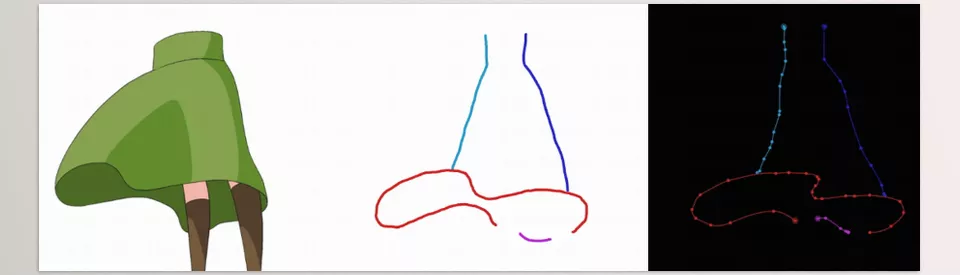
The main function of the SenNazoli Lines to Paths Plugin is to convert image-based lines directly into Mask Paths inside After Effects.
This means that something that previously required manual drawing or multiple tools can now be created in a single, simple step.
In practice, this results in:
- Complete removal of manual path drawing
- Significant time savings in projects
- Faster access to the animation stage
Preserving the Natural Feel of Hand-Drawn Designs
One of the biggest challenges in this type of workflow is that when lines are converted into paths, they often lose their natural feel.
SenNazoli Lines to Paths Plugin attempts to preserve the original form of the design, so the output still maintains that hand-drawn and organic look.
This is especially important for projects with a manual or organic style, where you don’t want the result to feel overly “digital.”
More Control Over Paths After Creation
After the path is created, you still have full control over it—which is a very important point.
The plugin provides several useful features for managing paths:
- Reverse (Path Direction): Change the direction of movement, very useful for animation
- Extend: Expand or adjust the path
- Manual Editing After Conversion: Since the output is a path, it remains fully editable
This means the final result is not locked, and you can adjust it precisely according to your project needs.
Ready to Combine with Other Tools
An important point to know is that the SenNazoli Lines to Paths Plugin itself does not place anything directly on the path (such as objects or decorations). But this is exactly what makes it a strong foundational tool.
You can use the generated paths for various purposes, such as:
- Animating objects along the path
- Creating draw-on (line animation) effects
- Arranging graphic elements along lines using other plugins
In fact, this plugin prepares the path so you can apply your creativity to it.
Overall, the SenNazoli Lines to Paths Plugin is less of an “effect generator” and more of an “infrastructure tool.” It simplifies the foundational and difficult part of the workflow, allowing you to focus your energy on design and execution.
💡 Tips for More Professional Results
To get the best results from this tool, there are a few simple tips that can significantly improve the quality of your output:
- Take input image quality seriously: The cleaner and clearer the lines, the more accurate and usable the final path will be
- Clean the image before conversion: Removing noise and extra details helps the plugin detect lines more accurately and produce cleaner results
- Keep line thickness balanced: Lines that are too thin or too thick can negatively affect the result; a standard thickness usually works best
- Always review the path after creation: A quick check and a few small adjustments can greatly improve quality
- Don’t ignore combining with other tools: The true power of this tool shows when paths are used with other plugins or animation techniques
In the end, these small details can turn your output from something ordinary into a clean and professional piece that delivers a better experience to the audience.
🔥 Focus on Creativity Instead of Repetitive Work
The reality is that a large portion of motion graphics work is spent on repetitive and time-consuming tasks. Tools like SenNazoli Lines to Paths Plugin are designed exactly to eliminate those parts.
When converting lines into paths becomes fast and clean, you can focus more on ideas and execution.
If your projects involve hand-drawn designs, or if you want your animations to feel more natural, tools like this can make your workflow much smoother—not as a shortcut, but as a smarter way to achieve better results.
If you are serious about expanding your expertise in After Effects and integrating auxiliary tools effectively, our comprehensive After Effects Tools guide is an essential resource.



