


When Corners Limit You!
Have you ever worked with the Square Peg Plugin? In the world of motion graphics and design, simple shapes are among our primary tools. But sometimes, these very simple shapes can become troublesome! You might want one corner to be rounded, another square, a unique curve on the third, or even a cut or inverted edge. Sometimes, you even need to animate each corner individually to create natural and appealing movement.
Without the right tool, achieving this level of precision becomes like solving a puzzle: you end up spending hours manually adjusting shapes with Bézier handles, and the result may never match your expectations. This slows down projects and makes creativity dependent on the software’s default options.
In fact, corner limitations can lock your creativity, causing shapes and animations to feel lifeless and unnatural. This is where a professional tool for controlling each corner independently becomes essential.

Struggling with Default Tools
In After Effects, there are ways to alter corner shapes without any plugins, but their limitations are obvious. For example:
- You can use the Round Corners tool on a Shape Layer to round corners, but this applies to all corners at once, and you cannot keep one rounded while keeping another square.
- For more complex changes, you have to manually manipulate Bézier handles, which is time-consuming and requires great precision to get the desired shape.
- Creating special shapes like Notched (cut edges), Inverted corners, or combined forms is nearly impossible without extensive manual work and creativity.
In short, the default tools can handle simple changes, but whenever you want precise and independent control over each corner, you hit a limitation. This means spending a lot of time manually adjusting, increasing the risk of errors and inconsistencies in animations.
Square Peg: Free Your Corners
This is where the Square Peg Plugin comes in, giving you complete freedom to control corners and create professional shapes. This tool offers a variety of practical features every designer and motion graphic artist needs. Let’s dive into each feature in detail:
1. Individual Corner Control
With the Square Peg Plugin, you can independently modify each corner of a shape. Unlike After Effects’ default tools, you can:
- Make one corner rounded, another square, or even a curved or hybrid style.
- Create beveled (cut) or inverted corners.
- Build creative combinations that would otherwise take hours and extreme precision.
This level of control ensures that shapes match your vision exactly and are not limited to the software’s default options. Each corner can have its own character and style, bringing life and appeal to your animations.
2. Easy, Keyframeable Animation
All corner parameters are keyframeable, allowing you to:
- Easily change corner shapes over time.
- Create dynamic effects and smooth, natural motion.
- Advance projects quickly without manually adjusting Bézier handles for hours.
No more tedious tweaking for minor changes!
3. Multi-Mode Curvature Slider
Square Peg Plugin features a curvature slider that lets you switch corners between different modes, including:
- Square
- Rounded
- Squircled (a mix between square and rounded)
- Notched (cut edge)
- Beveled
This slider allows you to quickly and accurately customize corner shapes, bypassing complex manual methods. It’s especially useful for creating dynamic and varied visual effects.
4. Full Shape Builder
Square Peg Plugin goes beyond a simple corner-rounding tool. It is a full shape builder, enabling you to:
- Combine corners and create complex shapes.
- Generate unique forms that would otherwise be nearly impossible.
- Freely unleash your design creativity.
Even complex motion graphics projects and animated logos become easy to build and animate.
5. Save and Reuse Shapes
One of Square Peg’s practical features is the ability to save created shapes and reuse them in other projects with a single click. This:
- Boosts speed and workflow efficiency.
- Is particularly useful for working on multiple versions or similar projects.
- Eliminates the need to rebuild shapes from scratch each time.
6. Works with AE Shape Layers and Native Béziers
Everything is done inside After Effects using native Shape Layers and Bézier curves. Advantages include:
- No dependence on external plugins.
- Fully shareable with other users.
- Complete compatibility with AE’s native tools and layers.
7. Compatible with Complex Animations and Masks
Square Peg Plugin easily integrates with other AE tools. You can:
- Use corners alongside masks, paths, and other layers.
- Create advanced, professional animations.
- Produce dynamic projects without limitations or complex manual work.
8. Precise Control over Angles and Corner Dimensions
Square Peg Plugin allows fine-tuning of each corner:
- Specify curvature and roundness.
- Adjust bevel or notch depth.
- Control the intensity of inverted or hybrid styles.
This ensures every corner perfectly matches your project’s needs and creative vision without spending hours manually tweaking.
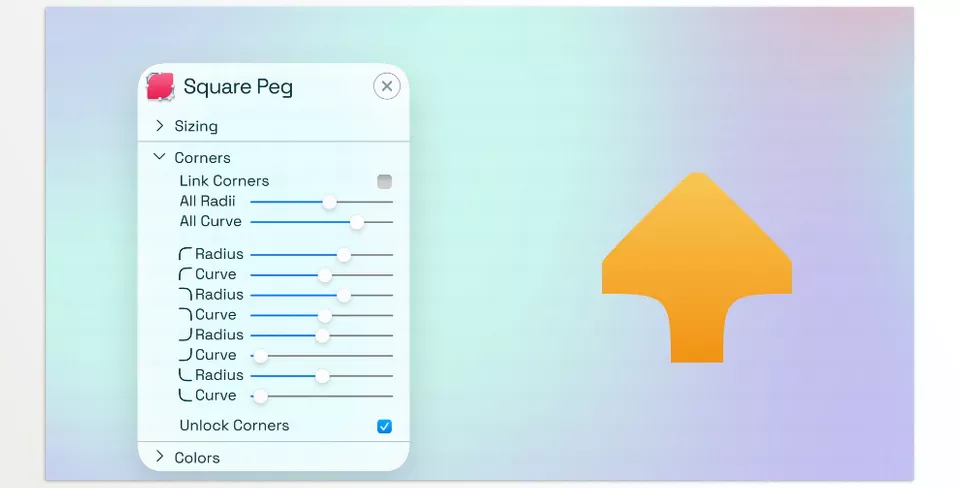
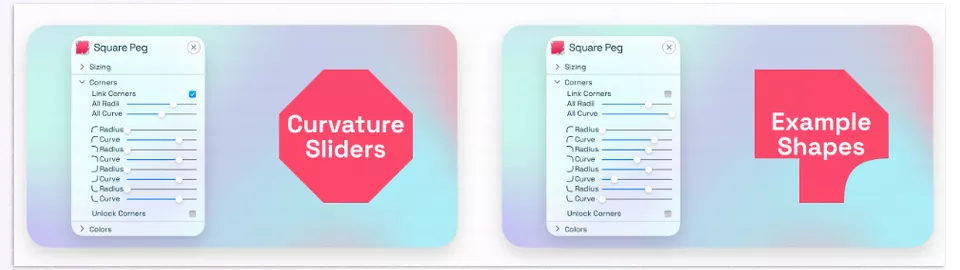
Square Peg Plugin gives you full freedom: independently control each corner—rounded, square, curved, beveled, or inverted; keyframe all parameters; quickly change shapes with the curvature slider; create complex forms; save and reuse; work entirely with AE Shape Layers and Béziers; compatible with masks and paths; precise control over angles and depth—an all-in-one tool for professional animation and design!
Pro Tips for Maximum Use
Once you are familiar with Square Peg’s main features, the next step is knowing how to apply them professionally and creatively in your projects. Here are a few simple but powerful tips:
- Use Corner Animation for Emphasis and Visual Impact
Corners can act as emphasis tools. In short sequences, changing corner styles—from rounded to Notched or inverted—can guide the viewer’s eye and add dynamic energy. Even small corner changes can attract attention and influence visual storytelling.
- Mix Corners for Unique Visual Character
Animating corners independently lets you build creative combinations. For instance, one corner is rounded, another is beveled, and a third is inverted. This gives shape’s personality and a distinct visual identity, even for the simplest forms.
- Use Saved Shapes to Save Time
Saved shapes and presets can be applied directly to new projects, reducing the need for redesign and increasing workflow speed. This helps maintain a consistent visual language across multiple projects.
- Combine with Masks and Paths
For professional results, combine corners with complex masks and paths. This enables advanced animations, animated logos, and dynamic shapes without the limitations of default AE tools.
- Detail Control for Natural Motion
Beyond the overall shape, fine-tuning minor details such as curvature, notch depth, or inverted intensity makes movements appear more natural. Small but precise adjustments elevate animations from stiff to lifelike.
By following these tips, your workflow becomes faster and more accurate, and projects gain a professional, natural, and dynamic appearance. Combining creativity with these techniques brings shapes and corners to life, making the design and animation experience more enjoyable.
Corners Are More Important Than You Think
We often think corners are minor details, but in reality, they can make or break the personality of a shape and an entire animation. A single correct or incorrect corner can affect shape motion, spatial perception, and even how viewers interpret the project.
Tools like Square Peg Plugin make precise control over these details fast and effortless. You control every corner’s animation, the combination with other corners, and even the tiniest adjustments. When projects animate with such personality, even the simplest of shapes gets its message across and attains that polished, custom quality everyone craves.
Ultimately, Square Peg Plugin isn’t just about making the design process easier—it’s about making every shape, animation, and project come to life with personality, motion, and realism. Quality can be enhanced at every turn with this plugin.
If you want to fully understand After Effects and explore every plugin, script, and preset that can expand your creative possibilities, our comprehensive guide about After Effects Tools is your perfect starting point.



