

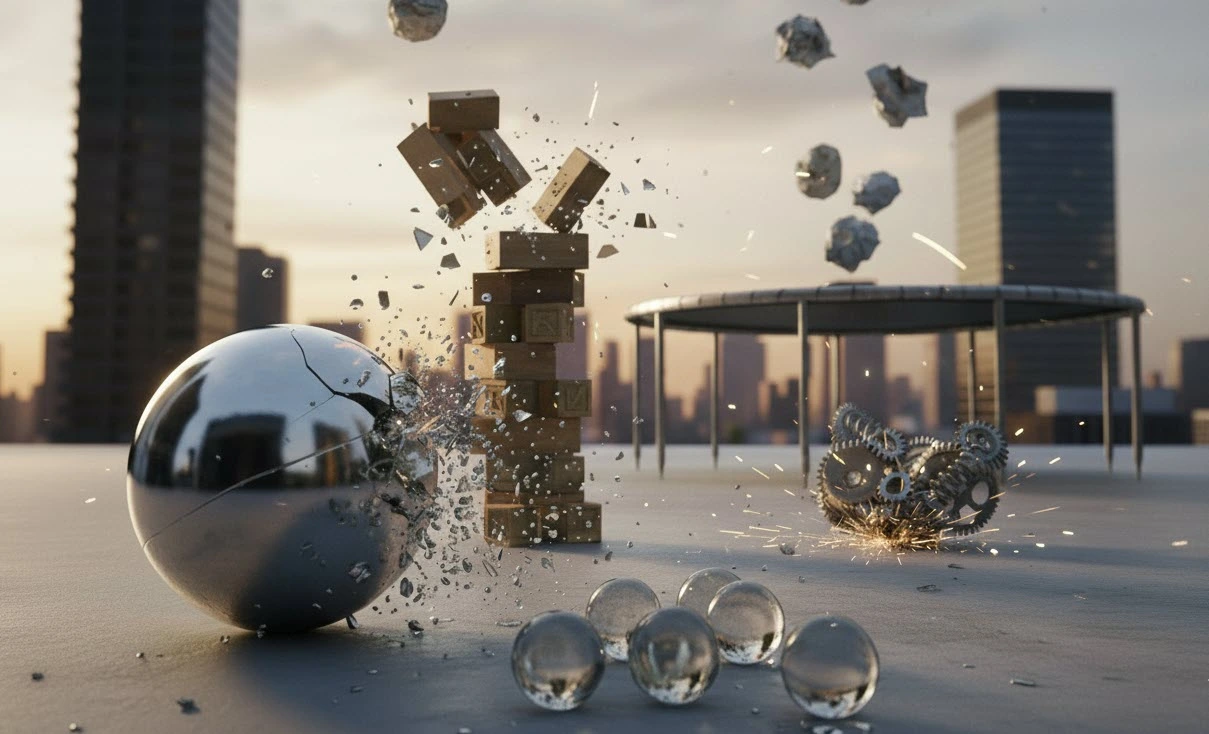
Ever Tried Dropping an Object in After Effects Like a Real Ball?
Ever worked with the Newton Plugin? You want it to drop, collide with the floor, have a slight spin and bounce back into the air with some energy…. But then you start to lose track of all of your keyframes after a couple of minutes. Every adjustment requires timing adjustments, curve adjustments, and collision adjustments to get it looking like it’s almost natural.
The problem is, After Effects wasn’t built for real physics; it only understands that something should move from point A to B — not why or how it should move. But once you step into real animation, it’s those tiny details that make the difference between a stiff scene and a lively one.
Imagine letters of a logo falling and spinning on the ground, or colorful shapes colliding and bouncing around — everything needs to feel weight, energy, and interaction.
That’s when you realize motion alone isn’t enough… There needs to be life within that motion. ✨

⚙️ What Does “Physics in Animation” Mean?
Physics in animation means recreating the natural behavior of the real world — inside the world of visuals. When a ball falls, its speed increases during descent, it loses energy on impact, and bounces lower each time. Or when two objects collide, each reacts according to its own weight and angle. In fact, physics is what makes the viewer instinctively say: “Yeah, that looks real!”
Without physics, objects only slide or rotate, but with it, they feel like they have weight. That’s what separates professional animation from amateur motion — and it’s exactly where tools like Newton Plugin come into play. ⚡
🎨 What If You Don’t Use Professional Tools?
After Effects is powerful, no doubt — but when it comes to real-world physics, it hits some limits. Sure, with keyframes, expressions, and the Puppet Tool, you can create any motion — from a falling ball to swinging text — but everything must be adjusted manually.
Want something to fall? You’ll have to change its position frame by frame, play with easing, and tweak until it feels natural. Want a bounce? You’ll need to manually build the motion, shape the curves, and balance speed to make it feel weighted. And collisions? Well… that’s a whole different story 😅 because AE doesn’t inherently know when two things “collide.”
The result? Hours of work for something that still feels artificial.
After Effects can show movement, but it doesn’t understand why something moves or how it should react. And that’s exactly where a professional tool can make everything both realistic and effortless.
💥 Introducing Newton – Real Physics for the 2D World
Here’s where the magic begins ✨
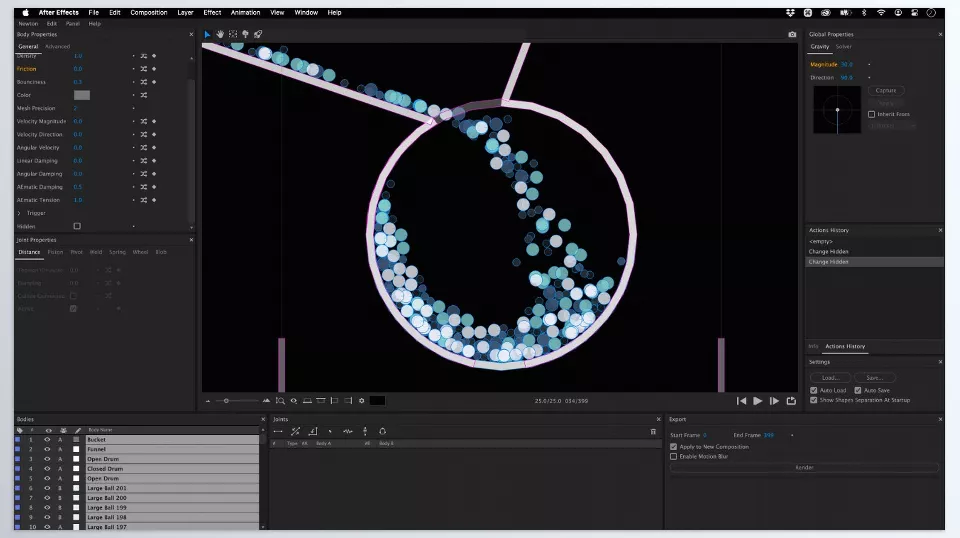
Newton Plugin is a complete 2D physics engine for After Effects. It makes your regular layers behave like real objects with mass, force, and energy.
Just select your layers, open Newton, and hit Play. From that moment on, Newton brings physics into your scene. Objects fall, collide, spin, separate, or connect just like in the real world.
🌟 Key Features:
⚖️ Realistic Force Simulation
From gravity to friction and density — everything behaves just like real physics. A heavy ball bounces more slowly, while a light one jumps higher.
🔗 Joint System for Connected Motion
Want to create a chain, bridge, or pendulum? Use Newton’s Joint System to connect multiple objects and make their movements interdependent.
🌊 Buoyancy and Fluid-Like Effects
Newton 4 introduces a special feature called Buoyancy, which makes objects behave as if they’re floating — perfect for simulating objects on water or sinking into fluid.
⚙️ Complete Control per Object
You can define how heavy, bouncy, or frictional each layer is. This means full artistic control over how every element behaves in your scene.
Keyframe Output for Full Flexibility
Newton Plugin doesn’t just simulate. It converts every result into keyframes. That means you can still edit, fine-tune, or rebuild the animation after the simulation, keeping the creative flexibility of traditional animation.
In simpler terms, Newton 4 Plugin teaches After Effects about gravity 😄 From falling letters and rolling balls to colliding objects or mechanical rigs, everything comes alive with a few clicks, naturally and believably.
💡 Pro Tips for Getting the Most Out of Newton
Newton Plugin is smart, but like any professional tool, knowing a few tricks will make your results shine.
🎯 1. Set the Pivot Point Before Simulation
Newton calculates motion around each object’s pivot point. If you’re animating a ball, its pivot should be right in the center or bottom. A misplaced pivot can cause odd rotations or unpredictable movement.
😴 2. Use Sleep Mode for Static Objects
If some layers (like the ground or walls) aren’t meant to move, set them to Sleep Mode. This makes simulations faster and lighter — especially in crowded scenes.
📚 3. Pay Attention to Layer Order
Newton uses layer order to decide which object is in front or behind. So adjust your layer stack carefully — even a small change can alter all collisions.
⚙️ 4. Use Preview for Fine-Tuning
Before finalizing your animation, hit Play a few times inside Newton. It helps you see if forces behave correctly, and you can easily tweak weight, friction, or bounce.
🎬 5. Remember: Newton Outputs Keyframes!
Unlike 3D simulators that “lock” animation, Newton creates editable keyframes. You can still refine timing, speed, or motion paths afterward. It gives you a physically accurate base — but the creativity stays in your hands.
6. Combine Newton with Expressions
After exporting from Newton, enhance motion with simple expressions (like wiggle or time offsets). A small mix of Newton + Expressions can work wonders for natural motion.
🚀 Conclusion: Newton — Physics Serving Creativity
At the end of the day, Newton Plugin isn’t just a plugin. It’s a creative companion that handles the laws of physics so you can focus on your ideas.
It makes your animations breathe, feel weight and energy, and helps you create in minutes what used to take hours.
Whether you’re throwing a logo, colliding objects, or creating interactive motion scenes, Newton Plugin changes the game from motion guesswork to natural, efficient motion.
If you feel like something is missing from your After Effects projects, it’s likely Newton Plugin. Download it today and let physics do the work for you in motion.😉
If you want to explore every corner of After Effects and its ecosystem of creative tools, our full-length article about AE Tools is packed with insights, examples, and pro tips.



