


Placing Details on Surfaces Without the Hassle!
Are you experienced with the Conform Object in Blender? Have you ever wanted to add small details to your 3D model—like stones, leaves, stickers, or wall decorations—but lost a lot of time manually moving, rotating, and precisely adjusting each piece?
Or imagine wanting to create a stone path on the ground, or place multiple logos and designs on a building’s wall, but with the usual method, you have to adjust each object one by one to make them sit correctly on the surface.
Now, imagine if there was a tool that could do all of this automatically, precisely, and cleanly—without damaging the main mesh and without spending hours—how much easier your projects would become! You could even place multiple objects at once and get a natural, professional result.
This means no more tedious adjustments or irregular outcomes, allowing you to focus all your energy on creativity and engaging details.

When You Only Have Blender…
Without any add-ons, there are a few ways to add small details on a 3D model’s surface, but each has its drawbacks:
Shrinkwrap Modifier
This tool can snap an object to a surface, but controlling the direction, angle, and placement of objects precisely is harder. For example, if you want stones to align in a specific direction or have some spacing between them, you need to tweak many settings—and even then, the result isn’t perfectly natural.
Manual Adjustment (Grab / Rotate / Scale)
The simplest method is moving and rotating each object manually. But imagine placing hundreds of stones or stickers on a model… It’s time-consuming, exhausting, and full of errors. There’s also a high chance that some objects won’t sit correctly on the surface or the angles will be off.
Manual Lattice Deformation
To reshape or bend objects on a surface, you can use a Lattice, but this requires creating a separate lattice, connecting it to the object, and adjusting each point carefully. It becomes precise and lengthy work, especially if you want to deform multiple objects at once.
💡 The Main Problem:
All of these methods are either time-consuming or make precise control difficult. Even with just a few objects, you spend hours manually adjusting placement and angles to ensure everything sits correctly. Now imagine adding dozens or hundreds of small details—controlling them all becomes nearly impossible, and it’s easy to end up with a messy, unnatural result.
Additionally, some methods like Shrinkwrap or Lattice Deformation require complex settings and a lot of trial and error to make an object sit correctly on a surface. Even after spending all that time, shadows, lighting, or angles may still not match the surface, making the result look artificial.
In short: traditional methods force you to compromise between time, precision, and natural-looking results. When the number of details increases, the work becomes tedious and error-prone, shifting your energy away from creativity toward technical adjustments.
Conform Object: The Object Snapping Wizard!
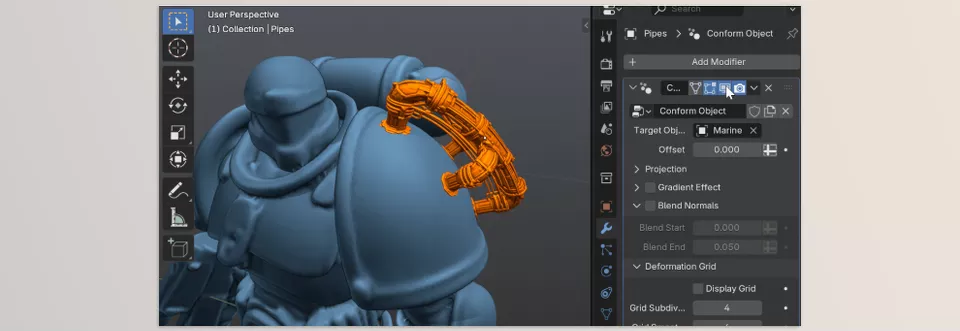
If you’ve ever spent hours trying to place small details like stones, stickers, wall decorations, plants, or logos on a 3D model and the result always looked slightly messy or unnatural, Conform Object eliminates all these hassles in one go. This tool allows you to add precise, consistent, and natural details on any surface without damaging the main mesh or manually adjusting each object.
How Conform Object Solves Traditional Method Problems:
One-Click and Non-Destructive
With a simple click, the object snaps to the surface with no changes to the main mesh. You can even revert or modify applied adjustments later. This ensures complete safety for your model and more freedom for creativity.
Multiple Snapping Modes (Grid Mode & Shrinkwrap Mode)
Depending on your project’s needs, you can choose between different modes:
- Grid Mode: Creates a regular and cohesive layout, perfect for paths, wall facades, or repeating patterns.
- Shrinkwrap Mode: Snaps precisely to the surface, even on complex and curved surfaces.
Gradient Influence
This feature lets you control how the tool affects different parts of the object. For example, the lower part of an object can be more influenced while the top less, making the placement of stones, leaves, or details appear more natural and realistic.
Surface Normals Transfer
Added details align with the surface’s lighting and angle, ensuring the object looks natural and integrated. No more odd shadows or misaligned edges.
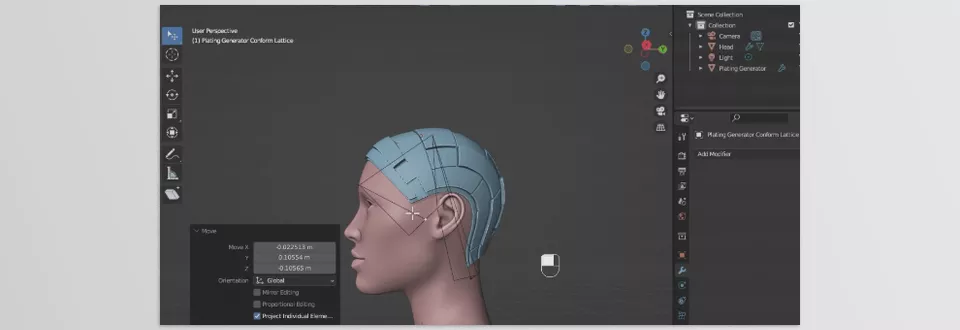
Advanced Lattice Deformation
For large or curved objects, you can stretch, bend, or conform an object to a surface without altering the main mesh. This provides incredible flexibility for complex projects, such as attaching decorations to columns or curved walls.
Multiple Objects at Once
No need to add details one by one. You can place an entire set of objects on the surface simultaneously for precise and consistent results.
Presets and Save Your Settings
Save all your custom settings so that in future projects you can reproduce the same professional results with a single click. This is especially useful for serial or multi-scene projects.
Real-Life Use Cases:
- Stones on Paths or Ground: Create a dense, natural-looking stone path without manually adjusting each stone.
- Wall or Architectural Decorations: Quickly add cornices, window frames, or decorative patterns on complex walls with high precision.
- Plants and Greenery: Quickly place plants on the ground, stones, or rocks without adjusting each branch individually.
- Logos and Stickers on Products or Industrial Models: Precisely aligned on the surface, matching lighting and angle perfectly.
💡 Why Conform Object Stands Out:
This tool not only saves you time but also significantly improves the quality and professionalism of your projects. No more lengthy trial-and-error steps to achieve natural results; anything you want on a surface can be placed accurately, quickly, and under full control.
How to Make It Even More Professional
Conform Object is amazing for snapping details to surfaces, but with a few simple tips, you can achieve even more natural, faster, and professional results:
Use Gradient Influence to Your Advantage
By controlling how much the effect impacts different parts of an object, you can determine where the most deformation or effect occurs and where it’s less.
Example: When placing stones on the ground, the bottom of the stones sticks more to the surface while the top is slightly free, producing a more natural result.
Lattice Deformation for Large or Curved Objects
If your details are large or placed on curved surfaces, use Lattice Deformation.
Example: Place decorations on a column or curved wall, or stretch plant branches over rocks.
Add Multiple Objects at Once
No need to add each detail individually. Select multiple objects and place them all on the surface simultaneously. This saves significant time while keeping the layout consistent and organized.
Create Presets and Save Your Settings
If you frequently use the same settings across different projects, save them as a preset. Next time, you can achieve the same professional result with a single click.
Example: Save a stone path layout or a set of decorative wall elements.
Combine Techniques for Best Results
You can combine Gradient Influence and Lattice Deformation to achieve a natural, dynamic look. Using multiple objects simultaneously along with presets allows large projects to finish faster, cleaner, and more professionally.
💡 Friendly Tip: Always preview before the final application to ensure the objects are perfectly aligned with the surface and lighting. This prevents long correction sessions later.
Why Every 3D Artist Should Try It
With Conform Object, you no longer need to spend hours placing small details on a 3D model. Stones, stickers, decorations, or plants—all can be placed cleanly and effortlessly, allowing you to focus on more creative aspects.
Everything looks natural and consistent! With Gradient Influence and Lattice Deformation, details sit correctly on the surface and align with lighting and angles. No more crooked stones or odd angles; everything appears realistic and professional.
And the best part? You can save your custom settings and have everything ready again with a single click. Conform Object truly saves your time and makes projects faster, easier, and more professional. Any 3D artist who wants clean and natural details needs this tool.
Want to take your Blender skills to the next level? Our complete guide to Blender tools will walk you through every feature, showing you how to apply them in real-world projects.



