

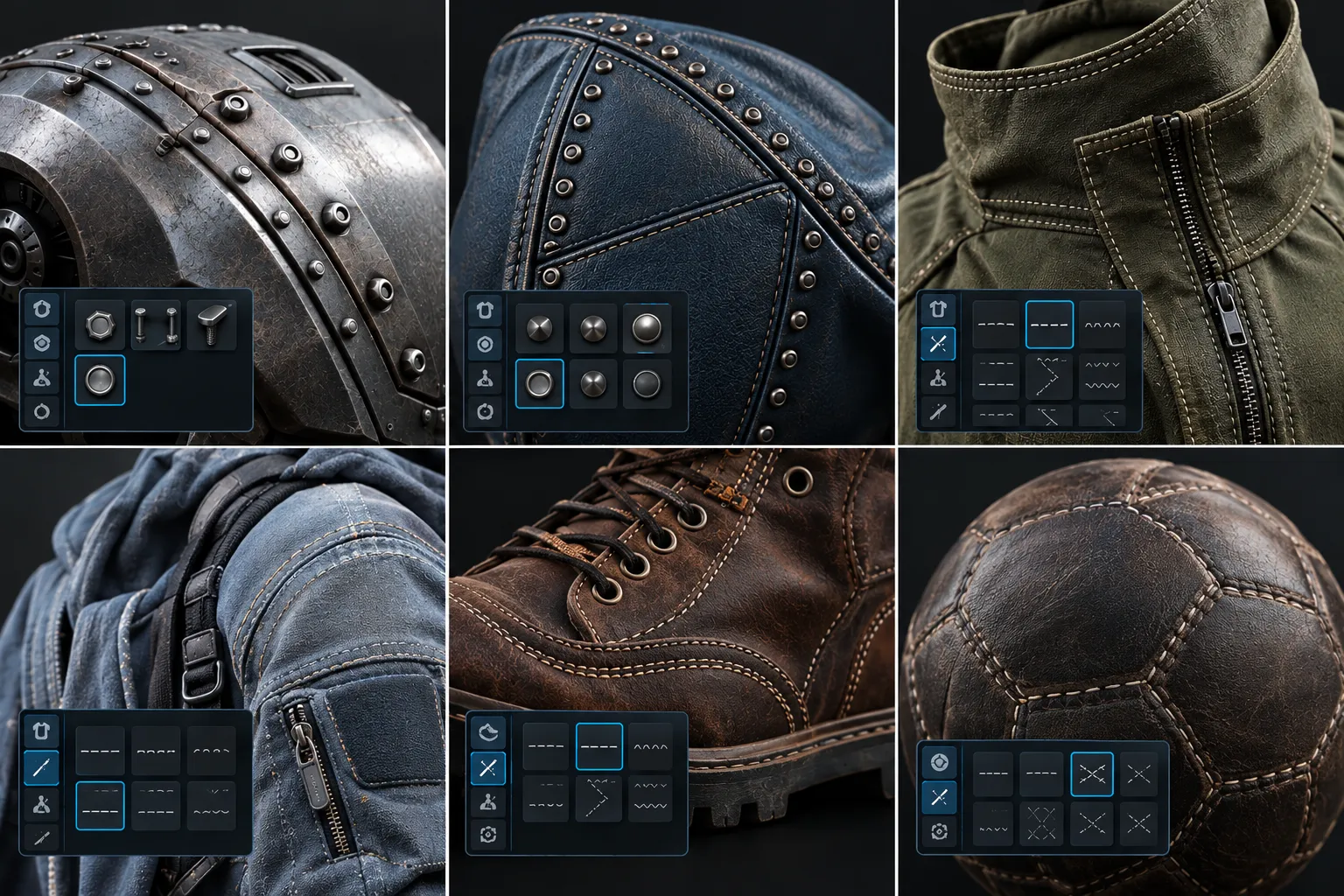
🔩 How to Add Screws, Rivets, and Stitching to 3D Models Without Manual Placement
Are you familiar with how the Panel Stitcher addon by Superhivemarket works? Have you ever worked on a 3D model and realized that, after finishing the main shape, it needs many small details to look more realistic? For example, you might want to add several rows of screws and rivets to a robot’s body, decorate the edges of armour with metallic details, or create precise, evenly spaced stitching lines on a character’s clothing.
Creating the first few details might not take much time, but things change as the numbers grow. You have to adjust each element’s position, keep the spacing consistent, and make sure everything follows the curves of the model’s surface. On top of that, if you want to change the pattern or use it on another model, you may have to repeat much of the work.
This is where a good workflow can save you a lot of time. Instead of placing every screw, rivet, or stitch by hand, you can focus on the design and make sure the details fit your model. ✨

What Role Do Repeating Patterns Play in 3D Design? 🎯
In 3D modeling, many of the details that make a model look more realistic or professional consist of small, repeating elements. Screws around a metal panel, rivets on a vehicle’s body, stitching along the edges of clothing, or decorative details on an industrial component are all examples of this.
The main idea is to use a defined pattern to arrange these elements instead of creating and positioning each one individually. This approach gives you better control over spacing, element count, and placement, while also making it easier to change the pattern’s appearance when needed.
🧵From Industrial Models to Character Clothing
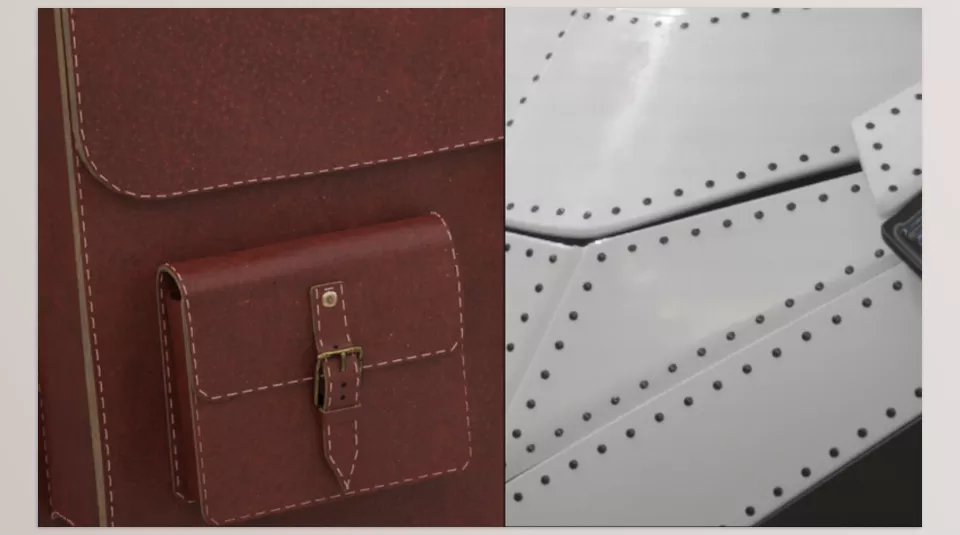
These details aren’t limited to any particular style. For example, in a sci-fi robot design, neat rows of screws and rivets can reinforce the sense of a metallic, industrial structure. When modeling a car or an aircraft, these same details give the body panels a more technical appearance.
Repeating details also appear widely in character design. Stitching lines on a jacket, reinforced clothing edges, or decorative stitching on a bag can add personality to a character’s outfit. In Game Development projects, these details also help create Assets that look more complete and believable in close-up shots.
🧩 Why Does Pattern Alignment with the Surface Matter?
Not every pattern works the same way on every surface. When you place screws on a flat panel, controlling their positions is relatively simple. However, on a curved surface or one with multiple corners and sharp transitions, maintaining consistent spacing and alignment between elements can be more difficult.
For this reason, a suitable pattern creation method should do more than repeat elements. It should also give you control over where they’re placed. The better this control is, the easier it becomes to adjust the pattern and align it with the model’s final shape.
How to Create Repeating Patterns in Blender Without an Add-on 🛠️
Blender provides various tools for creating and repeating details. By combining Modifiers, Curves, Geometry Nodes, and manual selection, you can create many of the patterns you need. So, you don’t necessarily need an additional tool to create screws, rivets, or stitching. The main question is which method works best for your project.
✨ Using Array and Curve to Repeat Elements
One common method is to create a simple object, such as a screw or rivet, and use the Array Modifier to repeat it. If you want the elements to follow a path, you can also use the Curve Modifier to align the arrangement with your desired path.
This method works well for regular rows and relatively well-defined paths. For example, you can place several rivets along the edge of a panel or create a row of details along a curved component.
However, when the path becomes more complex or you want details to appear only on certain edges of the model, additional adjustments may be necessary. Changing the pattern for different parts of the model may also require you to modify the paths, spacing, and Modifier settings.
🎨 Creating Custom Patterns with Geometry Nodes
Geometry Nodes is one of Blender’s most powerful options for creating repeating and Procedural systems. With tools such as Distribute Points on Faces and Instance on Points, you can create points on a surface and place different objects on them.
For example, you can build a system that places many screws on the surface of a metal component or distributes decorative elements throughout an environment at specific intervals. You can even add random variations and control certain element properties.
Geometry Nodes offers plenty of flexibility, letting you build a system that suits your project’s needs. On the other hand, achieving the desired result requires configuring the node logic, point distribution, and element orientation. If you only want to add screws or stitching along specific edges of a model, building a custom system may take longer than you expect.
🦾 Manual Placement for More Precise Control
Another option is to place the elements directly in the scene and adjust their positions using the Transform, Duplicate, and Snap tools. This method works well when you have a small number of elements or when each detail needs its own specific position.
The problem starts when the number of elements grows or when you want to repeat the pattern across multiple models. Maintaining consistent spacing, aligning the elements with the surface, and adjusting the arrangement after changing the model’s shape can become time-consuming.
What Are the Main Limitations of These Methods?
Each tool is designed for a specific purpose, and with some experience, you can achieve excellent results. However, building a Workflow that handles edge selection, pattern control, element variation, and detail placement on complex surfaces at the same time may require combining several tools and different settings.
If you regularly work with Hard Surface models, 3D clothing, or detailed Assets, having a tool that brings these steps together in a more centralized Workflow can make the modeling process faster and easier to control.
Panel Stitcher: Creating Screw, Rivet, and Stitching Patterns on 3D Models 🔩
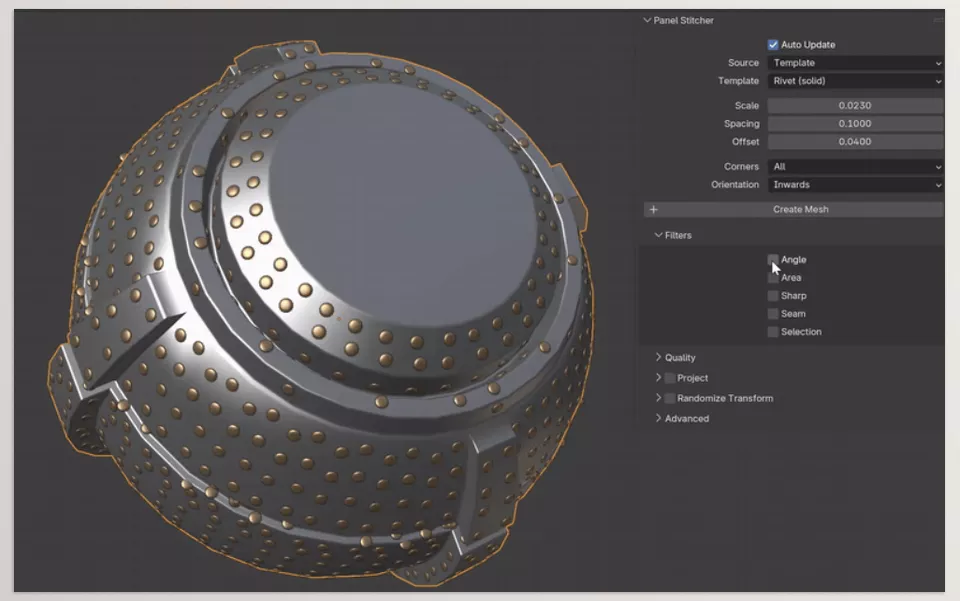
Panel Stitcher is a Blender add-on that helps you create repeating patterns of geometric details, such as screws, rivets, and stitches, on 3D models. Instead of creating each element separately and placing it in the right position, you can define a pattern and control how the details are positioned and look using various settings.
This tool is useful for adding details to metal panels, robot bodies, sci-fi armor, industrial equipment, and 3D clothing. One key advantage is that it isn’t limited to repeating a single object. You can use your own custom Meshes, select the edges you want, combine different filters, and even transfer a pattern to another model using Projection. In the following sections, we’ll explore Panel Stitcher’s main features so you can see how it simplifies creating details in Blender.
Controlling Element Placement with Placement Variations 🎛️
One key feature of Panel Stitcher is its ability to combine different settings to create variations in repeating patterns. With options like edge offsets and random variations, you can adjust element placement to better match your model’s shape and style.
For example, imagine you’re working on a robot’s body and want to place several rows of screws along its metal panels. You can adjust the distance between the screws and the edges, then add random variations to introduce more variety. For projects that require precise geometric order, focus on a regular layout. For designs that need a more varied appearance, you can combine different settings.
Another important point is that you’re not limited to the tool’s built-in elements when creating patterns. You can create your own Mesh or use a Kitbash Pack and treat it as a pattern element. This flexibility allows you to use different shapes to create details, from industrial screws and rivets to custom elements for fantasy and sci-fi designs.
In other words, instead of simply repeating one element over and over, you can create patterns tailored to your design by choosing the right model and combining different Placement options.
Precise Edge Selection with Automatic Filters and Edit Mode 🔗
In a 3D model, not every edge is necessarily suitable for screws, rivets, or stitching. You might want details only along the edges of a robot’s panels, or you may want stitches to follow specific seams in a piece of clothing. If all edges are included in the generation process without any restrictions, the final result may differ from what you had in mind.
To help control this, Panel Stitcher provides several automatic edge-filtering modes. These modes help exclude edges that don’t meet the selected criteria from the final pattern. As a result, you can reach a suitable arrangement more quickly without inspecting and selecting every edge individually.
For more control, you can also select edges manually. Simply enter Edit Mode and select the Edges you want to use for pattern generation. This method is useful for complex models or when you want details to appear only in specific areas.
One useful point is that you can combine different filters and use manual selection when needed. This means you’re not limited to a single method for controlling where details appear. Instead, you can balance speed and precision according to the model’s structure.
Transferring Patterns to Complex Surfaces with Projection 🚀
Sometimes, you may want to apply a specific pattern to a model that doesn’t have a simple surface. For example, you might be working on a detailed Sculpt or want to transfer a designed pattern onto a 3D component with a complex shape. In these situations, aligning the pattern with the model’s surface can become one of the more challenging parts of the process.
Panel Stitcher includes a feature called Project, which lets you use another object’s geometry as a pattern and transfer it to the target object during generation. This means you can prepare the desired geometry separately and use it to create a pattern on another model.
For example, imagine you’ve created a piece of armor with a complex surface and want to place specific details along different sections of it. You can prepare your desired pattern on a separate object and use Projection to transfer it during creation. This method can provide more flexibility when designing patterns for projects involving Sculpts or complex Meshes.
However, the Projection result depends on the surface shape, the model’s geometry, and the objects’ positioning. So, after generating the pattern, inspect areas with sharp curves and significant geometric changes to make sure the pattern is placed correctly on the model.
Creating Stitching Lines on Clothing and Fabric Models 🧵
Panel Stitcher isn’t just for industrial and hard-surface models. It’s also useful for adding stitching details to clothing and other 3D models. Examples include stitching lines on sleeves, trouser seams, jacket edges, or decorative stitching on a bag.
This Add-on includes ready-made Stitch presets that you can use with a single click. So, you don’t have to design every stitching pattern from scratch to get started. If you need a specific look, you can also create and use your own custom patterns.
For example, if you’re creating a 3D character wearing leather clothing, you can add stitching details to the outfit’s seams and edges. The same feature is useful for designing bags, leather chairs, fabric equipment, and clothing for game characters.
This approach lets you treat stitching as part of the model’s overall design and match its appearance to the clothing’s shape. As a result, instead of manually adding many small elements, you can use ready-made or custom patterns to complete the details.
Greater Variety with Random Object Selection from a Collection 🎮
Sometimes, using the same model at every point in a pattern can make the result look too uniform. For example, on an industrial model, you might want to use several different screw and rivet designs. In a sci-fi design, you might want to combine different elements.
Panel Stitcher allows you to randomly select objects from a Collection. You can place several different Meshes in one collection and use them to introduce variety into the final pattern. This means you don’t have to create a completely separate pattern for every type of element.
Imagine you have several screw models with different shapes and want to use them along a robot’s panels. By placing these models in a Collection, you can let the tool randomly select elements to create a more varied pattern.
Combined with Placement options and edge-selection filters, this feature gives you more freedom to create custom patterns. However, if your project requires a highly organized layout, choose an appropriate level of variation so the final appearance stays consistent.
Combining Filters for Greater Control over Patterns 🪡
One important thing to understand when working with Panel Stitcher is that you don’t have to use the same approach for every model. You can combine different filters to get better results based on the model’s shape and where its details are located.
This tool provides filters that restrict where a pattern is applied, including Seam and Selection options. Alongside automatic options and manual edge selection, these filters help you specify which areas should be included in the pattern generation process.
For example, you might want screws to appear only on selected edges of an industrial model, while stitching on a clothing model should be restricted to specific sections. By combining suitable filters, you can adjust the edge-selection process to match each project.
This flexibility is especially useful when working on different models and avoiding the need to repeat the same settings from scratch for each one.
Preparing Details for Game Development with PBR Baking 🎮
In Game Development projects, adding lots of detail to a model doesn’t always mean keeping it as actual geometry. Depending on camera distance, asset type, and the level of detail that needs to be visible, you can transfer some visual information to Textures so the model relies less on additional geometry for its appearance.
Panel Stitcher allows you to bake details into PBR maps. This feature helps you transfer suitable visual information to the required maps and use the output in your preferred rendering software or game engine. For assets with numerous screws, rivets, or similar details, this process can become part of the model-preparation workflow.
For example, if you’ve created an industrial component with multiple rows of screws, you can determine which details need to remain actual geometry and which can be represented in PBR maps. This decision depends on camera distance, silhouette importance, and the required quality level.
However, baking every detail isn’t always the best choice. Features such as protrusions and edge shapes may still require geometry, while some surface details can be represented with texture-based methods. Therefore, evaluate the output under the conditions where the model will actually be used.
The Panel Stitcher documentation also provides a tutorial on this process, helping you align the Baking steps with the tool’s Workflow.
Ready-Made Templates, Presets, and Custom Pattern Creation✨
Although Panel Stitcher offers plenty of customization options, you don’t have to configure everything manually to get started. Ready-made templates and Presets help you achieve results faster, then you can modify the details to suit your project.
This tool includes several ready-made Rivet and Screw models, along with several stitch patterns. You can use these elements as a starting point or replace them with your preferred Meshes to better match your design style.
Alongside the ready-made templates, the advanced settings panel gives you more control over the pattern creation process. Different filter modes, plus the ability to combine them, help you choose settings that suit different models.
So, whether you want to quickly create several rows of screws on a panel or build a custom pattern using multiple element types, you can adapt your approach to the level of control you need.
Managing Corners and Highly Curved Surfaces 📐
One challenge of creating repeating patterns is aligning details with corners and highly curved surfaces. In these areas, if the elements’ geometry doesn’t align properly with the model’s shape, the final result may look untidy, or the details may be positioned awkwardly next to one another.
To handle these situations, Panel Stitcher has improved its pattern-generation algorithm and offers features such as Automatic Beveling and a dedicated Corners-only mode. Automatic Beveling rounds sharp corners, while Corners-only mode lets you focus on corners. Performance settings also let you tailor the generation process to your project’s needs.
For example, on a Hard Surface model, you might want to complete panel corners with specific details or create a screw and rivet pattern on a component with significant curvature. These features give you more control, but it’s still a good idea to check the result on the actual model, since output quality also depends on topology and surface geometry.
Overall, combining these features makes Panel Stitcher suitable for creating both simple and more complex patterns, from regular rows of screws and rivets to stitching details and custom patterns on 3D surfaces.
🛠️ Important Tips for Adjusting Screw Spacing, Selecting Edges, and Using Projection in Panel Stitcher
To ensure the final details match the model’s shape, consider the surface structure and how the model will be used before generating a pattern. A few simple tips can help you maintain more control and avoid unnecessary adjustments.
- Start with a simple pattern: Before combining several types of screws or stitching, create a simple pattern and check the spacing and element placement. Once the initial result looks right, add more variations.
- Select edges carefully: If you’re using automatic filters, check the resulting edge selection. For sensitive areas of the model, manually selecting Edges can give you more control.
- Keep details proportional to the model: Screws, rivets, and stitches should match the object’s overall scale. Details that look appropriate on a large model may be too large on a small component.
- Use variation in moderation: Random variations can make a pattern look less uniform, but too much variation can disrupt the design’s order. Match the variety of elements to the model’s style and purpose.
- Inspect the model’s surface after Projection: If you’re transferring a pattern onto a complex Mesh, carefully check areas with sharp curves and corners to ensure the final result looks correct.
- Think about Baking early for Game Assets: If you know the model will be used in a game, decide early which details need actual geometry and which can be transferred to PBR maps.
- Try several options before finalizing the model: Sometimes, changing the spacing, element type, or edge-selection method can completely change the result. Compare several combinations before finalizing the pattern.
By following these tips, you can use the tool’s features more effectively and create details that match the model’s shape and support the design’s goals.
🔩 Panel Stitcher: An Easier Way to Add Details to 3D Models
When working on detailed 3D models, you can spend a lot of time on small tasks that become boring when you have to repeat them. For example, you might need to add rows of screws and rivets, stitch details on clothing, or align patterns with the edges of a model. Panel Stitcher makes these tasks easier by helping you manage the patterns instead of placing every detail by hand.
This tool offers more than just speed. The combination of ready-made templates, edge-selection filters, support for custom Meshes, and Projection makes it useful for a wider range of projects. Whether you want to complete a robot’s body with industrial details, add stitching to a character’s clothing, or prepare details for baking on a Game Asset, you can adapt your Workflow to your project’s needs.
If you regularly work with Hard-Surface models, 3D clothing, or highly detailed Assets in Blender, Panel Stitcher is worth exploring. Especially when you want to create repeating patterns with greater control and spend less time on repetitive adjustments, it’s worth trying its features within your own Workflow to see how much it can simplify the modeling process.
Take your Blender skills further by exploring our Blender Tools article, where every feature is explained in detail with practical examples.



