

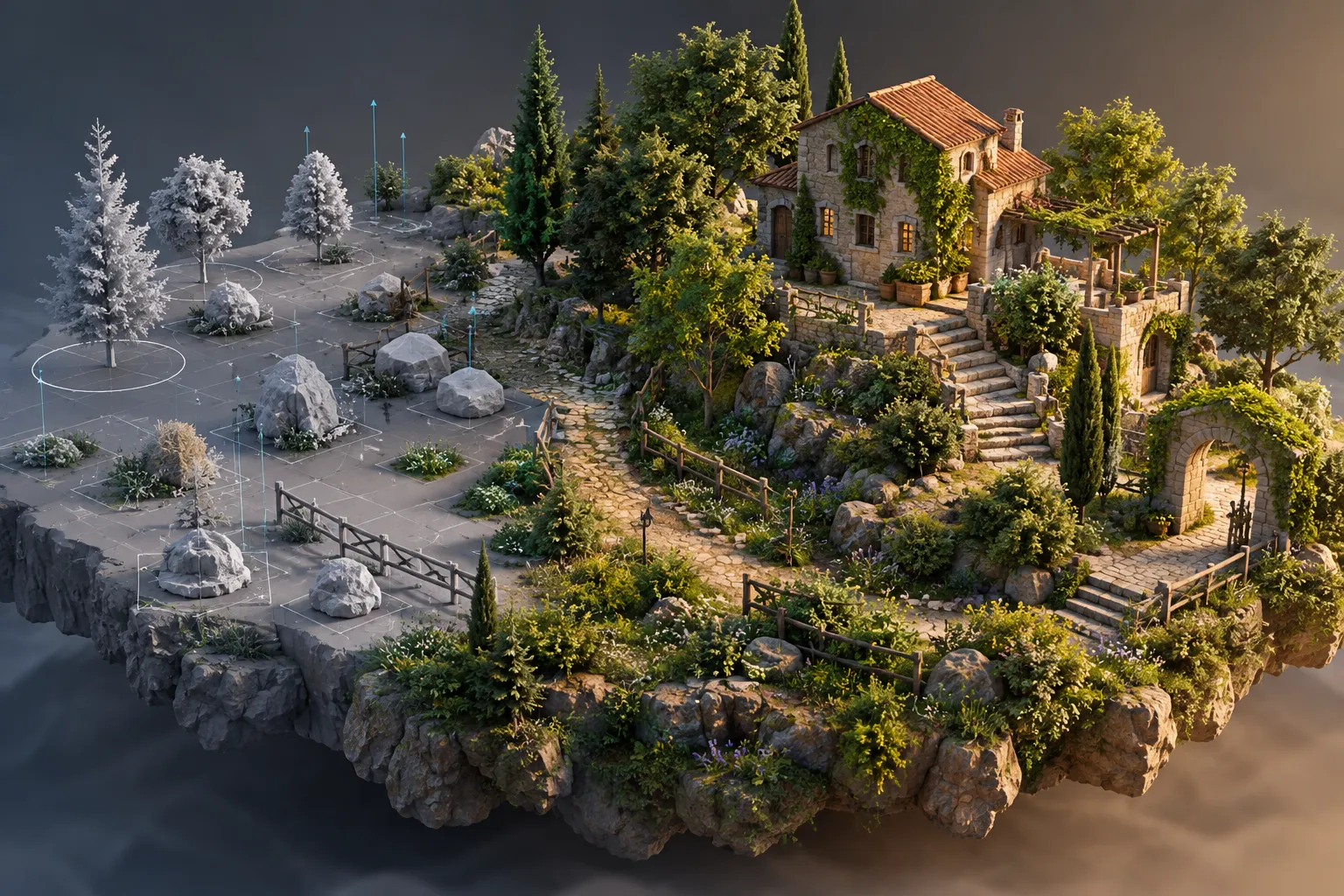
When Building a 3D Scene Turns into Repetitive Work…
Have you ever watched the BagaPie Add-on by Superhivemarket in action? Building an engaging Environment in Blender isn’t limited to modeling a building or a few trees. When you want to create a complete garden, forest, street, or architectural space, you quickly run into repetitive tasks, from placing hundreds of plants and rocks to building fences, stairs, walls, floors, and even setting up materials for a large number of Assets.
The main problem is that no matter how many ready-made models you have, you still need to bring them into the scene, distribute them across the right surface, adjust their scale and rotation, and keep an eye on Performance. If you want to repeat these same tasks across multiple parts of a project, scene management can become seriously time-consuming.
This is where Procedural Workflows and tools designed specifically for Environment creation can simplify many of these repetitive tasks, especially when the goal is more variety in the scene with less manual control.

How Do Scatter and Procedural Design Help with Environment Creation? 🌱
One important part of Environment creation is Scatter, or distributing Assets across a surface. Instead of placing trees, bushes, rocks, or different Objects one by one, you can distribute a collection of Assets across a surface and adjust the result with controls such as position, rotation, scale, and spacing.
For example, imagine you’re creating a 3D forest. You don’t need to place hundreds of trees one by one; you can distribute a collection of trees, bushes, and rocks across the Terrain and control the density and variety of the Environment by changing the parameters.
On the other hand, Procedural Modeling is also very useful for creating architectural elements. Elements such as stairs, fences, walls, floors, windows, or pipes usually have repetitive structures, and you can make part of their creation process parametric. This means that instead of modeling each version again, you change the parameters and the model is created according to the project.
Together, these two Workflows make Environment creation less dependent on manual modeling and allow you to build larger and more varied scenes in less time.
Building Scatter and Architectural Elements with Blender’s Built-in Tools 🎛️
Even without an Add-on, Blender has powerful tools for creating Environments and arranging large numbers of Objects. Depending on the type of project, you can use several different methods:
- Geometry Nodes: For creating Procedural systems and Scattering Assets across surfaces. Nodes such as Distribute Points on Faces and Instance on Points help you place large numbers of Objects across a surface with control over Position, Rotation, and Scale.
- Array Modifier: For repeating an Object along a linear path or creating regular patterns. For example, you can use it to repeat columns, windows, fence sections, or architectural elements.
- Curve: Useful for placing and repeating elements along a path. For example, you can control the path of a fence, cable, pipe, or even a row of Objects with a Curve.
- Modifiers and Modeling Tools: Different Modifiers and standard modeling tools can be used to create architectural elements such as walls, floors, stairs, and other repetitive components.
For simple projects, combining these tools can produce very good results. You can even build more complex systems with Geometry Nodes that can be used for Scatter, Randomization, and Procedural Environment control.
Why Does Blender’s Manual Workflow for Environments Become Time-Consuming? ⏳
The main problem isn’t that Blender lacks enough tools; its built-in capabilities are extensive. The issue is that to build a complete Workflow, you usually have to build and configure much of the system yourself. Each type of Scatter may require different Geometry Nodes, and you also need to create separate systems for architectural elements. When you repeat these tasks across projects, you spend a lot of time building, configuring, and managing systems that could already be ready. Especially in large Environments, managing a large number of Assets and maintaining Performance can also make the Workflow more complicated.
BagaPie: A Procedural Toolkit for Creating Environments in Blender 🌿
BagaPie is a Blender add-on that provides a collection of ready-to-use tools for Scattering, creating architectural elements, working with Assets, Procedural Modelling, and Environment design.
Its main focus is on making repetitive Environment creation and placement tasks faster, from distributing thousands of Objects across a surface and selecting Assets from the Asset Browser to creating stairs, fences, walls, pipes, ivy, and different architectural elements procedurally.
Alongside these tools, BagaPie also includes a collection of ready-made Presets, Array systems, customizable Shaders, an Asset Library, and the GeoPack tool. So we’re not just dealing with a simple Scatter Tool; it covers several different parts of the Environment creation Workflow.
Scatter: Distributing Thousands of Objects Across Any Surface 🌱
One of BagaPie’s most important features is its Scatter system. With this system, you can distribute thousands of Objects across different surfaces; for example, for creating forests, gardens, green spaces, rocky terrain, or even urban Environments.
Instead of placing a tree, rock, bush, or any other Asset one by one in the scene, you can select a collection of Objects and control how they are distributed. This system isn’t limited to simple Placement and provides several tools for better control over Scatter.
- Scatter Paint: Lets you define the area you want to scatter across the surface. This is useful for areas where you don’t want Assets to be distributed evenly across the entire surface.
- Camera Culling: Manages objects outside the camera’s viewing range so that, in heavy scenes, large numbers of unnecessary Objects don’t remain in the working area.
- Object Proximity: Allows you to control how Objects are placed based on their distance and proximity to other elements; something that is useful for creating more natural arrangements or preventing Assets from clustering in inappropriate ways.
- Multi-layer: Lets you work with multiple Scatter layers so you can manage different Asset groups separately; for example, one Layer for trees, one for bushes, and one for rocks.
- Proxy: Useful for managing heavy scenes and helps you maintain a smoother Workflow when working with large numbers of Assets.
- Layer Management: Makes it easier to manage different Scatters and allows you to control and adjust different systems separately.
- Presets: You can save Scatter settings as Presets so you don’t have to rebuild the settings from scratch for similar projects or situations.
Combining these features means Scatter isn’t limited to simply “distributing a few models across a surface,” and you have more control over the location, layering, density, and management of Assets.
Directly Selecting Assets from the Blender Asset Browser 📦
Another useful part of BagaPie is its Asset Browser Integration. You can select one or more Assets directly from the Libraries available in the Blender Asset Browser and bring them into your Workflow.
This becomes more important when you have a large Library of models. For example, imagine you have hundreds of tree, rock, bush, furniture, or architectural models available for an Environment. Instead of constantly opening different files and manually importing Assets into the project, you can select the model you want directly from the Browser.
You can then use these assets in different BagaPie systems, such as Scatter or Array, shortening the workflow from selecting an asset to placing it in the scene.
Architecture: Quickly Creating Architectural Elements Procedurally 🏗️
BagaPie isn’t only for natural Environments. The Architecture section is an important part of the Add-on and is designed to create repetitive architectural elements parametrically.
With the Generators in this section, you can create different types of elements, including:
- Stairs: Creating stairs with control over their structural parameters.
- Spiral Stairs: Creating spiral staircases without manually modelling every component.
- Fence: Create fence systems and repeat components along the desired path.
- Handrail: Creating Handrails for paths and architectural structures.
- Tiles: Creating tile patterns and repeating surfaces.
- Pipes: Creating pipe paths and similar repetitive elements.
- Cables: Creating cables and similar paths procedurally.
- Walls: Creating walls with a parametric system.
- Floors: Creating floors and architectural surfaces.
- Beams: Creating beams and similar linear components.
- Windows: Creating and repeating windows within architectural structures.
The main advantage of this system is that you can change the final structure by adjusting parameters, without rebuilding the entire model from scratch. For example, if the dimensions of an architectural system change or the number of repetitive components increases, adjusting the parameters can be much faster than manually updating each component.
More Than 100 Ready-made Procedural Presets ⚙️
If you don’t want to build every system from scratch, BagaPie also provides a collection of 100+ Procedural Presets.
These Presets use BagaPie Generators and can provide a ready-made starting point for creating different elements. As a result, instead of designing a new system for every project, you can choose a Preset close to what you want and adjust its parameters to fit the project.
The Library for these Presets can be activated through Addon Preferences > Assets.
This section is especially useful for repetitive workflows because if you use a certain type of system repeatedly across different projects, having a ready-made Preset allows you to reach the design and customization stage faster.
Arrays Random: Creating Linear, Circular, and Random Arrays 🔄
The Arrays Random system is designed for creating repetitive arrangements, but unlike a simple Array, it can add more variety and Randomization to the result.
With this section, you can create different Arrays:
- Linear Array: Linear arrangement of Objects.
- Circular Array: Placing Objects in a circular arrangement.
- Grid Array: Creating grid-based arrangements.
- Curve-based Random Array: Placing Assets along a Curve with variation and Randomization.
Another feature is Draw Array. With it, you can select Assets and define their placement path using a Curve.
For example, for a long path of lights, fences, trees, columns, or architectural elements, instead of creating and adjusting each Object individually, you define the path and create the Array along it.
Randomization also helps prevent the result from looking overly organized and repetitive; something that is especially important for natural Assets such as trees and rocks.
Ivy Generator: Creating Ivy with Two Growth Modes 🌿
For creating climbing vegetation, BagaPie also includes a dedicated Ivy Generator.
This tool creates ivy and plants that grow across different surfaces and offers two Growth Modes. This lets you change how the plant grows, depending on the result you want.
Ivy Generator also accounts for Collision, so the plant’s growth can interact with obstacles and existing surfaces in the Environment. In addition, Gravity is included in the growth simulation so that the plant’s movement isn’t just a random line across the surface.
For example, you can use it to cover the wall of a building, a rock, a column, or parts of an Environment and add more vegetation detail to the scene without manually modeling each individual branch.
GeoPack: Packaging and Sharing Geometry Nodes 📦
GeoPack is one of BagaPie’s distinctive features for managing Geometry Nodes systems.
With GeoPack, you can group several Geometry Node Trees together with their related Setup Actions and export everything as a single file in the .geopack format.
You can use this file to share or install the desired system. So if you create a Procedural system and want to transfer it to another project or user, you can keep the related structure as an independent Package.
For teams or projects that use a collection of Geometry Nodes systems, this feature can make managing and transferring Procedural Setups more organized.
Smart Shader: Changing Seasons and Creating Variation in Assets 🌦️
BagaPie doesn’t only focus on Geometry but also provides tools for Asset appearance.
With Smart Shader, you can control certain visual properties of Assets more easily; for example, you can change the Season and randomize the appearance of Assets.
This feature is especially important for natural Assets. If, for example, you use a tree model hundreds of times in an Environment and all versions have exactly the same color and appearance, the repetition of the model becomes noticeable very quickly.
With Variation and Randomization, you can create differences between different versions so that a collection of similar Assets looks more natural and varied.
Installing Asset Packs and Automatically Creating a Library 📚
Alongside its own tools, BagaPie also works with dedicated Asset Packs. After installing the Add-on, you can separately install Asset Packages in the .baga format.
After installing a Package, the BagaPie Library is automatically configured in the Blender Asset Browser. This means BagaPie Assets are placed directly in an environment designed to manage and use Blender’s ready-made models.
This structure means the Assets aren’t just a separate collection of files outside the project; you can manage and use them alongside other Blender Libraries.
Customizable Assets with Adjustable Shaders 🎨
One important aspect of BagaPie Assets is that they aren’t simply ready-made, unchangeable models.
When you select an Asset, its Shader settings are available in the Panel, letting you change the Asset’s appearance.
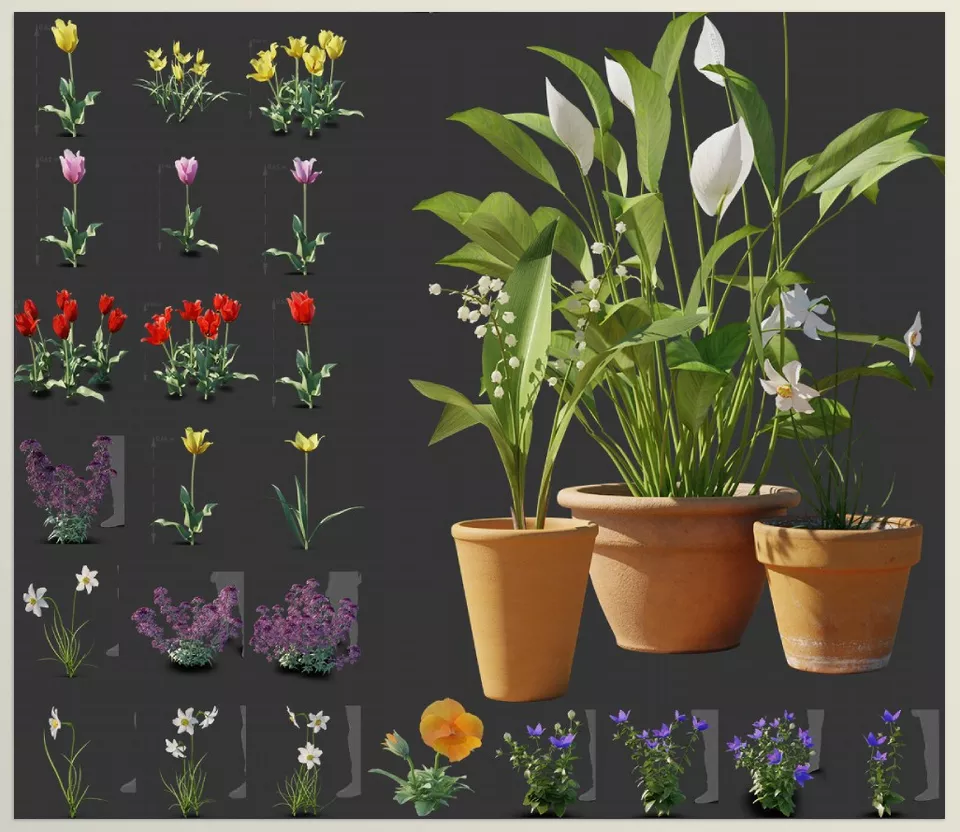
On the other hand, the creator has stated that the materials have been optimized to reduce memory usage and maintain smooth Performance. Depending on the Asset’s needs, the collection uses Procedural Texture, 2K Textures, and, where necessary, up to 4K UDIM.
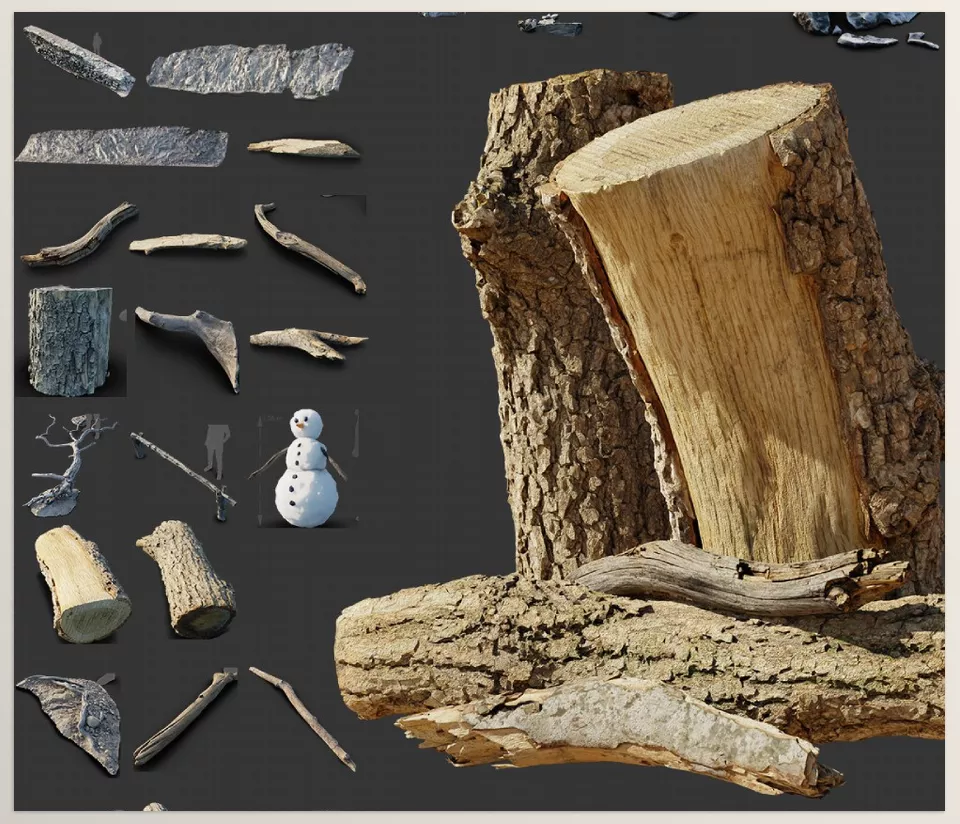
For vegetation Assets, the species are also appropriately named and scaled; therefore, when you bring several types of plants into an Environment, managing the Asset collection becomes easier.
A Library for Creating Complete Environments 🌳
Overall, BagaPie shouldn’t be viewed only as a Scatter tool. Its features cover different parts of Environment creation: from Scatter and Asset Management to Procedural Architecture, Random Arrays, Ivy Generation, Smart Shader, ready-made Presets, and Geometry Nodes management with GeoPack.
This combination lets you quickly select ready-made Assets and use them in the scene while keeping element placement and creation largely Procedural. The result is that building a large Environment, instead of being a collection of manual and repetitive tasks, can become a more organized and controllable Workflow.
How to Use BagaPie Scatter and Assets More Naturally and Professionally? ✨
BagaPie makes many tasks related to arranging and creating Environments faster, but final quality still depends on how you use these tools. If you configure Scatter without considering density, Variation, and the relationship between Assets and the Environment, even a powerful Procedural system can produce a repetitive and artificial result. A few simple tips can help the final result look much more natural:
- Don’t make Scatter too dense: If everywhere is filled with plants and rocks, the Environment will look artificial. Keep some areas more open.
- Randomize Rotation and Scale: Repeating the exact same model with the same size and angle becomes noticeable very quickly. Variation makes Scatter look more natural.
- Use Proximity: Consider the distance between Objects, or between Objects and Environment elements, so you can create a more logical arrangement.
- Take Camera Culling seriously: In large scenes, there’s no need to process all details at the same level of detail.
- Change the Season and Shader: Especially in vegetation Environments, small changes in color and appearance can help prevent uniformity.
- Start with a Preset for Architecture: If a similar element has already been created with a Generator, it’s better to start with a ready-made Preset and only change the parameters you need.
Ultimately, the goal is for the Procedural nature of the Workflow not to be visible in the final result; meaning the tool should help you create controlled variety and irregularity, rather than making everything look overly organized and repetitive.
Creating Environments in Blender: Faster and More Controllable 🌿
When a project goes beyond a few simple models, repetitive tasks quickly multiply. Placing hundreds of Assets, creating architectural elements, adjusting materials, and managing the Library can take up a significant portion of the project’s time.
BagaPie brings these Workflows together in a single Add-on, from Scatter and Asset Browser Integration to Architecture, Arrays, Ivy Generator, Procedural Presets, Smart Shader, and GeoPack. As a result, projects with large Environments, numerous Assets, or repetitive architectural elements have more ready-made tools.
If you spend most of your time in Blender creating and arranging Environments, BagaPie can create a faster and more organized Workflow for this part of the project, especially when you want to focus on designing the Environment instead of rebuilding repetitive systems.
Curious about all the tools Blender has to offer and how they can help you in real projects? Our Blender Tools article covers everything you need to know.



