

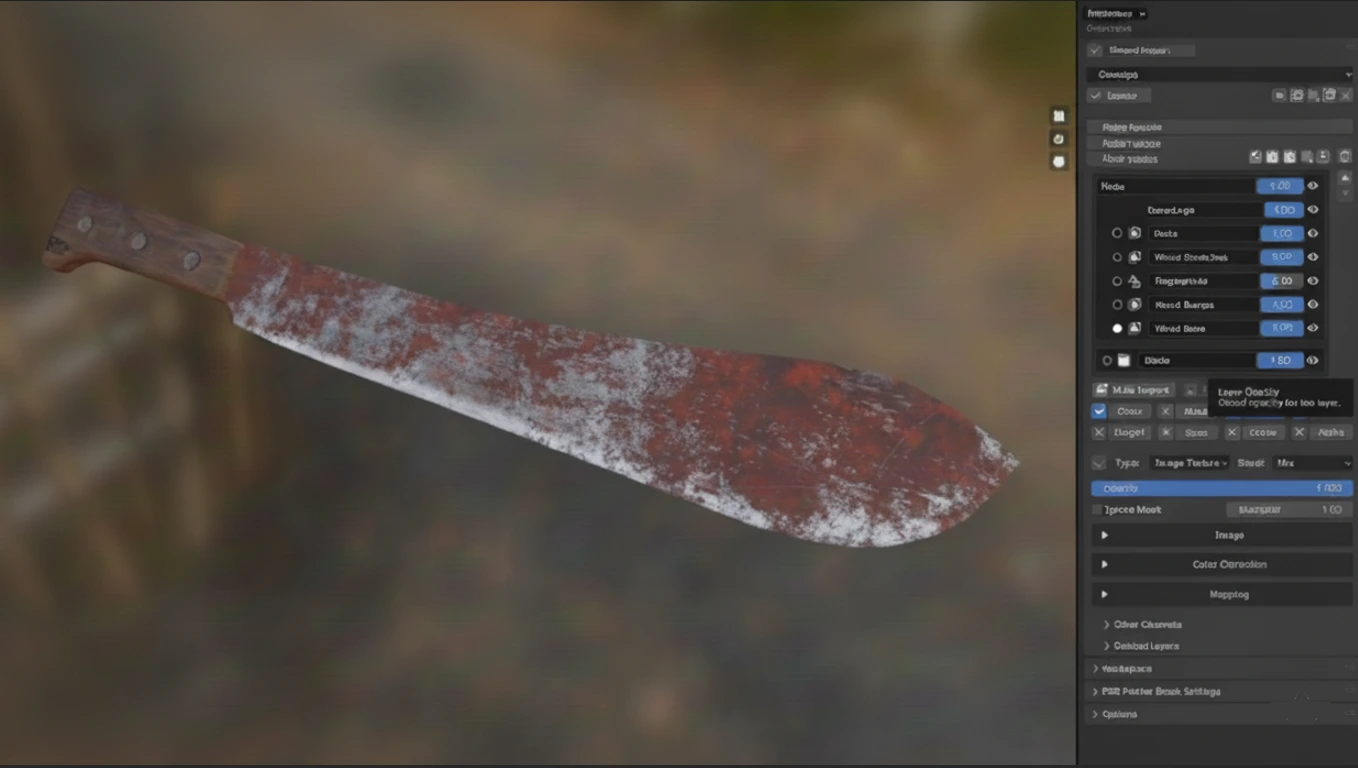
🎨 Color and Materials — Hassle or Pleasure?
Are you experienced in using the Pbr Painter? When you are creating a 3D model, there is always one challenge: making the model look truly realistic and appealing. The way light falls, how reflections behave, and whether fine surface details are visible… all of these determine whether even a simple model looks convincing or ends up feeling artificial and flat.
Now think about needing to manually create these imperfections to scale; you have a rock, a piece of wood, and you want to get little scratches, weathered edges, and small stains to look like they do in real life. But all you have is an empty space; you just create it and hope for the best until you get it right after navigating dozens of nodes and textures for hours at a time. Frustrating.
Now think about something that could make it so easily, seamlessly done. Just a few clicks, everything in its right place: accurate details, correct lighting and shadows, and you’re free to spend your time on real creativity. Color and materials stop being a painful chore and turn into a fun, creative game!

🛠 Definition and Main Use Cases: PBR Means Reality in Your Hands
PBR materials stand for Physically Based Rendering and they act in the virtual world precisely as they would in the physical world. Shadows, reflections, intricate detail all work as they would in the real world.
Concrete examples:
- Ground and nature: Stone, soil, wood, sand… all rendered in a way that even under low light, small details remain visible.
- Clothing and fabrics: Wrinkles, fabric textures, and light interaction that look just like real garments.
- Metal and industrial surfaces: From shiny metal to rusty iron, everything looks realistic under both natural and artificial light.
- Special effects: Water stains, dirt on surfaces, or specific lighting effects, without having to wrestle with textures and nodes for hours.
Why does this matter?
Using PBR means you don’t need to think about camera angles or lighting situations anymore. Everything is realistic from any point of view or within any scene. From cinematic renders to game assets to motion graphics, your models always look like they’re alive.
⚙ Traditional Methods: When Everything Is Manual
Before professional tools like PBR Painter came along, creating realistic materials in Blender meant a lot of manual work and frustration. Usually, you had to:
- Enter the Shader Editor and build and tweak nodes one by one.
- Import textures separately and carefully align and manage each channel.
- Combine normals, roughness, and other details through trial and error until something somewhat realistic emerges.
And of course, the problems were obvious:
- Time-consuming and exhausting: It could take hours or even days to create a semi-realistic material.
- High skill requirement: If you were a beginner, working with nodes and texture combinations could be confusing.
- High chance of errors: A small change in one channel could ruin the entire look of the material and be hard to fix.
- Difficulty in making quick changes: When the project changes or you need a new material fast, you have to start everything from scratch.
Simply put, traditional workflows force you to focus on nodes and constant testing instead of actual design and creativity. Tiring and sometimes discouraging, right?
🚀 Introducing a Professional Tool: PBR Painter — Everything Under Your Control
Now let’s get to the point where working with materials becomes truly fun and enjoyable: PBR Painter. This tool brings everything together and makes the process incredibly simple, eliminating the need to struggle with the Shader Editor and textures for hours.
With PBR Painter, you can control everything in one place and access powerful professional features, such as:
- Full control over all PBR channels: Base Color (Albedo), Roughness, Normal, Displacement, Emission, and any other channel you can think of — all in one environment, hassle-free.
- Advanced layering system: Stack layers, combine normals and details, and create complex masks without manually building nodes.
- Procedural materials: Water stains, dirt, edge wear, organic and natural details, all without creating separate textures.
- Smart material creation: Use ready-made materials and customize them to fit your needs.
- Import materials from the Blender Asset Browser: Use assets directly without manually managing files.
- Support for multiple render engines: View realistic, render-ready materials in both Eevee and Cycles.
- Automatic node management system: Complex node setups are built and managed automatically, so you never have to worry about node construction.
- Opacity control per layer and per channel: Adjust the influence of each layer or channel independently.
- Advanced and combined masking: Create multi-layer mask systems for highly professional details.
- Advanced procedural version: Generate effects like worn edges, random stains, cracks, and even natural surface details.
- Automatic normal generation from multiple layers: Combine normals easily and accurately, without errors.
- Material separation using ID Maps: Easily assign and control materials across different parts of a model.
- Creating realistic effects with fine details: For example, water stains on the ground, dirt on stone, or light interaction on surfaces, without wasting hours.
- All-in-one dedicated workspace: A focused environment where all tools and settings are always within reach.
- Full compatibility with Blender 4.2+ and Blender 5: Legacy versions are also available for older Blender releases.
- Lifetime free updates: Once purchased, you always have access to the latest versions and new features.
A practical example:
Imagine you want to create a stone floor or a metal wall. With traditional methods, you would spend hours building nodes, preparing textures, combining normals and roughness, and constantly testing to make it look natural. With PBR Painter, all of this happens in just a few clicks: natural lighting, subtle shadows, organic details, stains, and wear — all accurate and ready to render.
Simply put, this add-on works like a professional assistant that handles all the tedious and time-consuming material tasks for you, allowing you to focus purely on creativity and real design.
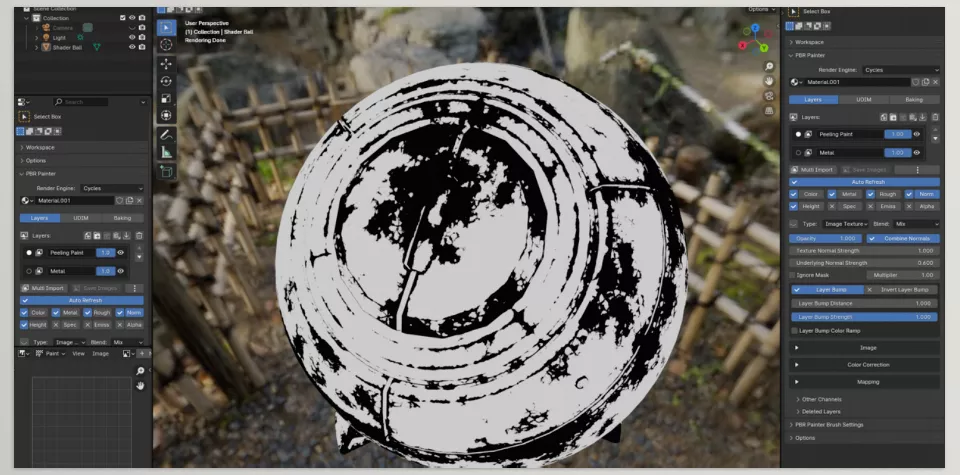
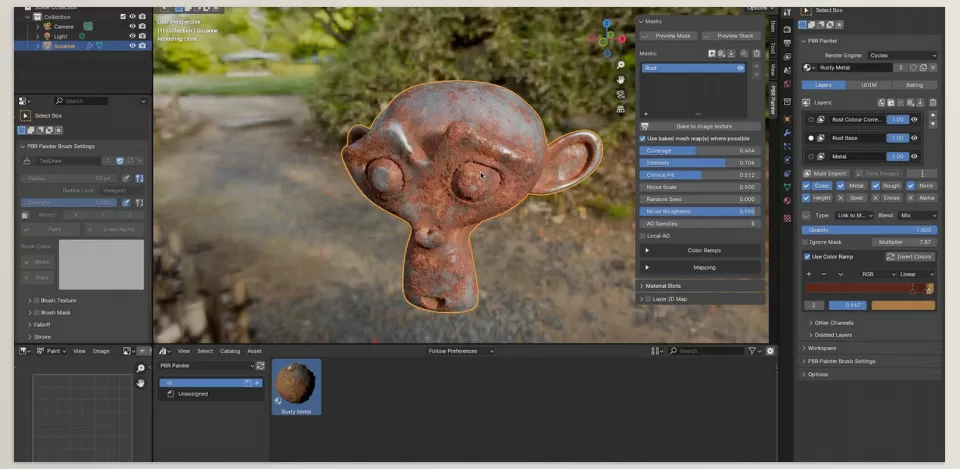
💡 Professional Techniques and Tips: Work Like a Pro with PBR Painter
When working with PBR Painter, a few simple but essential tips can make your materials look far more natural and professional:
- Don’t ignore layers: Control each channel (such as Color, Roughness, Normal, or Emission) separately and build precise details through layering. Layers act like tool cards, each managing a specific surface property.
- Procedural masks and scattering: Want water stains, dirt, edge wear, or natural variation? Use the masking and procedural scattering system to keep effects random and realistic.
- Imported textures: When bringing in external textures, choose the appropriate resolution to preserve quality and fine details.
- Test in different render engines: Before final rendering, always check your materials in both Eevee and Cycles to ensure they look great everywhere, with correct lighting and reflections.
- Combine materials and layers: Sometimes a small additional layer can make a big difference. Adjust opacity or blend modes to achieve more natural results.
- Fine details for added realism: Small elements like surface cracks, scratches, or scattered stains significantly enhance realism.
- Focus on creativity, not nodes: With PBR Painter, you don’t need to worry about complex node setups — spend your time designing and creating instead.
In short, by following these tips, you can create materials that not only look realistic but also feel alive and dynamic, without wasting hours on technical details.
✨ Why PBR Painter Is a Key Player
PBR Painter makes material creation a breeze. It’s no longer a stressful, tiring endeavor. Everything is straightforward, manageable, and intuitive. It does not mean that you have to get lost in nodes and textures to get to what you mean by truly creative. You can layer, add nuances, and compile to achieve natural-looking renders without going through tons of trial and error.
With this tool, you can generate anything you want in a perfectly believable fashion. Floors are made from wood, stone, fabric, and metal, and all of it looks as if it’s living and breathing. It’s the same for smaller effects like a water stain here or an edge worn there—completely realistic after a few clicks.
If you want your materials and surfaces in Blender to look truly professional and alive, trying PBR Painter is an outstanding experience. Not only does it speed up your workflow, but it also completely changes how you approach realism and detail — letting you work with more energy and focus on genuine creativity.
Elevate your Blender workflow with our complete Blender Tools guide, which provides an in-depth explanation of each tool, its best practices, and real-world examples that help bridge the gap between learning and doing.



