

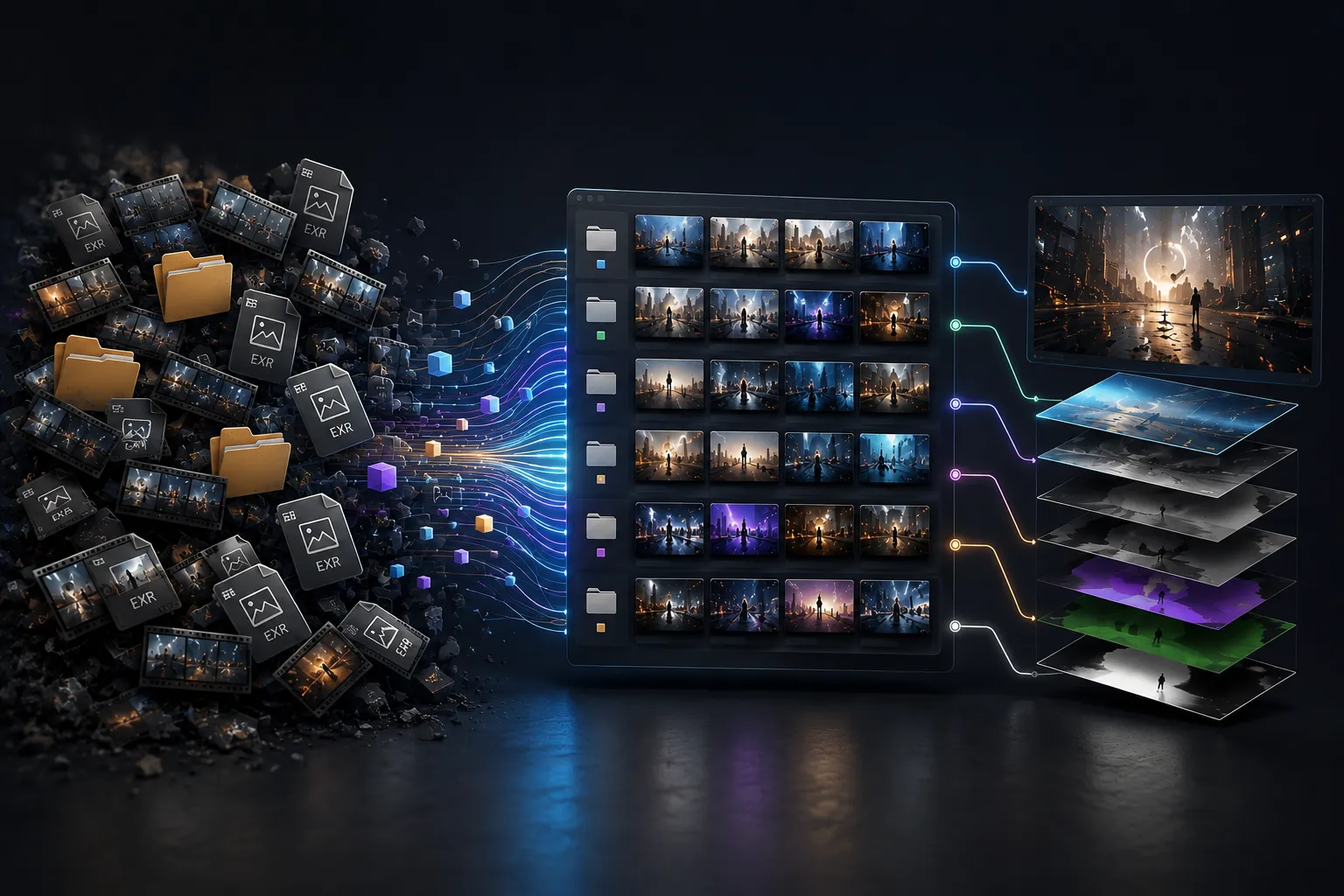
When Finding Files Takes Longer Than Compositing Itself! 😵💫
Do you know what the Gulp Plugin by aescripts does? Have you ever spent several minutes digging through folders just to find the right file? Especially in projects where you export from 3D software, you often end up with tons of files and different versions, and finding the shot you need can take longer than the edit itself.
Even when you do find the files, you still have more work to do. You will need to import these files into After Effects and arrange them correctly. This can be straightforward for one or two shots, but it can quickly become tiring when many files are involved.
In reality, a large part of project time goes to repetitive, management-related tasks rather than creativity. That’s why a tool that can manage renders more efficiently and in a more organized way can make the entire workflow much smoother.

What Does Render Management Mean and Why Is It Important? 📂
Render management means being able to easily find, review, and import all a project’s output files into your software without hassle. As the number of shots and versions increases, an organized method ensures you don’t waste time searching through folders.
For example, imagine you’ve rendered a 3D scene several times: an initial version, a few revised versions, and finally the final output. On top of that, you might have several separate files for each shot. If you have to manually figure out which file is newer or which one belongs to that particular shot every time, the chance of choosing the wrong file becomes much higher.
That’s why render management isn’t just about keeping folders organized; it’s about making the entire workflow faster. The easier it is to access your files, the more time you’ll have for design, color correction, and compositing, and the project will move forward with less stress and fewer errors.
How Is This Done Without a Plugin? ⚙️
After Effects provides all the tools you need to import and manage render files by default. This means that even without plugins, you can import 3D projects into the software and build your composite; you just have to do more of the process manually.
After Effects’ Built-In Tools
To manage renders, these built-in After Effects features are commonly used:
- Import: For importing image sequences and render files
- Project Panel: For creating folders and organizing shots and footage
- Replace Footage: For replacing a file with a newer version
- Relink: For reconnecting files whose paths have changed
These tools are completely practical and are usually enough for smaller projects.
Why Does This Method Become Difficult in Large Projects?
The problem starts when the number of shots and different versions increases. Each time, you have to find the correct folder, make sure you’ve selected the latest render, and import the files into the project one by one. If the file paths have changed, you also have to spend time relinking everything again. Each of these tasks might take only a few minutes, but on professional projects, these repetitive steps can add up to hours of lost time.
Gulp: A Smart Render Browser for After Effects 🚀
Gulp is an After Effects plugin that simplifies finding, importing, and managing render files. Instead of searching through different folders every time and importing files one by one, all your shots appear neatly in a single panel, so you can quickly bring them into your project.
This tool is mainly designed for 3D and VFX projects, meaning situations where you’re exporting from software and render engines such as Cinema 4D, Blender, Redshift, Octane, Arnold, or V-Ray and dealing with a large number of render files.
Quickly Browse All Renders in One Panel
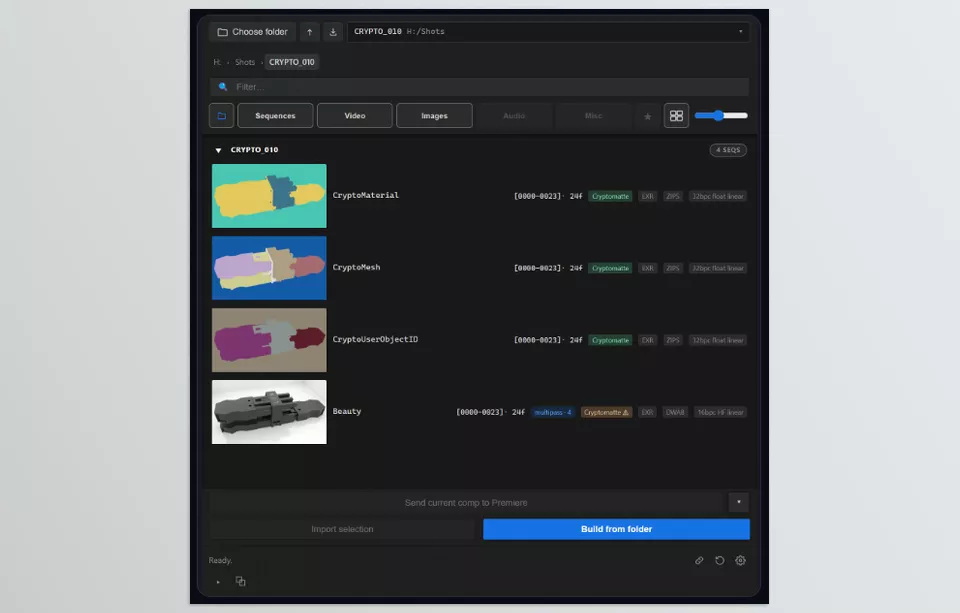
One of Gulp’s most important features is that it turns your render folder into a professional browser. Instead of seeing hundreds of individual frames in the Import window, each sequence appears as a single shot, along with information such as the number of frames and its frame range.
In addition, you can search for files by name or format, add frequently used folders to Favorites, and even drag a folder into the panel to instantly access all of its contents. This is especially useful when you’re working on several projects at the same time, as it makes finding shots much faster.
Preview Renders Without Importing Them
Finding the correct render version can be difficult when a project contains hundreds of similar files. Gulp solves this problem by generating thumbnails directly inside its browser.
You can preview still images, image sequences, and video files before importing them into After Effects. For animated sequences, hover-scrubbing lets you move your mouse across a file preview and quickly check the animation, similar to the workflow in Premiere Pro. This makes comparing different shots and versions much faster.
See What’s Inside a File Before Importing It
Normally, to find out what layers an EXR file contains, you first have to import it into your project. But Gulp displays file information before you import it.
The plugin can detect whether a file is multilayered, what it contains, whether its color depth is 16-bit or 32-bit, and even warn you immediately if some rendered frames are missing. This means you can make sure the file is complete and correct before bringing it into the project.
Automatically Build Organized Comps
If a shot contains multiple files or several render layers, Gulp can create a ready-to-use comp with a single click. All layers are imported with appropriate names, placed in organized folders, and automatically arranged in the correct order.
For example, if a shot includes Beauty, Shadow, Reflection, Ambient Occlusion, and Z-Depth layers, you don’t have to import and name each one separately. Gulp prepares everything as an organized project so you can go straight into compositing.
Smart Depth and Puzzle Matte Management
3D projects usually include layers used to create effects such as depth of field, subject selection, or masking different parts of an image. Preparing these layers normally involves several steps and sometimes requires applying different settings.
Gulp simplifies this process. It imports Depth layers ready for use and converts Puzzle Mattes into separate layers, making it much faster to create masks and select different parts of the image.
Advanced Cryptomatte Support for Precise Object Selection
Selecting objects from a rendered 3D scene can be very time-consuming. Gulp supports Cryptomatte workflows in After Effects.
Gulp is able to recognize Cryptomatte passes within EXR files, retain the information, and automatically apply After Effects’ Cryptomatte effect on import. This lets artists quickly select objects, materials, or assets from a rendered image without creating masks themselves.
For example, you can easily isolate a single object from a complete 3D scene and adjust its color, brightness, or effects without affecting the rest of the image.
Track Renders While They’re Still in Progress
One of Gulp’s interesting features is that you don’t have to wait for the entire render to finish. If files are still being rendered, the plugin displays the progress of each shot and adds new frames to the project as they become available.
For studios that process renders across multiple systems, or for projects with heavy rendering workloads, this feature lets you start compositing while rendering is still underway, reducing wasted time.
Relink Missing Files in Just a Few Clicks
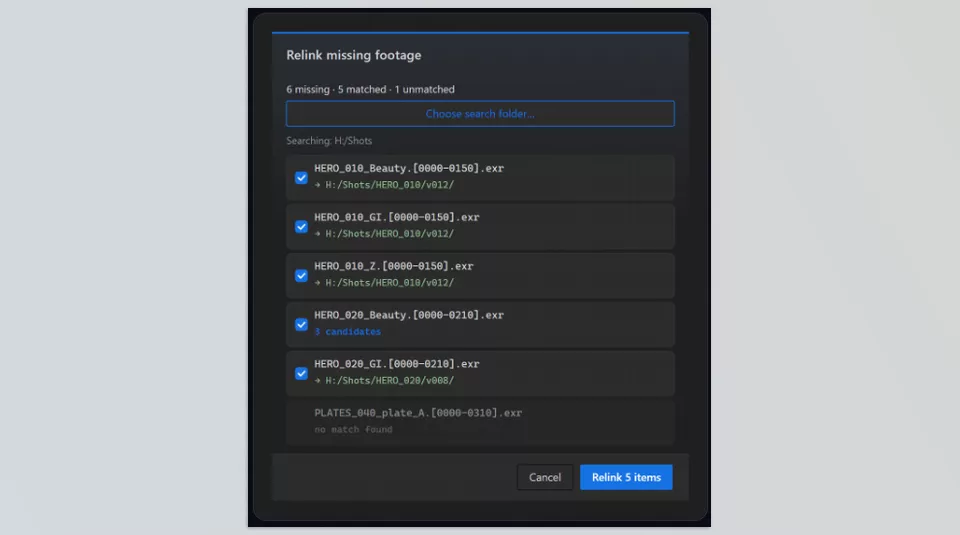
If you’ve ever moved a project to another computer, you’ve probably encountered the Missing Footage message. Normally, you have to find and reconnect the files one by one.
Gulp scans the entire project, searches for missing files in a folder you choose, and reconnects them in batches. If multiple similar versions exist, it asks before replacing them to make sure you don’t select the wrong file.
Convert Multilayer Files Into Separate Outputs
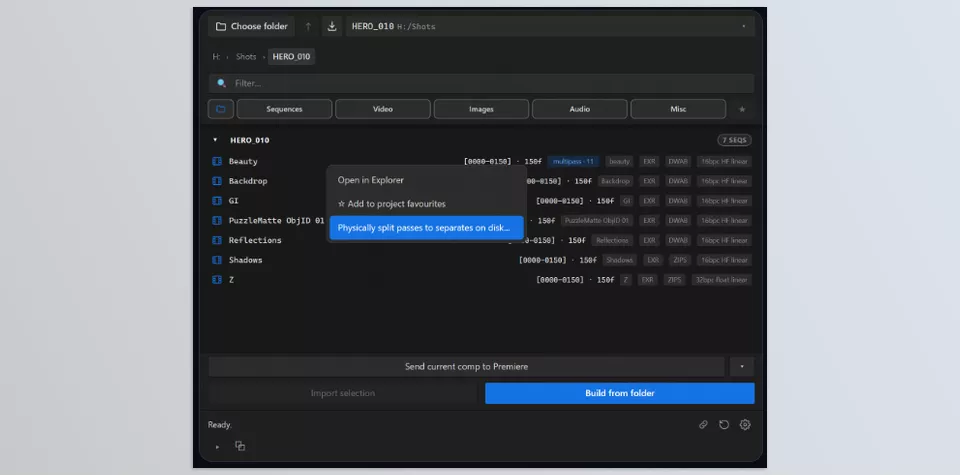
Sometimes you only need one layer from a MultiPass file, such as just the Shadow or Reflection pass. Gulp can convert each layer into separate EXR files and save them to your drive.
This feature is useful when you want to use only one pass for color correction, archiving, or transferring to another application without carrying the entire multilayer file.
Compatible With Professional Render Engines
Gulp is compatible with outputs from popular render engines such as Redshift, Octane, Arnold, V-Ray, and many EXR-based rendering workflows. It also supports common image formats such as EXR, PNG, TIFF, DPX, PSD, and even video files such as MOV and MP4.
Overall, rather than being an effect-creation tool, Gulp is more of a smart assistant for render management—one that keeps busy projects more organized and takes a large portion of the repetitive work before compositing off the designer’s shoulders.
When working on complex After Effects projects, organizing render files is only one part of the workflow. After preparing and compositing your shots with tools like Gulp, the next challenge is often managing different project versions and outputs. Whether you need multiple client versions, different languages, or various social media formats, having a proper layer management system can save a significant amount of time. For this part of the process, tools like LAYERQ help artists organize layer variations, switch between versions, and render multiple outputs more efficiently from a single project.
A Few Tips for Cleaner Results 🎯
Gulp automates many repetitive tasks, but an organized project will always move faster and with fewer errors. By following a few simple habits, you can make renders easier to find while keeping your composite more organized.
- Keep each shot in a separate folder. This prevents different versions of a project from getting mixed together and makes them easier to find.
- Name your render versions. Use names such as v01, v02, or Final so you always know which output is the latest.
- Use Favorites. Save folders you work with regularly so you don’t have to find their paths again every time.
- Check file information before importing. Gulp displays render details and helps you make sure you’re importing the correct file into the project.
Ultimately, these tips aren’t just about staying organized; they’re about spending less time managing files and keeping your main focus on design and compositing.
Less Time Managing, More Time Creating 🎬
If you’ve always thought that project slowdowns were only caused by rendering or After Effects being heavy, a large part of your time may actually be getting wasted somewhere else: finding the right file, importing new versions, and organizing the project. These tasks might seem small, but on real projects, they can take hours of your time.
Gulp was created to remove this kind of repetition. Rather than focusing on folders and files, Gulp provides a well-structured workspace that lets you quickly locate shots, import them into your project, and jump into the creative side of production. Not only do you work faster, but you also work with fewer errors and more structured projects.
If you work with CGI, VFX, or 3D renders, Gulp can be one of the most valuable tools you can incorporate into your production pipeline. On the surface, it may appear to be merely a render browser, but after working on a few projects, you will notice just how much time and concentration Gulp has saved you.
Want to better understand how After Effects tools work? Before trying new resources, take a look at our After Effects tools guide covering plugins, scripts, presets, templates, and other tool categories to learn what each one is designed for.



