


✨ Why Doesn’t Your Skin Look the Way It Should in Video?
Are you familiar with using the FacePro Plugin by aescripts? Have you ever recorded a video and then, during editing, realized that your facial skin doesn’t look as good as you expected? Not necessarily bad, but certain details like small pimples, uneven texture, or skin shine appear more noticeable than they should.
The reality is that the camera—especially in video—is much harsher than the human eye. Things we normally don’t even pay attention to turn into details in the image that lower the overall quality.
This is where facial retouching stops being a luxury option and becomes an essential step in professional editing.

🎯 What Exactly Is Face Retouching in Video?
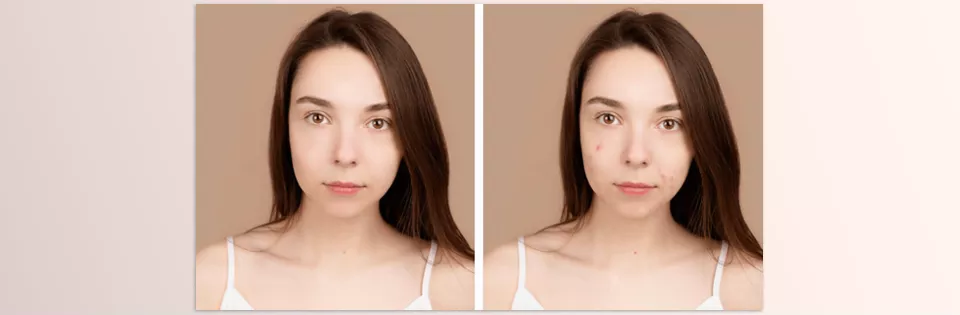
Face retouching means improving the appearance of the skin without removing its natural look. The goal is not to make the face overly smooth or artificial, but simply to reduce small imperfections so the image looks cleaner and more professional.
For example:
- Removing temporary pimples or blemishes
- Evening out skin texture
- Reducing shine on the face
- Adjusting skin tone
These adjustments are widely used across different types of projects—from YouTube and Instagram videos to advertisements, interviews, and even cinematic productions. The reason is simple: the face is the first thing the audience notices, and it directly affects the overall feel of the content.
🛠️ How Is Retouching Done Without This Plugin?
To retouch faces in video, you don’t necessarily need AI tools. You can achieve results using After Effects, Premiere Pro, or even combining them with Photoshop. Editors usually rely on a combination of techniques to make the skin look cleaner and more even.
Here are the most common methods:
🔹 Blur + Mask (Classic Method)
One of the simplest methods is using effects like Gaussian Blur or Fast Box Blur. Typically, a mask is drawn over the face and a small amount of blur is applied to soften the skin.
The issue is that if not controlled properly, the skin can quickly start to look artificial and plastic. That’s why adjusting the blur amount correctly is very important.
🔹 Clone & Healing (Manual Blemish Removal)
For more precise removal of pimples or spots, tools like Clone Stamp or Healing are used. This is usually done in Photoshop or via Dynamic Link.
This method is very accurate, but completely manual. For longer videos or when the subject is moving, it becomes time-consuming and tiring.
🔹 Older Plugins (Like Beauty Box)
Some plugins, like Beauty Box, were designed to simplify retouching. These tools attempt to detect skin and smooth it.
However, their detection is usually not very accurate—especially under different lighting conditions or with varying skin tones. As a result, the output can sometimes feel incomplete or slightly artificial.
🔹 Face Tracking
To ensure the effect stays on the face, you usually need to track it—meaning you follow its movement frame by frame so the effect doesn’t drift away.
This step can be especially time-consuming and sensitive when the subject has a lot of movement.
Overall, these methods are still useful, and many projects are completed using them. But since most of them are manual and lack true facial understanding, they either take a lot of time or make it harder to achieve a natural result.
🤖 FacePro Plugin; When Retouching Becomes Truly Smart
FacePro Plugin comes in exactly where manual methods become too time-consuming or fail to deliver natural results. This plugin is designed for After Effects and Premiere, with the goal of transforming retouching from a complex, technical task into a fast and controllable workflow.
The main difference with the FacePro Plugin is that it doesn’t just work on pixels. It first analyzes the image, recognizes the face, and then decides what changes should be applied and where. This is what makes the output look much more natural.
💡 Smart Face Detection & Analysis
The first step is accurate face recognition. As soon as FacePro Plugin is applied to a clip:
- It automatically detects faces
- It can recognize multiple faces simultaneously
- It starts working without the need for masks or manual setup
This essentially removes one of the most time-consuming steps—face selection and isolation.
🎯 Precise Skin Mask Creation
One of FacePro’s most important features is here. Unlike older methods that rely on color, this tool actually understands:
- Which parts are “skin”
- Which parts are hair, eyes, eyebrows, or lips
- And it maintains this accuracy even under different lighting conditions
📌 Result:
All adjustments are applied only to the skin, without damaging important facial details.
✨ Smart Blemish Removal
FacePro Plugin doesn’t just blur the image to remove blemishes. Instead:
- It analyzes the surrounding skin texture
- Samples from healthy areas
- Replaces imperfections naturally
This means:
- Blemishes disappear instead of just fading
- Skin texture remains natural
🌿 Skin Smoothing Without a Plastic Look
One of the biggest challenges in retouching is balancing smoothness and natural appearance. FacePro Plugin handles this intelligently:
- It reduces skin unevenness
- Preserves important details like skin texture
- Prevents an overly smooth, artificial look
📌 The result is clean—but still looks real.
🎨 Additional Tools for More Control
Beyond basic retouching, you also have useful tools to fine-tune the result:
- Whitening: Brightens and evens out skin tone
- Shine Removal: Removes unwanted shine (e.g., forehead or nose)
- Color Correction: Adjusts color, lighting, and contrast specifically for skin
These tools allow you not only to correct but also to stylize your image.
⚙️ High Control & Flexibility
Even though FacePro Plugin is AI-based, it doesn’t take control away from you. You can:
- Adjust the intensity of each effect individually
- Review and refine the generated mask
- Fine-tune the final output exactly to your preference
📌 This means a combination of AI power + manual control.
🎬 What Does It Do in Practice?
In a real-world scenario—like a YouTube or commercial video:
- No need for manual masking
- Editing time is significantly reduced
- The output looks cleaner and more professional
- Most importantly, natural appearance is preserved
In the end, FacePro Plugin is more than just an “effect.” It’s an intelligent retouching system that helps you achieve results faster and more precisely—results that previously required a lot of time and experience.


🎯 Tips for a More Natural and Professional Result
Even though FacePro Plugin simplifies the retouching process, how you use it still has a big impact on the final result. Following a few simple tips can help your work look more natural, clean, and professional:
- Don’t overdo it; less is always better: Increasing smoothing too much may look clean at first, but quickly makes the skin appear artificial and plastic. It’s better to keep some natural skin texture.
- Follow the correct order: Start with blemish removal, then apply skin smoothing. This helps achieve a more natural and even result.
- Check the mask once: Even with accurate automatic detection, small mistakes can occur in some frames. A quick check ensures the effect is applied only to the skin.
- Maintain balance in multi-person scenes: If multiple people are in the frame, adjust the effect so it looks consistent across all of them. Large differences can make the image feel unnatural.
- Use color correction intentionally: The Color Correction tool should be applied only to the skin—not the entire image. This keeps the overall scene intact while improving skin tones.
In the end, the most important thing is that your goal in retouching should not be to “beautify,” but to make things look “cleaner and more natural.” Keeping this in mind, even simple settings can produce excellent results.
🚀 Is It Worth It?
The truth is, face retouching has always been part of professional work. What made it frustrating was the time and precision required. You either had to spend a lot of time on masking and adjustments, or end up with a result that felt somewhat artificial. This is exactly where tools like FacePro Plugin prove their value—where speed and quality no longer have to be sacrificed for one another.
FacePro shifts your focus away from technical struggles and toward the final result. When complex steps like face detection, skin masking, and initial retouching are handled intelligently, all you need to do is fine-tune the settings and shape the output to your taste.
If you work with video—especially on projects where the face plays an important role—you’ll quickly realize that having a tool like this is more than just an “extra option.” It’s actually a shortcut to cleaner, faster, and more professional results—saving you time while elevating the quality of your work.
If you’re trying to get more creative while also speeding up your workflow in After Effects, our AE Tools guide is exactly what you need to keep things smooth and efficient.



