

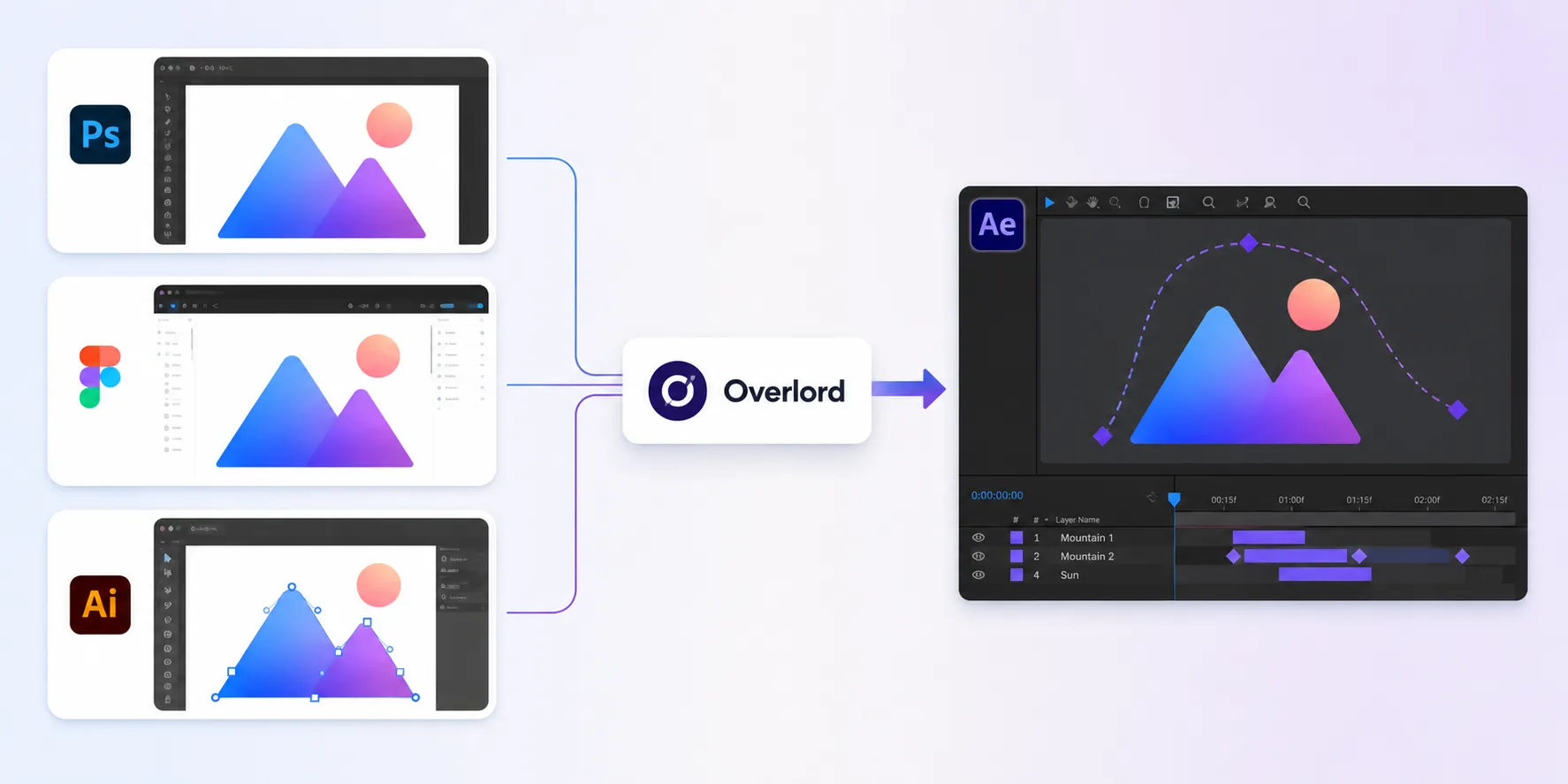
When Design and Animation Finally Become Friends 🎯
Are you familiar with what the Overlord Plugin by battleaxe can do? Have you ever spent a lot of time carefully preparing a design in Illustrator or Photoshop, only for the problems to start as soon as you try to bring it into After Effects? Layers don’t transfer properly, some details get lost, or the text is no longer editable.
This is a familiar problem for many motion designers because transferring a project between different applications isn’t always as simple as Copy/Paste. Especially in complex projects, all that back-and-forth can take a lot of time and energy.
Now, if you could bring design elements into After Effects much more easily and with a structure that’s suitable for animation, a large part of these headaches would disappear. As a result, instead of preparing the file all over again, you could get to the main part of the work much faster: animating the design and bringing it to life.

When the Design Is Ready, Why Should Animating It Be Difficult? 🎨➡️🎬
In motion graphics projects, designs are usually created in applications like Illustrator, Photoshop, or Figma and then brought into After Effects for animation. Here, transferring a design doesn’t just mean moving an image from one place to another; what matters is that the elements remain editable and can still be animated. ✨
For example, imagine you have a user interface, logo, or vector illustration made up of multiple Shapes, text elements, Gradients, and Masks. If these elements are transferred properly, you can animate each part separately inside After Effects. But if they’re turned into a simple image during the transfer process, you essentially lose a large part of the design’s flexibility. 🧩
This is even more important when it comes to Text. When text is brought into After Effects as an editable layer, you can control its font, color, weight, letter spacing, and even animations for individual characters. These small details give you much more freedom when creating professional motion graphics. 🎯
Common Ways to Transfer Designs 🛠️
Before specialized tools became part of this Workflow, motion designers usually relied on Adobe’s built-in features to get the job done. Depending on the type of project, there are several common methods, each of which can be useful in certain situations:
- Importing a file: You can import an Illustrator or Photoshop file directly into After Effects and use its layers inside your project.
- Copy/Paste: For some Shapes and vector paths, you can copy elements from Illustrator and Paste them into After Effects.
- Importing layers separately: In Photoshop projects, you can keep layers separate and use each one independently inside After Effects.
- Manual reconstruction: If part of the design doesn’t transfer properly, you have to rebuild certain Shapes, Masks, or graphic elements inside After Effects.
Where the Problems Begin 😵💫
These methods work perfectly well for simple projects, but the more complex the file becomes, the more noticeable their limitations become. Some details may not transfer properly, certain design features may be lost, or you may have to go through several manual steps to organize and prepare the layers. And if you regularly move back and forth between Illustrator, Photoshop, and After Effects, even a small design change can mean repeating all of these steps again—something that takes time and can seriously slow down your Workflow.
Overlord: The Bridge That Connects Design Directly to Animation 🎨➡️🎬
This is where Overlord comes into the picture: a tool built to create a direct connection between Illustrator, Photoshop, Figma, and After Effects. Its main idea is that instead of simply transferring a file or image, you can move the actual design elements between applications while preserving their editable structure as much as possible.
As a result, something that previously involved several steps of Importing, Copy/Pasting, rebuilding Shapes, and organizing layers can be done much faster. Especially when a project is constantly moving between the design and animation stages, this direct connection can make the Workflow significantly smoother.
Directly Transferring Illustrator Designs 🎨
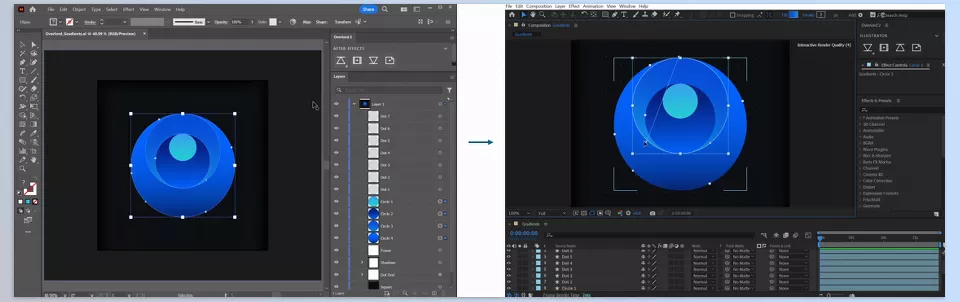
One of Overlord’s most important features is transferring elements from Illustrator to After Effects. Vector paths, Shapes, colors, and linear and radial Gradients can be converted into elements that can be used and edited in After Effects.
This means that if you have a logo, illustration, icon, or vector design, you don’t have to turn everything into a flat image. You can transfer different parts of the design and then create separate animations for each part inside After Effects.
Even some features that are usually lost when transferring from Illustrator can be preserved, including Parametric Rectangle and Parametric Ellipse, colors stored in Swatches, and Guide Layers. This is especially useful for complex vector files.
Transferring Gradients Without the Hassle 🌈
Gradients are one of those elements that aren’t always as easy to transfer between design applications and After Effects as a regular Shape. Overlord can transfer Illustrator’s Linear Gradients and Radial Gradients in a format suitable for After Effects.
As a result, instead of ending up with a gray Shape or a completely different appearance after the transfer, much of the Gradient structure is transferred along with the design. Of course, Freeform Gradients and Mesh Gradients can’t be created directly with After Effects Shape Layers; for cases like these, Overlord also provides the option to Rasterize them as PNG files.
Transferring Text as Fully Editable Layers ✍️
One of the most appealing parts of Overlord is its ability to transfer Text from Illustrator, Photoshop, and Figma to After Effects. Text can be brought into After Effects as an actual Text Layer, which means you don’t have to deal with an image or a non-editable Shape.
Important information related to the appearance of the text can also be transferred with it, including Kerning, color, font, weight, and Style. So even after the transfer, you can still modify the text and use After Effects’ Text Animation features.
For projects where Typography plays a central role, this feature is especially important. For example, you can design a headline in Illustrator or Figma, bring it into After Effects, and then animate individual characters without having to recreate the text from scratch.
Converting Photoshop Layers into Real After Effects Elements 🖼️
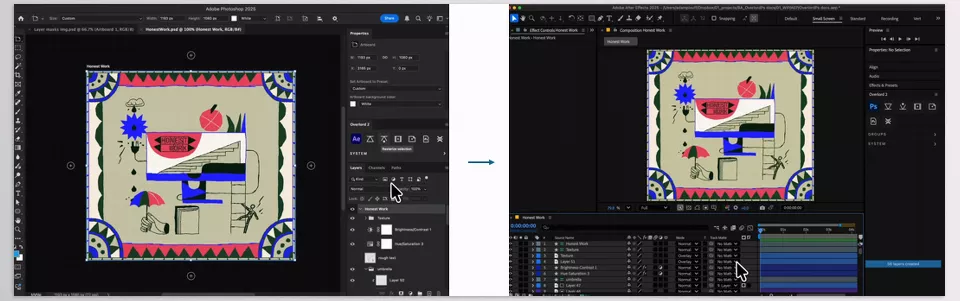
Overlord isn’t built only for Illustrator; it also brings Photoshop into this Workflow. Instead of simply importing a PSD file into After Effects as a file, you can convert Photoshop layers into real, usable elements inside After Effects.
This transfer can include elements such as Adjustment Layers, Masks, Clipping, Layer Styles, Text, Gradients, and regular layers. As a result, different parts of a Photoshop design can retain a structure that is better suited for continued work and animation.
For projects such as user interface designs, graphic composites, animated posters, or any project where the initial design is created in Photoshop, this feature can eliminate a significant amount of manual preparation.
Directly Connecting Figma and After Effects 🧩
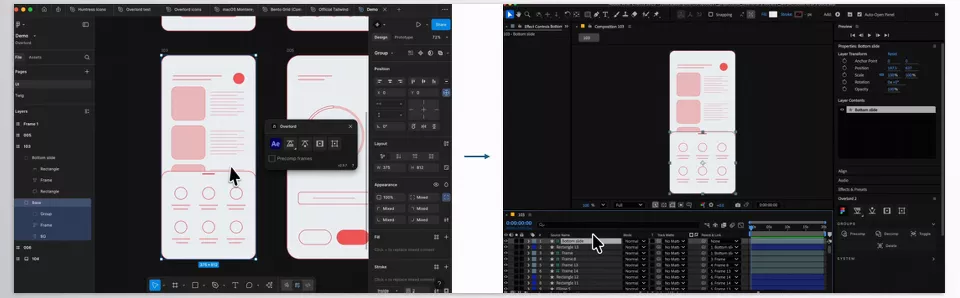
If most of your project designs are created in Figma, Overlord covers this part of the Workflow as well. The tool can work with both the desktop and web versions of Figma and transfer design elements from Figma to After Effects.
Frames are brought into After Effects, and their pixel dimensions are matched to the destination Composition. This means a design created for a specific size can be brought into the animation environment without requiring you to manually readjust its dimensions.
For more complex groups such as Icons, Components, and Component Groups, you can also Rasterize the elements into a single image. Some Components can even be brought in as Essential Graphics Precomps, which can be especially useful for user interface projects and system-based designs.
Transferring Images Placed in Illustrator 📷
Overlord doesn’t work only with Shapes and Text. If you have images placed inside an Illustrator file, those images can also be transferred to After Effects.
Images can be saved relative to the After Effects project path or to a specific location on your system. For files that combine vectors and images, this feature means you don’t have to locate and import the images separately from the original file.
Two-Way Transfer 🔄
One important thing about Overlord is that the Workflow isn’t one-way. The connection between design applications and After Effects can also work in the opposite direction. So when a project requires back-and-forth movement between design and animation, you don’t have to go through separate manual processes every time.
For example, you might prepare or modify an element in After Effects and then want to bring it back into the design environment. This quick back-and-forth makes the boundary between the design and animation stages less disruptive to your Workflow.
Quickly Moving Groups with Precomp and Decomp ⚡
Overlord also includes several useful features for managing groups. One of them is the ability to quickly Precomp and Decomp groups, which can eliminate several manual steps when transferring and managing complex structures.
This feature is especially useful when a design consists of many elements and you need to manage its grouping between the design environment and After Effects. Instead of going through several separate steps for every structural change, you can organize groups more quickly.
Matching Artboards and Compositions 📐
Another useful Overlord feature is the ability to match Illustrator Artboards with After Effects Compositions. This helps keep the dimensions and working areas of the design and animation more closely aligned.
In projects where you have multiple Artboards or multiple Compositions with different dimensions, this kind of synchronization can reduce some of the manual adjustments and prevent mistakes related to project dimensions.
Clipping Masks Are Preserved Too ✂️
Clipping Masks are widely used in Illustrator and Photoshop, but transferring their structure into an animation environment isn’t always straightforward. Overlord also supports transferring Clipping Masks as part of its Workflow.
This means that when you’ve constrained an image or Shape using a specific Mask, you can bring that structure into the animation stage more easily without having to completely rebuild it for animation.
Transferring Color Swatches and Guide Layers 🎯
Along with the graphic elements themselves, some supporting design information can also be transferred. Illustrator Color Swatches can be carried through the Workflow, making it easier to preserve the project’s color palette.
Guide Layers are also supported, which can be helpful in precise projects for maintaining structure, measurements, and element placement.
Transferring Frame Sequences from Photoshop 🎞️
Overlord also supports Frame Sequences and can export layered Image Sequences from Photoshop. This feature also gives you control over the number of layers and the desired section of the Work Area.
For projects that use Photoshop as part of the process for creating frames or sequential images, this feature can make transferring data to the next stage of the Workflow easier.
A More Integrated Workflow for Designers and Motion Designers 🚀
Ultimately, all of these features mean Overlord is more than just a tool for Copy/Pasting Shapes. Its main goal is to bring Illustrator, Photoshop, Figma, and After Effects into a more unified Workflow—one where designs can move more easily into the animation stage and changes can move between applications with less hassle.
For someone who constantly moves between design and motion graphics, simply eliminating these repetitive tasks can make a huge difference. Instead of spending a large part of your time preparing files and rebuilding elements, you can spend more time on what actually matters: creating a great animation from the same design you invested time in from the beginning. 🎬✨
A Few Tips for a Better Workflow 🎯
To get the most out of Overlord, it’s best to keep the structure of your design file organized before transferring it. The more logically your layers and groups are named and organized, the easier the project will be to manage in After Effects.
- Keep your design file clean. Properly grouping layers helps prevent the project from becoming cluttered and confusing after the transfer.
- Don’t transfer everything. Only bring elements into After Effects that actually need to be animated; this keeps the project lighter and easier to manage.
- Use editable transfer for text. If the Typography is going to change inside After Effects, it’s better to transfer the text in an editable form.
- Use Rasterization for complex designs. Some elements, such as Mesh Gradients, can’t be converted directly into Shape Layers; in these situations, converting them into images can be a more practical choice.
- Check the layer structure once before animating. A few seconds of organization at the beginning can prevent a lot of problems later in the project.
Ultimately, these few simple tips can make file transfers smoother and let you move on to animating your project with greater peace of mind. ✨
When the Gap Between Design and Animation Gets Smaller 🎯
If most of your projects move between Illustrator, Photoshop, Figma, and After Effects, chances are a large part of your time isn’t actually spent animating—it’s spent preparing files for animation. Overlord shortens exactly this frustrating part of the process and helps you bring designs into After Effects with a more suitable structure and less hassle.
Its main advantage becomes even more noticeable when a project is large or constantly changing. A small change in the design shouldn’t mean having to reorganize layers, rebuild Shapes, or prepare Text and Masks from scratch all over again. When transferring between applications is faster and more controllable, you can move back and forth between design and animation much more easily. 🔄
Ultimately, Overlord does more than just remove a few clicks from your Workflow; it allows these two stages to truly work side by side. If design is an important part of your projects and you regularly need to bring it into After Effects, having a bridge like this can eliminate a lot of repetitive work and save your time for something more valuable: creating professional and creative motion graphics. 🚀
Looking to expand your After Effects knowledge? Check out our complete After Effects Tools guide to learn how plugins, scripts, presets, templates, and other creative tools differ, and discover when to use each one.



