

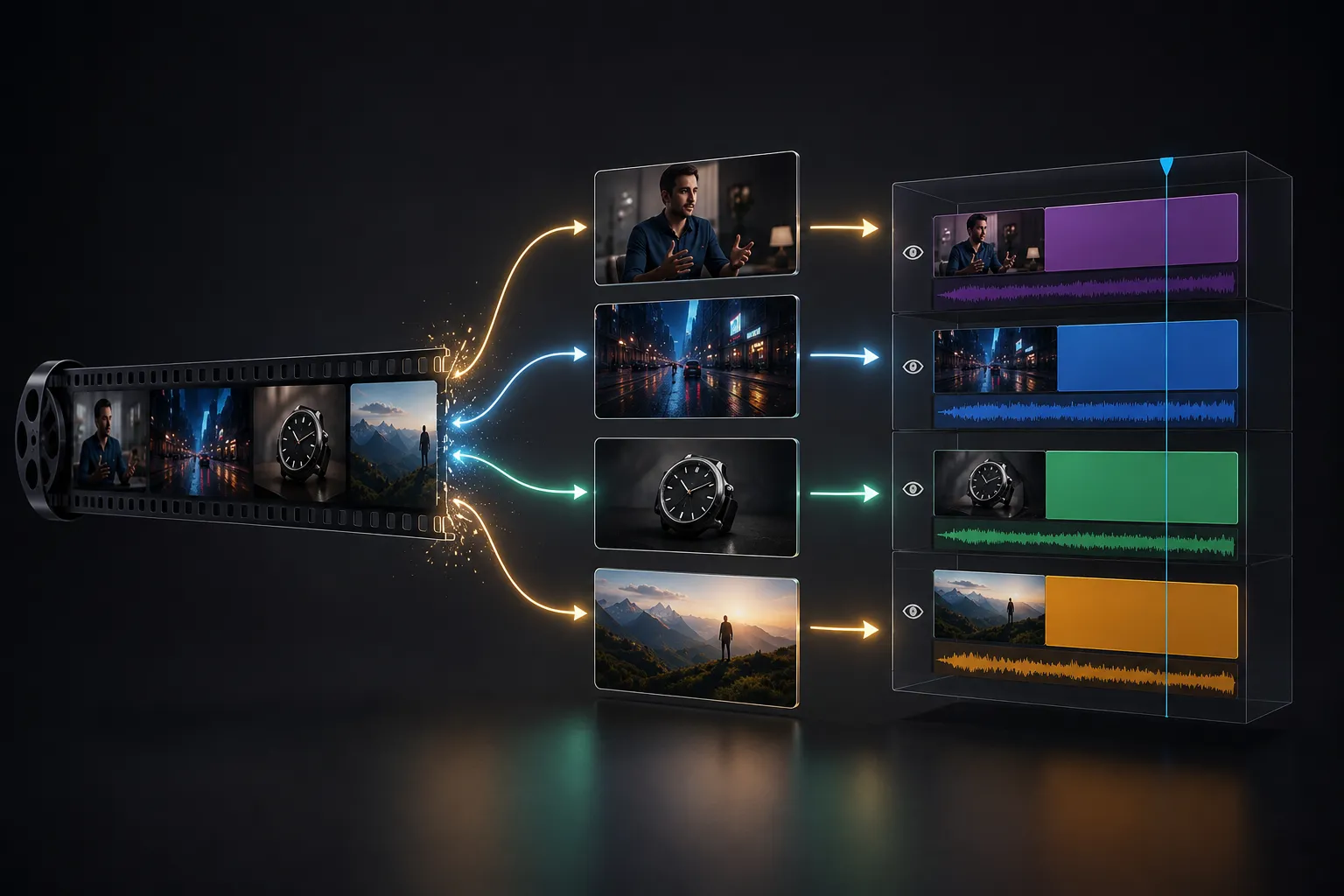
Transferring a Finished Edit Comes With a New Set of Challenges 🎬
Are you familiar with the workflow of the XML2AE Plugin by aescrpts? Have you ever received a finished edit and wanted to work on some of its shots in After Effects? For example, you might want to remove an element from the image, add motion to a shot, or prepare several shots for VFX. At first glance, you might think all you need to do is drop the final video into After Effects and get started, but you quickly realize that things are a little more complicated than that.
That’s because the final video gives you all the shots as one continuous file. But to work on each individual shot, you need access to its original source file and need to know exactly which part of that file was used in the edit. Finding this information, especially when a project consists of many files and shots, can become very time-consuming.
Now imagine having to find all those shots manually, rearrange them in After Effects, and recreate the timing of the previous edit. For a small project, this might not be too difficult, but on larger projects, it can quickly turn into a tedious, detail-heavy task. This is exactly where accurate information from the previous edit can eliminate much of that hassle.

What Does Transferring an Edit Actually Mean? 🤔
To make things clearer, imagine an editor has created a several-minute video in Final Cut Pro 7. Out of dozens or hundreds of raw files, they selected specific sections and placed them together. For example, a few seconds from an interview, followed by a street shot, then a product shot, and so on until the end.
Now, if you want to continue working on that same project in After Effects, having only the final export isn’t enough. You need to access the same original shots and know where each one appears in the edit. You can store the information that defines these relationships in files such as XML or AAF.
You can essentially think of XML as a map of the edit. It isn’t a video itself; instead, it stores information about the files that were used, the order in which they appear, and the timing of the edit. This information lets you rebuild an existing edit in another environment.
This is especially important for VFX, compositing, and motion graphics work because instead of working with a single, flattened final video, you can access individual shots and edit each one independently.
How Can We Do It Without a Dedicated Tool? 🛠️
Even if you don’t have a dedicated tool, you can still rebuild the previous edit inside After Effects. You just have to manage the original files and the editing information yourself. The simplest method is to access the project’s video files, use the final edited version to identify the shots used, and reassemble them in After Effects.
For smaller projects, you can use After Effects’ built-in features:
- Import: Import the original video files into the project.
- Trim: Specify the required sections of each video.
- Markers: Mark important points and shot start times.
- Time Remapping: Adjust the timing of certain clips when necessary.
- Composition: Finally, arrange all the shots in the correct order and timing.
The Problem Starts When the Project Gets Large
This method quickly becomes troublesome when the number of shots increases. You may have to search through dozens or hundreds of files to figure out which one was used in the edit, find the correct section, and then place it in exactly the right position. If several files have similar names or the project files are scattered across different folders, the chances of making mistakes also increase. In these situations, instead of spending your time on VFX or motion work, a large portion of it goes toward finding files and rebuilding something that has already been edited once.
XML2AE: Rebuild a Finished Edit Inside After Effects 🎬
XML2AE is designed for situations where a project has already been edited, but you now need that same edit inside After Effects so you can work on the shots for VFX, compositing, or motion graphics. The tool can read information from an FCP7 XML or AAF file and use it to reconstruct the editing structure inside After Effects.
The workflow is also simpler than it might seem. First, you give the XML/AAF file to XML2AE, then specify the folders containing the project’s video files. The tool scans these folders and all of their subfolders and gathers information about the files. It then matches the available files against the editing information to determine which original file corresponds to each shot in the project.
📂 Scanning Folders and Finding Project Files
One of the important parts of XML2AE is the scanning stage. You don’t need to introduce the project files to the tool one by one. You can select one or more folders, and the tool will automatically scan them and their subfolders recursively.
This is especially useful when a project’s files aren’t neatly stored in one place and are instead spread across multiple folders and subfolders. XML2AE collects information about the files it finds so that it can match them against the edit in the next stage.
🔎 Smart File Matching With the Edit
XML2AE doesn’t rely solely on filenames to find the correct files. Its matching system checks several different criteria, including:
- Filename / Stem: The filename or the main part of the filename
- Reel: Information related to the file’s Reel
- Timecode: The timecode associated with the media
- Duration: The duration of the file
- Information available in the XML/AAF: Used to narrow down the possible matches
An important point is that XML2AE doesn’t use the original file path inside the XML or AAF as a matching criterion. In other words, it doesn’t depend on the file being located in exactly the same path as before. So even if the project files have been moved, the tool can still search for suitable matches by examining the information contained in the files themselves.
After scanning, the tool also displays the status of the files, so you can see which files were found, which are missing, and which cases require further review. ⚡
⚠️ Identifying Missing Files
If one of the files used in the edit can’t be found, XML2AE marks it as Missing Footage. This means you don’t have to review the entire project from scratch just because one or more files are missing.
You can even manually specify the path to a missing file and tell the tool which file you want to use. So if the file has been moved or is in a different folder, you can resolve the issue directly in the tool.
🔀 Finding Similar Files and Resolving Conflicts
Sometimes the opposite problem occurs: XML2AE finds a file, but several different files have similar information, so the tool can’t confidently determine which one is correct.
In this situation, the tool doesn’t hide the issue; instead, it creates a Conflict. Inside the Conflicts Panel, you can view the available options and examine information such as the filename, Timecode, and its location within the folders. For compatible files, a Thumbnail is also displayed so you can visually compare the images. 🖼️
You can then select the correct file yourself, or if none of the options are suitable, manually locate the right file again. This approach means that in ambiguous situations, instead of potentially choosing the wrong file, the tool leaves the final decision to you.
🎬 Building a Composition From the Edit
Once the files have been found and matched, it’s time to build the timeline. Based on the editing information, XML2AE creates a Composition in After Effects and places the shots in their correct positions.
The clips’ start and end times, their trims, and their placement on the timeline are reconstructed to the extent supported by the XML/AAF information. Even clips that were disabled in the edit can be transferred with their corresponding state.
If a file still hasn’t been found, XML2AE represents that section as a Solid with explanatory text so you know exactly where media is missing from the project. For cases where the tool can’t recognize a particular effect or structure, it also creates information and Diagnostic Text so you know which sections require manual reconstruction.
🎛️ Transferring Visual Settings and Keyframes
XML2AE doesn’t simply place clips one after another. Some of the information applied to the clips during editing can also be transferred to After Effects.
Supported items include:
- Position / Center: The clip’s position within the frame
- Scale: Size and magnification
- Anchor / Center Offset: The position of the reference point and its related offset
- Rotation: Image rotation
- Opacity: Transparency level
- Crop: Image cropping in supported cases
- Blend / Composite Modes: Image blending modes that can be converted
- Keyframes: Animated information related to certain settings
For clips that start at a specific point in the original source file, XML2AE also takes Source-In into account when timing Keyframes, allowing animations to transfer more accurately relative to the portion of the source file used in the edit.
Of course, not everything can be transferred. If the editor used an effect or feature that XML2AE can’t interpret, the tool doesn’t simply ignore it. Instead, it places information about that item inside the project so you know what needs to be reviewed or rebuilt manually.
🎥 Using a Reference Video to Check the Result
In addition to the XML/AAF file, you can also provide the tool with a Reference Video. After the Composition is created, this video is placed above the other layers and can be used as a comparison reference.
This feature is very useful for final checks because you can compare the generated Composition with the edited version and see whether Scale, shot positioning, timing, and similar elements were transferred correctly.
🧩 Managing Built Timelines
XML2AE also includes features for projects that aren’t meant to be built only once. The Built Timelines Panel tracks timelines created with the tool, and you can save and reload their history.
This history information is stored in a Sidecar file next to the project. This allows the tool to maintain its connection with previous Timelines and use them in later stages.
🔄 Updating an Edit Without Breaking the Previous Version
Imagine you built the project once, but some files weren’t available. A few days later, you receive the missing files, or perhaps new versions of some media are delivered.
You don’t need to delete the previous Composition and rebuild everything from scratch. You can introduce the new folders to XML2AE, run Scan and Match again, and use the Update from Latest Match option.
The tool creates a new version of the previous Timeline, and the new files replace the missing items or previous versions. At the same time, the previous Composition remains untouched, so if you want to return to the earlier version, it’s still available.
⚙️ Checking Metadata and Creating Thumbnails
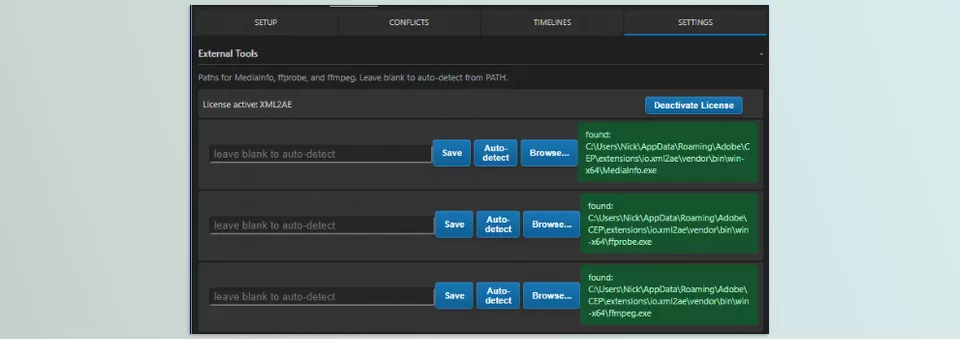
XML2AE uses tools such as FFmpeg, FFprobe, and MediaInfo CLI to inspect files and help resolve Conflicts. This extracts technical information from the files and, where possible, creates thumbnails for similar files.
If the built-in versions of FFmpeg don’t support a particular Codec, you can also specify your own versions of FFmpeg to achieve better compatibility with specific files.
Overall, XML2AE connects several different tasks into a single workflow: reading editing information, finding the original files, resolving missing and similar files, building the Composition, transferring some settings, and managing later Timeline versions. The result is that when transferring a finished edit to After Effects, you don’t have to perform all of these steps manually from scratch.
A Few Tips for a Cleaner Conform 🎯
XML2AE handles much of the file-matching process, but a few tips can help prevent problems later on. Especially with large projects, it’s better to spend a little time organizing and checking your files before building the Composition.
- Make sure you have all the original files. The more complete and organized the project media is, the greater the chance of finding the correct files.
- Specify the correct folders before starting. XML2AE scans the folders and subfolders you specify, so choose a search range that actually contains the project files.
- Take Conflicts seriously. If the tool suggests multiple options for a shot, don’t simply select the first one. Check the file information and Thumbnail to make sure the correct shot has been selected.
- Compare the result with the final version. The developer also recommends checking the built timeline against a reference video, especially for things like scale, Time Remapping, Repositioning, and Composition settings.
Ultimately, the goal isn’t to press the Build button without checking anything and expect the entire project to magically be ready. It’s better to think of XML2AE as a tool to speed up the mechanical part of the process while leaving final verification to you.
A Shorter Path From Editing to After Effects 🚀
If you only have a final video and want to open that same video inside After Effects, XML2AE probably isn’t something you need. But the situation changes when you have a finished edit and want to reconstruct its structure, along with the original shots, inside After Effects.
The main advantage of XML2AE is that instead of spending hours searching for files and manually rebuilding the timeline from the final version, it reads the editing information, searches for and matches the media, and builds the Composition based on that same structure.
For smaller projects, doing this manually might not be particularly difficult. But as the number of files and shots increases, this stage can take up a significant portion of the project’s time. That’s where XML2AE can make the path from a finished edit to the VFX and compositing stage in After Effects much more organized and much faster.
Want to get a better understanding of the different tools available for After Effects? Our After Effects Tools guide walks you through the main types, including plugins, scripts, extensions, presets, and other useful tools, so you can easily find the right options for your creative workflow.



