

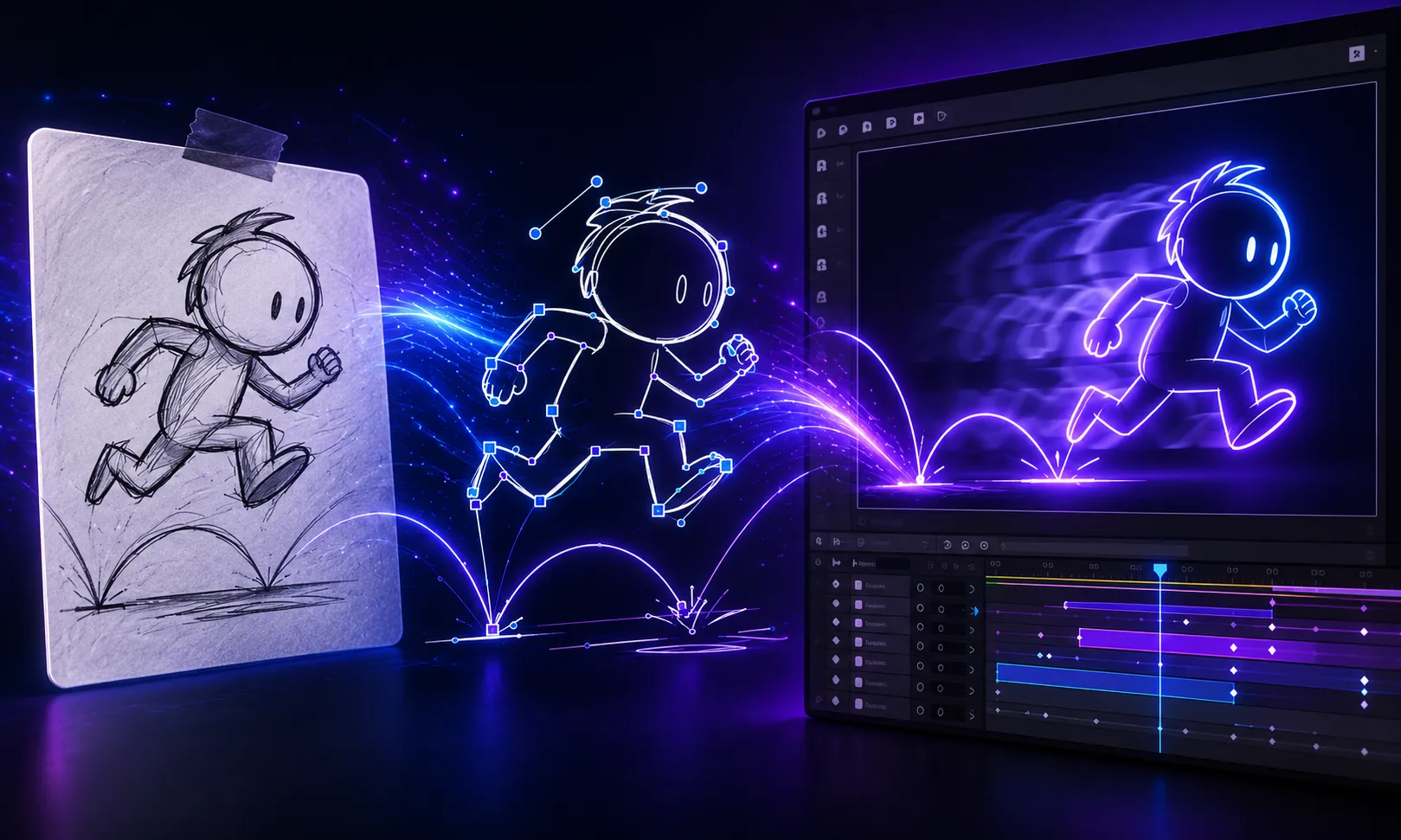
When Ideas Take Shape Faster Than They Can Be Executed… ✏️
Do you know anything about the drAEw Plugin by aescripts? Have you ever been in the middle of creating a motion project when an amazing idea suddenly pops into your head, and you want to test it right away? Maybe it’s a new character movement, a hand-drawn effect, a simple storyboard, or even a few notes written directly on the video. But as soon as you decide to bring that idea to life, the real process begins—you have to jump between multiple tools and go through several extra steps.
Many motion designers start their hand-drawn work in applications like Photoshop or Illustrator, then import the files into After Effects before they can even begin animating. This workflow may not be a problem for a simple design, but once the number of frames increases or you need to revise your idea multiple times, constantly moving back and forth between applications quickly becomes time-consuming.
The truth is, in motion design, the speed at which an idea turns into execution is extremely important. Being able to draw something instantly, see the result immediately, and make quick changes allows you to experiment with new ideas much more freely. That’s why having a drawing environment directly inside your animation workflow can make the entire creative process much smoother—a place where drawing and animation happen side by side.

What Does Hand-Drawn Animation Inside After Effects Mean? 🎨
Hand-drawn animation, also known as frame-by-frame animation, is one of the oldest and most fascinating techniques for creating animation. In this approach, every movement is built from multiple individual drawings—just like flipping through a sketchbook, where the small differences between each page create the illusion of motion.
In the world of motion graphics, this style is widely used for creating unique animations, natural-looking movements, cartoon artwork, hand-drawn typography, and creative visual effects. Its popularity comes from the fact that the final result usually feels more alive and distinctive. Instead of perfectly mechanical motion, you can actually see the details and personality of human drawing throughout the animation.
Of course, creating this type of animation is not always easy. As the number of frames grows or revisions become necessary, managing files and keeping everything synchronized can take a significant amount of time. That’s why having a smooth workflow that lets you quickly draw, edit, and preview your results is extremely important.
Traditional Methods for Creating Hand-Drawn Animation in After Effects 🎨
Before dedicated tools existed for this type of work, motion designers typically relied on several different methods for creating hand-drawn artwork and frame-by-frame animations. After Effects itself includes tools like the Paint Tool, which is useful for drawing directly on layers and works well for quick corrections, adding details, or creating simple effects.
Another common workflow was to create the artwork outside of After Effects and then import it into the project. Many artists used design software such as Photoshop and Illustrator to gain greater control over the artwork before importing the finished files into After Effects for animation.
Depending on the project, designers usually combine these methods:
- Using the Paint Tool inside After Effects: For quick drawings, small corrections, and adding details directly onto video.
- Drawing in Photoshop: Ideal for sketches, hand-drawn artwork, and creating individual animation frames.
- Vector design in Illustrator: Perfect for creating elements that require high quality and unlimited scaling.
- Creating frames manually on the timeline: For building frame-by-frame animations with greater control over every movement.
The Limitations of Traditional Hand-Drawn Animation Workflows ⏳
Although these methods remain useful today, they are not always the most efficient for projects that require speed and frequent revisions. As the number of frames increases, managing separate files, switching between applications, and synchronizing artwork with the timeline can become extremely time-consuming. Sometimes even a small change requires repeating several steps from the beginning, when your main focus should be creativity and improving the animation itself. That’s why many designers look for a way to combine drawing and animation inside a single uninterrupted environment.
drAEw: A Professional Sketchbook Inside After Effects ✏️
drAEw is a drawing and animation tool for After Effects designed to simplify creating hand-drawn, vector, and frame-by-frame animations. With this tool, you can draw directly inside your composition, create various lines and shapes, and integrate them into your animation workflow without ever leaving After Effects.
The biggest difference between drAEw and traditional drawing tools is that your artwork isn’t just a static image. Everything is generated as vector paths and Shape Layers, meaning you can edit paths, change colors, adjust stroke widths, or apply different effects whenever you want.
In other words, drAEw significantly reduces the distance between the moment an idea appears in your mind and the moment it becomes a real animation. Instead of constantly switching between multiple applications, you can draw and animate inside a single workspace.
Draw Vector Artwork Directly Inside After Effects 🎨
One of drAEw’s most important features is the ability to draw directly inside After Effects using vector brushes. This means you can create lines, shapes, and other graphic elements with the natural feel of hand-drawn work while integrating them into your project immediately.
Imagine you want to create a hand-drawn arrow for a tutorial video, design a simple character, or add animated handwritten text. Instead of creating the artwork in another application and importing it into After Effects, you can draw everything directly in your composition and continue animating immediately.
Since everything is created as Shape Layers, you have much greater control over your artwork. You can edit paths, modify individual parts of your drawing, or even reuse the same elements in other projects. This becomes especially valuable for projects that require multiple revisions.
Creating Frame-by-Frame Animation Becomes Easier 🎬
One of the most exciting parts of drAEw is its ability to create frame-by-frame animations directly inside After Effects. This technique is widely used for hand-drawn motion, cartoon animation, character expressions, and creative visual effects.
With the Onion Skin feature, you can see both previous and upcoming frames while drawing a new one, making it much easier to understand the motion path. This helps create more natural movement while giving you greater control over the spacing between frames.
drAEw also lets you set how long each drawing stays visible. By adjusting the Frame Duration, you determine how long every frame stays on the timeline—an essential factor for controlling the rhythm and speed of your animation.
Create Storyboards and Animatics Faster 🎞️
One of drAEw’s most useful applications is the quick creation of Storyboards and Animatics. Before starting a large project, it’s often necessary to test the overall concept first—for example, checking camera movement, scene order, or the overall animation flow.
With drAEw, you can sketch directly inside the composition, create multiple frames, and build a rough preview of your idea. This allows you to evaluate and refine the overall direction of your project before investing significant time in the details.
For motion designers who like testing ideas before final production, this feature can greatly speed up decision-making.
Professional Brushes and Drawing Appearance Controls ✍️
drAEw is much more than a simple drawing tool. It provides various controls for adjusting the appearance of your artwork. You can customize properties such as Stroke, Fill, and Opacity, allowing you to fine-tune your graphics as you work.
One of its newer features is a pressure-sensitive calligraphy brush. If you’re using a drawing tablet, this feature gives your lines a much more natural appearance, making stroke thickness and drawing style feel closer to traditional hand drawing.
Additionally, the Smooth and Simplify tools help clean up your strokes, making it easy to refine artwork that may have been drawn a little roughly.
Multiple Drawing Modes and Export Options 🚀
To support different creative workflows, drAEw offers two primary export modes:
Automatic Mode
Ideal when you want to draw quickly and send the results directly to the timeline without dealing with extra settings. This mode is perfect for testing ideas and creating rough animation drafts.
Manual Mode
When you need greater control over how your drawings are exported, Manual Mode gives you more precise management over the transfer process.
This flexibility makes drAEw suitable for both fast creative projects and highly detailed production work.
Greater Control Over Your Output and Timeline 🎛️
drAEw provides two different methods for transferring drawings into After Effects:
Single Keyframed Layer
In this mode, all drawings are stored inside a single Shape Layer, with changes saved as keyframes. This workflow is ideal when you want a cleaner timeline and easier project organization.
Stack of Layers
Here, every drawing is imported as its own individual layer. This approach gives you greater flexibility in applying effects, changing colors, or editing individual frames.
Depending on your project, you can choose between a cleaner timeline and more detailed layer control.
Vectorize: Convert Images into Editable Vector Artwork 🔄
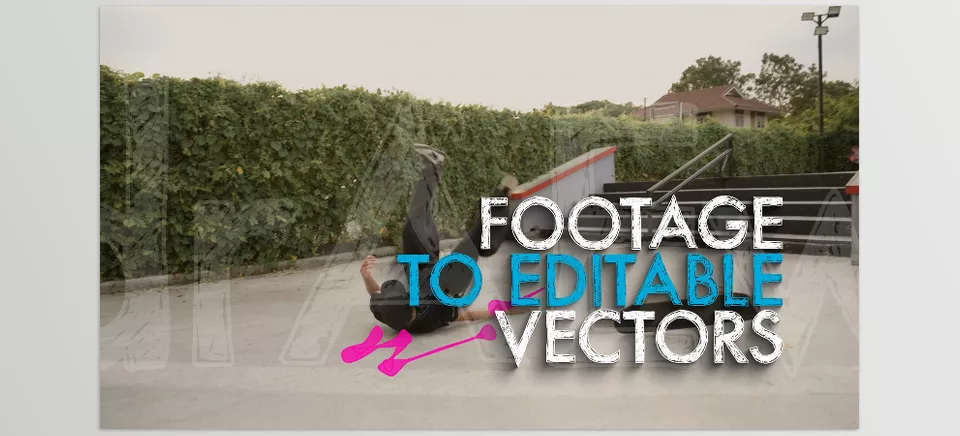
One of drAEw’s newer features is the ability to convert existing frames and images into vector artwork. You can capture a frame from your composition, convert it into editable vector paths, and bring it back into After Effects as a fully editable Shape Layer.
Inside the Vectorize panel, you can adjust settings such as color count, edge smoothing, path accuracy, and detail reduction, allowing you to fine-tune the final result until it closely matches your desired look.
This feature is especially useful when you already have a sketch, illustration, or existing image and want to transform it into editable vector artwork without redrawing everything from scratch.
Capture References and Draw More Efficiently 🖌️
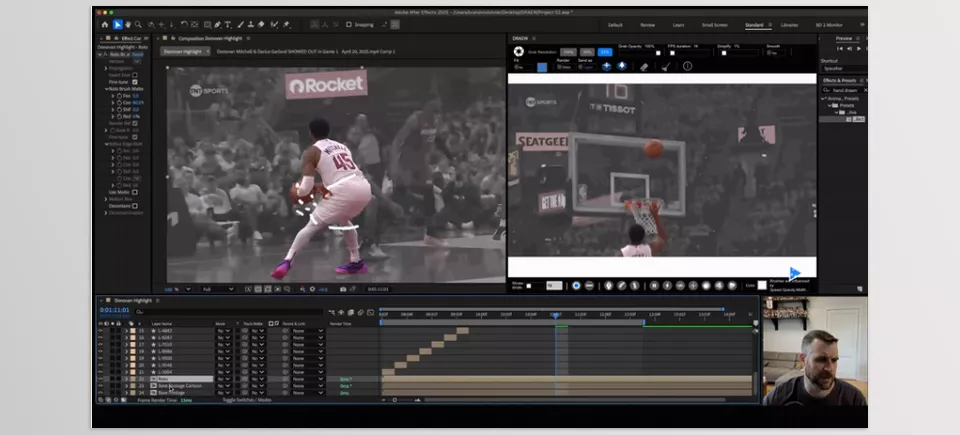
drAEw also lets you capture the current composition view and use that frame as a drawing reference directly inside your workspace. This is particularly useful when drawing over existing video, characters, or movement.
Quick keyboard shortcuts also let you move between frames, create new layers, and send artwork directly to the timeline without interrupting your workflow. This helps you stay focused on drawing instead of constantly navigating menus.
A Few Tips for Better Results with drAEw 🚀
Getting the best results from drAEw isn’t just about learning the tools—it’s also about how you use them. A few simple practices can make your animations feel more natural, efficient, and professional.
Use Onion Skin for More Natural Motion
Viewing the previous and next frames makes it easier to understand movement paths and properly adjust frame spacing. This creates smoother, less mechanical-looking animation.
Start with Simple Sketches Before Final Artwork
There’s no need to perfect every detail immediately. First establish the overall motion and core idea, then gradually refine the details, corrections, and final appearance.
Use Layer-Based Output for Complex Projects
If you know you’ll need to make changes later or apply separate effects, Stack of Layers is usually the better option. Individual layers provide much greater flexibility during final revisions.
Combine Hand Drawing with Native After Effects Tools
drAEw becomes even more powerful when used alongside After Effects’ built-in features. Combining hand-drawn artwork with effects, color grading, compositing, and additional animation techniques can produce much more impressive final results.
Ultimately, the best results come from treating drAEw as more than just a drawing tool. Instead, think of it as an integral part of your creative motion design workflow. The easier it becomes to test and refine your ideas, the more room you’ll have for creativity in every project.
Conclusion: When Ideas Turn Into Motion Faster 🎯
drAEw is more than just a drawing tool for After Effects. Its value comes from how it reduces the distance between your idea and what you see on the timeline. By allowing you to draw and animate your creations instantly, drAEw makes it easier to explore new ideas for your projects.
If you regularly create hand-drawn animation, sketch-style artwork, Storyboards, or unique motion graphics, a significant portion of your time is probably spent preparing files and moving between different applications. drAEw helps simplify that process, allowing you to spend less time on repetitive tasks and more time focusing on creativity and design.
The real appeal of drAEw lies in how it combines the freedom of hand-drawn animation with the power of animation in After Effects. If you want your motion graphics to feel more personal, more alive, and more distinctive, having a tool that brings drawing and animation together can make your workflow significantly smoother. That’s exactly what drAEw was built for—to help the ideas that form quickly in your mind become motion even faster.
Are you looking for a simple way to understand the different types of After Effects tools? Our After Effects Tools guide explains the main categories, including plugins, scripts, presets, and project templates, to help you discover the right tools for your workflow.



