

When Animation Stops Being Fun
Are you experienced with the PuppetTools Plugin? If you’ve ever animated a character in After Effects, you know how nerve-wracking it can be to adjust each Puppet Pin on every frame. One moment, everything looks fine; the next, a shape’s path gets messed up, and you have no idea why. That’s the moment you mutter under your breath: “Isn’t there an easier way?”
Gradually, instead of feeling like an animator, you start feeling like a frame repair technician. A small change affects multiple parts, everything gets mixed up, and you have to track down the source of the problem. Slowly, that initial excitement turns into fatigue.
This is when you realize the problem isn’t your ideas or skills—it’s the tool slowing you down. A proper tool can completely change your workflow, letting the joy of creation return. You fight fewer errors and build more. ✨

Controllers: Commands That Make the 2D World Tangible
Let’s put it simply: a controller is like a car’s steering wheel.
You don’t go under the car to move the wheels directly; you just turn the wheel, and the car knows what to do. In After Effects, it’s the same. You don’t need to select every pin on a knee, elbow, or fingertip and beg it to move correctly. A controller is there; you move it, and the character automatically takes the right form.
Controllers make animation feel like lifting weights with a lever: less effort, more precision, and predictable results. The outcome? You focus on your idea, not fighting the tool. Instead of adjusting ten tiny points, you move one, and everything else follows.
Real-World Uses for Controllers
- Moving a character’s hand while waving
- Controlling a mask for a door or curtain animation
- Changing the path of a logo or text animation
- Bending and straightening a robot arm—or even hoses and cables
In simple terms: controllers turn animation from a rigid, tedious task into a fun game—like driving an automatic car instead of a horse-drawn cart. 🚗✨
What If You Do Everything Manually?
Sure, you can work without plugins or extra tools. You just need some knowledge of Parenting, a few Expressions, tons of patience, and a cup of coffee. You can build an IK system and control your character’s or objects’ movement paths.
But realistically, this approach is like digging a tunnel with a spoon! Building the first IK system takes ages, adjusting it takes twice as long, and sometimes bugs appear, messing up parts of the animation. Even something as small as naming your controllers can become a nightmare in a large project.
And the main problem? Every project starts from scratch. Nothing is ready-made, no shortcuts exist, and eventually, you feel like you’re spending more time building tools than creating what you really want. 😅
PuppetTools Plugin: Two Clicks, One Smile!
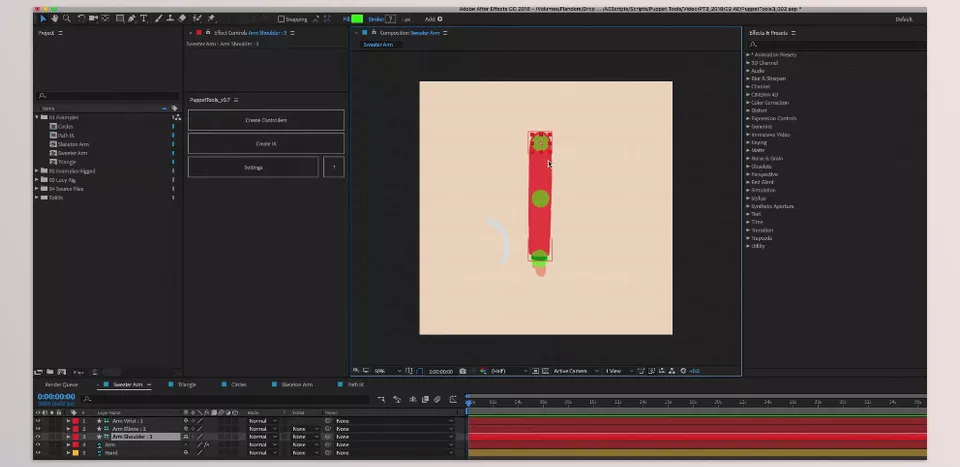
If you’ve worked in After Effects, you know one of the most tedious parts is rigging characters and setting up movements. This is where PuppetTools Plugin changes the game. It’s designed to be incredibly simple and smooth—so much so that the first time you open it, you might wonder: “Is it really just two buttons?” Yes, it really is.
1. One-Click IK System
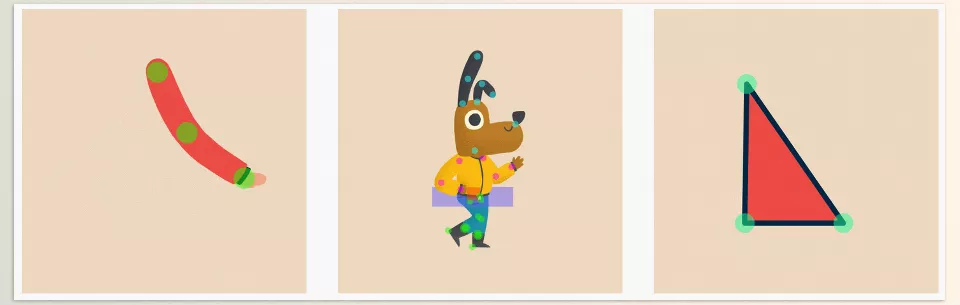
One of the biggest headaches in animation is creating an IK system for a character’s arms or legs. IK (Inverse Kinematics) lets you control joint movements automatically and naturally, without moving every pin individually.
With the PuppetTools Plugin, just select three layers and click Create IK. Done! The IK system is created, and your character or objects move like a living creature. No manual controllers needed—everything happens automatically.
Example: Make a character wave or move their feet on the ground—all movements become smooth and natural with one click.
2. Create Controllers for Anything
PuppetTools Plugin lets you create controllers for:
- Puppet Pins
- Shape Layers and paths
- Mask Paths
- Objects and layers
This means you have a small tool at your disposal: any change you make on the controller automatically updates everything else.
Examples:
- Moving a character’s hand while waving
- Opening/closing a mask for a door or a curtain
- Changing the path of a logo or text
- Bending/straightening a robot arm
With controllers, no more manually keyframing hundreds of times—everything is smooth, precise, and predictable.
3. Compatible with Any File
PuppetTools Plugin works with PSD, Illustrator, PNG, Shape Layers, and mixed projects. Whatever your file type, you can create controllers and activate IK—no worries about software limitations.
4. Customizable Controllers
Controllers in PuppetTools Plugin are fully customizable:
- Change their color and size
- Name them according to your project
- Adjust behavior and interactions
This keeps everything organized and manageable, even in large projects with many controllers.
5. Ready-to-Practice Rig
For easier learning, PuppetTools Plugin includes a ready rig named Lucy. You can:
- Practice with it
- Learn movements
- Test before building your own rig in real projects
This helps you learn faster and gain confidence.
With PuppetTools Plugin, you no longer spend hours adjusting Puppet Pins, Expressions, or Parenting. Controllers and IK are ready-made—everything moves smoothly and naturally, letting you focus on ideas and creativity.
Small Tricks, Big Differences
Now that you’re familiar with PuppetTools Plugin and enjoy the ease it brings, here are a few practical tips to use it like a pro:
✨ Take controller naming seriously
In large projects, good names mean future peace of mind. Don’t search through a messy scene later—name controllers clearly from the start.
✨ Scale controllers to scene size
Tiny controllers in close-up scenes are annoying; huge ones in detailed scenes feel cluttered. Adjust their size to match the project for smoother handling and a more comfortable view.
✨ Use controllers beyond characters
Unofficial PuppetTools Plugin motto: “Anything that moves needs a controller!”
Controllers can be used for animated UI, charts, effects, moving objects, and logo animations. Everything becomes precise and smooth.
✨ IK isn’t just for arms and legs
IK works for any articulated or bendable element: hoses, cables, robot arms, fish tails, tree branches, ropes. Imagine how easily you can control complex movements naturally with a simple system!
By following these few tips, the PuppetTools Plugin not only speeds up your workflow but also produces results that look natural and professional. Your creativity remains at the forefront while the tool manages everything in the background. ✨
Summary: Spend Less Time, Create More
The modern 2D animator works with speed and accuracy. The more professional your equipment is, the more time you have to be creative. PuppetTools Plugin is more than a plugin. It’s a creative collaborator that eliminates mundane projects and allows for imaginative flow.
If you’re a beginner, this tool dramatically increases your speed and teaches you to create natural movements without getting stuck in keyframes and manual adjustments. If you’re a pro, you can complete projects faster, hassle-free, and focus more on creative details.
Ultimately, true joy comes when you bring your ideas to life without fighting tools and frames—making characters, objects, and effects move exactly the way you want. With two simple clicks, PuppetTools Plugin makes life easier and more enjoyable for animators. ✨
If you’ve ever wondered how to truly unlock the full potential of After Effects and its wide range of companion tools, our comprehensive guide on After Effects tools is a must-read, packed with expert tips, plugins, scripts, and workflow secrets.



