


Stop Creating Separate Comps for Every Output! 🎬
Do you know about the features of the LAYERQ Plugin by aescripts? Have you ever needed multiple outputs from a single After Effects project? For example, a Persian and an English version, versions with different client logos, exports for Instagram and YouTube, or even several versions in which only one or two layers differ. At first glance, making these changes may seem simple, but as the number of versions grows, managing them becomes increasingly difficult.
Usually, the first solution many people choose is to duplicate comps or manually turn layers on and off. But after a while, the project becomes filled with duplicate comps, finding the correct version takes longer, and every render requires checking the settings all over again. These seemingly simple tasks, when repeated over and over, can become surprisingly time-consuming and exhausting.
In most projects, creating the animation is not the most challenging aspect. The most challenging part of many projects is managing and exporting the versions of a project that were created. Fortunately, there are various ways to manage and export versions of projects that will allow designers and animators to focus on creating the project of interest rather than spending their time managing and rendering the project.

What Does Managing Multiple Project Versions Mean? 🎬
Imagine you’ve created a promotional video where only the client logo or the text language changes.
Instead of manually turning layers on and off every time, you can save the visibility state of your layers as a version. For example:
- Persian Version: Persian text visible, English text hidden.
- English Version: English text visible, Persian text hidden.
- Client A Version: Client A logo is visible.
- Client B Version: Client B logo visible.
Then, whenever you need one of those versions, simply activate it, and the project instantly returns to that exact state.
This approach is especially useful for:
- Multilingual advertisements
- Multi-client projects
- Exporting for different social media platforms
- Motion graphics templates
- Promotional videos with multiple variations
The result? You spend less time on repetitive work, and the chance of making mistakes decreases significantly.
🎬 Common Ways to Manage Multiple Project Versions
Fortunately, yes. After Effects already includes tools to manage and export different versions of a project. If you’re only working with a few versions, these built-in methods work perfectly well, and there’s no need for an additional tool.
The most common approach is duplicating comps. In other words, creating a separate comp for every version so that each output can be edited independently. Besides that, After Effects offers several built-in features that can simplify the process, including:
- Layer Visibility: Show or hide different parts of each version.
- Solo Layer: Display only the layers you need and focus on them.
- Shy Layer: Hide unnecessary layers to keep your workspace cleaner.
- Render Queue: Add multiple versions to the render queue and export them individually.
All of these methods are useful and have been used by After Effects artists for years. However, once the number of project versions increases, managing everything this way becomes much less practical.
⚠️ When the Number of Versions Grows, the Problems Begin
Imagine needing to deliver 15 or 20 different outputs from the same project.
Soon, you’ll end up with dozens of duplicate comps, finding the correct version becomes more difficult, and you’ll constantly be toggling layers on and off before every export. Then comes rendering—you have to double-check that you’ve selected the right version, that the render settings are correct, and that nothing has been missed.
For two or three outputs, this may not take much time. But in large professional projects, these repetitive tasks can easily consume hours and increase the likelihood of mistakes.
LAYERQ: When Managing Project Versions Becomes Just a Few Clicks 🚀
LAYERQ is a script for After Effects built with one specific goal: making it as easy as possible to manage multiple versions of a project and export them.
Instead of constantly toggling layers, creating duplicate comps, or rendering every version separately, everything is managed from a single panel.
🎛 Save Different Project Versions as Sets
The core feature of LAYERQ is the ability to save layer visibility states as Sets.
For example, imagine a commercial that needs to be delivered to four different clients. The only differences are the client logo and the ending text. Instead of creating four separate comps, you simply create four Sets and specify which layers should be visible in each one.
For example:
- Persian Version
- English Version
- Client A Version
- Client B Version
From then on, switching between versions is as simple as a single click. There’s no need to configure layers again.
Even better, these Sets are saved directly inside the project, so they remain available even after closing and reopening the project.
👀 Preview Every Version Before Rendering
There’s nothing worse than waiting minutes—or even hours—for a render, only to discover that the wrong logo or text ended up in the final output.
LAYERQ solves this with Live Preview. Before rendering, you can instantly see exactly how each Set will look.
This feature works using After Effects’ built-in Solo functionality, so you can still modify or disable Solo settings directly from the Timeline whenever you want.
🎯 Focus Only on the Version You’re Editing
When a project contains hundreds of layers, locating the ones related to a specific version can become time-consuming.
Set Solo Mode displays only the layers belonging to the selected Set while hiding everything else using Shy Layers. As a result, your workspace stays clean, allowing you to focus entirely on the version you’re editing.
🚀 Render Every Version with a Single Click
This is arguably LAYERQ’s most valuable feature.
Imagine needing to export 20 different versions of the same project:
- Persian versions
- English versions
- Multiple client versions
- Multiple aspect ratios
Instead of changing layers and rendering repeatedly, simply click the ALL button.
LAYERQ automatically prepares every Set, temporarily creates the required comps, and adds all of them to the Render Queue.
If you only need specific versions, the SEL button renders only the selected Sets.
📋 Prepare the Render Queue Only
Sometimes you don’t want rendering to start immediately. Instead, you simply want every output added to the Render Queue so you can render them later or combine multiple projects into a single rendering session.
For that reason, LAYERQ includes an Add to Queue Only option, which places every version into the Render Queue without starting rendering.
This is especially useful for large projects or when you plan to leave everything rendering overnight.
🧩 Works Seamlessly with Nested Precomps
In many professional projects, key elements are distributed across multiple nested precomps.
For example:
- The logo may be in a single precomp.
- The text may be inside another.
- Both are then reused throughout several different comps.
LAYERQ doesn’t only manage the main composition. It analyzes the entire project structure and applies the necessary changes throughout all related precomps during rendering.
As a result, even large and complex projects can be managed without manual adjustments.
⚙️ Use Different Output Settings for Every Version
Not every version of a project needs identical output settings.
For example, you may want to:
- Save the Instagram version to one folder.
- Save the YouTube version to another folder.
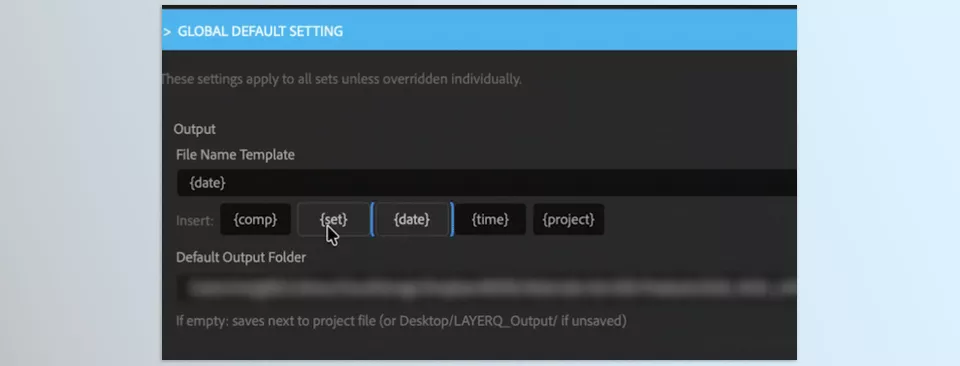
- Export Client A’s version with a different filename.
- Use custom Render Settings for one version.
- Use a different Output Module for another.
LAYERQ lets you configure all of these settings individually for each Set, eliminating the need to adjust them manually before every render.
📦 Keep Your Project Clean and Organized
One of LAYERQ’s lesser-known advantages is that it doesn’t clutter your project with duplicate comps.
During rendering, it temporarily creates the required comps, generates the outputs, and leaves your original project clean and organized.
This makes both project management and file organization much easier.
🌍 More Useful Features
In addition to its core functionality, LAYERQ includes several other useful features:
- Cross-Comp Queue Stacking for adding outputs from multiple comps into a single Render Queue.
- Saving Sets inside composition markers so they remain available even after saving and reopening the project.
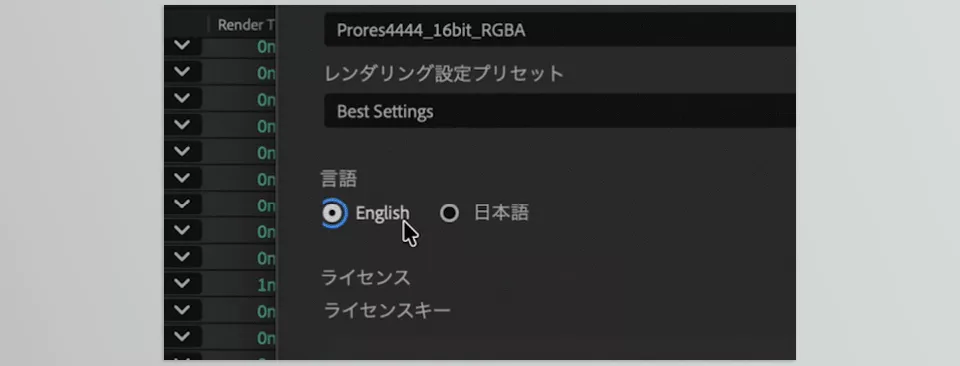
- A bilingual user interface (English and Japanese) that remembers the user’s selected language.
- Compatibility with After Effects 2022 and newer versions on both Windows and macOS.
Real-World Scenarios You’ll Probably Encounter 💡
- Multi-client advertising: Only the logo or the ending information changes, and all versions can be rendered together.
- Multilingual projects: Manage Persian, English, or any other language version without creating separate projects.
- Social media exports: Keep 16:9, 9:16, and 1:1 versions inside the same project.
- Online courses: Manage watermark-free, watermarked, and preview versions using different Sets.
- Template creation: If you build templates for sale or client delivery, you can keep all variations in a single organized project and export only the version you need as needed.
This version covers nearly all of LAYERQ’s capabilities and, instead of simply listing features, explains the real value each one provides.
💡 Tips for Getting Better Results with LAYERQ
As with any tool, using LAYERQ effectively can significantly impact the speed and organization of your projects. By following a few simple practices, managing multiple versions becomes easier while reducing the risk of mistakes during export.
- Use clear Set names: Instead of vague names, use names like FA_Instagram_ClientA or EN_YouTube so you can instantly identify the correct version later.
- Keep similar versions inside one project: Whenever possible, manage variations using Sets instead of duplicating comps. This keeps your project much more organized.
- Always check Live Preview before rendering: It only takes a few seconds but can prevent mistakes such as incorrect logos, wrong text, or missing layers.
- Assign separate output folders for each client: Giving every Set its own export location keeps deliverables organized and prevents files from getting mixed together.
- If your project contains many precomps, organize your Sets from the beginning: The larger the project becomes, the more valuable a well-structured Set system will be when managing versions and locating outputs later.
These tips may seem simple at first, but when working on large or multi-client projects, these small habits make editing and rendering faster, more organized, and far less error-prone.
When Managing Multiple Project Versions Is No Longer a Challenge 🎯
The truth is that in many motion graphics projects, the biggest challenge isn’t creating the animation itself—it’s managing multiple versions and exporting different outputs from the same project. It’s the part where you constantly have to turn layers on and off, create new comps, and make sure nothing gets rendered incorrectly.
LAYERQ is designed specifically for this part of the workflow. It’s a tool that helps you keep different project versions organized, switch between them quickly, and render all your outputs with far less hassle. Especially when you’re working on multilingual projects, with multiple clients or deliverables, its benefits become obvious very quickly.
After using it for a while, you may realize that many of the tasks you used to repeat every day can now be completed with just a few clicks. And that’s exactly what gives you more time to design, brainstorm ideas, and create animations—instead of managing files and repetitive renders. 🚀
Are you searching for a clear explanation of After Effects tools and their categorization? Our After Effects Tools guide covers the most common types of tools and helps you understand the differences between plugins, scripts, presets, and templates.



