
When the Idea Is Simple, but Execution Gets Complicated
Have you ever tried working with the Mask PNG Scatter Plugin by aescripts? Almost anyone who has worked with design or motion graphics has run into this situation at least once: you want to fill a shape, text, or even a logo with a large number of small elements—like icons, images, or tiny particles. On paper, the idea looks very appealing, and in your mind, it works perfectly.
But once you move into execution, the story changes. You have to move each element one by one, adjust sizes, rotate them, and keep everything aligned. This simple task quickly turns into a time-consuming process that drains a lot of focus and energy.
In the end, you usually reach the point where you tell yourself: “Shouldn’t there be an easier way to do this?” Because most of your time is spent on repetitive tasks, not actual creativity.

🧩 Random Distribution of Elements; Simple but Practical
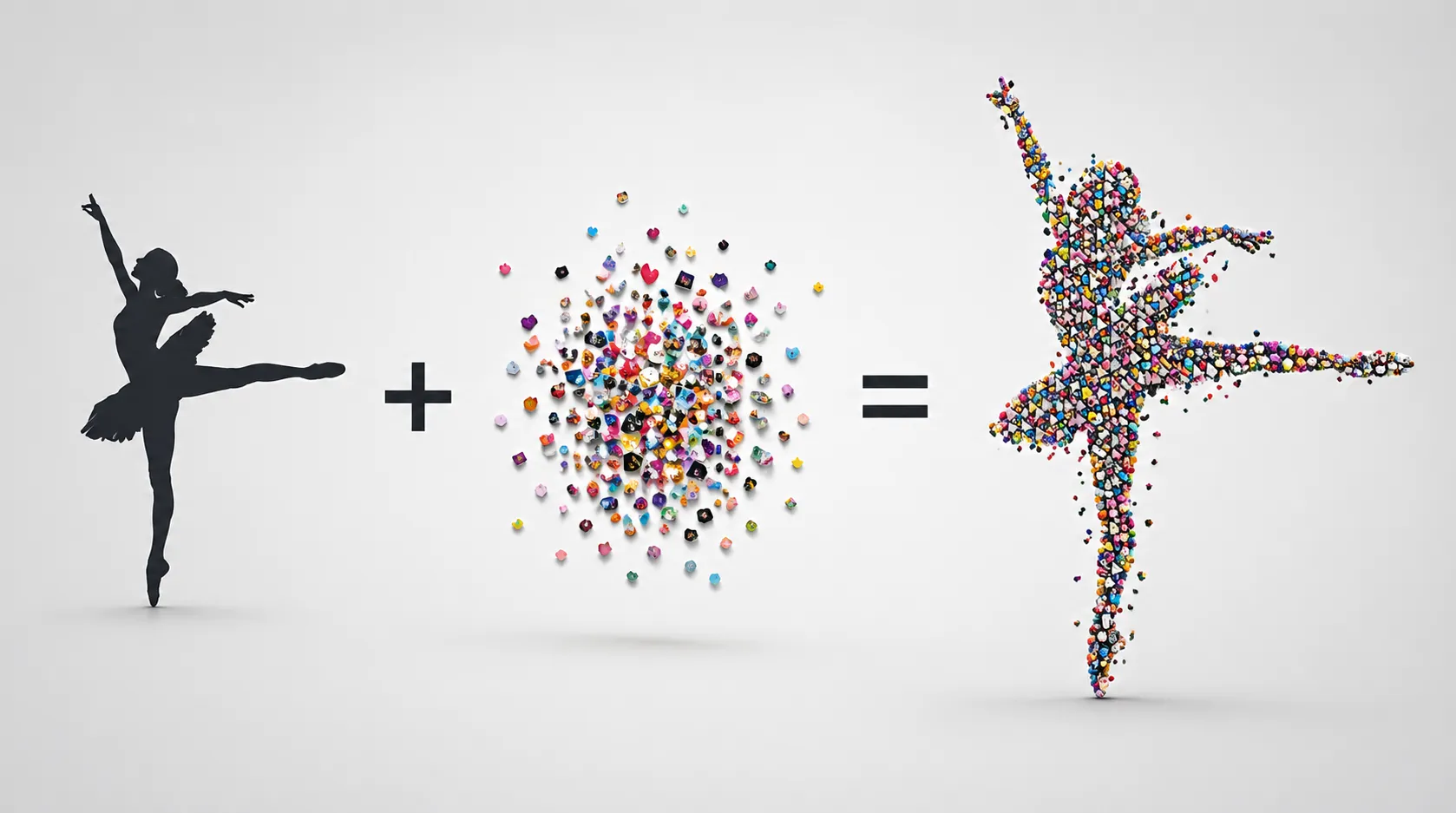
At first glance, this technique might seem complex, but in reality, it has a very simple concept: distributing a large number of elements randomly within a defined area. This area can be anything—from text and logos to specific shapes or even the silhouette of an image.
This method has many applications across different projects. For example:
- Creating text made from a collection of small images
- Designing effects like dust, light, floating particles, or even confetti
- Building modern backgrounds
- Designing logos made up of small components
The reason this style is so popular is that it easily adds a sense of motion and life to your work. Instead of looking rigid and repetitive, the result appears more natural, engaging, and professional—without needing to go through complex and heavy workflows.
🛠️ 🔧 Older Ways to Achieve This Effect; Possible but Troublesome
If you try to do this inside After Effects without any specialized tools, it is technically possible—but usually requires combining several different methods. In practice, you need to control everything manually and move step by step, which makes the process more complicated.
Common approaches include:
- Duplicating layers and manually arranging elements
- Using Expressions to create randomness
- Working with tools like Repeater to duplicate shapes
- Using Particle World or similar effects to simulate particles
Each of these methods can partially work, but you often need to combine several of them to get close to your idea.
⚠️ Limitations and Challenges
The main issue is that these methods are either too limited or too time-consuming. You might spend hours building a decent layout, only to redo a large part of it after a small change. Precise control over randomness is not always easy, and many times the final result doesn’t match what you had in mind.
For small projects, this might be manageable. But as the number of elements increases, these methods become more exhausting and inefficient rather than helpful.
🚀 A Professional Way to Simplify the Process
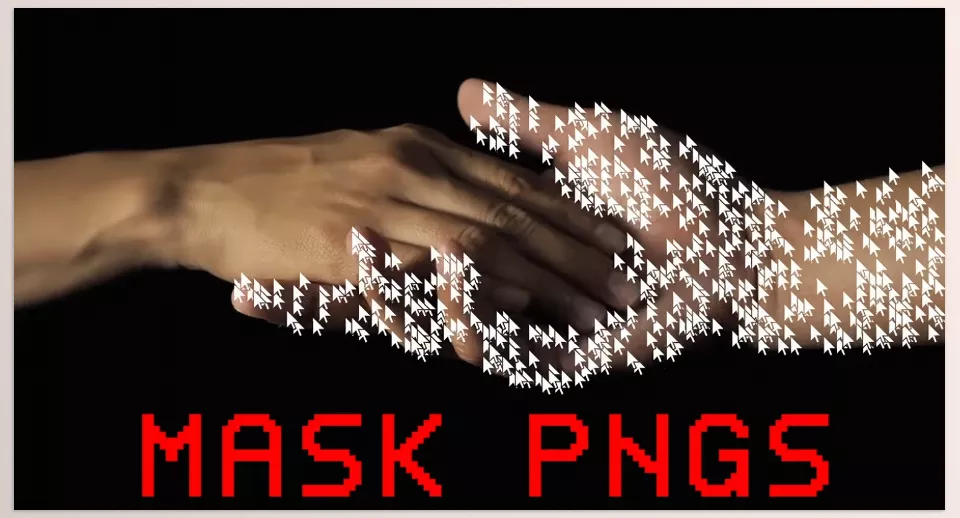
This is where tools like Mask PNG Scatter come in—making things much easier exactly where traditional methods fall short. This plugin is designed to automatically distribute any image or layer inside a defined area (like a mask or matte), completely randomly, without the need for manual arrangement or complex setups.
🎯 Core Functionality: From Idea to Execution in Seconds
Working with Mask PNG scatter is straightforward:
- Select a PNG or layer (the element you want to distribute)
- Define a Matte or Mask (the area to be filled)
After that, the plugin automatically fills the space with your element. What previously required multiple steps and tools now happens almost instantly.
🎛️ Key Controls
One of the biggest strengths of this tool is its simplicity combined with powerful control. A few main parameters cover most needs:
- Count: Defines how many elements are distributed—low for minimal effects, high for dense compositions
- Size: Controls element scale, significantly affecting the overall feel
- Seed: Changes the entire layout randomly without manual adjustments
These three parameters alone allow for many variations and are great for quickly testing ideas.
🔄 Advanced Controls for More Precision
For more refined results, additional settings are available:
- Rotation: Control element rotation for a more natural or dynamic look
- Position Offset: Shift the entire layout along X and Y without breaking its structure
- Global Scale & Rotation: Adjust the whole composition as if all elements were one unit
These are mainly used for fine-tuning and achieving more precise results.
🎬 Animation and Dynamic Possibilities
One of the most exciting aspects of the Mask PNG scatter plugin is that it’s not limited to static images—you can animate it:
- Change the seed over time to create random movement
- Animate Scale or Rotation for motion across the whole pattern
- Adjust Count to simulate appearing or disappearing elements
This makes it suitable for both still frames and full motion graphics.
🧱 Layering for Complex Effects
Another powerful feature is the ability to stack multiple instances of the effect:
- One layer for larger elements
- Another for finer details
- Or different PNGs per layer
This adds depth and complexity to the final result.
⚡ Fast and Lightweight Performance
Unlike heavy plugins, the Mask PNG scatter plugin is fast and lightweight. You don’t even need keyframes to get started—you see results instantly. This is especially useful for quick projects and everyday work.
This tool is ideal for those who regularly work with motion graphics and design, especially on projects that require detail and speed—such as advertising or social media content (Instagram, YouTube, etc.).
It’s also perfect if you want professional-looking effects without dealing with Expressions or complex setups.
In short, whether you’re a beginner looking for a simpler workflow or a professional optimizing your time, this type of tool is highly valuable.
🎥 Real Use Cases
To better understand its applications, here are some real-world examples:
- Designing a logo formed from hundreds of small icons or images
- Filling text with a collection of tiny images for a unique visual effect
- Creating effects like confetti, celebration particles, or scattered elements in ads
- Designing dynamic backgrounds for posts and stories
These examples show that this is not just a niche effect—it’s a practical solution for many design scenarios.
Overall, Mask PNG Scatter solves one of the most time-consuming parts of this style:
👉 Managing large numbers of elements intelligently, quickly, and with full control.
🎨 Tips for More Professional Results
To make your output not just “correct” but truly professional, consider these practical tips:
- Use size variation seriously
Different sizes add depth and rhythm. Uniform elements look artificial. - Create controlled randomness
Avoid overly uniform rotations and positions. Slight irregularity feels more natural. - Build multiple layers
Combine layers with different settings for more depth. - Use Seed instead of manual adjustments
Save time by exploring variations through Seed changes. - Refine overall composition
Adjust the layout using Offset or global changes for better visual balance. - Use multiple element types (if needed)
Mixing different PNGs can make the result more engaging. - Use animation wisely
Subtle changes in Seed or Scale can create clean, dynamic motion.
Ultimately, no matter how powerful the tool is, your choices and adjustments determine how professional the final result looks. Testing and comparing variations always leads to better outcomes 👍
🔥 Why Mask PNG scatter Really Matters
In the end, it’s not just about making things easier—it’s about changing the way you work. When you’re not forced into long, repetitive processes for simple ideas, your mind becomes freer to focus on creativity.
Without such tools, you can still achieve results—but at what cost? More time, more energy, and often a result that either comes too late or doesn’t meet your expectations.
With the speed and the control that these tools offer, you can experiment and deliver better results.
For anyone working in After Effects professionally, this is a smart shortcut that will significantly increase your productivity. This tool will make a difference in your real projects in After Effects 🚀
If you want to work more efficiently and confidently in After Effects, reviewing our comprehensive After Effects Tools guide is a smart next step.