

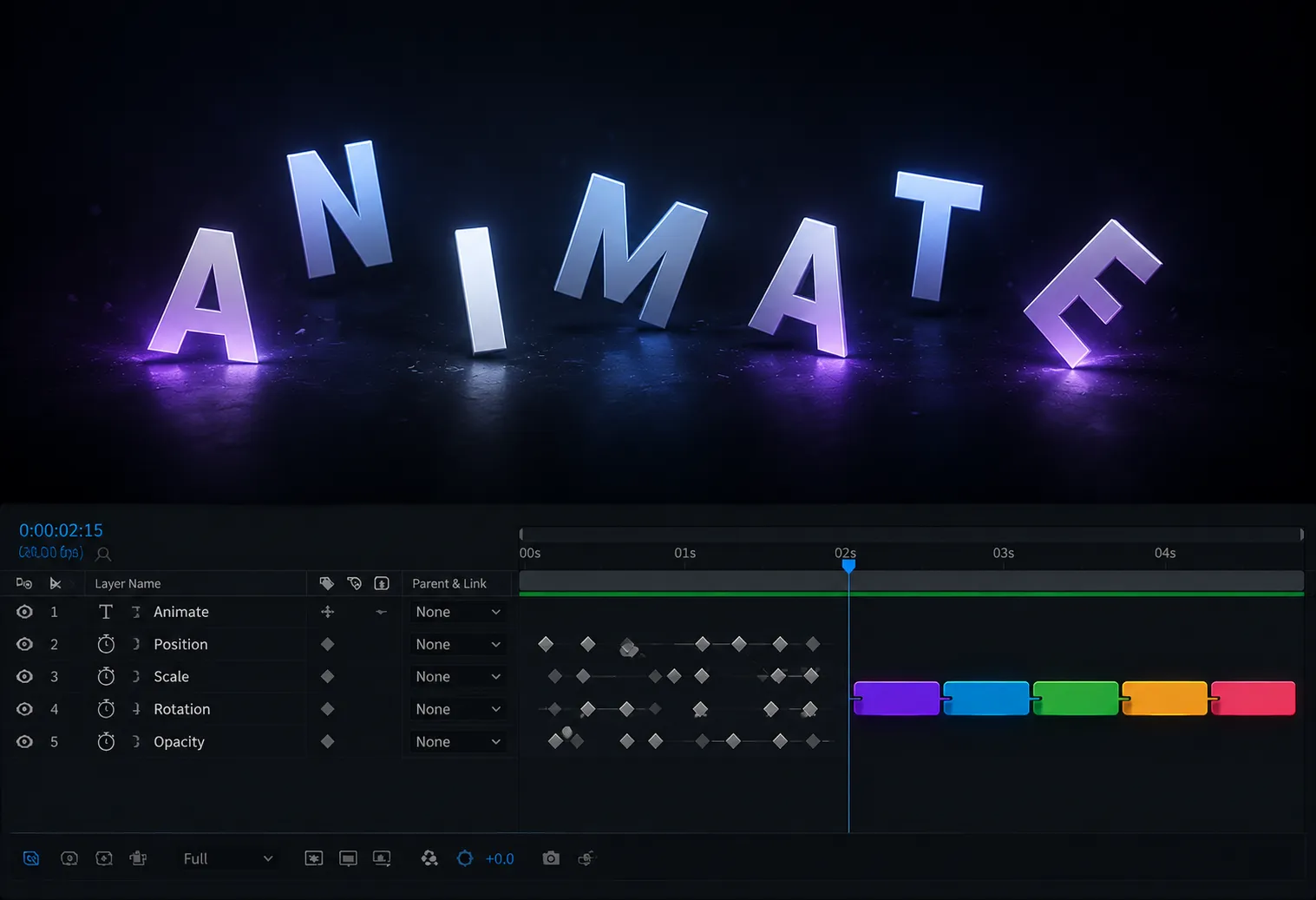
🎬 When Creating Animations Takes Longer Than It Should
Do you have experience with the PuzzleMotion Plugin by aescripts? Have you ever had a very simple animation in mind—like a piece of text smoothly entering from one side with a subtle motion—but once you started creating it in After Effects, you suddenly found yourself stuck doing a bunch of repetitive tasks? First, you add the keyframes, then adjust the animation speed, then open the Graph Editor to make the motion feel more natural, then preview it, make a small adjustment, preview it again… and the cycle just keeps repeating.
Eventually, you realize that the animation, which might only last three seconds, has already taken you 15 to 20 minutes to create. Not because it was complicated, but simply because every small movement required you to repeat the same workflow from scratch. That’s when you start feeling like a huge portion of your time is being spent on creating movement rather than developing the actual idea.
And that’s exactly the problem. The work itself isn’t difficult, but the process takes much longer than it should. You already know what you want to create, yet the tools and workflow make it far more time-consuming than necessary.

🧩 What Is Block-Based Animation?
Simply put, the idea behind Block-Based Animation is that instead of manually creating keyframes and adjusting the timing for every movement, you work with a collection of ready-made blocks, each representing a specific animation behavior. Rather than building the animation yourself, you’re essentially choosing and combining animations.
These blocks work much like LEGO pieces. Each one defines a particular movement or behavior, and you simply arrange them together to build your animation. For example, a simple animation could be created by combining blocks such as:
- Entrance from the left or right
- Jump or short bounce
- Rotation
- Pause
- Exit from the scene
The interesting part is that you no longer have to worry about technical details like editing motion curves or deciding exactly how many keyframes are needed. Instead, your focus shifts to what kind of movement you want and the order in which it should happen.
Ultimately, this approach allows an entire animation to be built simply by arranging a few blocks together. That’s exactly why it’s so useful for repetitive work, especially for:
- Text and title animations
- Simple logo animations
- Icons and UI elements
- Social media content
In other words, wherever you’re repeatedly creating similar animations, this workflow helps you avoid duplicating work and instead simply change the combinations.
⚙️ How Do We Work Without This Tool?
When creating animations in After Effects without any additional tools, everything comes down to manual, step-by-step work. You have to build the movement yourself, define the timing, and manually shape the animation behavior.
A typical workflow usually looks like this:
- Manually creating Position, Scale, or Rotation keyframes
- Adjusting animation speed by moving keyframes
- Applying Easy Ease for smoother motion
- Fine-tuning details inside the Graph Editor
- Copying animations to similar layers
Essentially, every animation follows nearly the same cycle over and over again, only with different content.
🔁 What’s the Biggest Problem with This Workflow?
The problem isn’t that these steps are difficult. The problem is that once your project starts growing, these repetitive tasks become the majority of your work. Instead of focusing on motion design, you spend most of your time repeating the exact same steps over and over.
This becomes especially noticeable when working with multiple text layers, logos, or similar elements. You’re essentially repeating the same workflow over and over, making only minor adjustments each time. As a result, projects take longer to complete and require much more energy, even though the final animation isn’t necessarily more complex.
🚀 So What Does PuzzleMotion Actually Do?
This is where things become interesting.
PuzzleMotion takes the entire workflow that normally involves keyframes, the Graph Editor, and countless manual adjustments, and turns it into a much simpler system: selecting motion blocks and arranging them together.
Instead of spending your time building animations, you’re primarily combining them. That small change dramatically increases your animation speed, especially in repetitive projects.
🎯 Building Animations with Blocks
This is the core of PuzzleMotion.
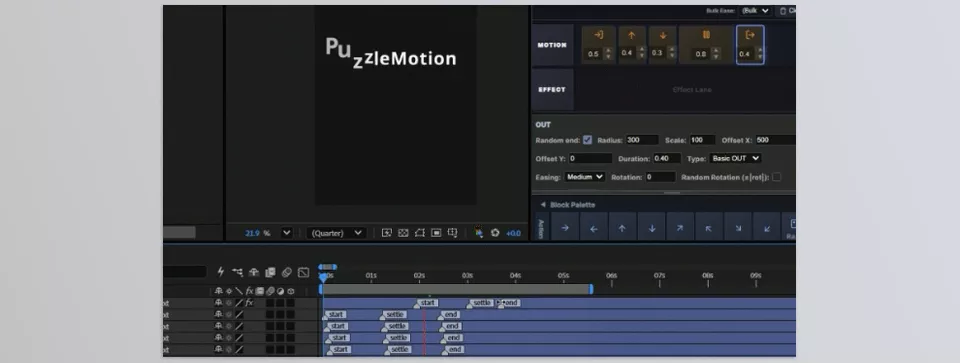
Inside the panel, you’ll find a collection of ready-made blocks, each representing a specific animation behavior. You simply choose these blocks and arrange them together in their own dedicated timeline.
For example, you could easily create a sequence like:
- Enter from the left
- A short jump
- A smooth rotation
- Then exit
Once you arrange the sequence, the plugin automatically generates all the necessary keyframes behind the scenes and applies the animation to your layer.
The important thing here is that you’re no longer dealing with the technical side of animation—you simply design the motion scenario.
⚡ AUTO Mode | One-Click Animation
One of PuzzleMotion’s most impressive features is AUTO Mode.
This mode is perfect when you need quick results or simply don’t feel like arranging blocks manually.
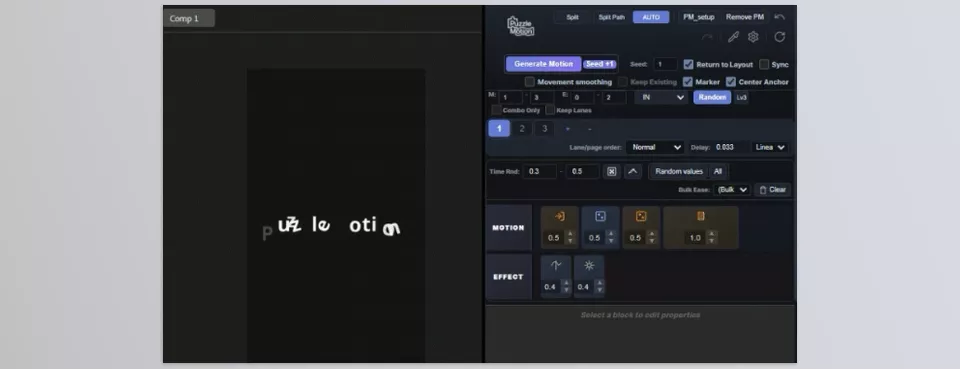
All you need to do is select a text layer and click AUTO. The plugin automatically:
- Splits the text into individual characters
- Creates suitable animations for each character
- Adjusts the timing
- Applies the complete animation automatically
It’s essentially a fast starting point for typography animations, especially when working under tight deadlines or testing multiple animation variations quickly.
🎲 Random | When You Don’t Have an Idea
Sometimes you’re simply not sure what type of animation fits your project.
That’s exactly where the Random button comes in.
Every time you press it, the block combinations and animation behaviors change, resulting in a completely different outcome. This feature is primarily intended for inspiration rather than final production, helping you quickly explore different animation directions.
For example, one click might generate a smooth, minimal animation, while the next creates something much faster and more energetic. Exploring these variations often makes it much easier to discover the style that best suits your project.
🎨 Working with Every Layer Type
One important thing about PuzzleMotion is that it isn’t limited to text.
It isn’t designed exclusively for typography.
You can also use it with:
- Logos
- Images
- Shape Layers
- Even some videos or objects
The same block-based system is applied to all of them, automatically generating their animations.
This makes PuzzleMotion a consistent animation tool across different types of projects, eliminating the need to switch between different workflows every time.
⏱ Timing Control with Markers
One of PuzzleMotion’s most useful features is its timing control.
Instead of editing keyframes individually, the plugin relies on Markers.
Once the animation has been created, you simply move the markers on the timeline to:
- Speed up or slow down the animation
- Change the motion rhythm
- Adjust the overall feel of the animation
This becomes especially useful when creating multiple versions of the same animation and only wanting to change its pacing without rebuilding everything from scratch.
Ultimately, what makes PuzzleMotion useful isn’t simply that it creates animations faster. The real advantage is that it transforms the repetitive process of creating motion inside After Effects into a simple, selection-based workflow.
Instead of rebuilding everything from scratch with keyframes, adjustments, and motion refinements every single time, you simply choose the type of movement, arrange it, and quickly end up with a finished animation. That’s exactly why it can significantly speed up everyday tasks such as title animations, logo animations, promotional text, and social media motion graphics, while allowing your attention to shift away from repetitive technical work and toward the creative process itself.
💡 A Few Tips That Make Working with PuzzleMotion Even Better
Before diving into the tips, just remember that these aren’t only meant to make your workflow faster—they’ll also help your animations look cleaner and more professional. 👇
- 🎯 Plan the Motion Path in Your Mind First
Before you start arranging the blocks, have a clear picture of where the animation should begin and where it should end. - 🎲 Use Random to Generate Ideas, Not the Final Result
The Random feature is more useful for discovering ideas than for creating the final version. Try it a few times until you find an interesting direction. - ⏱ Always Check the Timing After Creating the Animation
Even if the animation is already finished, take a moment to review its rhythm. Sometimes a small timing adjustment can make it look much better. - ✨ Simplicity Usually Produces Better Results
Not every animation needs to be packed with movement. Simple combinations often look cleaner and more professional. - 💾 Save Good Combinations for Later
If you come up with a block arrangement that works well, save it so you can reuse it quickly in future projects.
In the end, these tips are mainly here to show you that PuzzleMotion is more than just a speed tool. When used properly, it can also significantly improve the quality of your work. 👌
What’s the Main Idea?
PuzzleMotion isn’t designed to teach you a brand-new animation style or suddenly turn you into a different motion designer. The idea is much simpler than that. It takes the same animations you already know how to create and removes the repetitive, manual process, resulting in a faster, smoother workflow.
If your daily work involves titles, logo animations, or short motion graphics, those few minutes of time savings might not seem very important at first. But when you multiply those few minutes across multiple projects and multiple deliverables, you’ll realize that you’ve actually freed up a significant amount of time—time that you can spend improving your designs or even coming up with new ideas.
Ultimately, PuzzleMotion has less impact on what you create and more impact on how quickly and comfortably you create it. It helps you spend less time dealing with repetitive details and focus your energy on the more important part of the work—the part where ideas are developed and motion design takes shape.
To better understand how auxiliary tools expand After Effects’ capabilities, we encourage you to review our comprehensive After Effects Tools guide, designed for both learners and professionals.



