


When Shapes Start Playing!
Have you ever experimented with the Super Morphings Plugin? Imagine you’re working on a motion graphics project, and a simple shape like a circle or a square needs to stretch while moving, change its form, and transform into a completely new shape—for example, a circle turning into a star, or a wave morphing into another abstract form. These shape changes need to be smooth and natural, so it feels like the shape is actually breathing and moving, not suddenly jumping or snapping from one state to another.
If you wanted to create this using traditional methods, you’d have to spend hours adjusting shape paths, matching path points, and making sure everything looks natural. And if you also wanted to add motion effects like trails or slicing effects, the time investment would easily double.
Everyone is looking for a way to make these shape transformations fast, easy, and visually appealing—without sacrificing quality or natural motion. And this is exactly where professional morphing tools come in, bringing your projects to life and making them dynamic and engaging, without wasting hours of your time.

What Is Morphing and Why Is It Useful?
Morphing means that a shape or object gradually and smoothly changes its form into another shape. You actually see the motion and transformation happen, instead of one object suddenly disappearing and another one appearing.
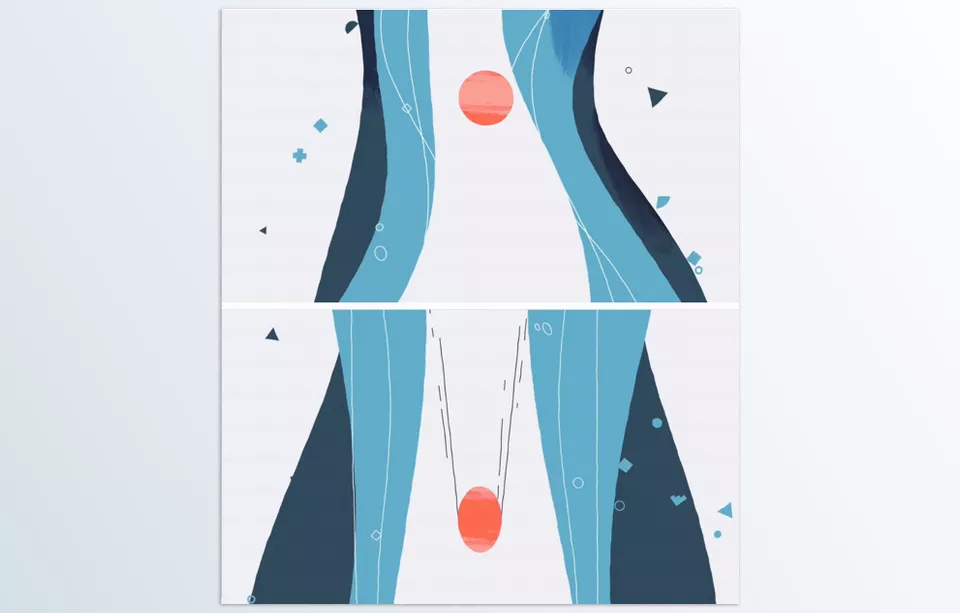
Practical Examples:
- A circle that moves, gradually stretches, and turns into an ellipse, a star, or any other shape
- A wave or curved line that changes its form and transforms into another abstract shape
- Transitions between motion graphics scenes that feel smooth and engaging instead of abrupt and stiff
This capability makes your animations look more professional and visually pleasing, while fully engaging the viewer with the motion and visual storytelling.
What Did We Have to Do Before Professional Tools?
If you wanted to create smooth and appealing morphing using only After Effects without plugins, you usually had to do the following:
- Shape Layers and Paths: Manually adjust shape paths, matching the points of the first and second shapes one by one so the motion looks natural
- Reshape Effect or Path Interpolation: Use these effects to gradually convert one shape into another
But What Was the Main Problem?
You had to be extremely precise, and the path points needed to align perfectly—otherwise the motion would look stiff or jumpy
If the shapes were complex, the process took even more time and often resulted in unnatural movement
Adding attractive effects like trails or slicing was difficult and time-consuming, usually requiring extra layers and complicated setups
It was possible with traditional methods, but slow, complex, and full of headaches—especially when multiple shapes needed to morph at the same time or additional effects were required.
One Click to Magical Transformation
Super Morphings Plugin is a professional tool for fast and easy morphing in After Effects that truly simplifies design and animation. With the Super Morphings Plugin, shapes and elements in your project can morph smoothly and naturally, without the need to manually adjust paths or spend hours on fine details.
Key Features and Use Cases:
Morph Any Shape with One Click
- Any shape or object—simple or complex—can start morphing into a new form with just one click
- No need to manually match paths or shape points
- The movement becomes smooth and natural, as if the shapes are actually stretching and transforming
Multiple Morphs at the Same Time
- Morph several shapes or objects simultaneously
- Perfect for complex projects like infographics, advertising scenes, or motion design, where multiple elements move together
Ready-to-Use Trails
- Enhances the motion path of each shape and adds a stronger sense of dynamism
- Easily adjust trail length, color, and intensity
Slicer (Cutting and Splitting Effects)
- Slice shapes, move individual pieces, or create visually striking cutting effects
- Helps you create advanced and eye-catching animations without excessive complexity
Easy Customization
- Morphing speed, motion length, colors, stretch amount, and details are all adjustable
- With just a few simple settings, you can fine-tune the motion to perfectly match your project’s style
Included Tutorials
- Comes with ready-to-use tutorials so even beginners can get started quickly
- Explains how to apply morphing and effects and achieve the best possible results
Real-World Examples:
- Smooth and engaging transitions between icons in an infographic
- Morphing elements in advertising or motion design projects without stiff or jumpy movement
- Creating eye-catching visual effects for social media videos
- Designing complex animations with multiple shapes, trails, and slicer effects working simultaneously
Super Morphings Plugin turns tasks that used to take hours into a few clicks, making your animations professional, smooth, and visually impressive.

Going Pro with a Few Simple Tips
Using a professional morphing tool like Super Morphings Plugin can make a huge difference in your projects. These tips help ensure your animations stay natural and visually appealing:
Start with Simple Paths
- Practice first with simple shapes like circles, squares, or straight lines
- Once you understand the morphing mechanism, you can move on to more complex shapes without getting overwhelmed
Combine Morphing with Fade and Scale
- Adding Fade or Scale alongside morphing makes transitions much smoother and more natural
- For example, when a circle turns into a star, a subtle fade adds softness, while scale creates a sense of motion and stretch
Use Trails and Slicer
- Trails make motion more dynamic and visually interesting, like showing speed or tension
- Slicer separates parts of a shape or creates stylish, professional effects
- When combined, these two tools significantly elevate the quality of your project
Always Preview at Real Speed
- Watching your animation at real playback speed is crucial to ensure movements feel natural
- Even the smallest jump or unnatural motion becomes obvious and easy to fix
Small Details, Big Impact
- Slight delays or speed changes during motion can make animations feel much more alive
- Use color and lighting to emphasize important parts of the morphing process
These techniques help your shape transformations look smoother and more engaging, making your motion graphics projects appear more professional—without spending hours refining them.
Bring Your Projects to Life!
Professional morphing speeds up your motion graphics workflow and makes your projects far more engaging. You no longer need to spend hours matching paths and tweaking motion details just to make animations feel natural. Even complex, multi-element movements become smooth and synchronized with just a few clicks.
Even if you’ve previously worked with manual techniques like Shape Layer paths or the Reshape Effect, the Super Morphings Plugin makes your workflow faster and easier. After trying it once, you’ll see how simple it becomes to morph different shapes together, add trails and slicer effects, and elevate your projects to a more professional level.
Finally, the Super Morphings Plugin is a time-saver and guarantees a more realistic and visually stunning render. If you want to make your animations feel as natural, seamless, and engaging from the get-go, try it out and experience it!
Don’t just scratch the surface of After Effects — dive into our detailed After Effects Tools guide and learn how every tool, plugin, and add-on can completely transform the way you create motion graphics.



