

💥 When a Simple Explosion Isn’t Enough for Your Scene!
Are you familiar with how the VDBLab by Superhivemarket works? Imagine you’re creating an action sequence in Blender: a building is being destroyed, a vehicle explodes, or a shockwave expands outward from the center of the scene. To make such a sequence look believable, you need more than just a large volume of smoke or a few flames. The movement of the fire, the shape of the expanding smoke, the intensity of the explosion, the shockwave, and even the particles scattered throughout the environment all need to work together.
Creating these kinds of effects usually requires multiple simulation settings, trial and error, and plenty of time to achieve the desired result. On top of that, after running several simulations, you might realize that the explosion doesn’t match what you had in mind, forcing you to go back and adjust the settings all over again.
This is where having an organized system for creating and controlling volumetric effects can simplify your workflow. Such a system should let you modify the shape of an explosion, adjust the forces affecting it, and create the final appearance of fire and smoke with greater freedom.

🌪️ How Does 3D Explosion Simulation Work?
In 3D visual effects, an explosion isn’t just a model of fire or smoke. It’s a collection of volumetric and dynamic phenomena that change over time. For example, when an explosion occurs, an energy source initially causes fire and hot gases to expand. After that, smoke spreads through the environment, the shockwave moves outward, and various particles and fragments may also be thrown into the air.
To create this kind of effect in Blender, Volume-based simulations are commonly used. One of the important formats in this field is VDB, or OpenVDB, which is used to store and process volumetric data such as smoke, fire, and density.
Unlike a regular 3D model, which consists of surfaces and polygons, volumetric data gives software information about the interior of a 3D region. This lets you display changes in smoke, flames, and other volumetric phenomena over time.
But how are these simulations used in real-world projects?
- Action and Cinematic Scenes: To depict building explosions, missile impacts, vehicle explosions, or fires breaking out in an environment.
- Game Trailers: To design explosion effects, bursts of fire, large volumes of smoke, and visual effects in different sequences.
- 3D Advertising: To create powerful visual effects, such as abstract explosions or bursts of smoke and fire surrounding a product.
- Fantasy Animations: Create magical explosions, concentrated energy effects, fiery tornadoes, and other unrealistic visuals.
- Destruction Effects: To depict shockwaves, dust, and floating particles in scenes where a structure or vehicle is destroyed.
These effects aren’t limited to visual appeal. When smoke movement, fire intensity, and how an explosion expands are coordinated with the scene’s events, the result looks more natural and creates a better experience for the audience.
🛠️ Common Methods for Creating Explosions and Fire in Blender
Before using specialized add-ons, you can also create explosion, smoke, and fire effects with Blender’s built-in tools. One common method is using the Mantaflow simulation system, which allows you to create and control gas simulations.
To create an explosion, you typically need to configure several different components:
- Flow: You specify an object as the source that generates fire, smoke, or a combination of both.
- Domain: You define the region in which the simulation takes place and configure settings such as simulation resolution and quality.
- Forces: You use forces such as Wind and Turbulence to change the direction and intensity of smoke and fire movement.
- Particle System: Use a particle system to add particles, sparks, and small fragments scattered around the explosion.
- Volume Shader: You use Principled Volume and volumetric nodes to adjust the color, density, and appearance of fire and smoke.
You can also create more varied explosions by changing the simulation source shape, combining multiple sources, and animating parameters. For example, you can combine a fire source with several smoke and particle systems to create a cinematic explosion with sparks and dust.
⏳ Why Does Creating Complex Explosions with Traditional Methods Take So Much Time?
The main problem is that you have to manage every part of the explosion separately. For example, to change an explosion’s shape, you might need to modify the simulation source, readjust forces, and run the simulation several times to get the desired result. On the other hand, creating effects such as circular shockwaves, animated fire paths, or complex smoke formations requires combining several different systems, and coordinating them isn’t always easy.
Adjusting the final appearance is another challenge. Creating a professional volumetric Shader requires working with different nodes and configuring the relationships between Attributes, color, density, and lighting. As a result, the more complex and detailed an effect becomes, the more time you’ll spend adjusting settings, rerunning simulations, and refining the result.
🚀 VDBLab: All the Tools You Need to Create 3D Explosions in Blender
VDBLab is a specialized Blender add-on that organizes the process of creating and controlling 3D explosions and volumetric effects into several different modules. With this tool, you can manage everything from creating an explosion source and generating fire and smoke to controlling the forces affecting the simulation and adjusting the final appearance of the effect.
One key feature of VDBLab is that you’re not limited to creating just one type of explosion. You can use different source shapes, adjust parameters, and work with different Seeds to generate hundreds of variations. For example, you can transform a regular explosion into a burst of fire, a shockwave, or an effect with volumetric trails.
Additionally, the add-on’s modular structure and Non-destructive workflow let you tweak settings and refine results after you create a simulation, without repeating the entire process from scratch.
Let’s look at the main components of VDBLab and what each one offers.
🎯 Presets Tools: Build Your Own Explosion Library
When you find the right combination of settings for creating an explosion, you’ll probably want to reuse the same effect in other projects. VDBLab includes a Preset system for this purpose, letting you use ready-made settings and create your own custom presets.
With this feature, you can save the explosion settings you’ve designed and reload them whenever you need them. This means you don’t have to configure the Emitter, forces, and other parameters from scratch when creating similar effects.
The features in this section include:
- Ready-made Presets: Use predefined settings to start creating explosions faster.
- Create Custom Presets: Save settings and create custom presets based on your own simulations.
- Save & Load: Save and reload effects for use in different projects.
- Share Presets: Share your created presets with other users and the VDBLab community.
This feature is particularly useful when you regularly work on explosion effects and want to gradually build your own collection of volumetric effects for your projects.
🔥 Emitter Module: Create Explosion Sources with Different Shapes and Forms
Creating an explosion starts with a source that generates fire, smoke, or other volumetric elements. In VDBLab, this task is handled by the Emitter module.
This module provides a diverse collection of shapes and structures for creating simulation sources. You’re not limited to a fixed shape. You can adjust Emitter parameters to create a variety of forms.
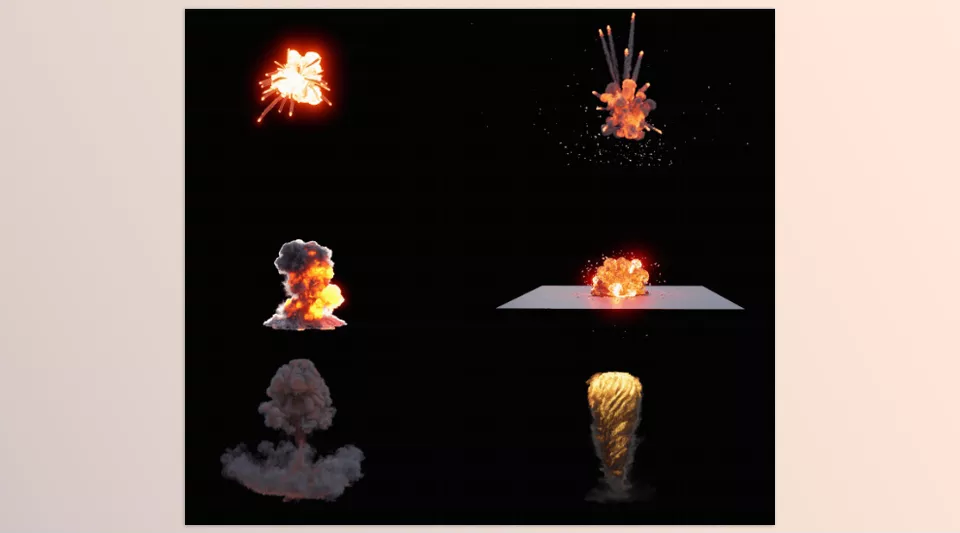
The examples introduced for this add-on showcase several types of Emitters and effects:
- Cones: Use conical sources to create directional explosions and bursts.
- Ico: Create sources based on polygonal structures to generate different explosion shapes.
- Noisy: Add irregularities and variations to the source shape for more diverse structures.
- Shockwave: Create shockwave effects and explosion expansion.
- Trails: Create volumetric paths and trails for animated effects.
- Firepath: Design fire paths to create bursts and streams of fire.
Change the Seed: Create Hundreds of Variations from a Single Explosion
One interesting feature of the Emitter is the ability to change its Seed. Think of a Seed as a value that helps generate different variations of a structure. Changing it can produce different shapes and patterns.
For example, imagine you’ve created an explosion source with a specific shape and you’re happy with the overall result, but you want several different versions for a cinematic sequence. Instead of recreating the source, you can change its Seed and generate new variations of the effect.
VDBLab allows you to create hundreds of explosion variations by changing Emitter Seeds, giving you greater flexibility when creating different effects.
Non-destructive Workflow and Animatable Settings
The workflow in this module is designed to be Non-destructive. This means you can modify Emitter parameters and create a new shape even after you’ve created the Emitter, without repeating the entire process from the beginning.
Additionally, almost all settings in this section can be animated. This means you can change parameter values across frames so the explosion source behaves and changes shape over time.
For example, you can configure a fire source to be dense at first and then gradually expand throughout the animation.
🌫️ Flow Module: Turn Different Shapes into Fire and Smoke
After defining the explosion source, you need to determine what type of volumetric content it should generate. The Flow module allows you to turn different shapes into sources that generate fire, smoke, and other volumetric content.
For example, you can turn a cone into a fire source or use a different shape to generate smoke. This way, the initial shape of the Emitter and the type of content it generates work together to determine the final result.
One key feature of Flow is that you’re not limited to fixed settings. You can animate different parameters in this section and change them throughout the simulation.
For example, in an explosion sequence, you might want the fire generation intensity to be higher at the beginning and then gradually change. Or, in a smoke effect, you might want the source to behave differently across various frames.
By animating Flow settings, you can control these changes and create effects that are better synchronized with the events taking place in the scene.
💨 Forces Module: Control the Forces Affecting the Simulation
Fire and smoke movement is one of the most important factors in making an explosion look natural. If all generated volumes simply expand in the same basic way, the final result may look repetitive and artificial.
The Forces module in VDBLab is designed to control and modify simulation behavior through different forces. This section provides a collection of options that make it easier to adjust the forces affecting an explosion.
With this module, you can change overall simulation behavior and make fire and smoke movement closer to what you have in mind.
One of the important sections in this module is Global Forces, which allows you to manage global forces. This feature is useful when you want to control the influence of forces across a wider area of the simulation rather than focusing on just one limited section.
Animating forces is another feature of this module. This lets you change force values and influence over time.
For example, in a large explosion, you can make the initial movement of the volumes different from the subsequent smoke expansion, ensuring the effect doesn’t behave identically across the animation’s stages.
In addition, the examples introduced for VDBLab show how to use forces in both volumetric and Mesh simulations, creating more variety in how effects take shape.
⚙️ Domain Module: Manage and Animate the Main Explosion Settings
The Domain module is another important part of VDBLab, used to configure and control explosion simulations.
After creating the explosion source and defining your desired volumetric content and forces, you also need to manage the overall simulation settings. This is where Domain comes in.
In this section, you can adjust important explosion-related parameters and modify the overall simulation behavior according to your project’s requirements.
One useful feature of Domain is the ability to animate its important parameters. This allows you to have different settings across various frames and apply your desired changes over time.
For example, imagine you’re creating a large explosion that starts with high intensity and, after a few moments, allows the remaining smoke and volumes to spread throughout the environment. By controlling and animating Domain settings, you can modify the simulation conditions at different stages.
As a result, Domain isn’t just for configuring an explosion initially; it’s also part of the process of controlling and refining the simulation throughout the animation.
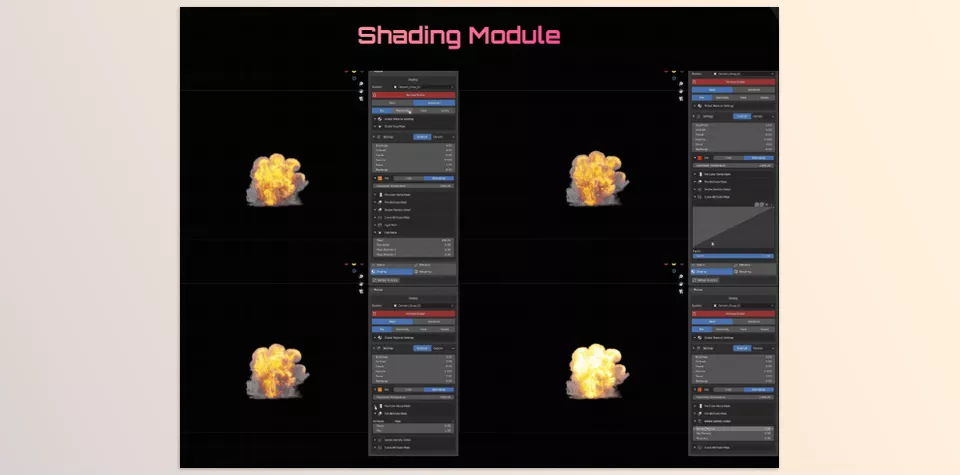
🎨 Shading Module: Professional Control Over the Appearance of Fire, Smoke, and Volumes
Creating an explosion with the right movement and shape isn’t enough on its own to achieve the final result. The appearance of the fire, smoke density, colors, and how volumes respond to light also significantly affect the visual quality of the effect.
For this stage, VDBLab provides an advanced, dedicated VDB Shader with a wide range of options to control your simulation’s appearance.
This Shader supports Attributes, Masks, and Light Paths, letting you adjust different aspects of the effect’s appearance in more detail.
Let’s take a closer look at the key features of this section:
Independent Control of Shader Channels
This section lets you enable or disable each Shader channel independently. This helps you focus on a specific component when adjusting the material while temporarily excluding the influence of other channels.
For example, if you’re refining the appearance of smoke, you can disable unnecessary channels to more easily examine changes related to that component.
Mix Attributes: Combine Volumetric Information
Attributes provide the Shader with different types of information about the volumetric simulation. VDBLab lets you combine this information so you can use multiple Attributes to control the final appearance.
This feature is useful for creating more complex Shaders because you can adjust the appearance of fire and smoke based on different simulation data.
Masks: Localized Control Over Settings
Using Masks, you can restrict the influence of certain Shader settings to specific areas of a volume.
For example, if you want a color change or an appearance adjustment to affect only a particular part of an effect, using a mask can help you control the result more precisely.
Light Paths: Control the Shader Based on Light Paths
VDBLab also supports Light Paths. This feature lets you use information about different light paths when designing a Shader and control how volumetric materials behave under different rendering conditions.
Fire Curve: Adjust the Fire Curve
The Fire Curve section is designed to control curves related to the appearance of fire. With this feature, you can adjust how different fire properties change and create your desired appearance with greater precision.
Attribute ColorRamp: Control Colors Using Attributes
With Attribute ColorRamp, you can convert volumetric information into different color gradients. This feature is useful for controlling the colors of fire and other parts of the simulation.
For example, you can assign different colors to a volume based on the values of an Attribute, giving the final appearance more variation.
Smoke Density Detail: Control Smoke Density Details
Another feature of the Shading Module is the ability to adjust details related to smoke density. This section gives you greater control over smoke appearance and detail, helping you move beyond a uniform result.
Overall, VDBLab’s dedicated Shader isn’t just for selecting a simple color or material. Instead, it offers a range of features for combining volumetric information, controlling colors, using masks, and adjusting fire and smoke details.
✨ Tips for Creating More Natural and Professional Explosions
Despite the features VDBLab offers, the final quality of an explosion still depends on how you choose settings and coordinate the different parts of the simulation. To make your work look more natural and appealing, keep a few tips in mind:
- Use Different Emitter Shapes: The explosion source doesn’t always have to be a simple shape. Changing the Emitter shape and Seeds can produce different results.
- Examine Fire and Smoke Separately: These two elements differ significantly in both appearance and behavior. It’s better to carefully review the settings for each one to achieve a more cohesive final result.
- Take Advantage of Animatable Parameters: Instead of keeping all settings fixed throughout the simulation, apply the changes you need at different points in time.
- Adjust Forces to Match the Scene: The movement of smoke and fire should be consistent with the scale and conditions of the environment. Using Forces correctly can help make the movement look more natural.
- Spend Time on the Shader: Don’t focus only on the explosion’s shape. Color, density, smoke details, and the way fire is displayed also have a significant impact on visual quality.
- Create Custom Presets: Once you get a good result, save the settings so you don’t have to repeat the whole process in future projects.
In addition, test your settings at a lower quality before starting a heavy simulation. Once you achieve a satisfactory result, you can move on to the final settings. This helps reduce the time spent on trial and error.
🎬 VDBLab: More Control Over Volumetric Visual Effects in Blender
If you’ve ever spent a lot of time adjusting simulations and refining results to create an explosion or fire and smoke effects in Blender, you probably know that achieving the desired look isn’t always possible with just a few simple adjustments. Sometimes, you need to configure several different components separately and modify the result repeatedly until the effect looks exactly the way you imagined.
This is where VDBLab can make things easier. Instead of creating every effect from the beginning, you can use different Emitters, ready-made modules, and presets. You can then change the Seeds, adjust forces, and control the Shader to get the result you want. This makes it easier to try different ideas without repeating the whole process each time.
If you regularly work with volumetric effects, VDBLab can become a useful addition to your Blender toolkit. This is especially true when you want explosions, fire, and smoke to be more than just ready-made, repetitive effects, and need greater control over their shape, movement, and appearance. In projects like these, having a tool that brings different parts of the effect creation process together in one place can leave you with more time to focus on the scene itself and your creativity.
If you’re looking for a complete guide to all Blender tools, our Blender Tools article explains every tool step by step and shows practical ways to implement them in your projects.