

😅 When FBX Gets in Your Way
Have you ever used the Better Fbx Importer and Exporter in Blender? We’ve all had those moments—when we’re on a project, ideas running rampant and a wave of creativity washing over us. All the configurations are properly set for Blender, then BOOM, you remember you need to import something you created from another software. There’s always that initial shock of uncertainty when it first happens: Is the model going to come in properly? What about textures and materials? Is the animation coming in properly, or is it going to fall apart?
Once you actually start, the problems begin. Textures can go missing, rigs may shift, or animations behave strangely and mess everything up. Hours of work and planning can vanish in the blink of an eye, leaving you feeling like all your effort is wasted. Anyone who works with multiple software projects knows this all too well, and it’s truly exhausting.
But there’s always a way to make this challenging process smoother and more precise. A method that not only allows everything to be imported into Blender without hassle, but also frees your time and energy to focus on creativity and the real details of your project. When you find that way, working with external files turns from stress into a smooth and enjoyable process.

What is FBX and Why Does It Matter?
FBX is a standard file format for transferring models, rigs, and animations between 3D software like Blender, Maya, 3ds Max, and game engines such as Unity and Unreal Engine. Unlike formats like OBJ, which only transfer the model and geometry, FBX can preserve animations, rigs, materials, and even lighting data.
Imagine you want to bring a character from Maya into Blender, or move a complete project from Blender to Unity—FBX acts as the bridge between software, ensuring your work’s details remain intact.
Main Uses of FBX:
- Transfer models and scenes without losing shape or texture: Models and materials are imported exactly as they were in the original software.
- Preserve animations and rigs completely: Character movements or complex animations are transferred without needing to rebuild them.
- Direct use in games and VR/AR projects: FBX lets you quickly use characters and scenes in game engines or virtual reality environments.
Why It Matters:
These features save designers and motion artists from spending time on fixes and adjustments, allowing them to focus on creativity and final design instead of tedious rework.
The Usual Way: Blender Itself
Blender can import and export FBX by default, but the real experience is often more complex than expected. When bringing a model or scene from another software, bone and rig orientation may be incorrect, and animations can break.
Even when everything looks fine, PBR textures and materials might not display correctly and may require manual adjustments.
Setting up Export Collections or LODs can also be time-consuming and complicated without extra tools, often requiring each object or collection to be prepared individually.
In short, using FBX in Blender without an add-on can become a path full of manual fixes and trial-and-error, draining your time and energy from the creative process.
💪When It Gets Professional
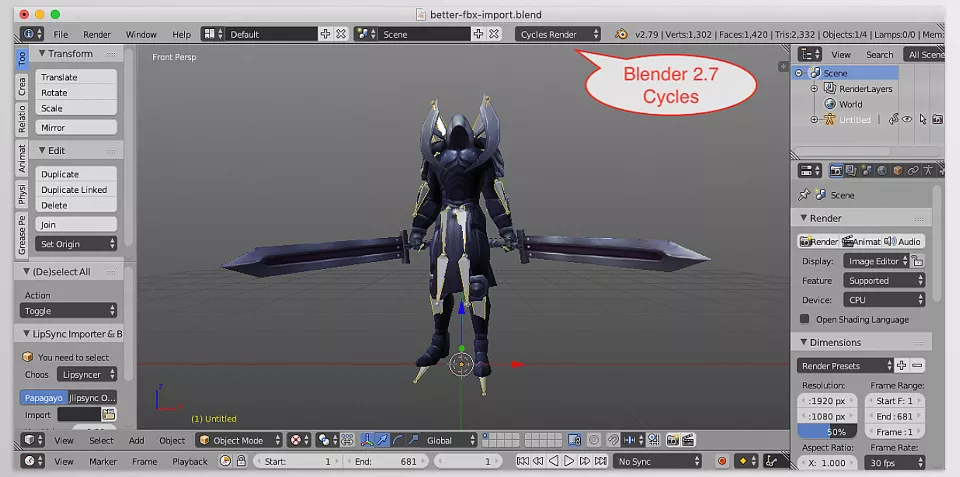
Transferring models and animations between software has always been challenging, but the Better Fbx Importer and Exporter add-on makes the process significantly easier. Instead of spending hours fixing bone orientations, textures, and collections, everything is automated and precise.
Key Features:
- Automatic bone and rig orientation: All orientations transfer correctly, and animations remain intact.
- Full support for PBR and Vertex Animation: Complex textures and advanced animations import and export without issues.
- Batch Export/Import: Transfer multiple models or scenes at once, without manual fixes for each file.
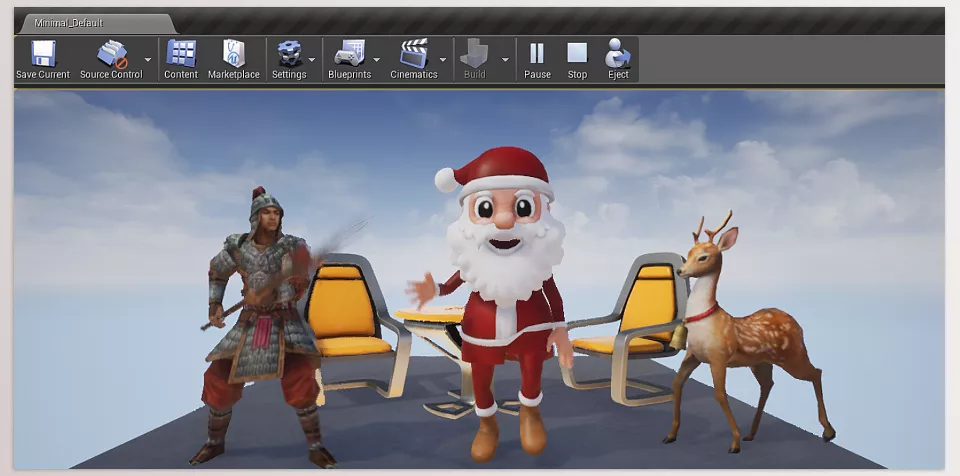
- Game engine compatibility: Unity, Unreal, and Godot receive files easily, reducing post-import adjustments.
Why This Add-On Is Valuable:
Imagine a Rigify character with several animations and PBR textures. Without the add-on, you might spend 30 minutes fixing orientations and setting up collections. With this professional tool, everything transfers in under 2 minutes, freeing your time to focus on design and creativity.
Real Project Example:
A full scene with multiple models and animations that usually takes hours to set up can be ready for use in a game or VR/AR project in the blink of an eye. Batch transferring models and scenes ensures even large, complex projects move stress-free and error-free.
⚡Quick Tips
Using the Better Fbx Importer and Exporter professionally isn’t just about clicking the Export button; a few simple tips can make your experience much smoother and problem-free.
- Embed textures before export: Ensure all materials and PBR textures transfer correctly, eliminating the need for manual fixes after importing.
- Batch Export for multi-collection projects: For scenes with multiple models and collections, Batch Export sends everything at once without errors, saving time.
- Enable Vertex Animation for games: If your model or character has animation for a game engine, always enable Vertex Animation. This ensures animations display accurately in Unity, Unreal, or Godot.
- Quick pre-export check: Review texture paths and bone orientation to make sure nothing is missing. This ensures output files are ready for immediate use.
These simple but effective tips make working with Better Fbx Importer and Exporter faster, smoother, and more professional, preventing wasted time on post-import corrections.
✨Efficient and Hassle-Free
Say goodbye to the hassle of transferring models and animations from one program to another! Better Fbx Importer and Exporter does all the heavy lifting for you. Bone rotations are correct, textures remain the same, collections and LODs are in the same location as they were placed in the original program and no more spending hours trying to fix what should’ve happened automatically.
Even complex projects with multiple animations and collections are ready for Unity, Unreal, or Godot in just a few clicks. What used to be a nightmare becomes smooth, giving you a sense of control and order.
In short, Better Fbx Importer and Exporter saves your time and lets you focus on the creative side of your project. Try it and see the difference when everything is in its place, letting you work on ideas and designs with peace of mind.
Interested in taking your Blender skills to a professional level? Our all-in-one guide about Blender Tools introduces you to every tool, explains its practical uses, and helps you become more confident in the software.



