


When Cutting in Modeling Breaks Your Nerves…
Have you used the Face Cutter in any projects? If you’ve ever encountered a weird face in the middle of modeling where neither Loop Cut works nor Knife delivers the precision you have in mind, know that you’re not alone. Usually, everything goes smoothly until you hit NGons, curved surfaces, or faces with uneven angles.
This is where your workflow rhythm gets disrupted: either you have to cut and fix multiple times, or change the entire topology just for a clean cut. These irregular cuts later show up in UVs, shading, and even animation, diverting your focus from the design itself.
Deep down, you know this step could be much simpler. You just need a quick, clean, and controllable method—one that lets you focus on the idea and design instead of struggling with tools.

Without Add-ons: How Blender Handles This Natively
Even without any add-ons, Blender still offers ways to cut geometry; however, most of these methods require patience, manual precision, and several corrective steps.
Typically, users turn to these tools:
Knife Tool (K)
The Knife is the most flexible cutting tool in Blender.
- You can draw any line you want, enter a face from any angle, and even move across multiple faces.
- But everything is fully manual, which means:
- Cutting precision depends entirely on the user’s hand
- Equal division is almost impossible
- It quickly becomes messy on complex NGons
In large projects, even a slightly crooked line can demand a lot of corrections later.
Loop Cut (Ctrl+R)
Loop Cut is fast, clean, and great for standard topology.
- The problem is that it only works with quads.
- As soon as a face is an NGon or the loop path is broken, Loop Cut essentially fails.
This means precisely where you need accurate cuts the most, this tool won’t help.
Knife Project
Knife Project is designed for more precise cuts but comes with extra complexity.
You need to:
- Create a helper object
- Set the correct view angle
- Perform a projection
It’s useful for specific tasks, but for everyday, repetitive cuts, it’s slow and impractical.
Bisect
Bisect is a good tool for quick, across-the-board cuts.
- However, when it comes to:
- Precise divisions
- Angled cuts
- Working on small details
It doesn’t give enough control and is better suited for general-purpose work.
The Common Problem with All These Methods
Although each of these tools can be useful in specific situations, when it comes to more serious and repetitive tasks, their shared limitations become very apparent. Controlling NGon faces is usually difficult and cumbersome, achieving precise and repeatable divisions is not easy, and the final result relies heavily on the user’s manual skill. This leads to a slower workflow, and even a simple cut can require more time and energy for corrections. That’s why, in many projects, the main problem isn’t actually “cutting”—it’s that Blender’s default tools aren’t really designed for these kinds of scenarios.
When a Specialized Tool Enters the Game: Face Cutter
Here’s where Face Cutter shines: a tool specifically designed for cutting complex faces and NGons. Instead of just drawing a simple line, it focuses on smart, clean, and controllable cuts, allowing users to model efficiently, quickly, and professionally.

Key Features and Full Explanation
Direct Cutting on NGons
One of the biggest limitations of Blender’s default tools is that Loop Cut works only on quads, not NGons. Face Cutter removes this restriction, allowing you to cut any polygonal face, regardless of the number of vertices, precisely and without manual fixes.
Snap Points and Equal Face Division
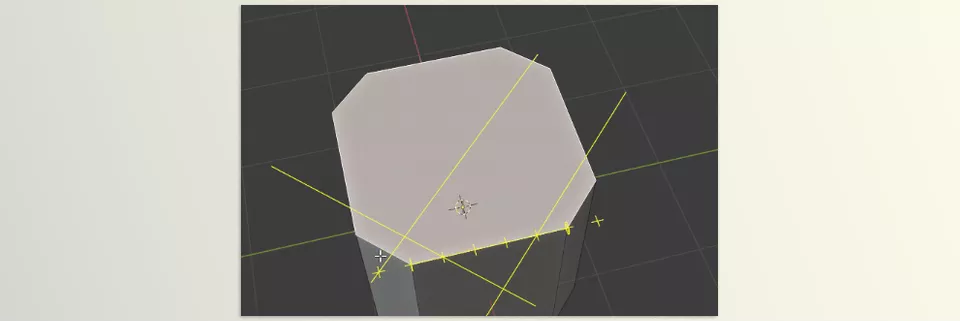
You can specify the exact number of divisions for a face and arrange the cut lines evenly between snap points. This ensures that even large and complex faces are divided cleanly and professionally, without guessing or human error.
Ready-to-Use Vertical, Angled, or 45° Cut Lines
In design, sometimes you need simple vertical lines, other times specific angles like 45° for corners or details. Face Cutter provides all these modes with shortcuts, without having to manually rotate lines or calculate angles.
Align Cut Lines with Surrounding Edges
When you want a cut line to align perfectly with adjacent geometry, simply move your cursor near the target edge and use the align shortcut. This ensures cut lines are always organized and consistent with the mesh structure, even on irregular faces.
Cutting Across Multiple Faces, Even Non-Planar
When working with faces that aren’t flat or have different angles, Face Cutter can project cut lines across all selected faces without altering the rest of the mesh. This greatly increases speed and precision on curved surfaces.
Cut Through to Slice the Entire Mesh
Sometimes you just want a cut line to go through the entire mesh, separating all intersecting areas. This can be done with a single key, eliminating the need for multiple steps.
Break Apart: Cutting and Separating Pieces
With this option, you can simultaneously create cut lines and separate new pieces independently. This is especially useful for mechanical designs, Sci-Fi panels, or any situation that requires dividing the mesh into manageable, precise sections.
Practical Example
Imagine designing a Sci-Fi panel or a mechanical body. With Face Cutter, you can quickly:
- Create clean, precise lines on NGons
- Build angled corners and details
- Cut curved and irregular faces effortlessly
- Have separate, editable parts ready
Without spending hours on manual fixes, complex projects move forward with speed, accuracy, and a smooth workflow.
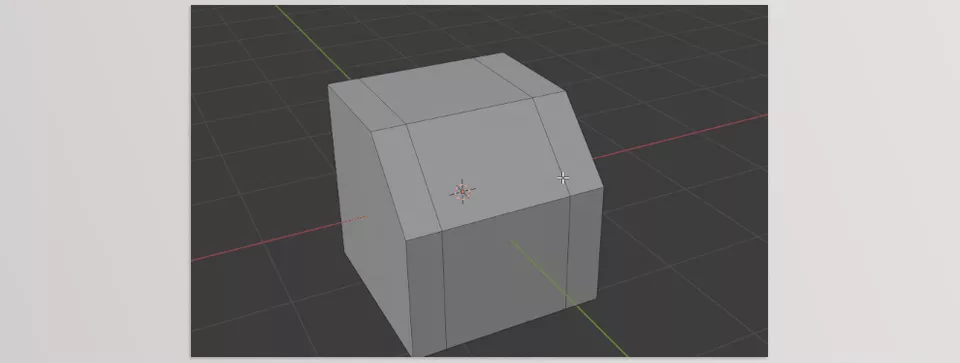
In short, Face Cutter is a tool made specifically for the problems Blender’s default tools cannot solve. It allows you to make precise, clean, and controllable cuts on NGons and curved faces, create vertical or angled lines, divide faces evenly, and even separate parts—all without wasting time or performing repeated corrections. Using Face Cutter not only increases workflow speed but also significantly improves topology quality and modeling accuracy, making the modeling experience much smoother and more professional.
Pro Tips for Better Results
When you want to create precise and professional cuts, a few simple tips can significantly improve your results and make working with Face Cutter more enjoyable.
Apply Object Scale Before Starting
If your object is scaled in Object Mode and the scale isn’t applied, cut lines won’t be precise, and the geometry may appear uneven after cutting. Applying scale ensures all cuts match the object’s true dimensions and are predictable.
Use the 45° Shortcut for Corners
Precise corners, especially for panels or mechanical bodies, require exact angles. With the D key, you can set a cut line to 45° and press again to switch to -45°. This makes cuts faster and cleaner, removing the need for manual angle calculations.
Use Projection on Non-Planar Faces
When faces have different angles or are curved, cutting individually can produce uneven or skewed results. Projection projects cut lines across all selected faces, ensuring accurate and consistent results, even on complex surfaces.
Use Easy Edit Mode for Diagonal and Combined Cuts
This mode lets you see all snap points and easily create diagonal or combined lines. For complex cuts or precise geometric details, Easy Edit Mode saves time and energy, producing more accurate and professional results.
Use Full Width Mode for Multiple Faces or Long Edges
When working with several faces or long edges, Full Width Mode allows you to cut the entire aligned edge, rather than just a small section. This is especially useful for panels, mechanical bodies, or any design requiring long, consistent lines, boosting workflow speed.
By following these tips, your cuts will not only be cleaner and more precise, but your workflow speed and efficiency will improve significantly, providing a more professional modeling experience.
Summary: Small Tool, Big Impact
Face Cutter isn’t meant to replace all Blender tools and doesn’t aim to fully substitute Loop Cut or Knife, but it sits perfectly in position for where Blender fails—cutting NGons, cutting faces with curvature, cutting faces on more complicated geometrical shapes. It reduces reliance on tweaks and unnecessary push and pull because it requires you to focus on what you’re doing in your design and the sensitive data.
Fewer adjustments and the beauty of creation mark Face Cutter’s novelty. Design work goes faster, cuts are faster, more precise, and in your own control of where you want cut lines. Face per face, angle and vertical cuts, even cutting non-planar but multiple faces, means that there are fewer adjustments needed for professional rendering outcome in a speedier time.
Face Cutter is bound to help anyone who doesn’t just think of the modeling process as “molding.” Anyone who craves clear topology, finished details, and geometrical aesthetics will benefit. No fuss, no multiple steps, transforming segments into elegant even breaks, clean corners, and practical edges means that even the most complicated endeavors get completed with greater ease and a professional feel.
Take your Blender expertise to the next level with our complete Blender Tools guide, where every tool is broken down in detail and accompanied by real project applications to help you learn both theory and practice.



