

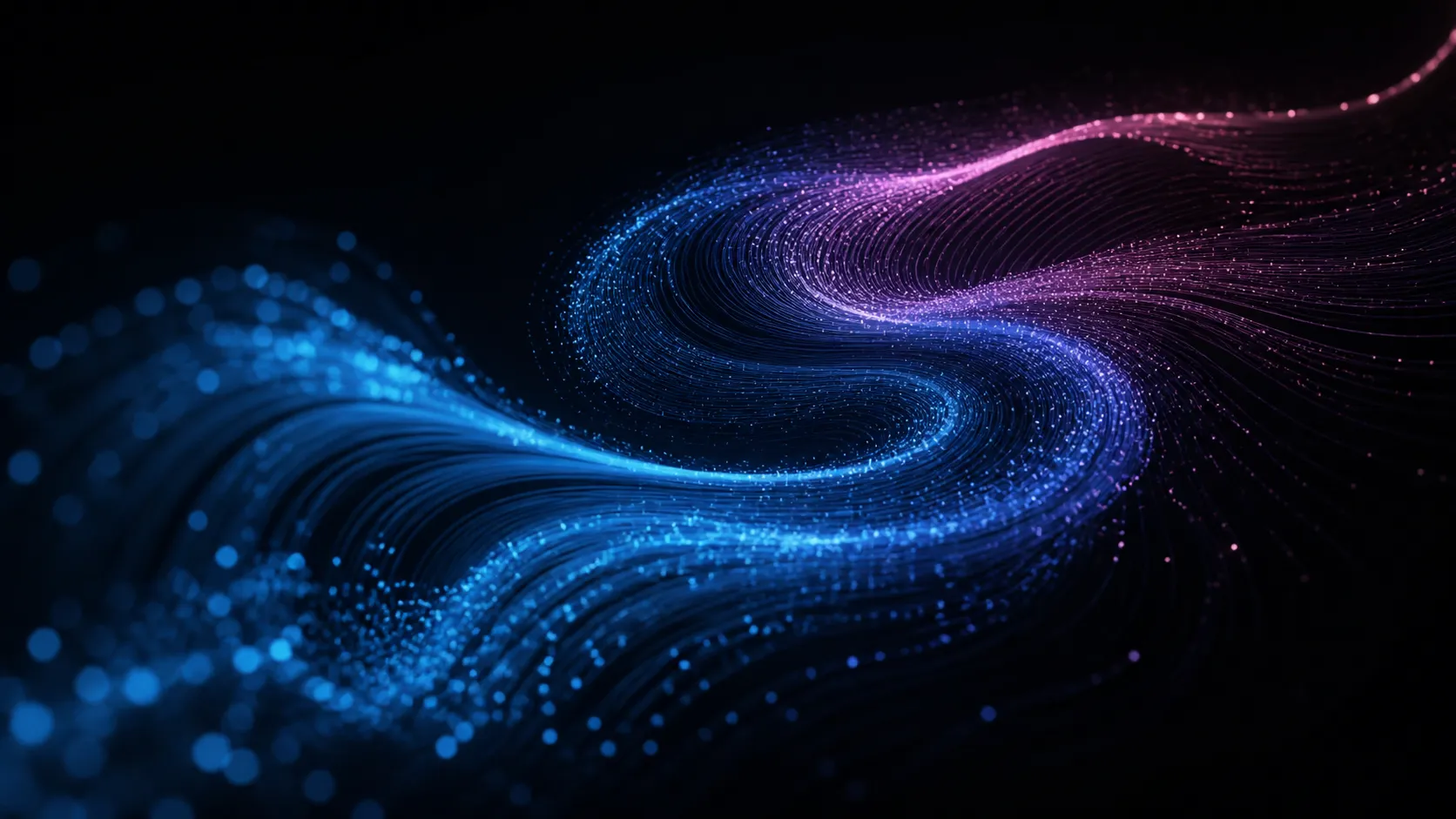
🎯 When Particles Don’t Behave!
Are you experienced in using the Fluxion Plugin by aescripts? If you’ve ever worked with particle effects in After Effects, you’ve probably run into this issue: their motion isn’t as controllable as you’d like. Typically, particles are emitted from a single point and behave somewhat randomly—like they’ve just been released to go wherever they want. This kind of motion works for some projects, but it’s not always what you’re aiming for.
If you want to take your particle effects a step further and make the particles follow a specific path, you run into a bit of a challenge. It’s possible to achieve this with a series of workarounds and tricks in After Effects, but it requires a lot of trial and error.
This is where an important need becomes clear: being able to design the particle path yourself—not just change where they start. This simple shift in perspective can turn your result from a random, ordinary motion into a controlled, intentional, and professional animation.

🧠 When a Path Becomes a Flow
The idea behind these kinds of effects is the use of a Vector Field. Instead of simply having the particles start from a single point, a Vector Field allows each point in your composition to have a specific direction that the particles will follow.
This concept makes motion much more natural and controllable. For example, you can make particles flow into a logo, orbit around a shape, or move like smoke along a defined path. These kinds of motions are widely used in professional motion graphics, advertising teasers, and branding projects because they add a sense of flow and life to the visuals.
🎛 Common Tools and Methods in After Effects
If you want to achieve this type of motion without plugins, After Effects does offer tools—but you usually have to combine multiple methods to get close to the result. Instead of a direct solution, you’re essentially simulating the behavior using several tools.
These techniques usually include:
- Using CC Particle World or CC Particle Systems to generate base particles
- Defining motion paths with Motion Path and linking them to particles
- Using Shape Layers and Trim Paths to create visual paths
- Leveraging Expressions to synchronize movements
- Adding effects like Turbulent Displace or Displacement Map to make the motion feel more natural
This combination can somewhat create a sense of “flow,” but in reality, you’re indirectly forcing particles along a path rather than having full control over their movement.
😅 Challenges and Limitations
Using the methods described above can lead to a somewhat complicated editing process. The control of the exact movement of the particles along their paths is often difficult using these tools. Additionally, much of the process is largely trial and error; there is no guarantee that the movement of the particles will appear as you would like it to.
In heavier projects, you might also face performance slowdowns. In the end, while you can reach a decent result, it usually takes a lot of time and leaves you with limited flexibility throughout the project.
🚀 What Does Fluxion Simplify?
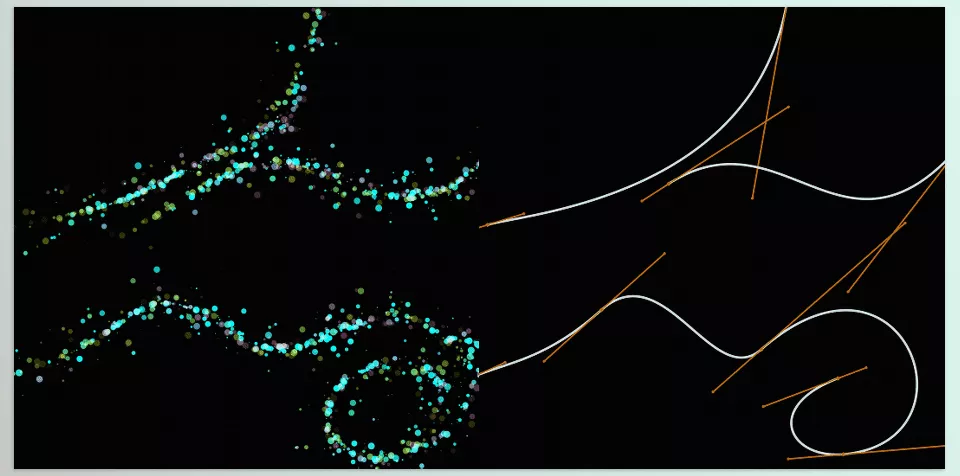
Fluxion is built exactly to solve that common particle problem: when you want to design the motion path yourself instead of hoping particles move somewhere near it. This plugin allows the masks you draw to become actual flow paths, and particles move precisely along them.
🎯 Turning Masks into Real Motion Paths
At its core, Fluxion generates a motion-guiding system (Vector Field) from your mask. This means your path isn’t just a line—it becomes a real flow that directs particles.
In this section, you get powerful controls such as:
- Field Width: Determines how closely particles stick to the path or spread out
- Falloff: Controls how strongly the path influences motion for smoother or sharper movement
- Reverse Flow: Lets you invert direction without redrawing the path
- Continue Past Path: Allows particles to keep moving after reaching the end
- Multiple Masks: Enables multiple paths influencing motion simultaneously
- Field Scale & Density: Control precision and detail, especially for complex paths
💨 Controlling Particle Emission (Emitter)
In Fluxion, it’s not just about the path—how particles are emitted is also fully controllable.
Features include:
- Emitter Type:
Choose whether particles emit from a point, a volume (Box/Sphere), or even from the mask itself - Emission Rate:
Defines how many particles are generated and how dense the effect is - Lifetime:
Determines how long each particle exists and how far it travels - Random Seed:
Adds variation and prevents repetitive motion
These controls let you create both precise and organic effects.
🎨 Designing Particle Look and Behavior
This is where your work evolves from a simple effect into a professional design. Fluxion doesn’t just give you particles—it gives you design control.
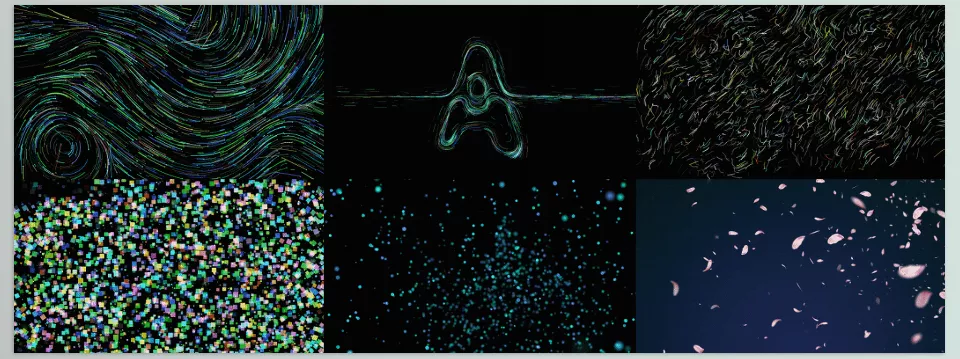
- Particle Shapes:
Includes several presets, plus support for custom layers - Custom Particles:
Use logos, icons, or any graphic as particles - Speed / Size / Opacity / Rotation:
Fully adjustable core properties - Over Life Controls:
Define how properties change over time (e.g., growing or fading) - Auto-Orient:
Align particles with the path or let them follow physical motion - Blending Modes:
Useful for creating light-based effects
🌪 Physics and Natural Motion
To avoid artificial-looking movement, Fluxion provides a full physics system:
- Gravity:
Adds weight and pulls particles downward - Wind:
Alters the overall direction and creates airflow - Air Resistance:
Smooths motion and prevents overly fast movement - Turbulence:
Adds natural randomness to avoid stiff motion- Adjustable in strength, speed, and density
🎥 3D Capabilities and Professional Output
Fluxion integrates well with After Effects’ 3D space:
- 3D Support:
Use particles in true 3D environments - Camera Integration:
Works with AE cameras for depth-rich scenes - Depth of Field:
Adds realistic focus and depth - Motion Blur:
Makes movement smoother and more natural - Simulation Scale:
Controls overall simulation speed for timing adjustments
⚡ Performance and User Experience
One of Fluxion’s strongest points is performance. Thanks to GPU acceleration, it remains smooth even with high particle counts or complex scenes—crucial for heavy projects.
On top of that, its clean and intuitive interface helps you work faster without getting lost in settings. Everything is designed to keep your focus on motion design, not tool complexity.
Overall, Fluxion makes it much easier to turn your ideas into motion—no complex tricks, no fighting limitations, just direct control.
🎯 Pro Tips | How to Get Better Results
To make your work not just “correct” but truly professional and eye-catching, there are a few simple yet impactful tips worth following from the start.
- Add Turbulence for Natural Motion:
Even with a clean path, a bit of turbulence helps remove stiffness and adds life - Use Custom Particles Instead of Simple Shapes:
Replace basic circles with logos or custom graphics to instantly add visual identity - Adjust Field Width for Motion Feel:
Narrow fields create focused motion, while wider fields feel softer and more diffuse - Layer Multiple Particle Systems for Depth:
Don’t rely on a single system—combine layers for main motion and detail/noise - Use Motion Blur for Smoother Movement:
Especially important for fast-moving particles - Add Depth of Field for Realism:
Enhances spatial feeling and makes the scene more cinematic
Individually, these tips might seem small—but together, they significantly elevate your final result.
🎬 More Control, Less Hassle
In the end, while you can achieve these effects using default After Effects tools, the process is often long, complex, and full of trial and error. Even small changes can require adjustments in multiple places, costing you time and energy. Eventually, you realize the issue isn’t your skill—it’s that the tools weren’t built for this kind of workflow.
Fluxion bridges that gap. Instead of constantly searching for workarounds, it gives you a direct path—one where you can easily design particle motion and get results faster. That means less time tweaking settings and more time focusing on ideas and improving your output.
If your work leans toward flow-based motion, particle effects, or organic animation, not having a tool like this essentially means spending more time for results that could be achieved much more easily. Fluxion doesn’t just simplify the process—it helps your work look cleaner, more controllable, and more professional.
If your goal is to work faster but still keep your quality high, you should definitely check out our After Effects Tools guide. It’s full of simple tips and tools that make a real difference.