

When a Simple Task Suddenly Gets Complicated 🎬
Are you familiar with the AE Sheets Plugin by aescripts? Have you ever wrapped up a motion graphics project, thinking everything was finished, only for someone to suddenly say: “Great, now we need the same thing in 5 more languages”? 😅 That’s the moment you realize the situation is more serious than you thought.
All you have to do is replace the text, create new layouts for each language, find the appropriate font for each language, and make sure it’s all looking good when it’s done. Essentially, you have to start the project all over again – except this time you have to do it for each language.
Doing it this way is extremely repetitive and exhausting. Each change to the text can potentially impact the entire project. Eventually, you realize how complex it is to simply create each of these languages for your motion graphics software project.

What’s Really Going On Behind the Scenes? 🧩
What we’re talking about here is called localizing. It’s a step beyond simple translation; the goal is to prepare your project for each language in a way that makes it feel as if it were originally created for that specific country. It shouldn’t feel translated, and it definitely shouldn’t feel patched together.
This means it’s not just about converting text from one language to another; the entire visual experience needs to adapt as well. Every language has not only different words but also a different rhythm and structure, which directly impacts the design.
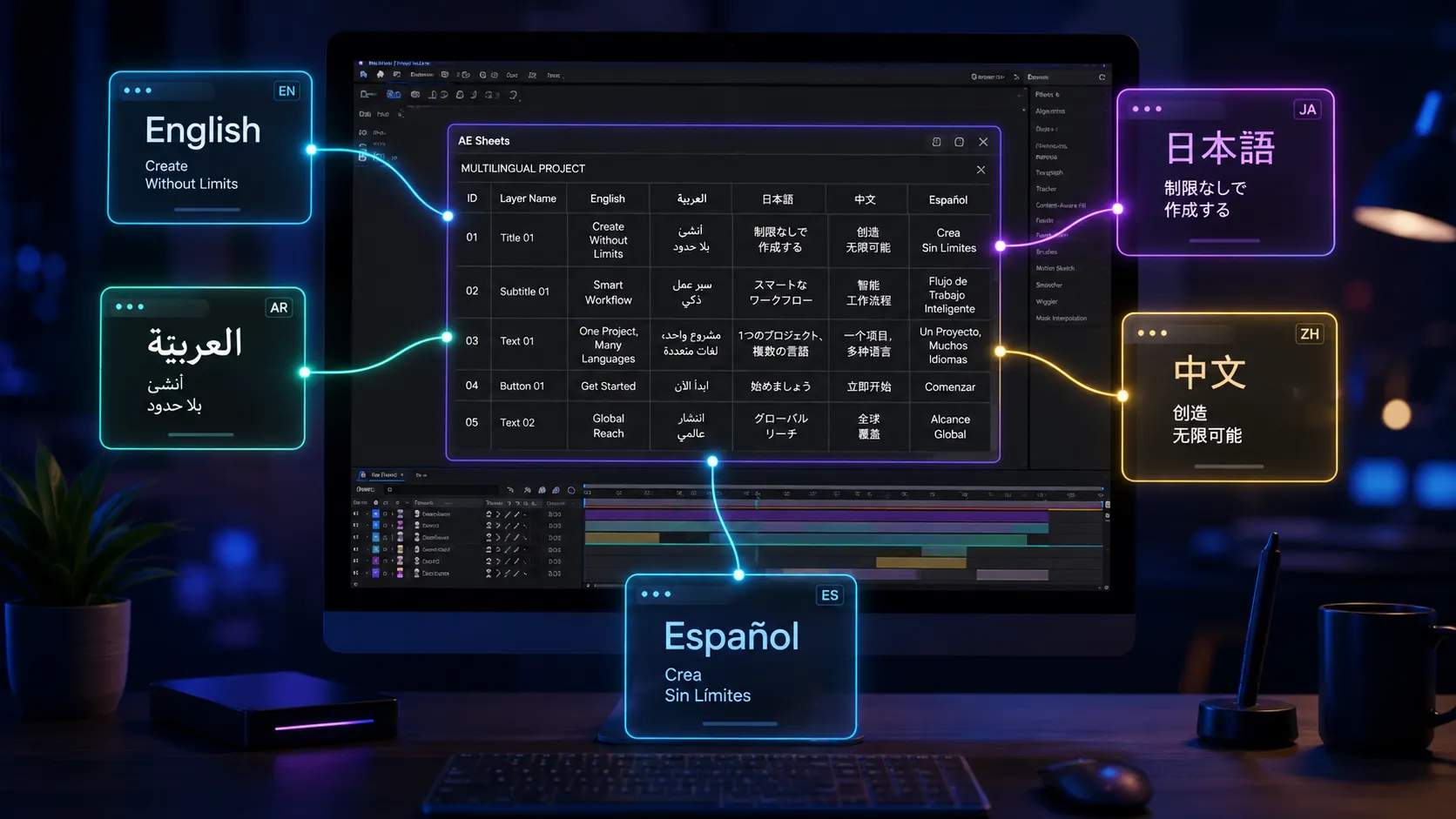
For example, imagine you have a video that needs English, Arabic, and Japanese versions.
At that point, the challenge quickly shifts from “let’s just translate it” to a real design problem:
- Text lengths vary (an English sentence might become twice as long in German).
- Writing direction changes (like Arabic, which is right-to-left and can completely alter the layout).
- Fonts need to be selected specifically for each language (because a great English font might not work for Japanese at all).
- Sometimes the entire layout needs adjustment (because certain languages take up more or less space and can disrupt the composition).
Without a proper system in place, each language essentially becomes a separate version that has to be rebuilt from scratch… and that’s when things start getting out of control. 😵
What Happens When You Do Everything Manually 🧱
The typical After Effects workflow lacks a dedicated system for managing multiple languages, so everything is done manually. Every time a new language is added, you have to create a separate version of the project and adjust everything from scratch for that language. It’s repetitive work that feels more like copying and pasting than a professional workflow.
Traditional methods usually look something like this:
- A separate composition is created for each language.
- Text is replaced manually, one by one.
- Fonts and styles are adjusted again.
- Layer positions and layouts are rechecked.
- Each language version is rendered separately.
The biggest issue is that this approach quickly becomes unmanageable. The moment you make a small change to the main project, that same change must be applied across all language versions. Instead of managing one project, you’re effectively managing multiple parallel projects that all depend on each other.
As a result, the workflow becomes time-consuming and error-prone, and every small update becomes a repetitive and frustrating task.
This Is Where AE Sheets Come in 🚀
AE Sheets was built specifically to solve the headache of multilingual projects. Instead of juggling dozens of compositions, layers, and project versions, it brings everything into a centralized Excel-like panel where you can manage your entire project as if it were a clean, organized database.
The result is simple: instead of chaos and fragmentation, you get a unified system where all languages, texts, and versions are under control.
What Does It Do?
🔹 All Texts in One Place (Layer Database)
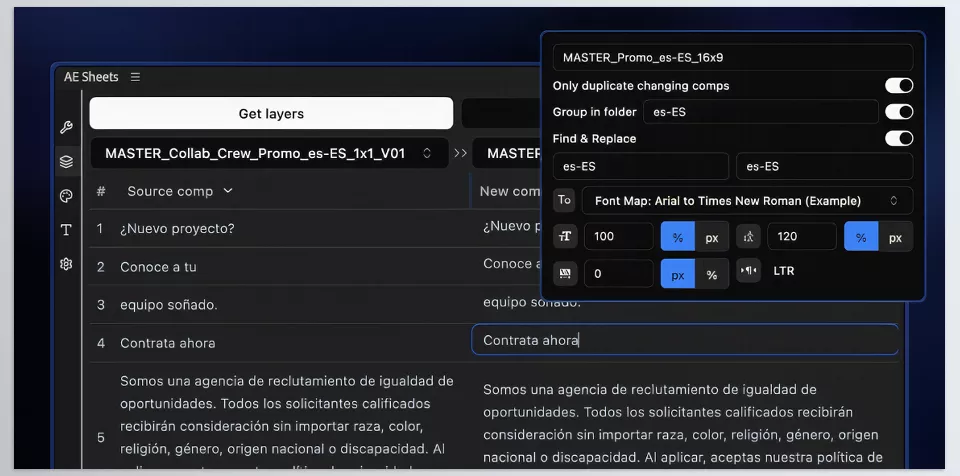
View every text layer in your project inside a complete table. Every text element, every layer, and every change can be managed from a centralized environment. No more jumping between compositions just to find a single sentence.
🔹 Multilingual Versions (Language Columns)
Create a dedicated column for each language—English, Arabic, Japanese, or any other language. All translations sit side by side, making comparison and management incredibly easy. This structure keeps your project organized and fully controllable.
🔹 AI-Powered Translation (AI Integration)
If you don’t want to translate manually, you can connect directly to OpenAI or Google Gemini. Simply add your API key, and translations can be generated directly within the panel. This dramatically speeds up the workflow, especially for large projects.
🔹 Preventing Layout Breakage (Smart Rigging)
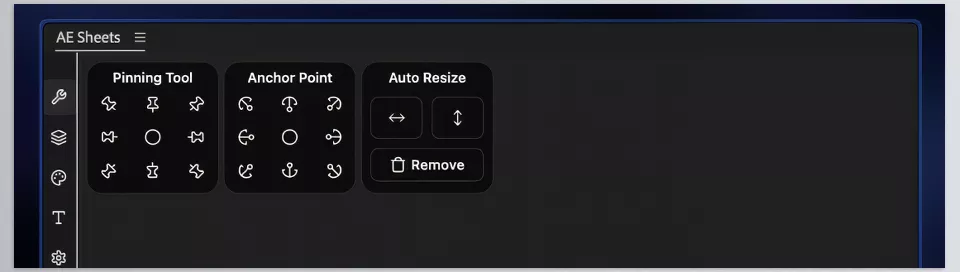
Features like Auto Resize, Dynamic Anchor Point, and Pinning help keep designs under control. Even when text becomes longer or shorter, layers stay in place and layouts remain intact.
🔹 Professional Font Mapping
Define exact font replacements for each language or even individual fonts. When a project switches to Chinese or Arabic, fonts can automatically change to the appropriate alternatives without losing style or typographic weight.
🔹 Ready-Made Language Presets
Includes preset configurations for 64 different languages, including RTL support for Arabic and Hebrew, as well as dedicated settings for CJK languages. Instead of building everything from scratch, you simply choose a preset and start working.
🔹 Output & Project Structure Management
Control how each language version is named, where it is stored, and even which Find/Replace rules are applied. This helps keep the final project clean, organized, and ready for delivery.
In short, AE Sheets is not just a translation tool; it’s a complete multilingual project management system for After Effects. It increases speed, reduces errors, and transforms a scattered manual process into a professional and controlled workflow.
A Few Tips That Will Make Your Workflow More Professional ⚙️
Before diving into these tips, keep one thing in mind: they may seem simple, but in multilingual projects, they can make the difference between a chaotic, frustrating experience and a clean, professional workflow.
🧱 Build a Clean Structure from the Start
Organize your text layers properly from day one. Make sure every layer has a clear name and purpose. It may take a little extra time initially, but it will save you from countless headaches later.
🌍 Choose the Right Font for Every Language
Use proper, professional fonts for each language—especially for languages such as Arabic, Chinese, and Japanese. A poor font choice can ruin the entire visual experience, even if everything else is done perfectly.
📏 Enable Auto Resize for Long Text
For languages that tend to produce longer text, always enable Auto Resize. This ensures text stays within its boundaries and prevents the layout from breaking.
📊 Manage Translations Outside AE (For Example, Excel)
If you’re working on a serious multilingual project, don’t rely solely on After Effects for translation management. In many cases, keeping translations in Excel or Google Sheets provides much better organization and control.
🧹 Keep the Master Project Clean
Always keep the main project lightweight and organized. If the master version becomes cluttered and messy, all language versions will inherit the same problems, making the entire workflow harder to manage.
And remember this: these tips may seem simple, but when combined with a workflow like AE Sheets, they become the foundation of a faster, cleaner, and far more professional localization process. 🔥
When Things Don’t Get Out of Control 🔥
Multilingual production has always been one of the most time-consuming and frustrating aspects of motion graphics. As the number of languages increases, the workload doesn’t just grow linearly—it becomes exponentially more difficult. Because now you’re dealing not only with translation but also with version management, design adjustments, typography, and layout challenges.
This is exactly where AE Sheets shines. It transforms all of that complexity into a manageable system. Instead of juggling multiple scattered projects, everything is brought into a unified structure where texts, languages, and versions can be managed through a clean, organized table.
In the end, the idea is simple: instead of spending your time repeating tasks, fixing issues, and synchronizing versions, you can focus on design and creativity. Rather than letting the project manager manage you, you stay in complete control of the project—and that’s exactly where AE Sheets proves its value.
If you want to work more efficiently and confidently in After Effects, reviewing our comprehensive After Effects Tools guide is a smart next step.



